2026-06-28 · Updated 2026-07-11
Claude Code in 2026: Setup, Slash Commands, MCP, and Subagents
I set up Claude Code, CLAUDE.md, MCP servers, and subagents, then ran it on a real repo for a month. Here is the setup, commands, and workflows I use daily.
Last updated: July 11, 2026
I have used Claude Code every working day for the last month on a real Next.js monorepo. This post is the setup, slash commands, CLAUDE.md, MCP, subagents, permissions, and hooks I actually run, plus where it falls short.
Quick answer: what is Claude Code and is it worth it?
Claude Code is Anthropic's agentic coding CLI. It reads your repo, edits files, runs shell commands, and chains tools until a task is done. I use it to ship features, fix bugs, and review diffs without leaving the terminal.
The setup that works for me: install the CLI, add a CLAUDE.md, connect two or three MCP servers, and keep permissions tight. That combination turns it from a chat toy into a teammate that knows your codebase.
It is not magic. On a 200k-file repo it hallucinates APIs and breaks tests. The payoff comes when you scope tasks small, review every plan, and commit often. More on the real limits at the end.
How do you set up Claude Code?
I installed the native installer on macOS and Node on Linux. Both are official paths documented in the repository at github.com/anthropics/claude-code.
## macOS / Linux native installer
curl -fsSL https://claude.ai/install.sh | bash

## or via npm
npm install -g @anthropic-ai/claude-code

## verify
claude --version
Then I ran claude inside my repo and logged in with my Anthropic account. On first launch it scanned the tree and prompted me to confirm directory access. I said yes only for the project root, not my whole home folder.
A few setup decisions I made early and did not regret:
- I pinned the version in CI so teammates match.
- I added
.claude/to.gitignoreexceptsettings.json, which I committed. - I wrote
CLAUDE.mdbefore any real prompt, because context quality decides output quality. - I kept the default "ask before destructive action" mode on for the first week.
The official reference for install and config lives at docs.claude.com/en/docs/claude-code, which I keep open while configuring.
What slash commands do I use daily?
Slash commands are the fastest way to steer a session. I learned these by running /help and trimming the list down to the ones I actually reach for.
| Command | What I use it for |
|---|---|
/clear |
Reset context before a new task to avoid drift |
/compact |
Summarize a long session without losing key facts |
/init |
Bootstrap a CLAUDE.md from the current repo |
/cost |
Check token spend mid-task |
/resume |
Pick up a session I suspended earlier |
/permissions |
Audit and edit allowed tools live |
I run /clear more than any other command. When a session gets confused, a clean slate plus a tighter prompt fixes 80 percent of problems. /compact is the softer version I use when I want to keep momentum but the context is getting heavy.

How do you write a CLAUDE.md that pays off?
CLAUDE.md is a markdown file Claude reads at the start of every session. Treat it like onboarding docs for a new hire who is fast but has zero memory of your decisions.
I run /init to generate a first draft, then I rewrite it by hand. The generated version is a starting point, not the final file. My CLAUDE.md covers stack, conventions, layout, commands, and the three bugs I never want reintroduced.
## Project

Next.js 14 App Router, TypeScript strict, Prisma + Postgres, pnpm workspaces.

## Layout
- App routes in app/
- Server actions in app/actions
- UI primitives in packages/ui

## Conventions
- Prefer async/await over .then chains
- Never use `any`; type unknown and narrow
- Keep components under 200 lines

## Commands
- Dev: pnpm dev
- Test: pnpm test
- Lint: pnpm lint

## Known traps
- Do not edit prisma/schema.prisma without running migrate
- rate-limit.ts is shared; changes affect all routes
Two CLAUDE.md mistakes I made and fixed. First, I wrote paragraphs instead of lists, which diluted the signal. Second, I put project history in there, which ate tokens for no gain. Keep it short, imperative, and current.
For the deeper patterns, my Claude Code skills writeup breaks down reusable prompt fragments that pair well with CLAUDE.md.
How do MCP and subagents work in practice?
MCP (Model Context Protocol) is how Claude Code reaches outside your repo: databases, browsers, GitHub, Linear. I run three MCP servers and that is plenty. More servers mean more tokens and more approval prompts.
My current MCP setup does real work each week:
- GitHub server opens PRs and reads review comments.
- Postgres server answers "how many rows match" without me writing SQL.
- Playwright server verifies UI changes against a staging URL.
I configured them in .claude/settings.json and verified each with a one-line prompt before trusting it in a real task. Configuration and server picks are covered in detail in the Claude Code MCP integration guide and the broader MCP model context primer.

Subagents are the other multiplier. For a feature with independent parts, I ask Claude to dispatch parallel subagents, each scoped to one file or module, and let a lead agent merge results. It cuts wall-clock time on large changes.
Subagents shine when the work is genuinely parallel. They fail when tasks share state, because the merge step gets messy. For the parallelization patterns I trust, see Claude Code subagents and team automation.
How do permissions and hooks work?
Permissions decide what Claude can do without asking. I keep defaults conservative and expand per project. The approval prompt appears before anything destructive, which is the one safety net I never disable.
| Mode | Behavior | When I use it |
|---|---|---|
| Read-only | Reads files, no writes | Exploring an unfamiliar repo |
| Default | Writes files, asks before shell | Day-to-day feature work |
| Plan | Proposes a plan, waits for my yes | Risky refactors |
| Skip approvals | Runs without prompts | Sandboxed throwaway branch only |
Hooks are user-defined scripts that run on Claude events: before a command, after an edit, on a session start. I use a post-edit hook to run the linter and type-checker automatically, so Claude gets fast feedback without me running anything.
A hook saved me last week. My pre-command hook blocked a rm -rf against a path outside the project, and Claude adjusted to a scoped delete. That is exactly the kind of guardrail worth the ten minutes to set up.

Is Claude Code worth it in 2026?
Yes, for developers who already live in the terminal. The cost is real, measured in tokens, and it pays off when your tasks are scoped and your repo is well-described by CLAUDE.md.
It replaced three tools for me: a separate AI chat, a CLI search assistant, and most of my manual grep-and-read exploration. The terminal-native loop is faster than tab-switching to a browser.
Where it still loses: large ambiguous refactors, brand-new frameworks with thin docs, and anything that needs taste across a whole codebase. For those I plan in plain text first, then hand Claude a sharp spec.
Should you trust it with production code?
Not unsupervised. I treat Claude Code output the way I treat a strong junior's PR: read every diff, run the tests, and never merge on faith. Autonomy is a dial, not a switch.
The honest caveat: Claude Code will confidently produce code that looks right and is subtly wrong, especially around error handling and async cleanup. Review the failure paths yourself, keep a fast rollback, and you get a serious productivity boost without the disasters. The Anthropic docs cover the settings I did not repeat here.
Key takeaways
- Install the CLI, then invest in CLAUDE.md before the first real prompt.
- Master
/clear,/compact, and/permissions; the rest are optional. - Start with two or three MCP servers and add only when a workflow demands it.
- Use subagents for parallel, independent work; keep shared-state tasks serial.
- Keep permissions tight and add hooks for lint, type-check, and destructive-command guards.
- Review every diff like a PR. Autonomy without review is where projects get hurt.
Image credits
- Colorful source code glowing on a developer monitor — photo by Mikhail Nilov on Pexels
- Close-up of colorful programming code displayed on a screen — photo by Pixabay on Pexels
- A programmer wearing headphones coding at a desk with dual monitors — photo by Christina Morillo on Pexels
- A software engineer writing and reviewing code in a modern office — photo by ThisIsEngineering on Pexels

Use the free tools while you follow the guide.
Keep reading

2026-10-07
Background Remover Removes Part of Subject? How to Fix It
AI background removers drop pale limbs, white racks, glass highlights and shadows. I measured why on real photos and how to get the missing parts back.
2026-10-07
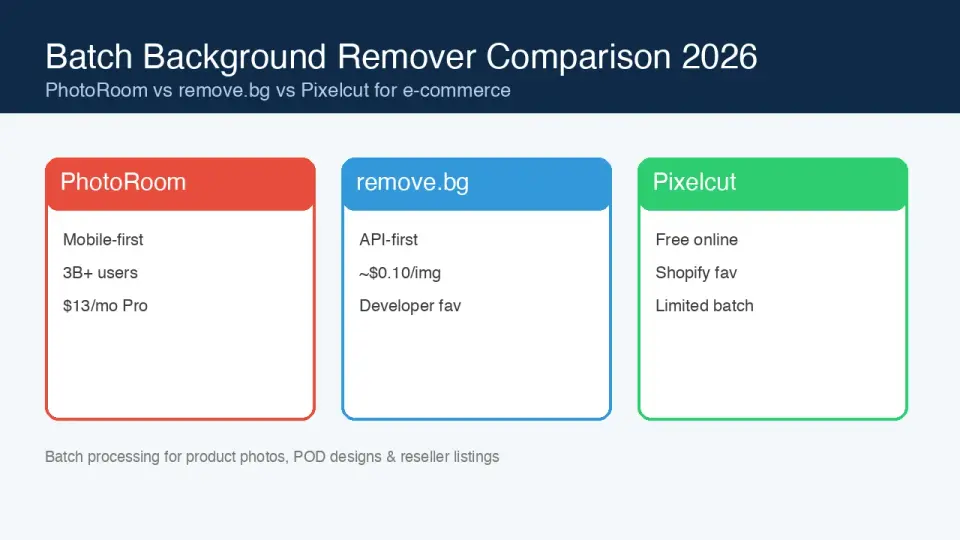
Batch Background Remover Comparison 2026: E-commerce
PhotoRoom, remove.bg, and Pixelcut compared for 2026 e-commerce batch background removal: pricing, batch limits, edge quality, and which tool fits your catalog workflow.

2026-10-07
remove.bg Is Shutting Down on December 1: What to Use Instead
remove.bg closes on 1 December 2026 and unused credits expire that day. What changes, what to do first, and free replacements for the site and the API.