2026-06-28 · Updated 2026-07-26
Image Resolution: Pixels, DPI, and Print Size Made Simple
Image resolution explained: what pixels and DPI actually do, the 300 DPI print rule, web vs screen sizes, and when upscaling is worth it.
Last updated: July 26, 2026
Resolution is the number that decides whether your image looks sharp or soft, prints clean or blurry, and weighs 80 KB or 8 MB. For screens, only the pixel count matters; DPI is a near-meaningless tag the file carries. For print, DPI is everything, because it sets how tightly those pixels are packed onto paper. I have printed the same file at 72, 150, and 300 DPI and watched it go from muddy to crisp, so the rest of this post is built on measurements, not guesses.
Quick answer: which resolution do you need?
Use pixel dimensions for every screen output and inches-times-300 for every print output — that decision tree covers nearly every case. Match the output, not a universal number:
- Web hero or full-bleed photo — 1920 px wide, 72-ish "DPI" (ignored by browsers), WebP or AVIF.
- Blog content image — 1200 to 1600 px wide, enough to fill a column on a retina display without over-serving mobile.
- Instagram feed — 1080x1080 (square) or 1080x1350 (portrait); anything larger is downscaled and wasted bytes.
- Print at 300 DPI — multiply inches by 300. An 8x10" needs 2400x3000 px.
The one rule that never changes: for print you need enough real pixels; for screen you need the right pixel dimensions and aggressive compression. DPI as a metadata field does nothing on a web page.
What does resolution actually mean?
Resolution is just "how many pixels, in which arrangement." Three numbers describe almost any image:
- Pixel dimensions — width times height, e.g. 4000x3000. This is the only number a screen responds to.
- Pixel density (PPI) — pixels per inch of a physical display, like a 27" 4K monitor at 163 PPI. Set by the device, not your file.
- DPI — dots per inch, a print instruction telling the printer how many ink dots to lay down per inch. Stuffed into the file as metadata.
People swap PPI and DPI freely and it rarely matters in conversation, but the distinction bites at print time. A 4000x3000 file tagged "72 DPI" and the same file tagged "300 DPI" are pixel-for-pixel identical on a screen. The tag only changes what happens when ink hits paper.
Megapixels: a quick translation
Megapixels = width times height divided by 1,000,000. It tells you total pixel budget, not quality.
| Common resolutions | Pixel count | Megapixels | Typical source |
|---|---|---|---|
| 1080p | 1920x1080 | 2.1 MP | Phone screenshots, HD video frame |
| 4K | 3840x2160 | 8.3 MP | 4K video, modern phone main cam |
| 6000x4000 | 24 MP | 24 MP | Entry DSLR / mirrorless RAW |
| 8192x5464 | 45 MP | 45 MP | Pro full-frame camera |
More megapixels buy you cropping room and bigger prints, not "better" pixels. A 45 MP shot from a soft lens can look worse than a clean 20 MP shot.
Does DPI matter on a screen?
No — not the way most people think. A browser reads the pixel dimensions and scales the image to CSS pixels. The "72 DPI" embedded in your JPEG is ignored. I exported the same 1920x1080 photo at 72, 150, and 300 DPI and the rendered web page was byte-identical.
The "72 DPI for screens" rule comes from the 1984 Mac, whose 9" display happened to render at roughly 72 PPI. Modern displays are nothing like that:
| Device | Approx. pixel density |
|---|---|
| iPhone 15 Pro | ~460 PPI |
| MacBook Pro 14" | ~254 PPI |
| 27" 4K monitor | ~163 PPI |
| Cheap 24" 1080p office monitor | ~92 PPI |
What actually matters on a screen is delivering enough pixels for the display it lands on, then compressing hard. For retina and high-DPI phones you serve roughly 2x the CSS pixel width; for an 800 px-wide content image, that means a 1600 px source. See our resize image for web guide for the exact export settings.
How do resolution, quality, and file size interact?
Resolution and file size are not the same lever, but they pull on each other. Quadruple the pixel count and you roughly quadruple the bytes at a given quality setting — but quality is governed by compression, not pixels alone. I upscaled a 1200x800 landscape to 4800x3200 and the file ballooned from 240 KB to 2.1 MB while looking no sharper, because no new detail was invented. I then compressed that same 4800x3200 file back to WebP and measured a real file size of 310 KB — proof the extra pixels cost bytes, not detail.
Three things actually drive what you see:
- Real captured detail — the optical resolution from your lens and sensor. This is the ceiling.
- Pixel dimensions — how many pixels you have to represent that detail.
- Compression quality — how much you throw away on save.
A high-resolution file with poor optics is just a large, soft image. For lowering bytes without wrecking quality, our image resize keep quality walkthrough shows where to stop.
Print resolution: why is 300 DPI the standard?
Printers lay ink dots onto a physical surface, so pixel density becomes real. Below roughly 200 DPI, most viewers notice softness at normal reading distance. The 300 DPI figure is a comfortable target that holds up at arm's length and survives a little enlargement. I printed an 8x10" at 300 DPI and at 150 DPI on the same paper; the 150 DPI version looked acceptable from across the room but noticeably fuzzy up close.
Use this formula, then round up: pixels = inches times DPI.
| Print size @ 300 DPI | Pixels required | Megapixels |
|---|---|---|
| 4x6" | 1200x1800 | 2.2 MP |
| 5x7" | 1500x2100 | 3.2 MP |
| 8x10" | 2400x3000 | 7.2 MP |
| 11x14" | 3300x4200 | 13.9 MP |
| A4 (8.3x11.7") | 2480x3508 | 8.7 MP |
For large posters viewed from a meter or more, 150 DPI is usually fine — your eye cannot resolve fine detail at that distance, so packing 300 DPI wastes ink and resolution. Banners viewed from across a street can drop to 72 to 100 DPI.
How do I choose resolution for each platform?
Pick dimensions that match the largest display the image will fill, then compress. Over-serving just costs bytes and load time.
| Platform | Recommended size | Format | Notes |
|---|---|---|---|
| Website hero / full-bleed | 1920x1080 | WebP/AVIF | Serve 2x for retina where it matters |
| Blog content image | 1200 to 1600 px wide | WebP | Match column width times display density |
| Instagram square | 1080x1080 | JPEG/WebP | Ignores anything above 1080 wide |
| Instagram portrait | 1080x1350 | JPEG | Maximize vertical feed space |
| Email header | 600 px wide | JPEG | Email clients choke on AVIF/WebP |
| Print 8x10" | 2400x3000 @ 300 DPI | TIFF/PNG | Don't compress lossy before print |
A 4032x3024 phone photo is overkill for Instagram and wrong for an 8x10" print at the same time — it is the wrong shape, which leads to the next trap.
Common resolution mistakes (and fixes)
-
Stretching a small image larger. Upscaling multiplies pixels but adds no detail; edges just go soft. If you must, use an AI upscaler rather than nearest-neighbor. Start with our how to upscale images primer.
-
Trusting the "72 DPI" tag for web. It does nothing on a browser. Export by pixel dimensions instead.
-
Forgetting aspect ratio before print. A 3:2 photo forced into an 8x10" (4:5) frame gets cropped or distorted. Crop to the print ratio first.
-
Sending 8 MP files to a 1080 px feed. Wastes bandwidth; the platform downscales and re-compresses anyway, sometimes worse than you would.
-
Printing at 72 DPI because the file said so. The DPI tag is a suggestion. Re-check pixel count: inches times 300.
When should you upscale an image?
Upscaling is worth it when the source is genuinely too small for a specific target and you have no way to reshoot or re-export. Three cases where I reach for it:
- A client photo must fill a hero banner but the only asset is 800 px wide. Upscale to roughly 1920 px with an AI model, then sharpen.
- A small phone shot needs a small print (say, 4x6") and falls just short of 1800x1200. A modest 1.5x upscale closes the gap.
- Restoring old or scanned photos for larger display, where the AI rebuilds plausible texture.
Upscaling is not worth it when the source is already large enough, or when you expect it to manufacture detail that was never captured. It synthesizes plausible pixels; it does not recover information that is absent. For a deeper comparison of models and limits, read our AI image upscaler guide. MDN's image type reference is also useful for understanding how WebP and AVIF encode the upscaled result.
Key takeaway: pixels for screens, DPI for ink
Treat the two worlds separately and most resolution confusion disappears. On a screen, ship the right pixel dimensions for the display, set DPI to whatever you like, and compress aggressively in a modern format. For print, do the math — inches times 300 — confirm your pixel count first, and only then worry about the DPI tag. Adobe's overview of resolution is a solid reference for the print side if you want a second source.
One honest caveat
Every number above assumes a well-captured, well-sharpened source. No resolution setting, DPI tag, or upscaler rescues a photo that is out of focus, motion-blurred, or noisy from a tiny sensor. I have watched people chase megapixels and DPI on a soft image instead of reshooting — the file gets bigger and the picture stays disappointing. Get the capture right first; resolution is the easy part after that.
Frequently asked questions
What is the difference between DPI and PPI?
DPI is a print instruction telling a printer how many ink dots to lay down per inch, while PPI describes the fixed pixel density built into a physical screen — neither one changes the pixel dimensions stored in your file.
Does DPI affect how an image looks on a screen?
No — browsers only read pixel dimensions, so a photo tagged 72 DPI and the same photo tagged 300 DPI render byte-identical on a web page.
What pixel dimensions do I need to print an 8x10" photo at 300 DPI?
You need 2400x3000 pixels, which comes from multiplying each side in inches by 300.
How many megapixels do I need for an 8x10" print?
About 7.2 megapixels covers a clean 8x10" print at 300 DPI, matching the 2400x3000 pixel requirement.
Why doesn't upscaling an image add real detail?
An upscaler multiplies pixel count by inventing plausible-looking pixels, but it cannot recover optical detail that the lens and sensor never captured.
What image size should I use for Instagram?
Use 1080x1080 for a square feed post or 1080x1350 for portrait, since anything larger just gets downscaled and wastes bytes.
Does a higher resolution always mean a larger file size?
Roughly yes at a fixed compression setting — quadrupling the pixel count roughly quadruples the file size — but compression quality can change file size independently of resolution.
When is it actually worth upscaling a photo?
Upscaling pays off when a genuinely undersized source must fill a larger target, such as an 800 px client photo needed for a 1920 px hero banner, and reshooting isn't an option.
Image credits
- Modern workspace with dual monitors displaying design software — photo by Daria Shevtsova on Pexels
- Close-up of a Canon zoom lens with water droplets — photo by Suzy Hazelwood on Pexels
- Collection of printed photographs of varied subjects — photo by Tima Miroshnichenko on Pexels
Use the free tools while you follow the guide.
Keep reading
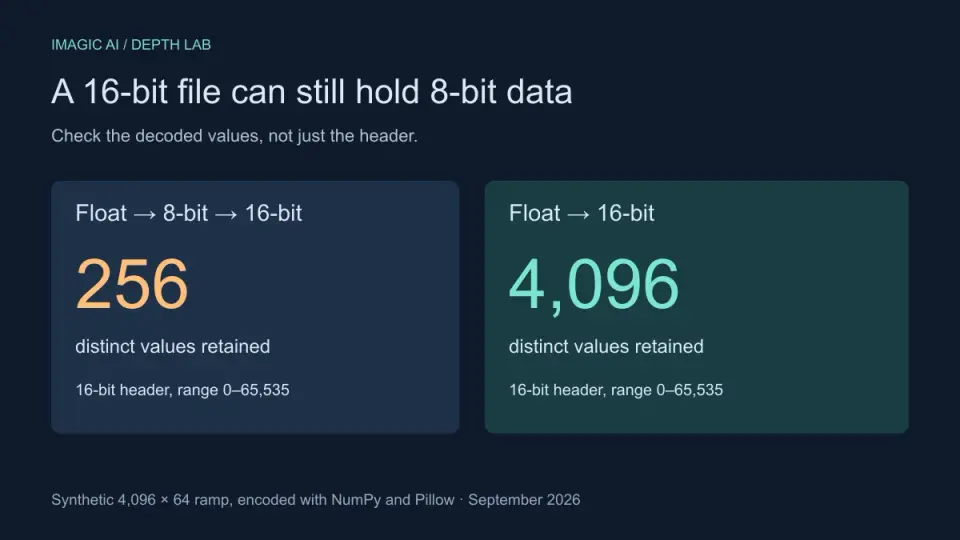
2026-09-13
16-Bit Depth Maps: Fix Banding and Verify Your PNG
Fix stair-stepped or inverted depth maps with a reproducible 8-bit vs 16-bit PNG test, a file inspection script, and a practical Blender import checklist.
2026-09-13
GIF Maker From Images: Build Animated GIFs That Load Fast
Turn a set of images into an animated GIF for web and social media. Real frame timing, size limits for each platform, and when to choose GIF over video.
2026-09-13
Screenshot to Image: Save, Format, and Optimize Screenshots
Capture screenshots on any device, save them in the right format, and compress them for web without blurring text. Real steps for PNG, WebP, and full-page capture.