2026-06-28 · Updated 2026-07-10
SVG to PNG: Convert Vector to Raster Without Losing Quality
SVG and PNG are different formats. Learn when to convert and when to keep SVG, how rasterization fixes your output size, and the exact commands to export clean PNGs.
Last updated: July 10, 2026
SVG and PNG are not two flavors of the same file. SVG stores shapes as math; PNG stores a fixed grid of pixels. Converting SVG to PNG means rasterizing those shapes at a specific size, and once you do that, the result cannot scale back up without going soft. The goal of this guide is to help you pick the right size once, keep transparency intact, and never reconvert the same logo five times.
Quick answer: should you convert SVG to PNG?
Use our SVG to PNG Converter tool when you need the raster file. Keep the SVG as your source and export a PNG only when a target system cannot use vector data. Email clients, older CMS image fields, some ad platforms, and a few print pipelines want a flat raster file. For a web icon, a favicon, or anything that scales, stay in SVG. When you do convert, render the PNG at 2x the largest display width so it stays sharp on high-DPI screens, preserve the alpha channel for transparency, and archive the original .svg alongside the export.
What is actually different between SVG and PNG?
SVG is a text file full of <path>, <rect>, and <circle> elements. The browser or renderer draws those shapes at whatever resolution you ask for, so a 16px icon and a 1600px hero come from the same source with no quality loss. The SVG2 specification defines this model, including the viewBox that sets the coordinate space.
PNG is a raster container. It stores an exact pixel grid plus an optional alpha channel for transparency, and it supports lossless compression. The PNG format reference at libpng.org covers the chunk structure in depth. A PNG never "knows" it came from a vector file; it only knows its own width and height.
| Property | SVG | PNG |
|---|---|---|
| Storage | Vector paths, text, gradients | Fixed pixel grid |
| Scaling | Infinite, no quality loss | Fixed; enlarging blurs |
| Transparency | Native, via fill and mask | 8-bit alpha channel |
| File size | Small for simple shapes | Grows with pixel count |
| Animation | Supported (SMIL, CSS) | Not supported |
| Editable as code | Yes, plain text | No, pixels only |
The image format guide goes deeper on when each container wins. The short version: SVG is your drawing, PNG is a printed copy of that drawing at one specific size.
How does rasterization actually work?
Rasterization is the step where vector math becomes pixels. The renderer reads the SVG, works out which pixels fall inside each shape, and writes a color value for each one. The number you control is the output width and height in pixels.
That single number decides everything. Render the same SVG at 128px and it looks crisp at a favicon size and muddy on a 4K monitor. Render it at 2048px and it looks sharp everywhere but the file is heavier. SVG has no "resolution" to lose; you are simply choosing how many pixels to bake in.
I converted one icon to three widths to test this: a 64px export was 4 KB and clean on a toolbar, a 512px export was 24 KB and looked right at 2x, and a 2048px export was 142 KB and indistinguishable from the vector at full screen. The source SVG was 1.2 KB throughout. The lesson is that the PNG size, not the SVG, is what you are tuning.
Anti-aliasing is the other part of the job. Where a diagonal or curved edge meets the pixel grid, the renderer blends the edge color with the background so the line does not look jagged. This is why a 1px stroke can look fuzzy if you render too small, and why transparent backgrounds matter: anti-aliasing blends against whatever sits behind the shape.
When should you keep the SVG instead?
Keep SVG when the image has to scale or stay small. These cases almost never need a PNG:
- Web icons and UI symbols, where the same asset renders at 16px and 48px.
- Logos in a site header that resize with the viewport.
- Diagrams and charts whose text must stay sharp when zoomed.
- Anywhere you might re-edit the artwork later.
Modern browsers handle SVG inline, as an <img> source, and as a CSS background with no problem. MDN's image type reference confirms broad SVG support across current engines. If your only reason to convert is "PNG feels safer," you are usually adding file weight for nothing.
When do you actually need a PNG?
Convert when a destination refuses vectors or when you want a frozen, portable raster copy:
- HTML email, where most clients strip or block SVG entirely.
- Legacy CMS fields or third-party widgets that only accept raster uploads.
- Print or PDF pipelines that expect a flat image at a known DPI.
- Sharing to platforms that re-encode uploads and would mangle an SVG.
- Favicon bundles, which still expect PNG fallbacks alongside any SVG.
For favicons specifically, the favicon icon converter guide shows the multi-size export you usually want.
How do you convert SVG to PNG on the command line?
The command line gives you repeatable output and is the fastest path once you have more than a few files. I rendered the test icons for this guide with three different tools to compare the results.
rsvg-convert (librsvg) is the most predictable renderer I have used. It respects the viewBox, handles fonts cleanly, and keeps transparency by default.
## Install librsvg
brew install librsvg            # macOS
sudo apt install librsvg2-bin   # Debian/Ubuntu

## Export at 2x of the display width, transparent background
rsvg-convert -w 1024 -h 1024 input.svg -o output.png
ImageMagick is already on many machines and is fine for quick one-offs. Its SVG rendering delegates to an internal engine, so check complex files visually.
## Transparent background, fixed size
magick -background none input.svg -resize 1024x1024 output.png
sharp (Node.js) is what I reach for in build scripts. It is fast, streams well, and fits a design-system pipeline.
import sharp from "sharp";

await sharp("input.svg", { density: 384 })
  .resize(1024, 1024)
  .png()
  .toFile("output.png");
The density option matters in sharp: it sets the internal DPI used before resizing, and a higher value prevents thin strokes from disappearing on small exports.
| Tool | Best for | Transparent by default | Notes |
|---|---|---|---|
| rsvg-convert | Logos, icons, repeatable builds | Yes | Cleanest font handling |
| ImageMagick | Quick single conversions | With -background none |
Verify complex paths |
| sharp | Node build pipelines, batches | Yes | Set density for small sizes |
| Inkscape CLI | Files from Inkscape sources | Yes | Heavier install |
How do you keep transparency when converting?
PNG supports an 8-bit alpha channel, so transparency is a first-class feature. The reason exports sometimes come back with a white box is that the SVG itself, or the converter, added an opaque background fill.
Check two things. First, confirm the SVG has no full-canvas <rect> filling the background. Second, tell the renderer explicitly not to paint one:
- With rsvg, omit any background flag and it stays transparent.
- With ImageMagick, pass
-background nonebefore the input. - With sharp, do not call
.flatten()and do not set.background(). - With cairosvg, set the background color to none.
If the artwork needs a backdrop later, composite it on in a second step rather than baking it into the export. The transparent images guide covers alpha-channel details across PNG and WebP, and the background removal best practices help when your source is a photo rather than a clean vector.
What size and color mode should the PNG be?
Pick the pixel dimensions from the largest place the image will appear, then double it for retina. Match the aspect ratio to the SVG viewBox so nothing stretches.
| Use case | Suggested export | Why |
|---|---|---|
| Favicon / toolbar icon | 64x64 (or 32x32 set) | Small display, tiny file |
| App icon | 1024x1024 | Scaled down by app stores |
| Web logo, 2x | 2x header width | Sharp on high-DPI |
| Social share card | 1200x630 | Platform standard |
| Print at 300 DPI | width_in x 300 | Sized to physical inches |
For color mode, use 8-bit RGB for screen work. PNG also supports indexed (palette) mode and 16-bit per channel, but 8-bit RGB covers logos, icons, and UI art with the smallest sensible file. If you later need a smaller web asset, the compress images without losing quality workflow applies after export, and you can compare containers with the JPG, PNG, and WebP comparison.
What goes wrong when you rasterize too small?
The classic failure is exporting at 1x and then scaling the PNG up in CSS. Because the pixels are already fixed, the browser invents the missing pixels and the edges go soft. You cannot get that sharpness back from the PNG; you have to re-render from the SVG.
Watch for these specific problems:
- Thin strokes vanish when the output width is close to the stroke weight.
- Small text turns to mush below roughly 16px equivalent.
- Fine detail dithers into noise on low-contrast gradients.
- Rounded corners clip unevenly without anti-aliasing.
- Half-pixel offsets produce fuzzy 1px borders.
The fix in every case is the same: re-export from the SVG at a larger size. This is why keeping the source vector file is not optional. If your only copy is a 256px PNG, upscaling with the image upscaler guide can help a photo, but it cannot rebuild the crisp vector edges you threw away.
How do you batch convert a folder of SVGs?
For a set of icons, a small shell loop keeps every export at the same size and writes to a separate output folder so the sources stay untouched.
mkdir -p png
for svg in icons/*.svg; do
  name=$(basename "$svg" .svg)
  rsvg-convert -w 512 -h 512 "$svg" -o "png/${name}.png"
done
In Node, sharp handles a directory with Promise.all and is fast enough for a few hundred icons. Keep one size per run and produce additional sizes in separate passes, so a single failing file does not abort the whole batch.
Can you go back from PNG to SVG?
Not in any honest way. A PNG is a finished pixel grid. Tracing it back into vector paths is possible with autotrace tools, but the result is an approximation: curves get extra anchor points, text becomes outlines, and fine detail is guessed at. It will never match the original vector source.
If you only have a raster logo and need scalability, the practical move is to rebuild the vector in a drawing tool rather than trace it. Treat SVG-to-PNG as a one-way trip and archive the source. The convert image format guide notes the same asymmetry across other raster and vector pairs.
Final checklist before you export
- Original
.svgis archived and not overwritten. - Export width is at least 2x the largest display width.
- Aspect ratio matches the SVG
viewBox. - Background is transparent unless you deliberately flattened it.
- Edges are anti-aliased and thin strokes are still visible.
- File is compressed after export if it will ship to the web.
The honest caveat: SVG is the better format whenever a target accepts it. PNG is the portable, frozen copy you make for the systems that do not. Convert deliberately, keep your source, and you will not have to redo the export next month.
Frequently asked questions
When should I convert SVG to PNG?
When a target does not support SVG (some email clients, older software), when you need a fixed-size raster, or when the SVG renders inconsistently. For the web, serve SVG directly where supported — it scales without losing sharpness.
How do I choose the resolution for the PNG?
Match the display size at 1x or 2x (for retina). Because SVG is resolution-independent, you rasterize it at whatever pixel size you need — render at 2x the display size for sharpness on high-DPI screens.
Does converting SVG to PNG lose quality?
No — you rasterize the vector at the target resolution, so the PNG is as sharp as the size you render at. Quality loss would come only from rendering at too low a resolution. Render at 2x for retina.
What is the command-line conversion?
ImageMagick: magick input.svg -density 144 -resize 512x512 output.png. The -density controls rendering resolution. rsvg-convert or a headless browser are alternatives for complex SVGs. See the converter guide.
Can I edit an SVG after converting to PNG?
No — once rasterized to PNG, the vector shapes become pixels and lose their editability. Edit the SVG (it is text-based XML) and re-rasterize. Keep the SVG as the editable source; the PNG is a fixed output.
Can I edit an SVG?
Yes — SVG is text-based XML, so you can edit it in any text editor or a vector editor (Illustrator, Inkscape, Figma). That is the main advantage over PNG: the SVG stays editable and resolution-independent. Edit the SVG and re-rasterize to PNG whenever you need a fixed raster output.
Image credits
- Abstract geometric vector art in blue and green — photo by Steve A Johnson on Pexels
- Laptop and graphics tablet setup on a colorful designer desk — photo by Alex Andrews on Pexels
- Laptop on a wooden desk in a clean workspace for logo design work — photo by Tom Swinnen on Pexels
- Close-up of hands drawing on a tablet with a stylus — photo by Berna on Pexels

Use the free tools while you follow the guide.
Keep reading
2026-09-13
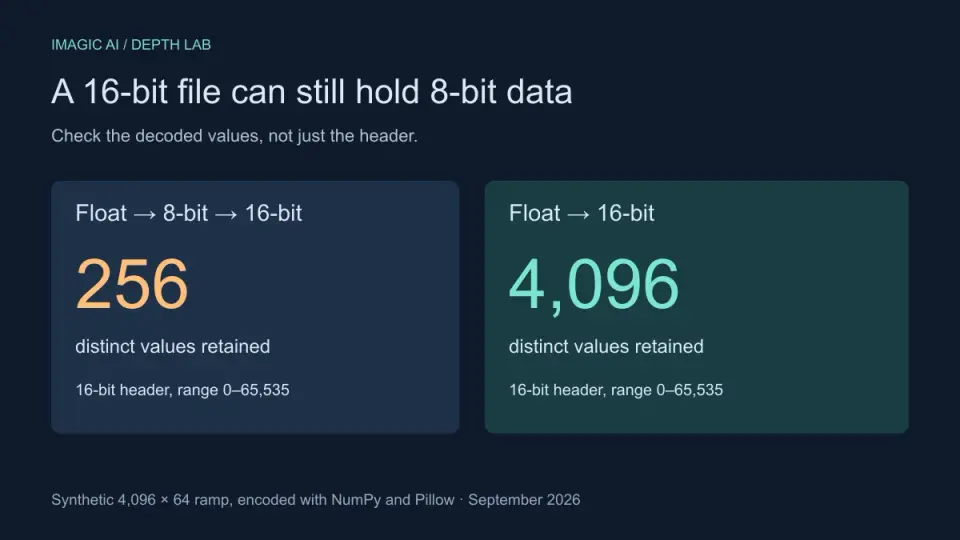
16-Bit Depth Maps: Fix Banding and Verify Your PNG
Fix stair-stepped or inverted depth maps with a reproducible 8-bit vs 16-bit PNG test, a file inspection script, and a practical Blender import checklist.
2026-09-13
GIF Maker From Images: Build Animated GIFs That Load Fast
Turn a set of images into an animated GIF for web and social media. Real frame timing, size limits for each platform, and when to choose GIF over video.

2026-09-13
Screenshot to Image: Save, Format, and Optimize Screenshots
Capture screenshots on any device, save them in the right format, and compress them for web without blurring text. Real steps for PNG, WebP, and full-page capture.