2026-06-28 · Updated 2026-07-10
SVG to PNG Converter: Rasterize Vector Graphics at Any Size
Convert SVG vector files to PNG at the exact pixel size you need. Real resolution choices, when rasterizing loses scalability, and how to export sharp PNGs from SVGs.
Last updated: July 10, 2026
SVG and PNG are fundamentally different image types. SVG is a vector format — it stores shapes as math, so it scales to any size without losing sharpness. PNG is a raster format — it stores a fixed grid of pixels, so it has one native resolution and blurs when enlarged. Converting SVG to PNG means choosing the pixel size, because once rasterized, the scalability is gone. This guide covers how to pick the right resolution, when you actually need to convert, and how to export sharp PNGs from SVGs.
Quick answer: how do you convert SVG to PNG?
Open the SVG in a converter or design tool, set the target pixel dimensions (accounting for retina if needed — export at 2x the display size), and export as PNG. Choose a size large enough for every place the PNG will be used, because you cannot enlarge a PNG later without quality loss. Use our SVG to PNG Converter tool for quick single exports, or a design tool for batch work. Keep the original SVG, because it remains the scalable source if you ever need a different size.
What is the difference between SVG and PNG?
The vector-versus-raster distinction explains everything about why and when to convert.
| Property | SVG (vector) | PNG (raster) |
|---|---|---|
| Storage | Mathematical shapes | Fixed pixel grid |
| Scaling | Infinitely, no loss | One native size, blurs when enlarged |
| Best for | Logos, icons, illustrations | Photos, complex images |
| File size | Small for simple shapes | Fixed, grows with dimensions |
| Editing | Shapes remain editable | Pixels only |
- SVG stays sharp at any resolution — a logo is crisp at 16px and 1600px from one file.
- PNG is locked to its pixel dimensions — export it too small and it cannot be enlarged cleanly.
- SVG cannot represent photographs; PNG can, which is why photos are never SVG.
When should you convert SVG to PNG?
SVG is the better format when the environment supports it, so conversion is a fallback for cases where SVG does not work. Convert when you must, keep the SVG otherwise.
- Unsupported environment — some email clients and older tools do not render SVG.
- Embedded raster requirement — a system that accepts only PNG or JPG.
- Photographic content mixed in — though in that case the source should not be SVG.
- Caching and performance — a pre-rendered PNG can be faster to serve than parsing SVG on every load.
For websites, SVG is usually preferable because it stays sharp on retina screens and downloads small. The retina display guide explains why vector graphics eliminate the resolution problem entirely for logos and icons.
How do you choose the right resolution?
The resolution decision is permanent, so it matters. Export the PNG at the largest size it will ever be displayed, multiplied by the device pixel ratio for retina sharpness.
| Display size | Export at 1x | Export at 2x (retina) |
|---|---|---|
| 64px icon | 64px | 128px |
| 256px logo | 256px | 512px |
| 1200px hero | 1200px | 2400px |
- If the PNG will be used at multiple sizes, export at the largest and let CSS scale it down.
- For retina sharpness, export at 2x (or 3x for phones) the display dimensions.
- Exporting too small is the common, unrecoverable mistake.
The math is simple: decide the largest display width, double it for retina, and export at that pixel width. The retina display guide covers the 2x and 3x workflow in detail.
How do you convert SVG to PNG?
Several methods work, depending on volume and control needs.
- Online converter — upload the SVG, set dimensions, download PNG. Fast for one-offs.
- Design tool (Figma, Illustrator, Inkscape) — open the SVG, export at chosen size. Best control.
- Command line (rsvg-convert, ImageMagick) — scriptable for batch processing.
- Browser — open the SVG, screenshot at the target size.
For batch work, the command line wins because it applies identical settings to every file. For a single important logo, a design tool gives the most control over the export options.
Batch conversion for icon sets
Converting a folder of SVG icons to PNG is common when shipping an app or a design system — you need every icon at several sizes, and doing it by hand does not scale. The batch approach applies the same export settings to every file in the set.
- Organize the SVGs into one folder, named consistently.
- Decide the export sizes (e.g. 16, 32, 64 for an icon set).
- Run a batch rasterizer that exports each SVG at each size.
- Verify a few outputs for sharpness and transparency.
| Batch task | Tool | When |
|---|---|---|
| Rasterize folder | Command-line converter | Icon sets, many sizes |
| Single export | SVG to PNG Converter | One-off graphics |
| Resize outputs | Image resizer | After rasterizing |
| Compress outputs | Image compressor | Before serving |
The advantage of batch rasterizing is consistency — every icon exports at the exact same settings, so the set looks uniform. The batch processing guide covers the broader workflow for applying operations across folders of images, and once rasterized, the PNGs can be compressed together to minimize their served size.
Common conversion mistakes
- Exporting too small — the PNG cannot be enlarged later. Export at 2x the display size.
- Losing the original SVG — always keep it; it is the scalable source for future sizes.
- Converting when SVG would work — many modern environments support SVG directly.
- Forgetting transparency — PNG supports alpha; make sure the export preserves it if needed.
- Mixing vector and raster — if the source has embedded photos, the result is a hybrid that loses SVG's advantages.
When to keep the SVG instead
The strongest default is to keep the SVG and convert only when forced. SVG serves a single file that is sharp on every screen, downloads small, and stays editable. PNG makes sense when the environment rejects SVG, when you need a fixed raster for a system requirement, or when performance demands a pre-rendered file that the browser can cache without parsing.
Converting out of convenience rather than necessity just throws away the scalability that made SVG the right choice in the first place. For the technical specifications, the W3C SVG standard defines what SVG can express, and the PNG specification documents the raster format it converts to. Match the format to the constraint — and when no constraint forces PNG, let the SVG do its job.
Frequently asked questions
What is the difference between SVG and PNG?
SVG is a vector format (shapes described mathematically, resolution-independent); PNG is raster (a grid of pixels). SVG scales without losing sharpness; PNG is fixed at its pixel dimensions. Convert SVG to PNG when you need a fixed raster image.
When should I convert SVG to PNG?
When a target does not support SVG (some email clients, older software), when you need a fixed-size raster, or when the SVG has complex effects that render inconsistently. For the web, serve SVG directly where supported.
How do I choose the right resolution?
Match the display size at 1x or 2x (for retina). Because SVG is resolution-independent, you rasterize it at whatever pixel size you need — render at 2x the display size for sharpness on retina screens.
Can I batch convert SVG to PNG?
Yes — ImageMagick (magick mogrify), rsvg-convert, or a headless browser handle folders of SVGs. For icon sets, a script renders every SVG at every size you need in one pass. See the SVG to PNG guide.
Does SVG support transparency?
Yes — SVG is vector and supports transparency natively, so an SVG with transparent areas rasterizes to a transparent PNG. This is one reason SVG suits logos and icons. JPEG would not preserve the transparency.
Does converting SVG to PNG lose quality?
No — you rasterize the vector at whatever resolution you choose, so the PNG is as sharp as the size you render at. Quality loss would come only from rendering at too low a resolution. Render at 2x the display size for sharpness on retina screens, and the PNG is indistinguishable from a native raster at that size.
Can I convert SVG to PNG at any size?
Yes — because SVG is vector and resolution-independent, you rasterize it at whatever pixel size you need, from a 16px icon to a 4000px banner, with no quality loss. That is the main advantage over raster formats. Render at 2x the display size for sharpness on retina screens. The SVG itself never loses sharpness; only the rasterized PNG is fixed at its export size.
Use the free tools while you follow the guide.
Keep reading
2026-09-13
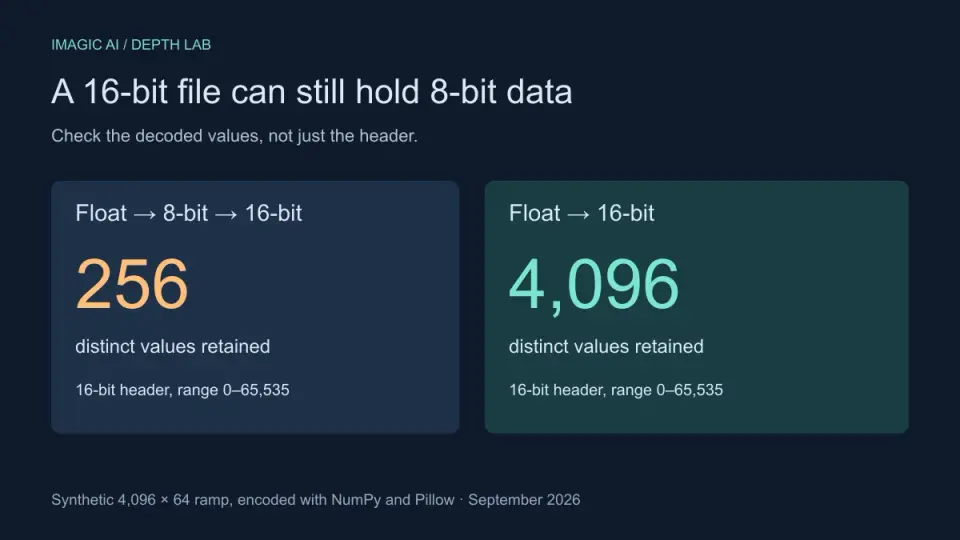
16-Bit Depth Maps: Fix Banding and Verify Your PNG
Fix stair-stepped or inverted depth maps with a reproducible 8-bit vs 16-bit PNG test, a file inspection script, and a practical Blender import checklist.
2026-09-13
GIF Maker From Images: Build Animated GIFs That Load Fast
Turn a set of images into an animated GIF for web and social media. Real frame timing, size limits for each platform, and when to choose GIF over video.

2026-09-13
Screenshot to Image: Save, Format, and Optimize Screenshots
Capture screenshots on any device, save them in the right format, and compress them for web without blurring text. Real steps for PNG, WebP, and full-page capture.