2026-03-18 · Updated 2026-07-26
PNG to WebP: How to Convert and Shrink PNG Images
Convert PNG to WebP for smaller web files. When lossless WebP wins, when lossy does, real measured sizes, and the cwebp and Pillow commands with a PNG fallback.
Last updated: July 26, 2026
PNG is the right format for sharp graphics and transparency, but its files are large — especially for anything photographic. Converting PNG to WebP keeps the sharpness and the alpha channel while cutting the bytes dramatically. The catch is choosing lossless versus lossy WebP correctly, because the right mode depends on the image content. This guide covers both, with real measured sizes.
Quick answer: should you convert PNG to WebP?
Yes for web images — WebP keeps the transparency and sharpness of PNG at a fraction of the size. Pick the mode by content:
| Content | WebP mode | Why |
|---|---|---|
| Sharp graphics, text, UI, screenshots | Lossless (-lossless) |
Keeps every pixel; ~20–30% smaller than PNG |
| Photographs stored as PNG | Lossy (-q 80) |
Far smaller; PNG was the wrong format anyway |
| Transparent graphics | Lossless (or lossy q80+) | Preserves the alpha channel |
| Logos / icons | Consider SVG instead | Even smaller and scales |
For one image, use the Image Converter; for batches, use cwebp. The format decision behind this is in image formats explained.
How much does PNG to WebP save?
It depends entirely on which WebP mode you pick, because PNG is lossless and the comparison is not apples-to-apples.
| Conversion | Measured size (one photo) | vs PNG |
|---|---|---|
| Source PNG (lossless) | 853 KB | baseline |
| WebP lossless | 568 KB | −33% |
| WebP lossy q80 | 60 KB | −93% |
| AVIF q68 | 44 KB | −95% |
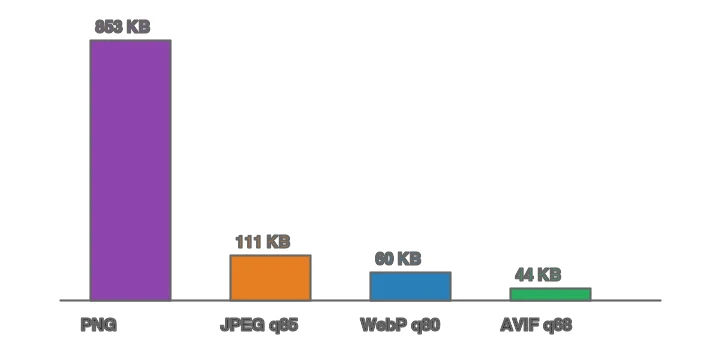
Two honest takeaways from these numbers. First, lossless WebP of a photograph is still large (568 KB) — because lossless encoding cannot throw away the noise in a photo. If the content is a photo, it should be lossy WebP, not lossless. Second, lossless WebP shines on flat graphics: on screenshots and UI art it is typically 20–30% smaller than PNG with identical pixels. Match the mode to the content.
The same source across all four formats shows where PNG sits relative to the alternatives:

Which images should stay PNG?
Some images should not be converted at all. Keep PNG when the image is a logo or icon that could be SVG instead (vector is smaller and sharper), or when you are delivering to a system that requires PNG specifically — some print pipelines, some legacy editors, and most design-tool exchanges expect PNG. For a single tiny icon (under ~3 KB), the conversion is not worth the pipeline complexity; leave it as PNG. The decision rule is the same one in image formats explained: convert PNG to WebP when the bytes matter and the destination is a web browser, keep PNG when compatibility or a vector alternative matters more.
Method 1: Browser converter
For one image, use the Imagic AI Image Converter: upload the PNG, choose WebP, pick lossless for graphics or quality ~80 for photos, and download. Squoosh is good for comparing lossless vs lossy side by side before you commit.
Method 2: cwebp command line
## Lossless WebP (best for graphics, screenshots, sharp text, transparent UI)
cwebp -lossless input.png -o output.webp

## Lossy WebP (best if the PNG is actually a photo)
cwebp -q 80 input.png -o output.webp

## A folder of PNGs, lossless, in parallel
mkdir -p out
ls *.png | xargs -P 4 -I {} cwebp -lossless {} -o out/{}.webp
-lossless is the key flag — without it, cwebp defaults to lossy, which blurs thin edges. Always pass -lossless for graphics and screenshots.
Method 3: Python (Pillow)
from PIL import Image
from pathlib import Path

def png_to_webp(src: Path, dest: Path, lossless: bool = True, quality: int = 80):
    with Image.open(src) as img:
        img.save(dest, "WebP", lossless=lossless, quality=0 if lossless else quality, method=6)

for f in Path("assets").glob("*.png"):
    # lossless for sharp graphics; switch to lossless=False for photographic PNGs
    png_to_webp(f, Path("out") / f"{f.stem}.webp", lossless=True)
When lossless=True, the quality value is ignored; when lossy, set it to ~80 for photos.
Does WebP keep PNG's transparency?
Yes. WebP supports a full alpha channel in both lossy and lossless modes, so a transparent PNG becomes a transparent WebP with no extra work. This is the main reason to convert UI assets and product cutouts: you keep the transparency and lose most of the bytes. For the transparency specifics, see how to make transparent images.
How do you serve WebP with a PNG fallback?
WebP support is ~98%, but keep a PNG fallback for old clients and email:
<picture>
  <source srcset="/img/icon.webp" type="image/webp">
  <img src="/img/icon.png" alt="Description" width="200" height="200" loading="lazy">
</picture>
The browser picks the first type it supports; the PNG <img> is the final fallback. For sharp graphics, reserve width/height so the layout does not shift. See the WebP converter guide for the full fallback pattern including AVIF.
When is PNG to WebP the wrong move?
- Email. Many email clients ignore WebP. Keep PNG (or JPEG) for email.
- When you need a JPEG instead. If the PNG is a photo for a marketplace that only accepts JPEG, convert to JPEG, not WebP. See WebP to JPG.
- Old embedded browsers without WebP support — though the
<picture>fallback covers this. - When the PNG is already tiny. A 2KB icon gains little from conversion; the pipeline cost is not worth it.
Common mistakes
- Using lossy WebP for sharp graphics. Lossy blurs thin edges and text. Use
-losslessfor screenshots and UI. - Using lossless WebP for photos. It stays large because lossless cannot drop photographic noise. Use lossy.
- Dropping the PNG fallback. Old browsers and email need the PNG
<img>. - Forgetting to resize first. A 4000px WebP is still a 4000px download, whatever the format.
- Treating PNG as a photo format. If the image is a photo, it was probably JPEG/RAW to start — convert from the right source.
Frequently asked questions
How much does converting PNG to WebP save?
For photographic content, 25 to 35 percent smaller at equal quality; for flat graphics with transparency, often more. WebP supports both lossy and lossless modes plus an alpha channel, so it covers what PNG does at a smaller size.
Should every PNG become WebP?
For web delivery, yes, with a PNG fallback for very old browsers. Keep the PNG master if you may re-edit, because WebP lossy is a generation of compression. Serve WebP through a <picture> element with PNG fallback.
Does WebP support transparency?
Yes — WebP supports a full alpha channel, so transparent PNGs convert cleanly. This is the main reason to prefer WebP over JPEG for graphics with transparency. See the transparent images guide.
What is the command-line conversion?
cwebp -q 80 input.png -o output.webp. The -q flag sets quality (80 is the web default). For lossless, use -lossless. Batch with a shell loop or ImageMagick. See the WebP converter guide.
Does WebP support animation?
Yes — WebP supports animated images, smaller than equivalent animated GIFs. For short loops, animated WebP is a modern alternative to GIF. For longer animation, video (MP4) is still smaller and better.
Should I convert PNG to WebP lossy or lossless?
Lossy for photographs (far smaller, invisible loss at quality 80); lossless for graphics, text, and masters where every pixel must be exact. WebP supports both. A common mistake is converting a logo lossy, which adds artifacts to the sharp edges — keep graphics lossless, convert photos lossy.
What is the cwebp quality flag?
The -q flag sets lossy quality on a scale of 0 to 100 — 80 is the web default (invisible loss, roughly a quarter of the bytes of quality 100). Use -lossless instead of -q for graphics where every pixel must be exact. Higher quality means a larger file with diminishing visible returns; 80 is the practical sweet spot for web delivery of photographs.
Does converting PNG to WebP speed up my site?
Yes, measurably — WebP is 25 to 35 percent smaller than PNG for the same content, so pages with many graphics load faster and LCP improves. The saving compounds across a page with dozens of icons or graphics. Serve WebP with a PNG fallback so older browsers still render the images, and you get the speed without losing compatibility.
Image credits
- PNG-to-WebP comparison and size bar chart — generated by the author from an ecommerce-style photograph (Pexels #16675632, photo by Mikael Blomkvist) to show real measured PNG-to-WebP savings.
Use the free tools while you follow the guide.
Keep reading
2026-09-10
Image Blurry After Export? 7 Fixes That Target the Cause
Fix an image blurry after export by checking pixels, compression and upload changes. See measured examples, PNG vs JPEG choices, and seven practical fixes.
2026-08-01
Image Compression in 2026: WebP, AVIF, JPEG XL & JPEG AI Benchmarked
I benchmarked WebP, AVIF, and JPEG XL on 4 real photos. WebP saves 32% vs JPEG, AVIF 65%, JPEG XL 30%. Full data, browser support, and which format to pick in 2026.
2026-07-26
Image Optimization Checklist: Every Step for Fast Web Images
A complete image optimization checklist: format choice, resizing, compression, responsive delivery, lazy loading, and CDN setup. Run through it before every publish.