2026-06-27 · Updated 2026-07-26
AI Presentation Makers: From Outline to Finished Deck
How AI presentation makers build slide decks from an outline, where they save a founder or marketer real time, and where you still edit by hand.

Last updated: July 26, 2026
You have a board update due Thursday, a half-written narrative in a doc, and no clean deck. An AI presentation maker promises to turn that mess into slides in a few minutes. Sometimes it does. Sometimes it hands you 18 symmetrical slides that say nothing.
This article is for the person who actually presents: a founder pitching investors, a marketer briefing a launch, a consultant shipping a client readout. It covers what these tools do well, where they fall down, and the order of operations that gets you to a deck you would put your name on.
Quick answer: what does an AI presentation maker actually do?
An AI presentation maker takes a prompt, an outline, or a document and generates a full slide deck: layout, headings, bullet text, stock imagery, icons, and a consistent theme. Tools like Gamma, Copilot in PowerPoint, Gemini in Google Slides, Beautiful.ai, and Canva all do a version of this.
Treat it as a fast first draft, not a finished deck. The generator is strong at structure and layout and weak at judgment. It will format your argument, but it will not know which number matters or which slide to cut.
The fastest path looks like this:
- Write the argument first as a tight outline or a short doc.
- Generate the deck from that outline, not from a one-line prompt.
- Cut every slide that does not move the story forward.
- Replace generic stock art with real product shots, charts, or screenshots.
- Fix contrast, alignment, and file size before you present.
If you only have a vague topic, the AI will fill the gap with filler. Give it your thinking and it formats your thinking. Give it nothing and it invents nothing useful.
How does AI turn an outline into slides?
Most generators run the same loop under the hood. They parse your input into sections, assign each section a slide template, write headline and body copy to fit that template, then pull images and icons to match the theme you picked.
The quality of the output tracks the quality of the input almost exactly. A one-line prompt like "make a deck about our Q2 results" produces a generic template. A structured outline with real section titles and the points under each one produces a deck you can edit instead of rewrite.

A few inputs that consistently improve the draft:
- An outline with one clear claim per section, not a topic list.
- The exact numbers you want on screen, written out so the AI does not paraphrase them.
- A named audience, such as "Series A investors" or "regional sales leads."
- A target length, because left alone these tools over-produce slides.
If your outline lives in meeting notes or a transcript, clean it up first. The same habit that helps with AI note-taking helps here: a structured summary makes a far better deck input than raw notes. For the narrative itself, drafting in a doc with AI document writing and then generating slides from that doc keeps the story tight before the layout ever happens.
Which AI presentation tool fits your deck?
There is no single best tool. The right one depends on whether you live in PowerPoint, Google Slides, or a web app, and how much design control you need.
| Tool | Best for | What it does well | Watch for |
|---|---|---|---|
| Gamma | Fast web decks, internal updates | Prompt-to-deck speed, clean defaults | Hard to match strict brand templates |
| Copilot in PowerPoint | Teams already in Microsoft 365 | Builds from a Word doc, edits in place | Needs a paid Copilot license |
| Gemini in Google Slides | Google Workspace users | Image generation, in-doc drafting | Layout control is limited |
| Beautiful.ai | Consultants who reuse layouts | Smart templates that auto-arrange | Less freeform than raw slides |
| Canva Magic Design | Marketers, social-heavy decks | Large asset library, on-brand kits | Output can look templated |
Pick the tool that exports cleanly into the format your audience expects. A pitch you will send as a PDF has different needs than a live deck you screen-share. Microsoft documents how its generator works in the Copilot help center, which is worth a look before you buy a license for it.
If your deck leans on data, the deciding factor is often how well the tool ingests tables and charts. Build the numbers in a sheet first, lean on AI spreadsheet workflows to get clean figures, then paste finished charts into the deck rather than letting the generator redraw them.
Where AI design automation saves the most time
Design automation earns its keep on the boring, repetitive layout work, not on the thinking.

Here is the honest split between what the AI handles and what still lands on you.
| AI handles well | You still finish by hand |
|---|---|
| Consistent fonts, spacing, and color theme | Deciding which slide to cut |
| Turning a paragraph into bullets | Writing the one line that lands the point |
| Suggesting layouts for each slide type | Choosing the right chart for the data |
| Generating icons and placeholder images | Swapping in real product shots |
| Resizing and aligning elements | Checking that numbers are accurate |
The pattern is clear: AI is fast at form and unreliable at meaning. It will make ten slides look like one family in seconds, which used to eat an afternoon. It will also confidently put a pie chart where a bar chart belongs, because it has no opinion about your data.
For the visual layer, pair the generator with focused tools. Use AI design generator ideas for layout direction, and when you need original slide art instead of stock photos, an AI image generator gives you visuals nobody else's deck has.
A repeatable workflow for an AI-assisted deck
Use this order. It keeps the AI in its lane and keeps you responsible for the parts that matter.
- Outline first. Write the argument in a doc, one claim per section.
- Generate the draft. Feed the outline, set a slide count, pick a theme.
- Cut hard. Delete slides that repeat a point or just pad the count.
- Fix the data. Swap paraphrased numbers for real figures; fix chart types.
- Swap the art. Trade stock images for product shots or charts.
- Clean the images. Crop, resize to 16:9, and compress.
- Check contrast. Read every slide as if from the back of a room.
- Export and rehearse. Save the final format and run it once out loud.
The image step is where most AI decks leak quality. Generated stock photos often arrive oversized or the wrong shape. Run them through an image resizer for a consistent 16:9 frame, an image compressor so the deck stays light enough to email, and a background remover when you drop a product or headshot onto a colored slide.
Slides are read fast and often in bad lighting, so legibility is not optional. The W3C sets a concrete floor for text contrast in its WCAG contrast guidance, and a quick pass against that standard catches the pale-gray-on-white slides AI themes love to produce.
When should you skip the AI generator?
Sometimes the generator costs you more time than it saves.
Skip it, or use it lightly, when:
- The deck is three slides. Hand-building is faster than prompting and pruning.
- The content is highly confidential and you cannot paste it into a third-party tool.
- You have a locked brand template the AI cannot reproduce.
- The data is the whole point and needs precise, hand-built charts.
- You are presenting numbers you must defend line by line.
For a board meeting or an investor pitch, the AI can lay out the shell, but the financial slides deserve a human. A wrong figure on screen is worse than an ugly slide. When accuracy and trust are the product, slow down on the parts the generator gets wrong.

Fixing slide visuals after the first draft
The first draft is when the deck looks generic. The fixes are quick and they are what separate an AI template from your deck.
Run this short pass on the visuals:
- Replace at least one stock photo per section with something real from your work.
- Make every chart match its data: trends as lines, comparisons as bars, parts as stacks.
- Keep one accent color and use it on purpose, not on every element.
- Standardize image crops so faces and products sit in the same spot across slides.
- Compress final exports; a 60 MB deck stalls on a conference connection.
Microsoft keeps a practical reference on making decks readable for everyone in its guide to accessible PowerPoint presentations, which is useful even if your audience has no stated accessibility needs, because the same rules make slides clearer in a bright room.
If you get stuck choosing tools, the short answers in the FAQ and the full set of image utilities on the Imagic AI home page cover the cleanup steps that AI generators routinely skip.
The short version
An AI presentation maker is a layout engine with no taste and no facts. Give it a real outline and it saves you an afternoon of formatting. Hand it a vague prompt and it hands you filler back.
Write the argument yourself, generate the shell, then cut slides, fix the data, and replace the art. The tool builds the deck. You still own the story.
Image credits
Article images are sourced from Pexels and stored locally for stable page rendering.
Use the free tools while you follow the guide.
Keep reading
2026-09-13
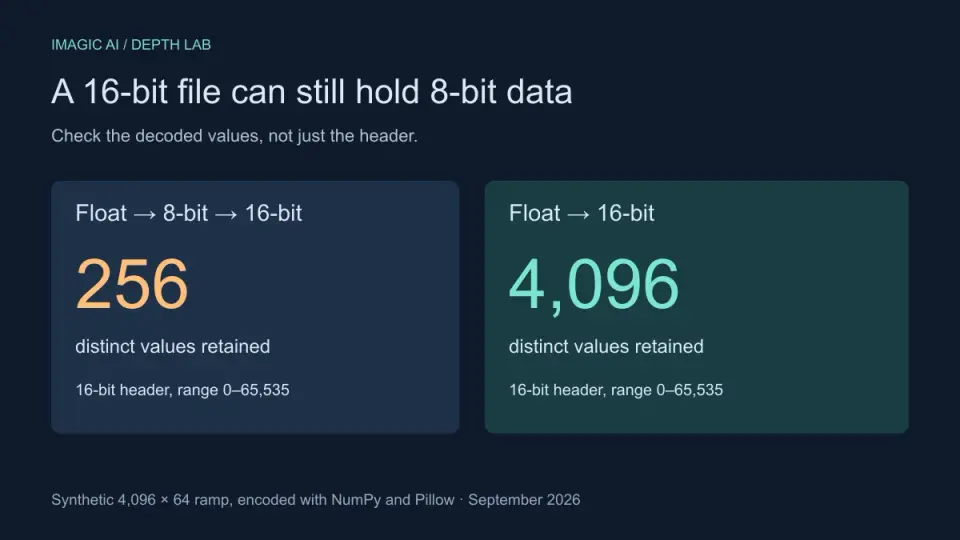
16-Bit Depth Maps: Fix Banding and Verify Your PNG
Fix stair-stepped or inverted depth maps with a reproducible 8-bit vs 16-bit PNG test, a file inspection script, and a practical Blender import checklist.
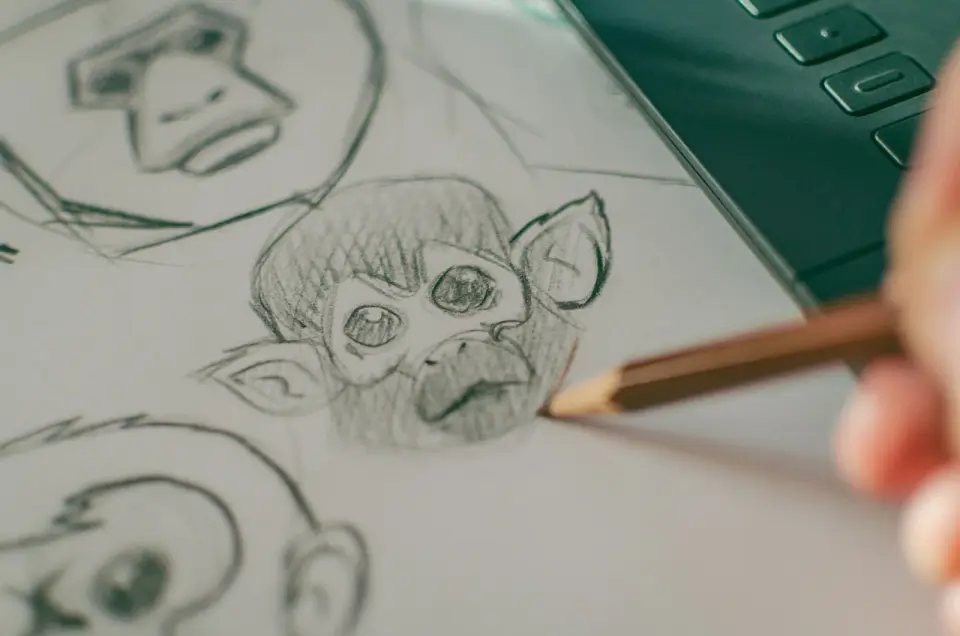
2026-09-13
GIF Maker From Images: Build Animated GIFs That Load Fast
Turn a set of images into an animated GIF for web and social media. Real frame timing, size limits for each platform, and when to choose GIF over video.

2026-09-13
How to Blur Faces and License Plates Before You Post
Blur or pixelate faces and license plates so they stay unreadable. Which method actually anonymizes, what fails, and how to avoid leaking EXIF location data.