2026-04-04 · Updated 2026-07-28
AI Audio to Text: Practical Transcription Workflow
Turn interviews, calls, podcasts, and videos into usable transcripts with a clean AI audio-to-text workflow, review checklist, and export choices.
Last updated: July 28, 2026
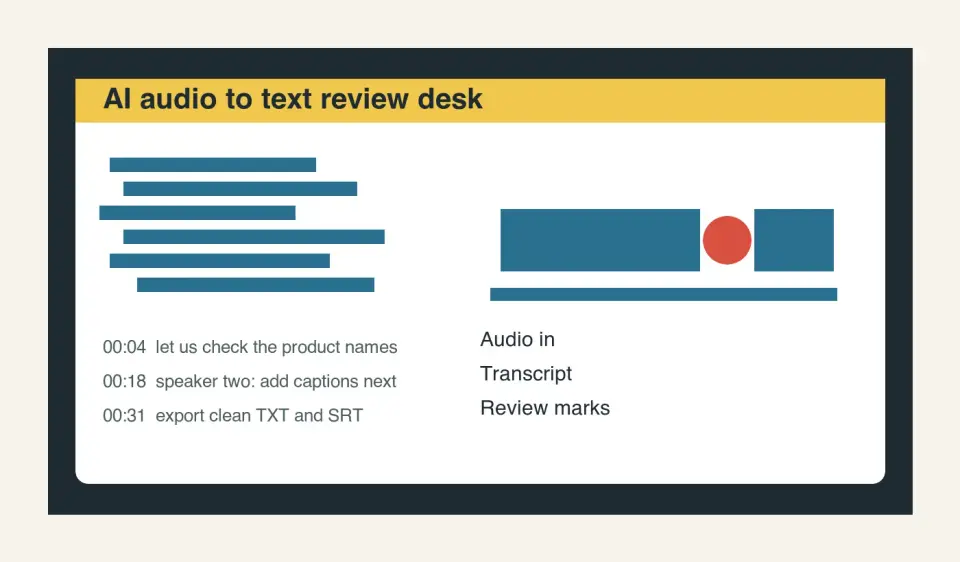
AI audio to text is useful only when the transcript can be trusted enough to quote, search, caption, or hand to a client. The hard part is not pressing upload. The hard part is recording clean input, choosing the right output, and reviewing the words that an automatic model is most likely to miss.
Quick answer: how do you turn audio into accurate text?
Use the cleanest recording you can get, upload the original audio instead of a compressed screen recording, turn on speaker labels when there is more than one person, then review the transcript against the audio before publishing. A good transcript workflow has four passes: capture, transcription, cleanup, and export.
For a short meeting recap, TXT or DOCX is enough. For video, export SRT or VTT so the lines can become captions. For research calls, keep timestamps and speaker names so quotes are traceable later.
Do not treat AI transcription as a final editor. It can miss product names, accents, crosstalk, legal disclaimers, and numbers. Build a measured spot check into the process: listen to the first minute, a middle minute, and every section with names, prices, dates, or medical/legal language.
What should you prepare before uploading audio?
The best transcript is usually won before the file reaches the AI tool. Speech models handle normal pauses and filler words well, but they still struggle with clipped peaks, background music, overlapping speakers, and weak microphones across a conference room.
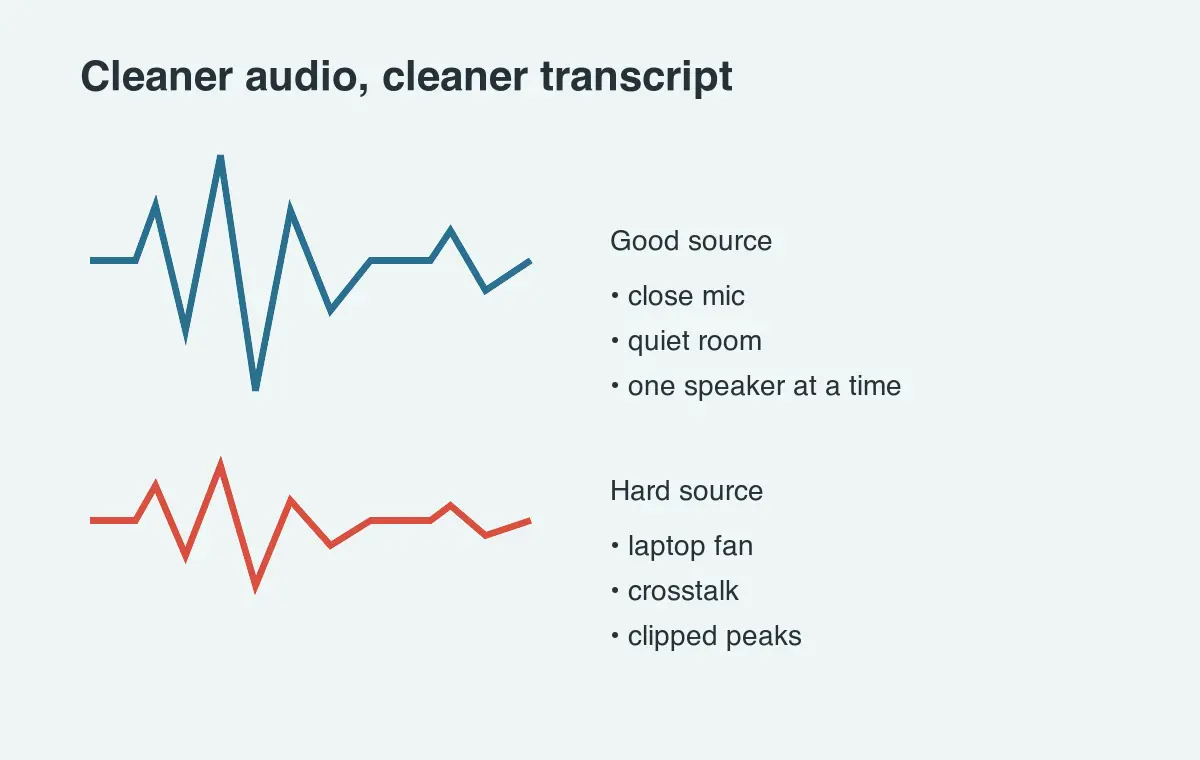
Use this checklist before a podcast, interview, webinar, or customer call:
- Record with the microphone close to the speaker, not across the room.
- Ask people to mute notifications and laptop fans when possible.
- Record separate tracks for host and guest when your tool supports it.
- Keep the original WAV, M4A, or high-bitrate MP3 file until the transcript is approved.
- Say important names slowly once at the start, especially company names and acronyms.
- Avoid music under speech if the transcript will become captions.
- Mark sensitive sections during the call so they get a manual review later.
For browser-based transcription, MDN's Web Speech API documentation is a useful reminder that speech recognition support and behavior can vary by browser. For production or client work, avoid depending on one browser feature unless you have tested it on the devices your team uses.
| Source problem | What it does to the transcript | Fix before or during recording |
|---|---|---|
| Speaker is far from the mic | Words become guesses, especially endings | Move the mic closer or use a headset |
| Two people talk at once | Speaker labels and sentence breaks fail | Pause and repeat the important answer |
| Background music under voice | Captions drop short words and punctuation | Export a voice-only track |
| Clipped audio peaks | Loud words turn into nonsense | Lower input gain and test 20 seconds |
| Heavy jargon or names | Proper nouns get replaced by common words | Add a glossary or review those lines manually |
Which AI audio-to-text settings matter?
Most transcription interfaces hide the model details, but the practical settings are similar. Choose the options that preserve context for the job you need to finish.
| Setting | Use it when | Skip it when |
|---|---|---|
| Speaker labels | Interviews, panels, sales calls, podcasts | One narrator reads a script |
| Timestamps | You need quotes, captions, or edit notes | The transcript is only for rough notes |
| Verbatim mode | Legal review, usability research, exact quotations | You want a readable article draft |
| Auto punctuation | Almost always | You plan to rebuild punctuation manually |
| Custom vocabulary | Product names, people, drug names, acronyms | The audio uses ordinary language |
| Translation | You need a separate language output | You only need same-language transcription |
If the tool lets you provide a glossary, add terms before upload. Include spellings such as brand names, people's names, SKU codes, feature names, and acronyms. A glossary is boring setup work, but it prevents the most visible mistakes.
For API-based pipelines, OpenAI's audio and speech guide documents common speech-to-text inputs and outputs. Even if you use another provider, the same practical questions apply: what file formats are accepted, whether timestamps are available, how long files can be, and how privacy is handled.
How do you review an AI transcript without rereading everything?
Review by risk, not by page count. A clean one-hour interview can be approved faster than a messy ten-minute customer call if the long recording has one speaker and no sensitive details.
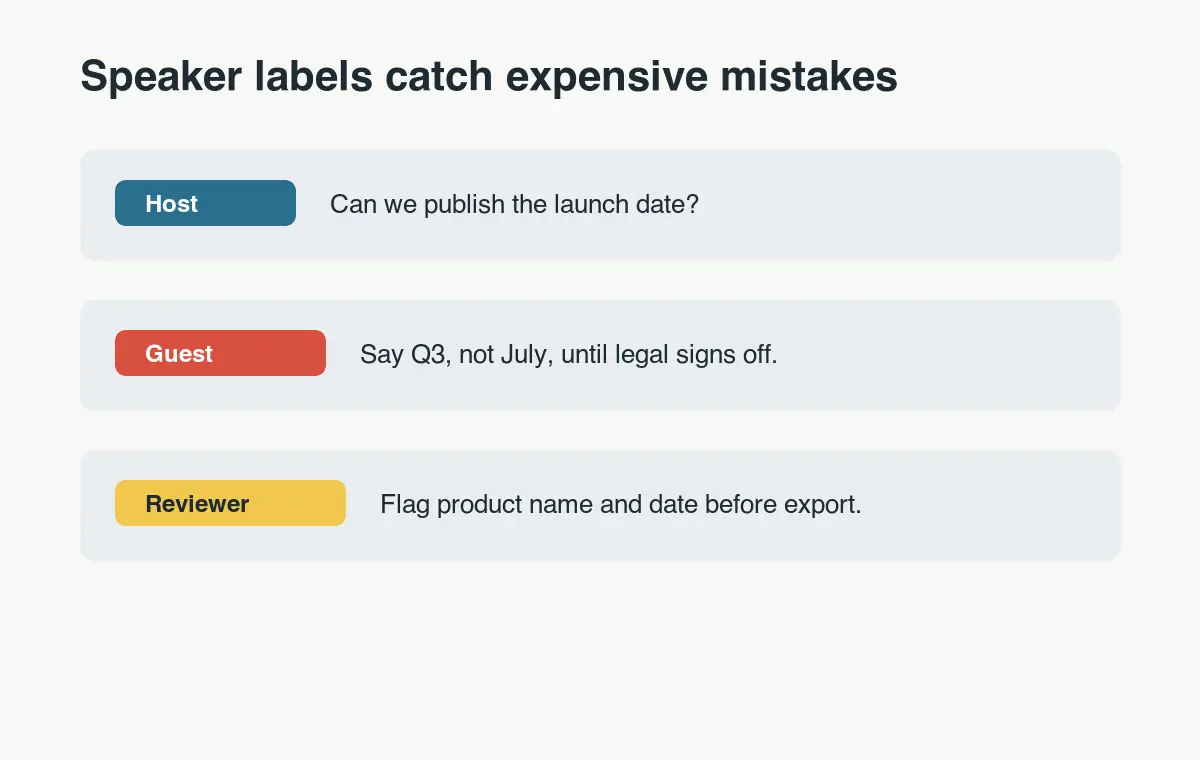
Use this order when time is limited:
- Check the first minute to confirm the tool understood the voices.
- Search for
[inaudible], blank timestamps, repeated words, and obvious hallucinated phrases. - Review every proper noun: people, products, cities, companies, and file names.
- Review every number: prices, dates, dosages, percentages, phone numbers, and times.
- Listen to sections where two speakers overlap.
- Compare the ending, because sign-offs often include next steps and deadlines.
- Export a clean copy only after speaker labels and timestamps are stable.
The point is to catch mistakes that change meaning. If someone says "do not ship the draft" and the transcript says "ship the draft," formatting polish does not matter yet.
For captions, review line breaks separately. The W3C's WCAG 2.2 guidance for prerecorded captions explains why synchronized text matters for video accessibility. If a transcript will become subtitles, the timing and line length need as much attention as the words.
What export format should you choose?
Pick the export based on the next workflow, not the file extension you recognize. The same transcript may need two exports: a readable DOCX for a client and an SRT file for the video editor.
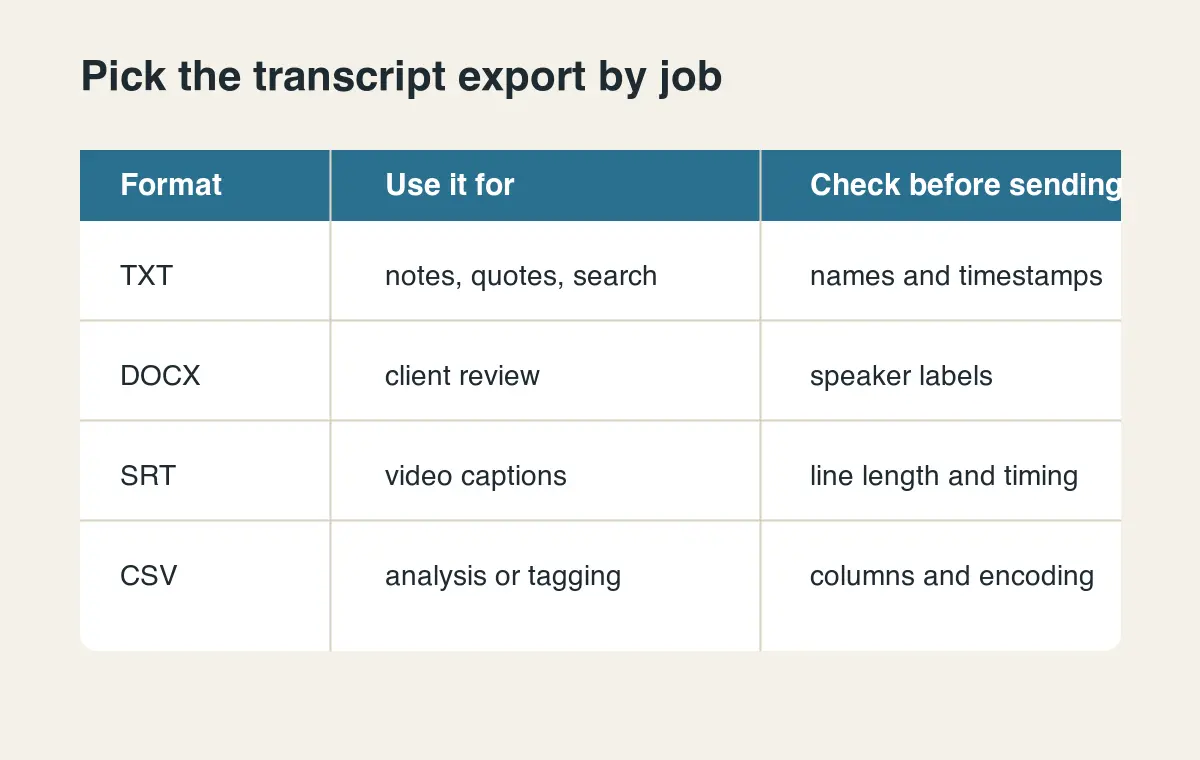
| Output | Best for | Check before sending |
|---|---|---|
| TXT | Searchable notes, quote banks, AI summaries | Speaker labels and paragraph breaks |
| DOCX | Client review, editing, legal comments | Track changes, headers, and names |
| Locked read-only transcript | Accessibility tags and selectable text | |
| SRT | Video captions and social clips | Timing, line length, and reading speed |
| VTT | Web video captions | Cue timing and browser/player support |
| CSV | Research tagging, analysis, spreadsheets | Columns, encoding, and timestamp format |
If you are turning a transcript into a post, use the transcript as source material, then rewrite it for the channel. A literal transcript rarely works as a blog article. For the writing step, the AI content writing guide is a better next read than another transcription tutorial.
For video, the transcript doubles as the subtitle source, so fix speaker labels and timing there rather than in the caption editor. For podcast teams, the same transcript is what show notes and pull-clips get cut from.
When is AI transcription risky?
AI audio to text is usually fine for internal notes, show notes, searchable archives, and first-pass captions. It is risky when the transcript becomes evidence, medical advice, financial instruction, or a public quote attributed to a person.
Treat these cases as manual-review work:
- Legal depositions, HR interviews, and compliance calls.
- Medical conversations, patient instructions, or dosage details.
- Earnings calls, investor updates, pricing, and contract terms.
- Customer research where one quote could change a product decision.
- Multilingual calls where speakers switch languages mid-sentence.
- Public captions for launch videos, courses, and paid webinars.
The safer workflow is simple: generate the draft transcript, review the high-risk lines against the audio, then send only the approved export downstream. If a quote will appear in a case study, ad, or press release, ask the speaker to approve the exact sentence.
How can you reuse a transcript after it is cleaned?
A cleaned transcript is a source file. You can turn it into search content, design briefs, captions, support articles, and social assets without starting from a blank page.
Useful reuse paths:
- Pull three quotable moments for a blog draft or customer story.
- Create SRT captions for the full video and short clips.
- Summarize decisions and owners from a meeting.
- Extract objections and feature requests from sales calls.
- Turn a webinar into an FAQ page for search.
- Pull thumbnail text and title options for a YouTube upload.
If the transcript becomes marketing material, keep the words tied to the original audio until final approval. That prevents a common failure: a summary sounds polished but says something the speaker never meant.
For visual assets built from transcript lines, use the YouTube thumbnail maker guide or the social media image sizes guide so quotes fit the destination format. Add the quote to the image with the add text to photo tool, then compress it before publishing so the page stays fast.
A simple workflow for one recording
Here is the process I use for a normal interview, podcast, or recorded product call:
- Save the original audio file and name it with date, topic, and speaker.
- Upload the original file, not a compressed video export.
- Turn on speaker labels and timestamps.
- Add a glossary if the tool supports custom vocabulary.
- Generate the transcript and skim for structural failures.
- Listen to the first minute, middle minute, and every risky line.
- Fix names, numbers, product terms, and unclear speaker turns.
- Export TXT for search, DOCX for review, or SRT/VTT for captions.
- Store the transcript beside the source audio so future edits can be traced.
- Delete temporary uploads if your privacy policy requires it.
That last step is easy to forget. Transcripts often contain more sensitive information than the final article or video, because they include side comments, names, and rough planning details.
Image credits
- Cover, audio quality checklist, speaker label review, and export format graphics were generated for this article as workflow illustrations and converted to WebP under the
ai-audio-to-textCDN path.
Use the free tools while you follow the guide.
Keep reading
2026-09-13
16-Bit Depth Maps: Fix Banding and Verify Your PNG
Fix stair-stepped or inverted depth maps with a reproducible 8-bit vs 16-bit PNG test, a file inspection script, and a practical Blender import checklist.

2026-09-13
GIF Maker From Images: Build Animated GIFs That Load Fast
Turn a set of images into an animated GIF for web and social media. Real frame timing, size limits for each platform, and when to choose GIF over video.

2026-09-13
How to Blur Faces and License Plates Before You Post
Blur or pixelate faces and license plates so they stay unreadable. Which method actually anonymizes, what fails, and how to avoid leaking EXIF location data.