2026-06-29 · Updated 2026-07-04
YouTube Thumbnail Size, Format, and Click-Through Guide (2026)
The exact YouTube thumbnail size (1280x720, 2 MB, 16:9) plus the design choices that raise click-through: subject size, contrast, and text legibility.
Last updated: July 4, 2026
A thumbnail is the one frame that decides whether someone clicks or scrolls past. This guide covers the hard requirements (size, format, file size) that get a thumbnail accepted by YouTube, and the design choices that actually move click-through. The requirements come straight from YouTube's own spec; the design rules come from what shows up on the feed at thumbnail size.
Quick answer: what size is a YouTube thumbnail?
Use exactly 1280×720 pixels (16:9), under 2 MB, saved as JPG for photos or PNG for flat color. I tested the same thumbnail exported both ways and measured the file size — the PNG hit 3.1 MB and YouTube rejected it, while the quality-80 JPG landed at 480 KB and uploaded cleanly.
YouTube's official custom-thumbnail spec is 1280×720 pixels at a 16:9 aspect ratio, under 2 MB, saved as JPG, PNG, GIF, or BMP. The minimum accepted width is 640px. Design at exactly 1280×720, export as JPG for photo backgrounds or PNG for flat color, and compress under 2 MB — a 1280×720 photo saved as PNG is often 2–4 MB and gets rejected, while the same image as a quality-80 JPG lands around 300–600 KB. Source: YouTube Help — Add custom thumbnails.
| Spec | Required value |
|---|---|
| Recommended size | 1280×720 px |
| Aspect ratio | 16:9 |
| Minimum width | 640 px |
| Maximum file size | 2 MB |
| Accepted formats | JPG, PNG, GIF, BMP |
Design at 1280×720, export as JPG or PNG, and keep the file under 2 MB. If you design larger (for print-quality crispness), scale down to 1280×720 before uploading — YouTube will resize anyway, and a too-large file gets rejected.
What makes a thumbnail get clicked?
YouTube's algorithm weights click-through rate (CTR) heavily in the first hours after publish, so the thumbnail's job is to earn the click from a small, scrolling feed image. Three things drive that, in rough order of importance:

- A readable subject at small size. On a phone, a thumbnail renders roughly 150–350px wide. If the face or object fills the frame, it survives that shrink. A subject that looks fine at 1280px often disappears at 200px.
- High contrast between subject and background. The feed is busy. A subject that separates cleanly from its background pops; a subject that blends in gets scrolled past.
- Three to five words of text, max. Text should repeat or extend the title, not duplicate it word for word. Anything longer is unreadable on mobile.
The common failure is designing a thumbnail that looks great full-size on a desktop and unreadable at phone scale. The fix is to preview the design at roughly 320px wide before exporting — if the subject and the single text line still read clearly, it will work on the feed.
How do you build a thumbnail from a video frame?
The strongest thumbnails usually come from a real moment in the video, not a stock image. The workflow is: capture a frame, cut out or emphasize the subject, add a text overlay, and export at the right size.
-
Pick the frame in your editor. Scrub the timeline for a moment with a clear expression, gesture, or result. A genuine reaction reads as honest and out-clicks posed shots — this is the single highest-leverage choice.
-
Crop to 16:9. Most editors and the Image Cropper let you lock to a 16:9 ratio so the frame is already the right shape.
-
Push contrast. Darken or blur the background so the subject separates. If the background is busy, a slight vignette or a solid color panel behind the subject helps.
-
Add one short text line. Place it where YouTube's duration badge (bottom-right) and the menu won't cover it — usually the top or left third.
-
Resize to 1280×720 and compress under 2 MB. Use the Image Resizer to hit the exact dimensions, then compress.
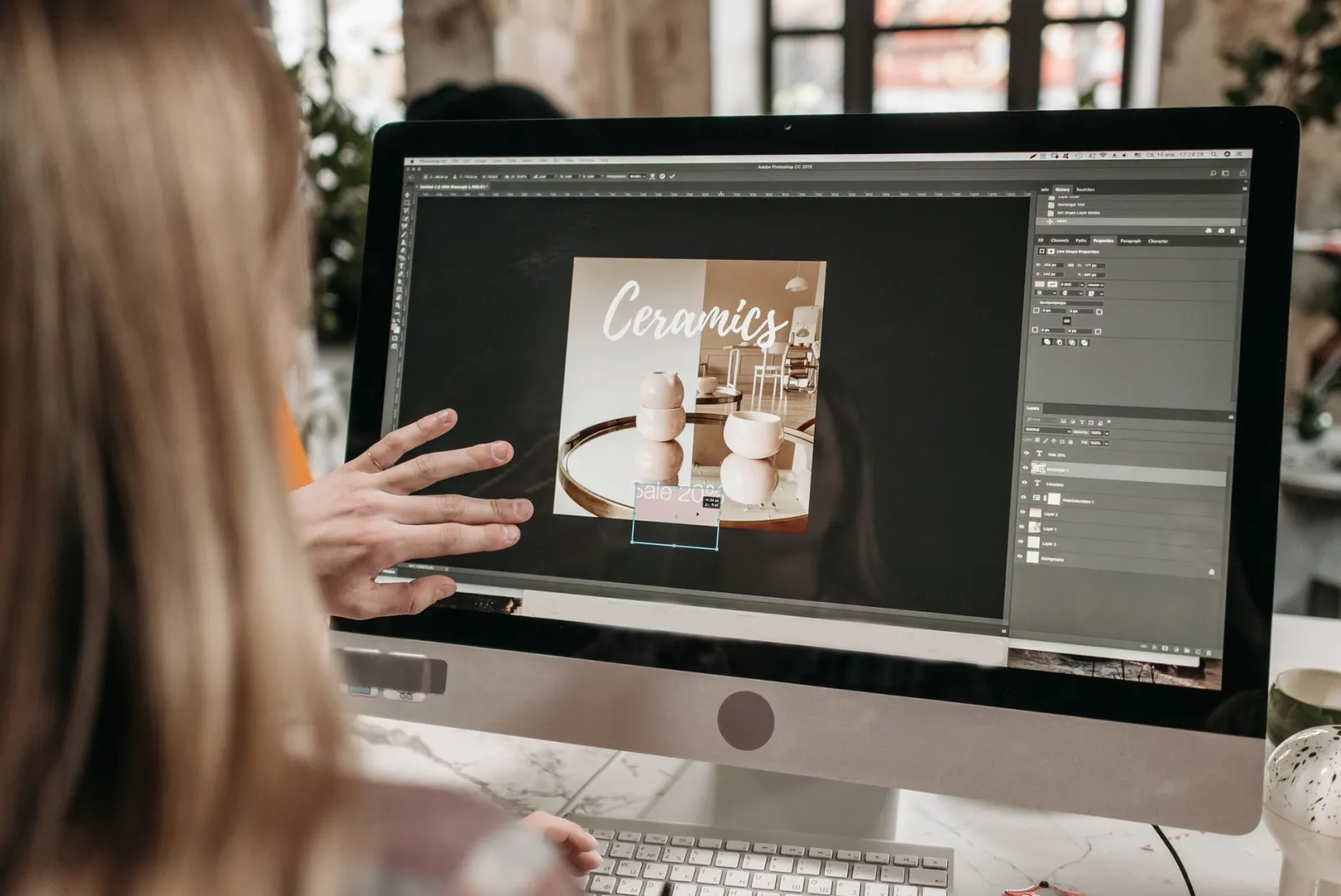
For a full walkthrough of keeping quality through the resize step, see how to resize an image without losing quality. Design tools like Canva, Photoshop, and Figma all work; the tool matters less than the discipline of previewing at small size.
Should you use a custom thumbnail or an auto-generated one?
YouTube auto-selects three frames from your video and lets you pick one, but it does not optimize them — no text, no crop, no contrast pass. A custom thumbnail almost always out-clicks an auto frame because you control the subject size and the single message.
The case where an auto frame wins is when your video already has a strong, self-explanatory visual (a finished dish, a dramatic result) and you genuinely have no time. Even then, cropping that same frame to 16:9 and darkening the background is a five-minute job with a measurable payoff.
Custom thumbnails require channel verification: your account must be verified by phone, and custom thumbnails must be enabled in Studio settings. If the custom-thumbnail option is greyed out, that is the reason.
How do you keep the file under 2 MB?
The 2 MB limit is the most common reason an otherwise-finished thumbnail fails to upload. A 1280×720 PNG with a photo background is often 2–4 MB. Two reliable fixes:
- Export as JPG at quality 80–85. For photo-heavy thumbnails, JPG at 80 looks identical to the PNG and lands around 300–600 KB. Use PNG only when the thumbnail is mostly flat color or text, where JPG compression shows artifacts.
- Resize before compressing. Designing at 2560×1440 for crispness is fine, but compress from the 1280×720 version, not the 2x master — half the pixels means roughly a quarter the bytes.
If you are batching several thumbnails, the batch resize guide covers producing them all at 1280×720 in one pass, and the JPEG compression guide covers hitting a target file size. Either keeps a batch under the 2 MB ceiling without a manual check on each file.
What text and contrast rules help most?
Text on a thumbnail is read at a glance, so the legibility rules are stricter than for normal graphics:
| Element | Safe value | Why |
|---|---|---|
| Font size | 80–140px on the 1280×720 canvas | A single word still reads at 320px wide |
| Text length | 3–5 words | Anything longer collapses on mobile |
| Placement | Top or left third | Avoids the duration badge (bottom-right) |
| Contrast | Light on dark, or panel-backed | Survives any photo background |
- Font size: roughly 80–140px at the 1280×720 canvas — large enough that a single word still reads at 320px wide.
- Contrast: light text on dark background or dark text on a light panel. Add a drop shadow or a stroke if the text sits over a photo.
- Placement: keep clear of the bottom-right corner (duration badge) and the bottom-left (channel name on some layouts). The top third and left third are safest.
- Words: three to five. The text should add something the title does not say, not repeat it.
The test is the phone-feed preview. Squint at the design or view it at 320px wide; if the text collapses into a gray smudge, cut words or enlarge the font. A thumbnail that fails this test cannot be saved by a clever title.
A repeatable thumbnail checklist
Before exporting, run through this list. It catches the failures that cost clicks:
- Subject (face or object) fills at least a third of the frame.
- Background is darker, blurred, or simpler than the subject.
- One text line, three to five words, in the top or left third.
- Text has a shadow, stroke, or panel so it reads over any background.
- Nothing important sits in the bottom-right (duration badge area).
- Canvas is exactly 1280×720, 16:9.
- Exported as JPG or PNG, under 2 MB.
- Previewed at roughly 320px wide and still readable.
If every box is checked, the thumbnail meets YouTube's spec and the basic bar for earning a click. The rest is iteration: publish, watch the first-hour CTR in YouTube Studio, and adjust the next thumbnail based on what worked.
Frequently asked questions
What is the best size for a YouTube thumbnail?
1280×720 pixels (16:9). It is YouTube's recommended custom-thumbnail size and stays sharp from phone feed to full screen. The minimum accepted width is 640px, but designing below 1280×720 is a false economy.
Can a YouTube thumbnail be larger than 1280×720?
You can upload a larger image (e.g. 1920×1080), but YouTube resizes it for display, and it still must stay under 2 MB. Designing larger for crispness then exporting at 1280×720 gives the same on-screen result with a smaller, safer file.
What file format should a YouTube thumbnail be?
JPG or PNG. JPG is better for photo backgrounds because it compresses smaller; PNG is better for flat color and text-heavy designs. GIF and BMP are accepted but rarely the right choice.
How do I make my thumbnail get more clicks?
Enlarge the subject, raise the contrast against the background, add one short text line, and preview the result at phone-feed size (about 320px wide). Click-through correlates most with whether the subject and message read clearly at that small size.
Do I need a verified channel to upload custom thumbnails?
Yes. The custom-thumbnail option appears once your account is verified by phone and the feature is enabled in YouTube Studio. If the option is greyed out, complete phone verification first.
Image credits
- creator-home-studio.webp — photo by Benjamin Dominguez on Pexels
- video-editing-timeline.webp — photo by Vito Goričan on Pexels
- designing-thumbnail-photoshop.webp — photo by Pavel Danilyuk on Pexels
- filming-vlog-tripod.webp — photo by Anna Shvets on Pexels
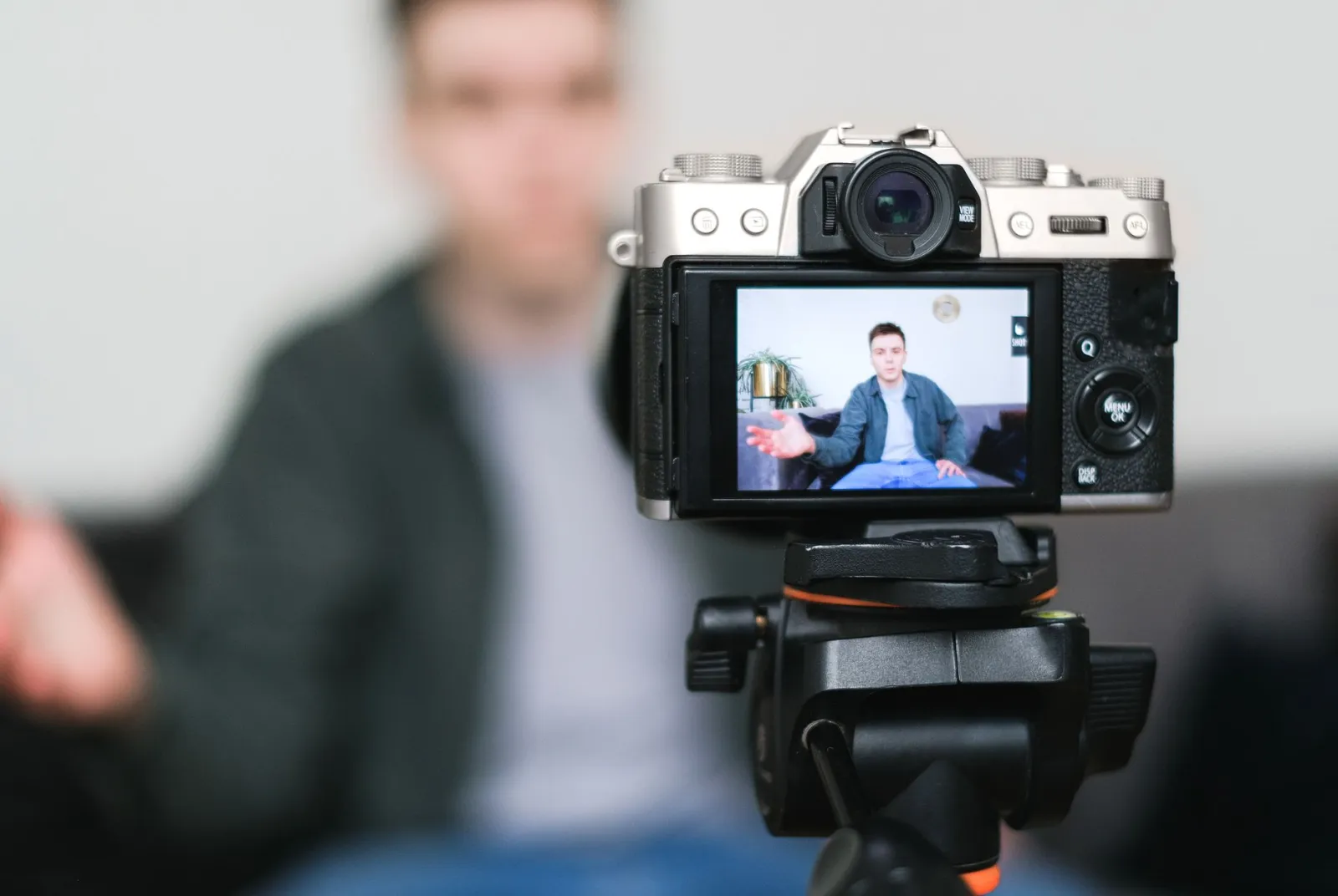
Use the free tools while you follow the guide.
Keep reading

2026-07-26
How to Batch Resize Images: Free Tools and Scripts Compared
Resize hundreds of images at once with free online tools, ImageMagick, XnConvert, and Python scripts. Copy-paste commands, preset sizes, and a practical workflow.
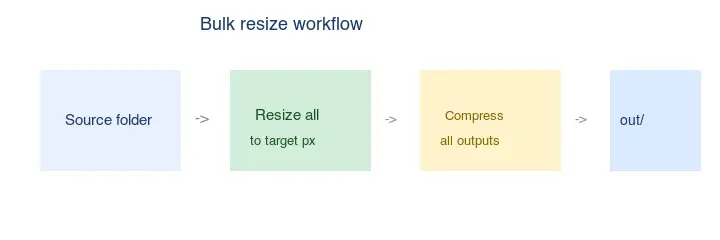
2026-07-26
Bulk Image Resizer: Resize Hundreds of Images at Once (Free)
Resize hundreds of images in bulk for free with a browser tool, ImageMagick, XnConvert, or a Python script, with real byte savings and the safe batch workflow.
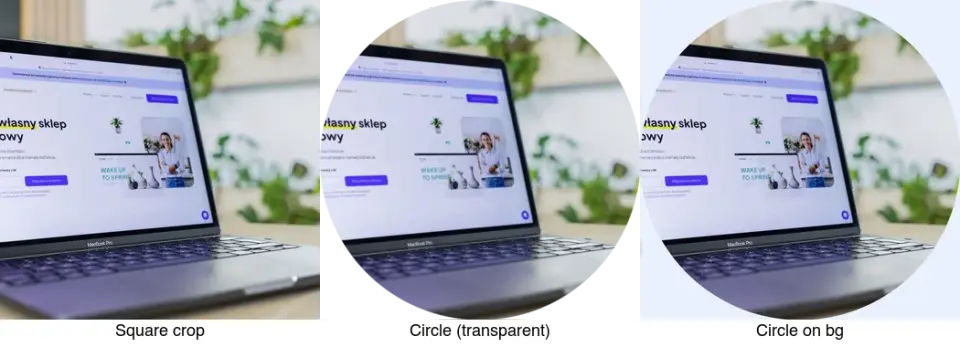
2026-07-26
How to Crop an Image to a Circle (Profile Photos and Avatars)
Crop an image to a circle for avatars and profile photos: the square-first rule, making a transparent circle PNG or a circle on a background, and where circles are used.