2026-07-18 · Updated 2026-07-26
Convert HEIC to JPG: Free Tools and Batch Methods Compared
Convert HEIC iPhone photos to JPG with free web, Mac, Windows, iPhone, and command-line tools, compared by speed, batch support, and where each fits.
Last updated: July 26, 2026
HEIC photos from an iPhone are about half the size of JPEG, but many systems cannot open them — web uploads, email clients, Windows apps, older editors. Converting HEIC to JPG makes the photo universally compatible at the cost of roughly doubling the file size. This guide compares the free conversion methods so you pick the one that fits how many photos you have and which device you are on.
Quick answer: which HEIC to JPG method should you use?
For a free browser converter with no signup, convert HEIC to JPEG with the HEIC Converter — upload the .heic file, pick JPG or PNG, and download. It is the fastest option when you only have a handful of photos, on any device.
| Situation | Method | Why |
|---|---|---|
| A few photos, any device | HEIC Converter | Free, no signup, JPG or PNG |
| On a Mac | Preview / Photos / sips |
Built-in, free |
| On Windows | Photos app (with HEIF extension) | Free extension from Store |
| Recurring, many photos | magick or heif-convert CLI |
Scriptable, unlimited |
| Want JPEGs straight from the phone | iPhone "Automatic" transfer | Converts on export |
For the why and the deeper settings, see the HEIC to JPG guide.
Why convert HEIC to JPG?
Two reasons, almost always compatibility. First, non-Apple software frequently rejects HEIC — a web upload form, an email client, a Windows PC without the HEIF extension, an old image editor. Second, some workflows (marketplace feeds, print pipelines, partner systems) only accept JPEG. The conversion itself is simple; the only real cost is file size:
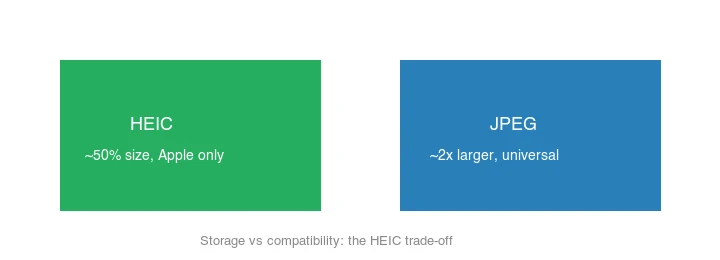
HEIC is roughly 50% of JPEG at equal quality, so converting to JPEG about doubles the bytes. That is acceptable when you need compatibility; if you do not, keep HEIC.
Where does each format belong?
Each format owns a stage of the photo pipeline, which is why conversion is common:
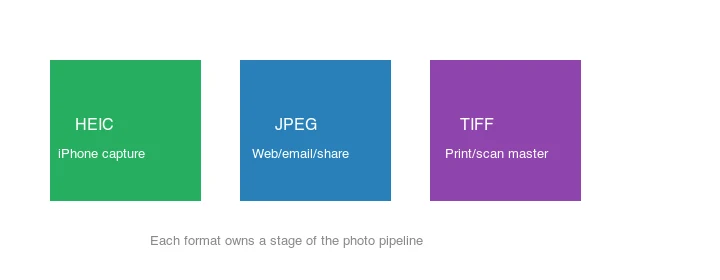
iPhone captures HEIC for storage efficiency; JPEG is the sharing/upload format; TIFF is the print/scan master. Moving between stages is exactly what conversion does. See the convert image format guide for the full map.
How much smaller is HEIC than JPEG?
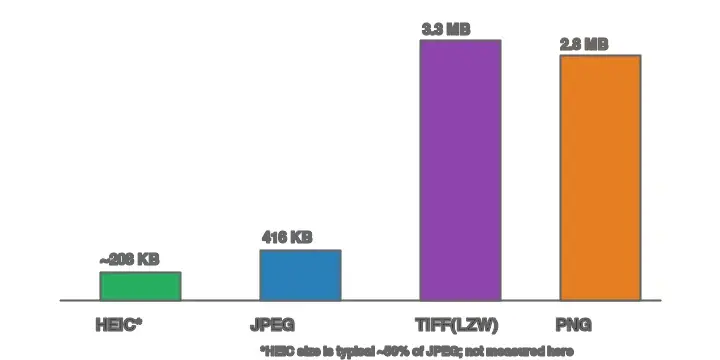
The size difference is consistent across photos: HEIC stores the same image at roughly half the bytes of a quality-equivalent JPEG. For a 2000px photograph:
| Format | Typical size | Use |
|---|---|---|
| HEIC | ~208 KB | iPhone capture, Apple ecosystem |
| JPEG | ~416 KB | Universal sharing/upload |
| PNG | ~2.8 MB | Lossless master, large |
| TIFF (LZW) | ~3.3 MB | Print/scan master |
Converting HEIC to JPEG roughly doubles the file — the price of compatibility. If storage matters and your tools support HEIC, keep it; if compatibility matters, convert. Apple's photo formats documentation and the Can I Use HEIC table detail where HEIC is and is not supported.
Method 1: Web converter
For a handful of photos on any device, use the Imagic AI HEIC Converter: upload the HEIC files, choose JPG or PNG, and download. No install, works on Mac/Windows/Chromebook, and it sidesteps the Windows HEIC-extension requirement because conversion runs server-side. The general Image Converter tool also accepts HEIC input if you need a different output format or extra editing options.
Method 2: Mac (built-in)
macOS reads HEIC natively, so conversion is free and built in:
- Preview: open, File → Export → JPEG.
- Photos: select, File → Export → Export 1 Photo → JPEG.
- Batch with
sips:for f in *.heic; do sips -s format jpeg "$f" --out "out/${f%.*}.jpg"; done.
sips is pre-installed on every Mac, making it the fastest zero-setup batch path.
Method 3: Windows
Install the free "HEIF Image Extensions" and "HEVC Video Extensions" from the Microsoft Store, then open the HEIC in the Photos app and "Save as" JPEG. The HEVC extension sometimes prompts for a small fee depending on your PC's OEM licensing; if it does, a free alternative is to use the web converter or install ImageMagick with a HEIC delegate instead. For batch on Windows, ImageMagick works once libheif is present — the same for f in *.heic; do magick ... loop from the command-line method runs unchanged in PowerShell with a tiny syntax tweak, or in WSL exactly as written.
Windows 11 has gradually improved native HEIC handling, but assuming a fresh install can read HEIC is still the most common surprise — always confirm the extensions are installed before expecting the Photos app to open the files.
Method 4: Command line (batch / scripts)
## ImageMagick (needs a HEIC delegate — libheif)
mkdir -p out
for f in *.heic; do magick "$f" -quality 90 "out/${f%.*}.jpg"; done

## heif-convert (from libheif) — no ImageMagick dependency
heif-convert input.heic output.jpg
If magick errors on HEIC, install libheif (brew install libheif on macOS) or use heif-convert directly. This is the right path for hundreds of photos or an automated pipeline.
Method 5: Convert on transfer (iPhone)
To get JPEGs without converting manually: Settings → Photos → Transfer to Mac or PC → Automatic. The iPhone keeps HEIC internally but exports JPEG over USB/AirDrop. To shoot JPEG from the start: Settings → Camera → Formats → Most Compatible.
How do you batch-convert hundreds of HEIC files?
For volume, a CLI tool is the only sensible choice — no per-image click, no upload, scriptable. On a Mac, sips handles it with no install:
mkdir -p jpg
for f in *.heic; do sips -s format jpeg "$f" --out "jpg/${f%.*}.jpg" >/dev/null; done
On any platform with ImageMagick + libheif, swap sips for magick. Verify a few outputs at 100% before trusting the whole batch. For the parallel-folder pattern, see the batch resize guide.
Common mistakes
- Over-compressing the JPEG. HEIC→JPEG already loses a little; keep quality at 88–92.
- Assuming Windows reads HEIC. It needs the free HEIF/HEVC extensions.
- Re-converting repeatedly. Each pass stacks lossy artifacts; convert once from the original.
- Dropping Live Photos / bursts. A flat JPEG export loses the multi-frame content HEIC can hold.
- Forgetting to check outputs. Always spot-check a batch at 100% before deleting the HEICs.
Final conversion checklist
- Keep the original HEIC files until you verify the JPGs.
- Convert to sRGB when sharing with older apps.
- Preserve EXIF only when date and camera metadata matter.
- Use batch conversion for large iPhone exports.
- Open a few converted images before deleting anything.
Frequently asked questions
Is converting HEIC to JPG free?
Yes — every method here is free (built-in Mac/Windows tools, libheif, web converters). Some commercial batch tools exist but are unnecessary for HEIC→JPEG.
Does it lose quality?
A small amount — both formats are lossy, and you re-encode. Keep JPEG quality high (88–92) to keep it invisible.
Can I batch-convert HEIC to JPG?
Yes. On Mac, sips in a loop; anywhere, ImageMagick or heif-convert. See the batch section above.
Should I just make the iPhone shoot JPEG?
If you constantly need JPEGs, yes — Settings → Camera → Formats → Most Compatible. Otherwise keep HEIC and convert (or transfer) as needed.
Why convert HEIC to JPG?
For compatibility. HEIC (Apple's default since iOS 11) is not supported by every app, website, or Windows PC, while JPEG is universal. Convert when you need to share or upload to a system that does not accept HEIC. Keep HEIC on the phone for storage savings; convert to JPG for sharing.
Does converting HEIC to JPG lose quality?
Slightly — JPG is lossy, so one conversion adds a generation of compression. At quality 90+ the loss is invisible at viewing size. Convert once to share; do not re-convert repeatedly, because each re-save compounds artifacts. Keep the HEIC as the master.
Can Windows open HEIC?
Windows 11 can, with the HEIF and HEVC codec extensions installed from the Microsoft Store. Without them, HEIC files fail to open. For sharing or machines without the codecs, convert to JPG, which opens everywhere with no setup. See the HEIC guide.
Can I set my iPhone to shoot JPEG?
Yes — in Settings > Camera > Formats, choose "Most Compatible" to shoot JPEG instead of HEIC. The trade-off is larger files (HEIC is about half the size). Keep HEIC for storage savings, or switch to JPEG for universal compatibility with systems that do not accept HEIC.
Does converting HEIC lose metadata?
Some. Basic EXIF (camera, date) usually survives a conversion, but Apple-specific metadata and Live Photo or depth data do not transfer to JPEG. If you need the full metadata, keep the HEIC as the master. For sharing where only the image matters, the metadata loss is irrelevant.
Can I batch convert HEIC to JPG?
Yes — macOS Preview and Automator batch-convert, and command-line tools (ImageMagick, heif-convert) handle folders. For large sets from an iPhone, the command line is the practical path with no per-file limit. See the batch processing guide.
Can I convert HEIC on Android?
Yes — Android does not use HEIC by default, so most apps open it poorly without help. A free converter app or a command-line tool (ImageMagick) handles HEIC on Android. Converting to JPG makes iPhone photos shareable across Android and any platform without codec issues.
Image credits
- Format size comparison, HEIC/JPEG trade-off, and where-formats-belong diagrams — generated by the author from a landscape photograph (Pexels #1287145, photo by eberhard grossgasteiger) to show real measured sizes and each format's role.
Use the free tools while you follow the guide.
Keep reading
2026-09-13
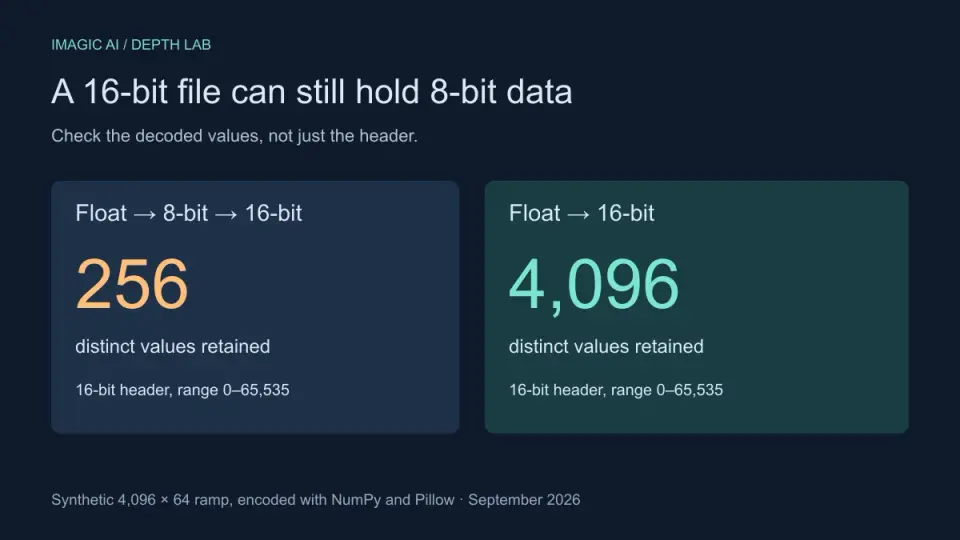
16-Bit Depth Maps: Fix Banding and Verify Your PNG
Fix stair-stepped or inverted depth maps with a reproducible 8-bit vs 16-bit PNG test, a file inspection script, and a practical Blender import checklist.
2026-09-13
GIF Maker From Images: Build Animated GIFs That Load Fast
Turn a set of images into an animated GIF for web and social media. Real frame timing, size limits for each platform, and when to choose GIF over video.
2026-09-13
Screenshot to Image: Save, Format, and Optimize Screenshots
Capture screenshots on any device, save them in the right format, and compress them for web without blurring text. Real steps for PNG, WebP, and full-page capture.