2026-03-13 · Updated 2026-07-26
HEIC to JPG: How to Convert iPhone Photos (Mac, Windows, Web)
Convert iPhone HEIC photos to JPG on Mac, Windows, iPhone, or the web. Why HEIC exists, the real size difference, and how to set your iPhone to shoot JPEG if you prefer.

Last updated: July 26, 2026
iPhones shoot photos as HEIC by default because it saves storage — HEIC is roughly half the size of JPEG at equal quality. The trade-off is compatibility: many web uploads, email clients, Windows apps, and older editors cannot read HEIC. Converting HEIC to JPG is the routine fix, and it is straightforward once you know where the tools are. This guide covers every common path and the real size difference.
Quick answer: how do you convert HEIC to JPG?
| Where | Method | Notes |
|---|---|---|
| One image, any device | Image Converter | Upload HEIC, download JPG |
| Mac | Preview or Photos export | Built-in, free |
| Windows | Photos app or magick |
Windows 10+ reads HEIC with the extension |
| iPhone | Settings → "Automatic" transfer | Converts on export |
| Bulk / script | magick input.heic output.jpg |
Needs a HEIC delegate |
For the broader format map, see convert image format guide.
Why does the iPhone use HEIC?
HEIC (High Efficiency Image Container, using HEVC/H.265 compression) was introduced in iOS 11 to roughly halve photo storage versus JPEG. For a phone with thousands of photos, that is a meaningful saving. The catch is ecosystem support: Apple software reads HEIC natively, but many non-Apple tools, web uploads, and email clients do not, which is why conversion comes up so often. Apple's iOS photo formats documentation describes the High Efficiency setting and when it applies.
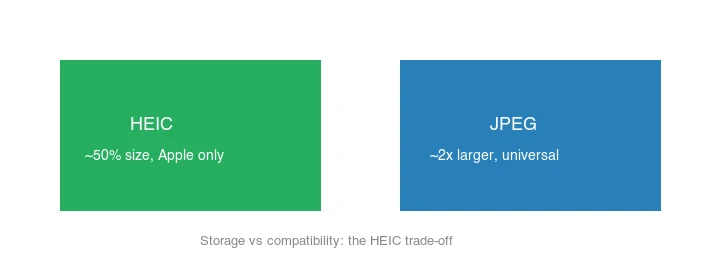
HEIC also supports multiple images and edits in one file (like Live Photos and bursts), which JPEG cannot — another reason a straight conversion can lose some of what HEIC stored. The core trade-off is simple:
How much smaller is HEIC than JPEG?
HEIC is typically ~50% the size of a JPEG of equivalent quality. For the same 2000px photograph, expect roughly:
| Format | Typical size | Compatibility |
|---|---|---|
| HEIC | ~208 KB | Apple + modern tools only |
| JPEG | ~416 KB | Universal |
| PNG | ~2.8 MB | Universal, lossless, large |
| TIFF (LZW) | ~3.3 MB | Print/scan, very large |
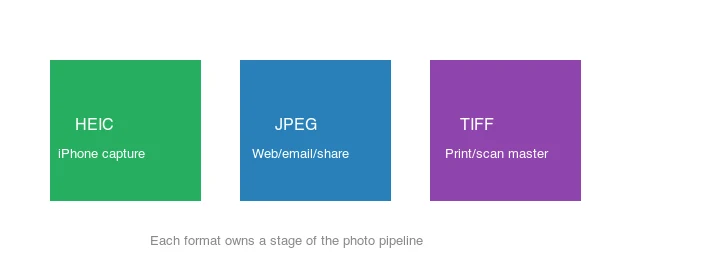
So converting HEIC to JPEG roughly doubles the file size — the price of universal compatibility. If storage matters and your tools support HEIC, keep it; if compatibility matters, convert. Each format owns a stage of the photo pipeline:
Method 1: Web converter
For one or a few images, use the Imagic AI Image Converter: upload the HEIC, choose JPG, set quality ~90 (HEIC→JPEG already loses a little, so do not over-compress), and download. This works on any device with a browser and handles the common case instantly. A web converter is the right choice when you are on a borrowed computer, a work machine without your usual tools, or a Chromebook — anywhere installing software is not worth it for a handful of photos. It also sidesteps the Windows HEIC-extension requirement entirely, since the conversion happens server-side. The one caveat is privacy: if the photos are sensitive, prefer a local method (Mac Preview, ImageMagick) so the files never leave your device.
Method 2: Mac (built-in)
macOS reads HEIC natively, so conversion is built in:
- Preview: open the HEIC, File → Export, choose JPEG, set quality.
- Photos: select the photo, File → Export → Export Unmodified or Export 1 Photo, choose JPEG. Exporting "Unmodified" keeps the HEIC; the JPEG option is what re-encodes it.
- Batch with
sips:sips -s format jpeg input.heic --out output.jpg. For a folder, wrap it in a shell loop —sipsis pre-installed on every Mac, so this is the fastest zero-setup batch path for macOS users who need to convert dozens of iPhone photos at once.
Method 3: Windows
Windows 10/11 reads HEIC once the free "HEIF Image Extensions" and "HEVC Video Extensions" are installed from the Microsoft Store. Then:
- Photos app: open and "Save as" JPEG.
- ImageMagick:
magick input.heic output.jpg(needs a HEIC delegate — see below).
Method 4: iPhone (transfer as JPEG)
To have the iPhone convert automatically when you transfer photos: Settings → Photos → Transfer to Mac or PC → Automatic. The phone keeps HEIC internally but sends JPEG over USB/AirDrop. To shoot JPEG outright: Settings → Camera → Formats → Most Compatible (JPEG instead of HEIC).
Method 5: Command line / batch
## ImageMagick (requires a HEIC delegate — install libheif or build with it)
magick input.heic -quality 90 output.jpg

## A folder
mkdir -p out
for f in *.heic; do magick "$f" -quality 90 "out/${f%.*}.jpg"; done
If magick errors on HEIC, install the HEIC delegate (brew install libheif on macOS, or the relevant package on Linux) or use heif-convert from libheif directly.
Should you switch the iPhone to JPEG permanently?
It depends on your workflow:
- Keep HEIC if you mostly stay in the Apple ecosystem and value the storage saving.
- Switch to JPEG (Settings → Camera → Formats → Most Compatible) if you constantly upload to systems that reject HEIC, or share with Windows/Android users.
A middle path: keep HEIC capture for the storage saving, and use "Automatic" transfer so exported copies are JPEG. See the convert HEIC to JPG guide for the step-by-step.
Common mistakes
- Over-compressing the JPEG. HEIC→JPEG already loses a little; keep quality at 88–92 so you do not stack artifacts.
- Assuming Windows reads HEIC. It needs the free HEIF/HEVC extensions; without them the file will not open.
- Forgetting Live Photos / bursts. A flat JPEG conversion drops the multi-frame content HEIC can hold.
- Re-converting repeatedly. Each HEIC→JPEG→JPEG pass adds lossy artifacts. Convert once from the original.
- Stripping edits. HEIC can store non-destructive edits; a raw conversion exports the original, not the edited version.
Frequently asked questions
Why does the iPhone use HEIC?
Because HEIC is roughly half the size of JPEG at equal quality, which saves storage. Apple made it the default camera format from iOS 11. The trade-off is compatibility — HEIC is not supported everywhere JPEG is.
How much smaller is HEIC than JPEG?
About 50 percent smaller at equal quality. That storage saving is the reason for the format. Keep HEIC on the phone for storage, convert to JPG when sharing with systems that do not accept HEIC.
Does converting HEIC to JPG lose quality?
Slightly — JPEG is lossy, so one conversion adds a generation of compression. At quality 90+ the loss is invisible. Convert once to share; do not re-convert repeatedly.
How do I convert HEIC on Windows?
Windows 11 opens HEIC with the right codec installed (from the Microsoft Store), or use a free converter. For batches, a command-line tool (ImageMagick, heif-convert) handles folders. See the HEIC converter guide.
Can I set my iPhone to shoot JPEG?
Yes — in Settings > Camera > Formats, choose "Most Compatible" to shoot JPEG. The trade-off is larger files (HEIC is about half the size). Keep HEIC for storage, or switch to JPEG for compatibility.
Does HEIC support transparency?
No — HEIC is a photo format without an alpha channel, so a transparent image gets a forced background. For transparency, use PNG or WebP. HEIC is for photographs; it is not a substitute for PNG where transparency is needed.
Can I batch convert HEIC on Windows?
Yes — with the HEIC codec installed (Microsoft Store) Windows opens them, or use a free converter. For folders, ImageMagick or heif-convert handle batches from the command line. See the batch processing guide.
Does converting HEIC lose quality?
Slightly — JPG is lossy, so a single conversion adds a generation of compression. At quality 90 or above the loss is invisible at normal viewing size. Convert once for sharing; do not re-encode repeatedly. Keep the HEIC as the master if you may convert again later.
Can Windows open HEIC?
Windows 11 can, with the HEIF and HEVC codec extensions installed from the Microsoft Store. Without them, HEIC files fail to open. For sharing or for machines without the codecs, convert to JPG, which opens everywhere with no setup. A command-line tool or a free web converter bypasses the codec requirement for batches.
Does HEIC support RAW?
Not exactly — some iPhones shoot in a combined HEIC + RAW mode, but HEIC itself is a compressed photo format, not a RAW container. For true RAW, shoot in the iPhone's ProRAW or a dedicated RAW mode, which produces a DNG file you develop in a RAW processor. HEIC is the everyday compressed output; RAW is the editable master.
Image credits
- Format size comparison and where-formats-belong diagrams — generated by the author from a landscape photograph (Pexels #1287145, photo by eberhard grossgasteiger) to show real measured format sizes and each format's role.
Use the free tools while you follow the guide.
Keep reading
2026-09-10
Image Blurry After Export? 7 Fixes That Target the Cause
Fix an image blurry after export by checking pixels, compression and upload changes. See measured examples, PNG vs JPEG choices, and seven practical fixes.
2026-08-01
Image Compression in 2026: WebP, AVIF, JPEG XL & JPEG AI Benchmarked
I benchmarked WebP, AVIF, and JPEG XL on 4 real photos. WebP saves 32% vs JPEG, AVIF 65%, JPEG XL 30%. Full data, browser support, and which format to pick in 2026.
2026-07-26
Image Optimization Checklist: Every Step for Fast Web Images
A complete image optimization checklist: format choice, resizing, compression, responsive delivery, lazy loading, and CDN setup. Run through it before every publish.