2026-07-16 · Updated 2026-07-18
How to Fix Hair Edges and Halos After Background Removal (Free)
AI background removers leave halos and cut off hair strands. Here's why it happens and how to fix it for free, directly in your browser, no Photoshop.
Last updated: July 18, 2026
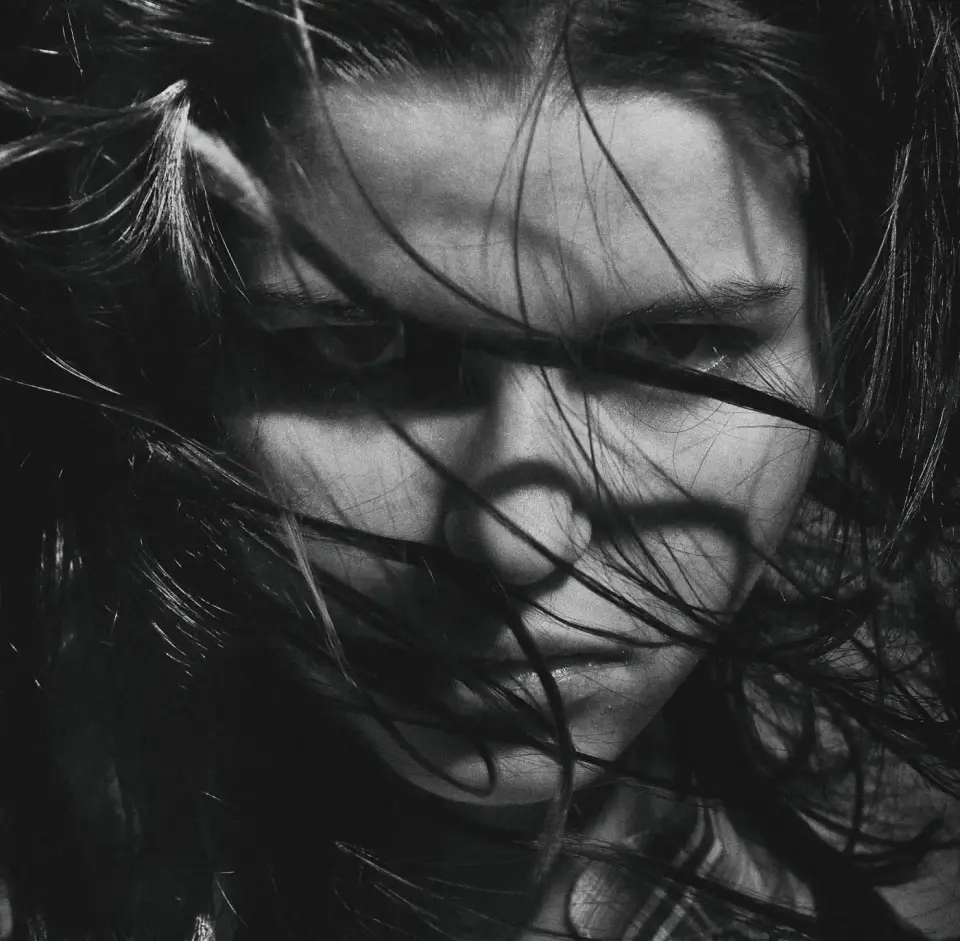
You run a portrait through a background remover and the cutout looks great — until you zoom in on the hair. Strands are missing at the temples, a pale fringe clings to the hairline, and the result looks pasted onto whatever background you drop it on. This is the single most common failure mode in AI background removal, and until recently the only free fix was reshooting the photo or opening a desktop editor.
Update, October 2026: remove.bg, mentioned below, is closing. Its standalone site and self-serve API stop on 1 December 2026, and unused credits expire that day. See what to use instead.
Quick answer: why does background removal ruin hair, and how do I fix it fast?
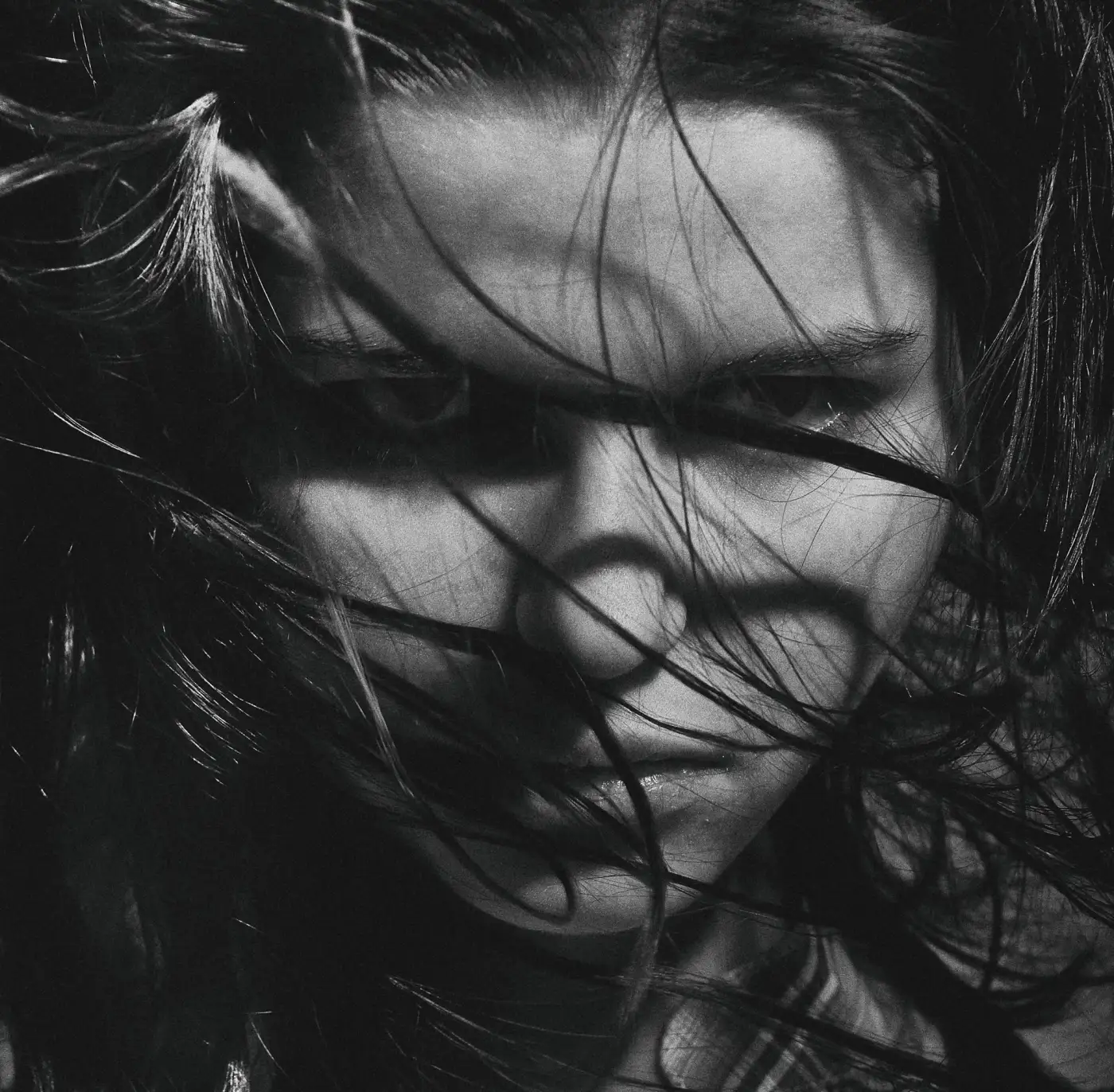
Hair fails because it isn't a hard edge — it's dozens of semi-transparent strands, and the model has to guess an opacity value for every pixel along that boundary, not just decide "subject" or "background." Get that guess wrong and you get a halo (leftover background color) or a gap (missing hair).
Use the Background Remover's touch-up brush on the result to fix it fast — paint "Erase" over any leftover halo, paint "Restore" over any strands the mask cut away, and export. It runs in the same browser tab, needs no account, and costs nothing.
| Problem | What you're looking at | Fix |
|---|---|---|
| Halo | A faint ring of the old background color around the hairline | Erase brush over the fringe |
| Gap | A strand or clump of hair missing, background shows through | Restore brush over the missing strand |
| Hard, pasted-on edge | Hair has a crisp outline instead of soft, wispy ends | Restore brush at the tips, light strokes |
Why do AI background removers fail on hair specifically?
A background remover isn't drawing a line around your subject — it's predicting an alpha value (0 to 255, fully transparent to fully opaque) for every pixel. For a coffee mug against a wall, almost every edge pixel is unambiguous: it's either the mug or the wall. For hair, a single pixel can be part strand, part background, and part shadow all at once, especially at the temples, at flyaways, and anywhere backlighting bleeds light through fine strands.
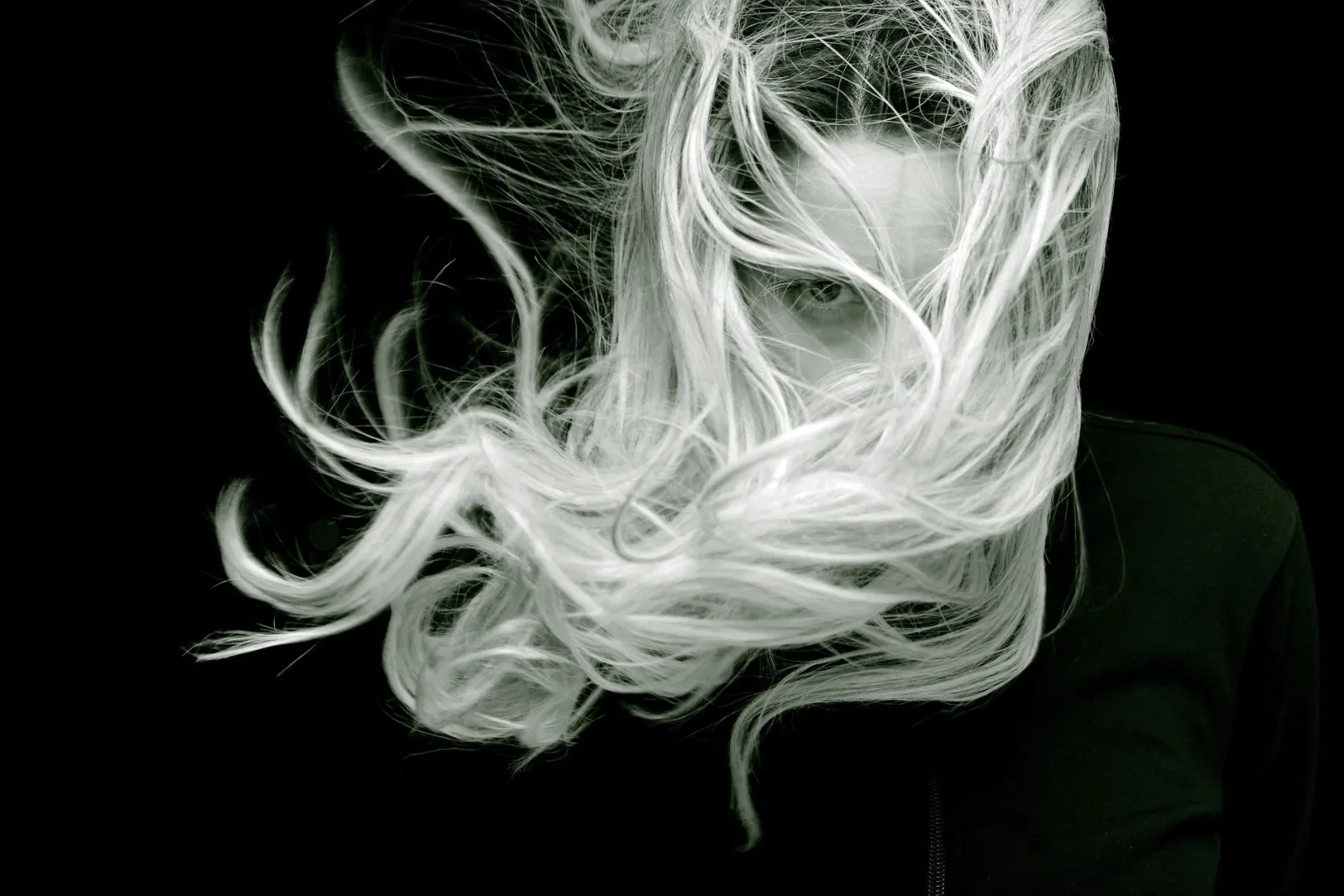
U2-Net, the salient-object segmentation model behind Imagic AI's and most other free background removers, was trained to find the dominant subject in a frame — a task it's good at for solid, well-defined objects. Fine, semi-transparent structure like hair, fur, and glass sits at the edge of what that kind of model was built to solve, which is why the same tool that cuts out a jacket cleanly will blur or erase individual strands. Backlit hair, dark hair against a dark background, and heavily compressed JPEGs make the ambiguity worse because they remove exactly the contrast the model needs to tell strand from background apart. See the AI background removal guide for how the segmentation step itself works.
How do you tell a halo from a gap?
Zoom to 200% on the hairline before you export anything. The three defects look different and need different fixes:
- Halo — a thin ring of the original background color still clinging to the hair. You'll see it most on light backgrounds where a bright fringe survives around dark hair.
- Gap — a chunk of hair is simply gone, and whatever's behind the cutout shows through. Common on flyaways and on hair that's a similar tone to the original background.
- Hard edge — the opposite failure: the model gave up on the soft transition and drew a crisp line, so wispy ends look clipped instead of tapered.
| Defect | Looks like | Root cause |
|---|---|---|
| Halo | Faint colored fringe around the hairline | Edge pixels kept partial background color instead of full transparency |
| Gap | Missing strands, background shows through | Model classified low-contrast or thin strands as background |
| Hard edge | Wispy hair looks cut with scissors | Model collapsed a soft alpha transition into a binary mask |
How do I fix it for free, without Photoshop?
I ran a windblown-hair portrait through the Background Remover and it did what these tools always do on flyaways: left a faint halo at the hairline and erased a couple of thin strands near the temple. Every fix for that used to mean reshooting, paying for a "refine" credit on a paid tool, or opening Photoshop's Select and Mask workspace and using Decontaminate Colors by hand. Imagic AI's Background Remover now has the same kind of manual correction built directly into the result screen, with no separate app:
- Run the photo through the Background Remover.
- Click Touch up on the result card. This opens a canvas editor over your cutout — no re-upload, no new tab.
- Zoom in (1x–4x) on the hairline until individual strands are easy to see.
Then correct the edge itself:
- Switch to Erase mode and paint over any halo fringe still clinging to the hair.
- Switch to Restore mode and paint back any strand the mask cut away. The brush size adapts to your zoom level so you can be precise at 4x without a huge cursor.
- Made a mistake? Undo steps back through your last 15 strokes, so you can correct a stray brushstroke without redoing the whole edge.
- Click Done, then download the corrected image.
The whole pass takes under a minute on a typical portrait — most of that time is zooming in and looking, not painting. Work the hairline in short strokes rather than long drags; hair edges are rarely a straight line, and a long drag tends to erase or restore more than you meant to.
Which free background removers let you fix hair edges without paying?
Most competing tools handle the initial cutout for free but put manual correction behind a paywall or a separate paid app — see the background remover tools comparison for a broader look at the free tiers themselves:
| Tool | Free cutout | Manual hair touch-up included free | Requires an app or account |
|---|---|---|---|
| Imagic AI | Yes | Yes — erase/restore brush on the result page | No |
| remove.bg | Yes (low-res) | No — high-res + refine sit behind paid credits | Account for downloads |
| Photoroom | Yes | Limited — deeper edit tools are in the paid app | App recommended |
| Cutout.pro | Yes | Refine mode exists but spends paid credits | Account |
| Photoshop (Select and Mask) | N/A | Yes, full manual control | Paid license, desktop install |
This isn't a claim that one AI model's raw hair-detection accuracy beats another's — that comparison shifts from photo to photo and from one model update to the next. The gap that matters here is simpler and more stable: what happens after the AI gets an edge wrong, and whether fixing it costs money or a download.
How do you prevent bad hair edges in the first place?
A clean touch-up pass is fast, but a good source photo means you barely need it:

- Shoot on a background that contrasts with the hair color — dark hair on a light backdrop, light hair on a mid-tone or dark backdrop.
- Light the subject and the background separately so no shadow falls across the backdrop near the hairline.
- Avoid heavy JPEG compression before upload; compression artifacts around fine edges look like extra "background" pixels to the model.
A few habits matter beyond the shot itself:
- Shoot at native resolution and avoid upscaling a small photo before removal — interpolated pixels blur exactly the detail the model needs.
- For studio headshots, a slight rim light on the hair increases the contrast between strand and background without blowing out the edge.
- If a photo has heavy backlighting and a busy background, expect to spend more time on the touch-up brush regardless of which tool does the initial cutout.
What if the touch-up brush still isn't enough?
For most portraits and product photos, a minute with the erase/restore brush closes the gap between "obviously AI-cut" and "usable." It has real limits, though. Extremely fine or curly hair against a busy, low-contrast background can need more correction than a brush comfortably fixes in a few strokes — at that point, a reshoot with better contrast is faster than painting back dozens of individual strands. Video, rather than a single photo, is also outside what an image touch-up brush solves; that's a different processing pipeline entirely.
Frequently asked questions
Why does my background remover cut off pieces of hair?
The model predicts a transparency value per pixel instead of a hard boundary, and hair pixels are frequently a mix of strand, background, and shadow. Low contrast between hair and background, backlighting, and JPEG compression all make that prediction less reliable, which shows up as missing strands or a colored fringe.
What's the difference between erase mode and restore mode?
Erase mode paints transparency onto the image — use it to remove a halo or leftover background fringe. Restore mode paints the original pixel back in — use it to bring back a strand or clump of hair the mask removed. Most cutouts need a short pass with both.
Do I need to sign in or download anything to use the touch-up brush?
No. It opens directly on the Background Remover's result page in your browser, works with no account, and needs no separate app.
Can I fix halos on photos other than hair, like fur or glass?
Yes — the same erase/restore brush works on any semi-transparent edge the AI got wrong, including fur, feathers, and translucent objects like glass or sheer fabric. Hair is simply the most common case.
Does the touch-up brush work on mobile?
Yes, it runs in any modern mobile browser, though a fine hairline correction is easier with the precision of a mouse or a stylus than a fingertip at typical phone zoom levels.
Is my photo private when I use the touch-up brush?
The photo is processed on Imagic AI's servers the same way the initial background removal is — avoid uploading confidential images through any server-side tool, this one included, if that's a hard requirement for your use case.
Conclusion
Hair breaks AI background removal because it's an alpha-matting problem, not an edge-detection problem, and no free model gets every strand right on every photo. What used to require Photoshop or a paid "refine" credit is now a one-minute pass with the erase/restore touch-up brush built into the Background Remover — zoom in on the hairline, paint out the halo, paint back the gaps, done. For the model mechanics behind the initial cutout, see the AI background removal guide; for shooting and export habits that reduce how much touch-up you need, see background removal best practices.
Image credits
- Captivating grayscale portrait of a woman with hair blowing, expressing mystery and intensity. — photo by Alexander Krivitskiy on Pexels
- A striking black and white portrait of a woman with long, flowing hair that creates a sense of motion and mystery. — photo by Pixabay on Pexels
- Artistic black and white portrait of a woman with windblown hair in an urban setting. — photo by Pixabay on Pexels
- Modern photography studio setup with softbox lighting and props in Leipzig. — photo by Antonio Friedemann on Pexels
Use the free tools while you follow the guide.
Keep reading
2026-10-07
Background Remover Removes Part of Subject? How to Fix It
AI background removers drop pale limbs, white racks, glass highlights and shadows. I measured why on real photos and how to get the missing parts back.
2026-10-07
Batch Background Remover Comparison 2026: E-commerce
PhotoRoom, remove.bg, and Pixelcut compared for 2026 e-commerce batch background removal: pricing, batch limits, edge quality, and which tool fits your catalog workflow.
2026-10-07
remove.bg Is Shutting Down on December 1: What to Use Instead
remove.bg closes on 1 December 2026 and unused credits expire that day. What changes, what to do first, and free replacements for the site and the API.