2026-07-18 · Updated 2026-07-26
JPG to PDF Guide: Combine Multiple Images Into One Document
Turn a set of JPG images into a single ordered PDF for portfolios, reports, and submissions. Free methods for each device, page ordering, and quality settings.

Last updated: July 26, 2026
Combining several JPG images into one PDF is the standard way to deliver a photo set, a scanned document batch, or a portfolio as a single file. The job has two parts: getting the images into the right order and resolution, then merging them into a PDF that opens the same on every device. This guide covers the free methods on each platform, the page-ordering steps, and the quality settings that keep the PDF sharp without bloating.
Quick answer: how do you combine JPGs into one PDF?
Collect the JPGs in the order you want them, resize them to consistent dimensions, then merge them with a free tool — Preview on Mac, Microsoft Print to PDF on Windows, or a browser merger like PDF24 for many images. For a free browser tool with no signup, use the JPG to PDF Converter — add your images in order and download one merged PDF. Save as a single PDF and check the page order before sharing. For a multi-page portfolio, resize every image to the same page dimensions first so the pages line up. Keep a copy of the original JPGs in case you need to rebuild the PDF.
Why combine images into a PDF instead of sending them loose?
Loose image files are hard to keep in order, easy to lose, and display differently depending on the viewer. A PDF locks the page order, the page size, and the layout, so the recipient sees exactly what you intended.
| Scenario | PDF advantage |
|---|---|
| Photo portfolio | Reads as a finished piece, ordered pages |
| Scanned documents | One file, consistent pages |
| School submission | Meets portal's PDF requirement |
| Real estate packet | Single deliverable for a listing |
| Email with many photos | One attachment instead of many |
A PDF also signals that the content belongs together. Twenty JPGs in an email feel like clutter; the same twenty as a PDF read as a deliberate document.
How do you combine JPGs into a PDF on each platform?
The method differs by device, but every platform has a free built-in route.
- macOS: open the images in Preview, select all, then File > Print > Save as PDF.
- Windows: select the images, right-click > Print > Microsoft Print to PDF.
- iOS: select photos in Photos > Share > Print > pinch the preview > save as PDF.
- Android: use Google Photos Print to PDF or a free merger app.
- Browser: upload to PDF24 or iLovePDF for many images with reordering.
For more than a handful of images, the browser tools win because they let you drag pages into order before exporting. The built-in methods work but reordering is manual.
How do you set page order correctly?
Page order is the detail that goes wrong most often, because tools do not always sort files the way you expect. Filename order is the usual default, so name your files in sequence — 01-cover.jpg, 02-intro.jpg — before merging.
- Rename files with zero-padded numbers so they sort correctly (
01,02,10). - Resize every image to the same dimensions so pages are uniform.
- Upload or open them in the chosen tool.
- Drag to confirm or adjust the order visually.
- Export and open the PDF to verify the sequence top to bottom.
- Zero-padding matters:
1, 2, 10sorts as1, 10, 2without it. - Confirm the order in the exported PDF, not just the tool's preview.
- A consistent page size makes the PDF read as designed rather than jumbled.
Keeping quality high without a huge file
A PDF embeds each image at the resolution you give it, so it is easy to overshoot. A 20-page PDF of uncompressed scans can reach hundreds of megabytes and fail email limits.
| Use case | Image quality | Resolution | Rough PDF size |
|---|---|---|---|
| Screen viewing | JPEG 80% | 150 DPI | 200-500 KB/page |
| Standard print | JPEG 90% | 300 DPI | 500 KB - 2 MB/page |
| Archival | PNG lossless | 600 DPI | 5-15 MB/page |
Compress the JPGs before merging, and the PDF stays light. The math is pages times per-page size — calculate it before you merge so you do not build a 300 MB file by accident. The convert JPG to PDF free guide covers the conversion in more detail, and the format comparison explains the image format trade-offs.
Mobile workflow for JPG to PDF
More people merge images into PDFs on phones than on desktops now, because phones are where the photos and scans live. The mobile workflow is slightly different and worth getting right, because phone screenshots and photos are often inconsistent in size and orientation.
- Sort photos into an album in the correct order before you start.
- Crop each one to the same aspect ratio so pages are uniform.
- Use the built-in Print > Save as PDF route for small batches.
- For large batches, move the images to a desktop tool where reordering is easier.
The inconsistency of phone photos is the main mobile headache. A batch from a phone might mix portrait shots, landscape shots, and screenshots at different resolutions, and merging them raw produces a jumbled PDF with rotating page sizes. The fix is a normalization pass: crop and resize every image to one target dimension first, then merge. The image cropper and image resizer handle this before the merge step. Doing this normalization on a phone is fiddly, which is why many people move the batch to a desktop for the merge after shooting on mobile — you get the convenience of phone capture and the control of a desktop tool in the same workflow.
Common problems and fixes
- Pages are in the wrong order — rename with zero-padded numbers and re-merge.
- Pages are different sizes — resize every image to the same dimensions first.
- PDF is too large to email — compress the JPGs to 80-85% before merging.
- Text looks blurry — the source resolution is too low; rescan at 300 DPI.
- PDF opens sideways — rotate the source images before merging.
When should you use a different format?
A PDF is not always the answer. If the recipient needs to edit the images, send the JPGs. If they need to view a single photo, send one JPG. Reach for the PDF when order, fixed layout, and portability matter — a portfolio, a submission, a multi-page scan. For a deeper look at when PDF beats raw image formats, the ISO 32000 PDF standard summary defines the format's intent around consistent document exchange, and the Adobe PDF reference explains why PDF became the default for fixed-layout delivery. The discipline is in the preparation: cropped, resized, ordered images merge into a clean PDF almost as an afterthought. Skip the preparation and no tool can rescue a jumbled, oversized result.
Frequently asked questions
How do I combine JPGs into one PDF?
The JPG to PDF Converter is the fastest free option — it's browser-based, needs no signup, and lets you add images in order and download one merged PDF directly. Otherwise, use a converter or the OS print-to-PDF option, add the images in the desired page order, and export. Most tools let you reorder pages and set the page size. The result is a single multi-page PDF, easier to share than loose images.
Why combine images into a PDF instead of sending them loose?
A PDF locks the page order and layout, displays consistently across devices, and is one file to send rather than a folder of images. For multi-page documents (scans, receipts, forms), PDF is the right container.
How do I keep quality high without a huge file?
Embed the JPGs at their target resolution — do not upsample. Set the JPG quality to 85–90 for photos. If the PDF is too large, reduce the image dimensions or compress the JPGs further before combining.
Can I combine JPGs into a PDF on mobile?
Yes — iOS and Android both have print-to-PDF and free converter apps that combine camera-roll photos into a PDF. It is the common path for scanning documents on a phone. See the JPG to PDF guide.
Can I add text to a JPG-to-PDF?
Yes — most PDF tools let you add a text layer (a title, a caption) over or beside the image. For a document-style PDF (a form, a labeled scan), combine the image and text in the PDF rather than baking text into the JPG.
How do I keep a JPG-to-PDF file small?
Resize each image to its target resolution before combining, embed the JPGs at quality 85–90 rather than upsampling, and avoid adding high-resolution scans unless the document needs them. If the PDF is still too large, reduce the image dimensions or compress the JPGs further before combining. A multi-image PDF bloats fast if the source images are full-resolution.
Use the free tools while you follow the guide.
Keep reading
2026-09-13
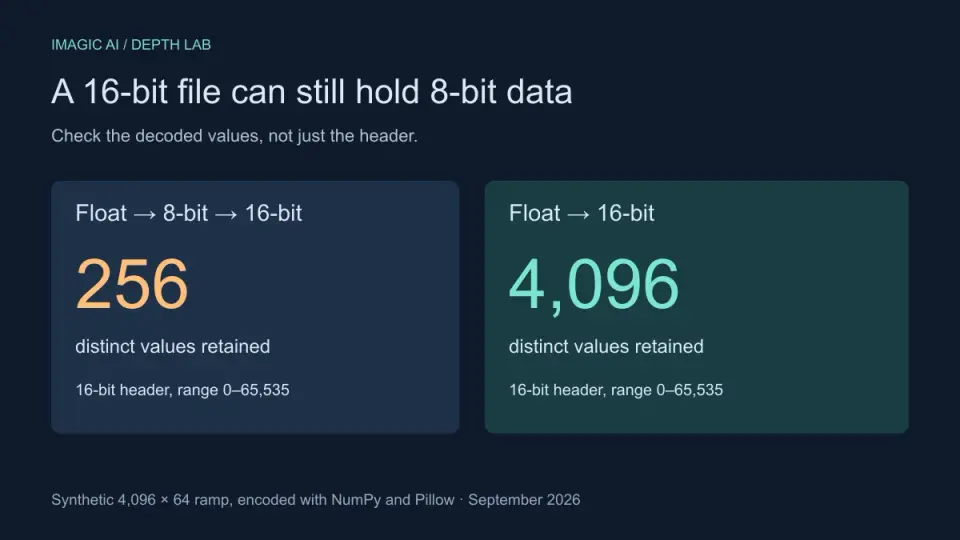
16-Bit Depth Maps: Fix Banding and Verify Your PNG
Fix stair-stepped or inverted depth maps with a reproducible 8-bit vs 16-bit PNG test, a file inspection script, and a practical Blender import checklist.
2026-09-13
GIF Maker From Images: Build Animated GIFs That Load Fast
Turn a set of images into an animated GIF for web and social media. Real frame timing, size limits for each platform, and when to choose GIF over video.

2026-09-13
Screenshot to Image: Save, Format, and Optimize Screenshots
Capture screenshots on any device, save them in the right format, and compress them for web without blurring text. Real steps for PNG, WebP, and full-page capture.