2026-06-28 · Updated 2026-07-12
How to Crop an Image Online: Aspect Ratios and Free Tools
Crop an image online with the right aspect ratio for Instagram, YouTube, and print. I tested free croppers and batch tools so you get clean crops the first time.
Last updated: July 12, 2026
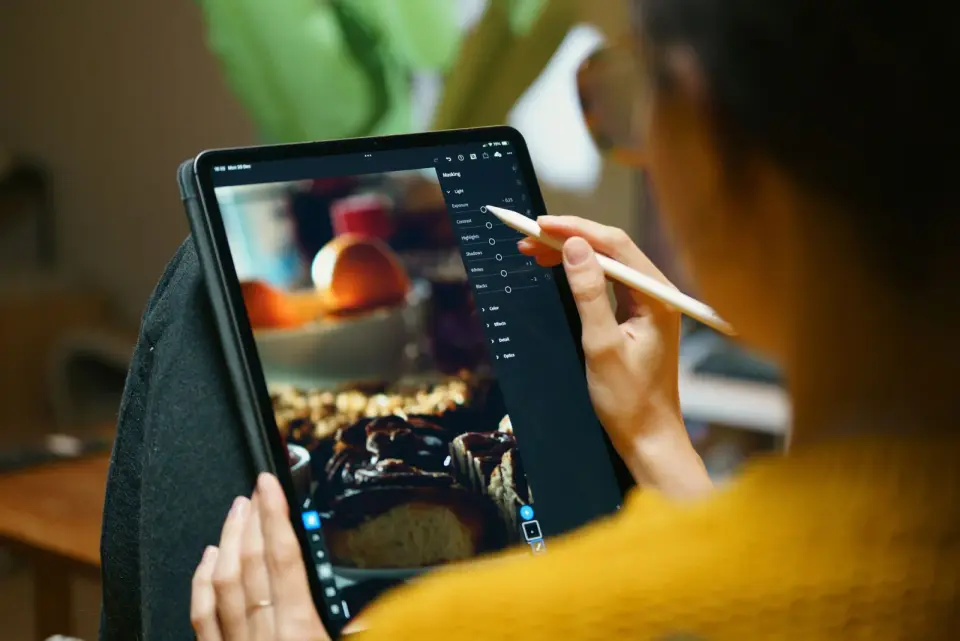
Cropping is the edit I run more than any other. It trims distractions, fixes framing I got wrong in-camera, and forces a photo into the aspect ratio each platform demands. Done badly it throws away pixels you can never get back and leaves a soft, stretched result. This post is the practical workflow I use to crop an image online, by ratio, for social and print, without wrecking quality.
Quick answer: how do you crop an image online?
Pick the aspect ratio to your target first (1:1 for Instagram, 16:9 for YouTube, 2:3 for Pinterest), upload the photo to a free browser cropper, drag the handles to keep your subject on a rule-of-thirds intersection, and export once from the original file. The whole thing takes about ten seconds per image. The two rules that matter most: always crop from the original (re-cropping a crop piles on quality loss), and pick the ratio before you drag so you never stretch the pixels. For the resize half of the job, the image resize guide covers sizing without softening.
Why crop images in the first place?
A crop does three jobs at once: it removes the stuff near the edges that dilutes the subject, it changes the shape of the frame, and it pushes the viewer's eye where you want it. I crop almost every photo that leaves my desk, even ones I thought were framed perfectly when I shot them.
- Remove unwanted edges — a stray hand, a logo, a window frame creeping in.
- Change aspect ratio — force a 3:2 DSLR shot into a 1:1 square for a feed.
- Focus on the subject — cut dead space so the subject fills more of the frame.
- Improve composition — re-balance the shot using the rule of thirds.
- Fit specific dimensions — hit the exact pixel size a platform or printer expects.
- Tighten a story — sometimes the strongest version of a photo is a fraction of the frame.
Cropping is also the cheapest composition fix. You cannot refocus a blurry shot in post, but you can almost always rescue a busy frame by cutting it down.
What aspect ratio do I need for each platform?
This is the question I get most, and the answer is a fixed table. Each platform recompresses what you upload, and if your ratio is off, the platform decides the crop for you — usually by slicing off the most interesting part. Hit the target ratio before you upload and you keep control.
| Platform | Pixels | Aspect ratio | Notes |
|---|---|---|---|
| Instagram feed (square) | 1080 x 1080 | 1:1 | The classic feed crop. |
| Instagram Story / Reel | 1080 x 1920 | 9:16 | Vertical, full screen. |
| Facebook link preview | 1200 x 630 | 1.91:1 | The Open Graph card. |
| X / Twitter post | 1600 x 900 | 16:9 | Widescreen in-stream. |
| LinkedIn post | 1200 x 627 | 1.91:1 | Mirrors Facebook's card. |
| Pinterest pin | 1000 x 1500 | 2:3 | Tall pins get more saves. |
| YouTube thumbnail | 1280 x 720 | 16:9 | The clickable preview. |
For the full, current breakdown of every Instagram format including carousels and profile photos, the Instagram dimensions guide is the reference I keep open. Pick your ratio first, then crop — never the other way around, because dragging a freehand box and hoping it lands on 1.91:1 never works.
How do I use the rule of thirds when cropping?
The rule of thirds splits the frame into a nine-square grid and says: put your subject or horizon on one of the four intersection points, not in the dead center. Most crop tools overlay this grid automatically. When I cropped a batch of product shots last week, lining each subject on the right-third line made the same items look noticeably more dynamic than the centered versions.
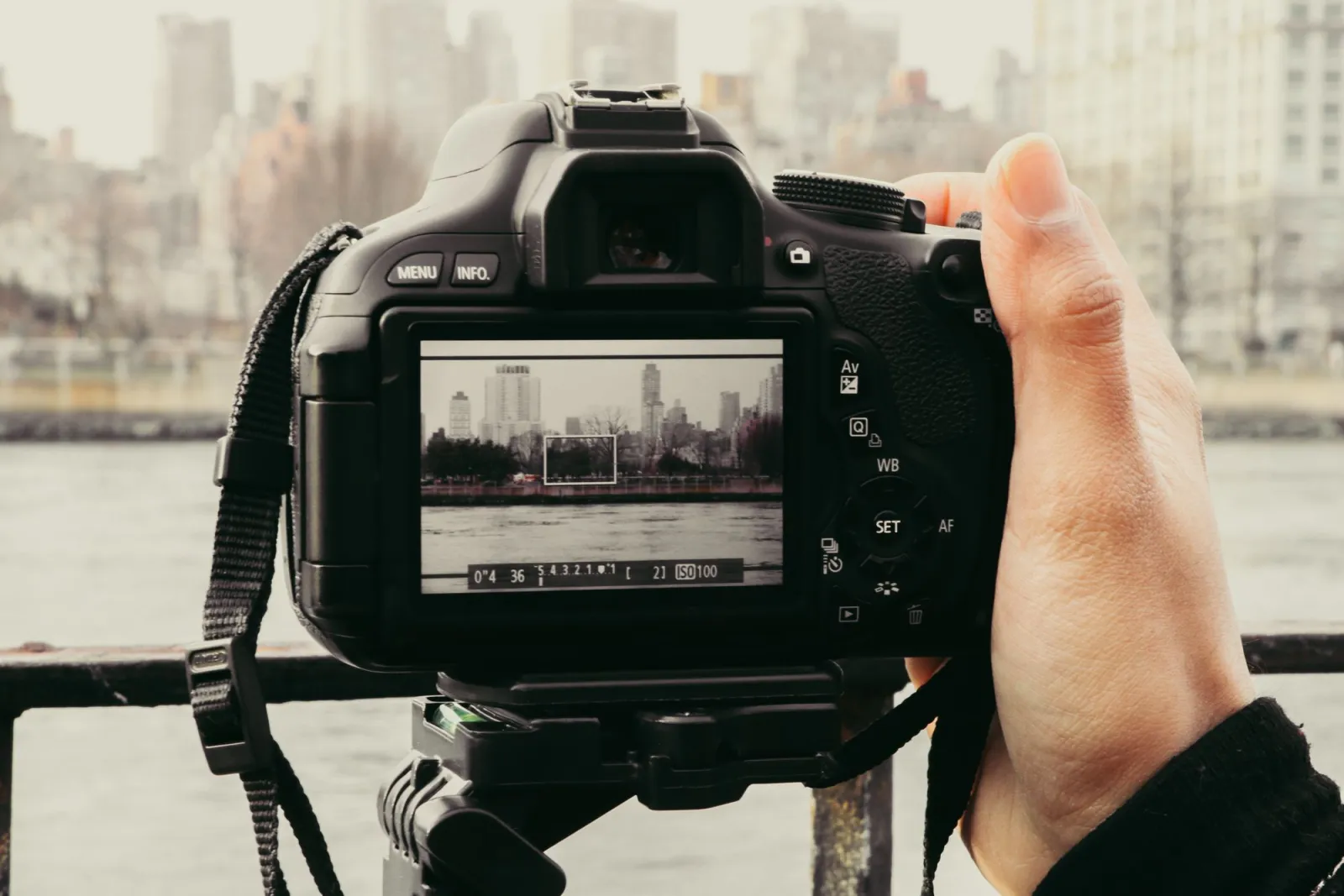
- Turn on the grid overlay in your cropper (nearly all of them have one).
- Place a face or key detail on a vertical third line, eyes roughly on the upper horizontal.
- Put horizons on a horizontal grid line, not floating in the middle.
- Leave "leading space" in the direction the subject faces or moves.
- Break the rule on purpose when symmetry is the whole point of the shot.
For the classic explanation of why off-center composition reads as more balanced, Adobe's rule of thirds overview lays out the grid logic in detail. It is a guideline, not a law — but it is the single fastest way to lift an average crop into a strong one.
How do free and paid crop tools compare?
I ran the same 6000-pixel test image through four tools to see where the free options fall short. The gap is smaller than the marketing suggests, and for a single image almost any free cropper is fine. Paid tools earn their keep on batch jobs, raw files, and non-destructive workflows.
| Tool | Cost | Batch crop | Standout |
|---|---|---|---|
| Imagic AI cropper | Free, no signup | Yes | Drag-and-drop ratios in browser. |
| Squoosh | Free | No | Side-by-side quality preview. |
| Canva | Free tier | Limited | Social presets and templates. |
| GIMP | Free, desktop | Via scripts | Pixel-precise, non-destructive. |
| Photoshop | Paid | Yes | The pro default for batch and raw. |
- Imagic AI is what I reach for first for a quick web crop — upload, pick a ratio, done.
- Squoosh wins when I need to compare quality before exporting.
- Canva is useful when the crop is really a social template in disguise.
- GIMP handles pixel-exact crops and is fully documented in the official GIMP docs.
- Photoshop stays the batch and raw-workflow standard, but it costs money most casual users do not need to spend.
The honest takeaway: you do not need to pay to crop well. You pay for speed across hundreds of images and for raw-file handling, nothing more.
Can I batch crop images at once?
Yes, and if you have more than ten images at the same ratio, you should. I batch-cropped 80 square thumbnails for a store grid in one pass that would have taken an hour manually. Browser batch tools take a folder, apply one ratio to every file, and export a zip. For tighter control, a few lines of script crop a whole directory to a fixed ratio.
The script below crops every JPEG in a folder to a centered 1:1 square — the same logic any batch tool applies under the hood:
from PIL import Image
from pathlib import Path

def batch_crop_square(in_dir, out_dir, ratio=1.0):
    out = Path(out_dir)
    out.mkdir(exist_ok=True)
    for f in Path(in_dir).glob('*.jpg'):
        img = Image.open(f)
        tw, th = img.size
        if tw / th > ratio:        # too wide, trim sides
            new_w = int(th * ratio)
            left = (tw - new_w) // 2
            img = img.crop((left, 0, left + new_w, th))
        else:                      # too tall, trim top/bottom
            new_h = int(tw / ratio)
            top = (th - new_h) // 2
            img = img.crop((0, top, tw, top + new_h))
        img.save(out / f.name)

batch_crop_square('./photos', './cropped')
Change the ratio value (16/9, 2/3, 1.91) and the same function handles every platform. For a no-code path, the bulk image resizer applies one crop ratio across a whole batch in the browser. Batch cropping shines when every output needs the identical frame — a product grid, a reel sequence, a set of ad creatives.
How do I crop without losing quality?
Cropping itself does not degrade an image — it just throws away pixels. Quality loss comes from two habits: cropping a photo that is already small, and re-cropping a file that has already been cropped. The pixels you keep are the pixels you keep; you just get fewer of them.

- Always crop from the original full-resolution file, never a downsized copy.
- Decide the final crop in one pass instead of crop-save-open-crop again.
- Avoid cropping then enlarging — zooming in on a crop invents pixels and softens edges.
- If you must crop tight on a small image, accept a smaller output rather than upscaling blur.
- Keep a master copy so you can re-crop differently later without piling on loss.
This is the same reason resizing has an order of operations: crop first to the shape you want, then resize to the pixel dimensions. Doing it the other way wastes pixels and compounds softness. The image resize keep quality guide walks through that sequence in detail, and it pairs directly with cropping because the two edits almost always run together.
What about fitting images with object-fit?
If you are cropping for a website rather than a social upload, the cleaner fix is often no crop at all — let CSS do it. The CSS object-fit property tells the browser how to fit an image into a box of any ratio without distorting it, which means one source image can serve many layouts.
object-fit: coverfills the box and crops the overflow — the browser's automatic crop.object-fit: containshows the whole image and letterboxes the empty space.object-fit: fillstretches the image to fit — avoid this, it distorts.- Pair
coverwithobject-positionto choose which part survives the crop.
The authoritative reference is the MDN object-fit documentation. Use a permanent crop when you need a fixed asset (a thumbnail file, a print), and use object-fit: cover when the same image must fill differently-shaped containers responsively.
Summary: the short version
Crop from the original, lock the ratio before you drag, line the subject up on a thirds line, and export once. Free browser tools handle a single image perfectly; batch tools or a short script handle dozens at one ratio; CSS object-fit: cover handles responsive web layouts without a permanent crop. The rule I will repeat because it saves the most pixels: every crop throws data away, so make it count the first time and keep your master file untouched.
One real caveat. Cropping can only work with the pixels you captured — it cannot add detail that was never there. If the subject is blurry, too small in the frame, or shot at a low resolution, no online cropper will rescue it. Get the framing and resolution right in-camera, and treat cropping as the refinement step, not the rescue step.
Frequently asked questions
What aspect ratio should I use to crop a photo for Instagram?
Use 1:1 (1080 x 1080) for the main feed, or 9:16 (1080 x 1920) for Stories and Reels.
Does cropping an image reduce its quality?
Cropping itself does not degrade quality since it only discards pixels; quality loss comes from cropping an already-small image or re-cropping a crop.
Can I crop multiple images at once?
Yes, a batch crop tool applies one aspect ratio to an entire folder and exports every file in a single pass.
What is the rule of thirds when cropping?
It splits the frame into a nine-square grid and places the subject on one of the four intersection points instead of dead center.
Should I crop an image before or after resizing it?
Crop first to set the shape you need, then resize to the exact pixel dimensions the platform expects.
What is the best free tool to crop an image online?
A free browser cropper like Imagic AI handles a single quick crop with drag-and-drop ratio presets and no signup.
What does CSS object-fit do compared to a permanent crop?
object-fit: cover crops the image responsively in the browser for display without touching the original source file.
Can cropping fix a blurry or low-resolution photo?
No, cropping can only keep pixels that were already captured, so it cannot add detail to a blurry or low-resolution image.
Image credits
- A designer editing and cropping photos on a tablet with a stylus — photo by Jakub Zerdzicki on Pexels
- A photographer framing a city skyline through a camera viewfinder — photo by Oscar Portan on Pexels
- A smartphone photo gallery on a desk — photo by Lisa on Pexels
- Wooden letter tiles arranged on a grid — photo by Ann H on Pexels
Use the free tools while you follow the guide.
Keep reading
2026-07-26
How to Batch Resize Images: Free Tools and Scripts Compared
Resize hundreds of images at once with free online tools, ImageMagick, XnConvert, and Python scripts. Copy-paste commands, preset sizes, and a practical workflow.
2026-07-26
Bulk Image Resizer: Resize Hundreds of Images at Once (Free)
Resize hundreds of images in bulk for free with a browser tool, ImageMagick, XnConvert, or a Python script, with real byte savings and the safe batch workflow.
2026-07-26
How to Crop an Image to a Circle (Profile Photos and Avatars)
Crop an image to a circle for avatars and profile photos: the square-first rule, making a transparent circle PNG or a circle on a background, and where circles are used.