2026-03-27 · Updated 2026-07-26
How to Crop an Image to a Circle (Profile Photos and Avatars)
Crop an image to a circle for avatars and profile photos: the square-first rule, making a transparent circle PNG or a circle on a background, and where circles are used.

Last updated: July 26, 2026
Circle crops turn a square or rectangular photo into a round image — the standard shape for avatars, profile photos, and logos. There are two distinct goals: a transparent circle PNG (for design use) or a circle on a solid background (for a finished avatar). This guide covers both, the square-first rule that keeps the subject centered, and where circle crops are actually used.
Quick answer: how do you crop an image to a circle?
| Goal | Method | Output |
|---|---|---|
| Circle avatar on a solid bg | Square crop → composite circle on a color | JPEG/PNG |
| Transparent circle | Square crop → circular alpha mask | PNG (alpha) |
| Profile photo for a platform | Just upload a centered square | Platform masks it |
The key rule: crop to a square first with the subject centered, then apply the circle — otherwise the subject ends up off-center in the circle.
The square-first rule
Most people crop straight to a circle and find the subject is off to one side. The fix is to crop to a centered square first, then make it round. The square guarantees the subject sits in the middle of the eventual circle.
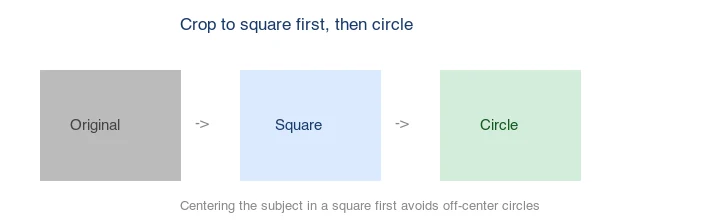
For a face, center on the eyes and nose, not the whole head, because a circle clips the corners where the head's edges would be. Leave a little margin so the chin and forehead are not cut.
Where are circle crops used?
Circle crops are the standard shape for a few specific uses:
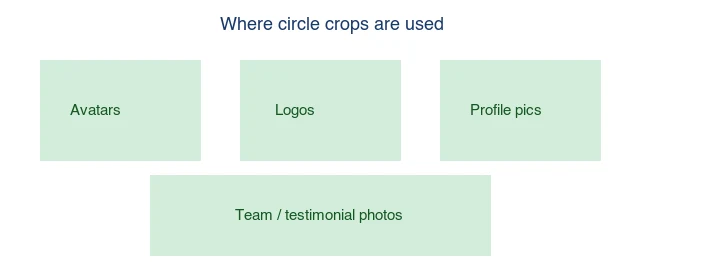
- Avatars and profile photos — most social platforms mask the uploaded square into a circle.
- Logos — many brands put their mark in a circle for app icons and favicons.
- Team and testimonial photos — round headshots in about pages and review widgets.
- UI elements — circular buttons and badges.
For social profile photos, you usually do not need to make the circle yourself — upload a centered square and the platform masks it. Make the circle yourself only when you need a finished round image for design or print.
How do you choose the method?
| Need | Method | Why |
|---|---|---|
| Web avatar, no edit | CSS border-radius: 50% |
No image change, scalable |
| Finished avatar file | Circle on solid bg | Works anywhere as JPEG/PNG |
| Design compositing | Transparent circle PNG | Drops onto any backdrop |
| Social profile | Upload centered square | Platform masks it |
Method 1: Transparent circle PNG
A transparent circle keeps the round shape with transparent corners, so it drops onto any background. Export as PNG (JPEG has no alpha).
## Crop to a centered 600x600 square, then apply a circular alpha mask
magick input.jpg -gravity center -crop 600x600+0+0 +repage \
  \( +clone -threshold -1 -negate -fill white -draw "circle 300,300 300,0" \) \
  -alpha copy -compose CopyOpacity -composite output.png
The result is a PNG with transparent corners. Use it for compositing in layouts; see how to make transparent images.
Method 2: Circle on a solid background
For a finished avatar, composite the circle onto a solid color (white, a brand color, or black). This is what most "round profile picture" tools output.
## Circle on a light-blue background
magick -size 600x600 "xc:#e8f0fe" bg.png
magick bg.png circle.png -gravity center -compose over -composite output.jpg
Pick a background color that contrasts with the subject. White is the safe default; a brand color matches a corporate avatar set.
Method 3: CSS circle (no image edit)
For a web page, you do not need to crop the image at all — CSS masks a square into a circle:
.avatar { width: 200px; height: 200px; border-radius: 50%; object-fit: cover; }
border-radius: 50% turns any square element into a circle; object-fit: cover keeps the image filling it without distortion. This is how most websites render avatars from a square source image. The MDN border-radius reference documents the property.
Method 4: Browser tool
For one image, use our Circle Crop tool: upload, position the subject in the square, apply the circle, and download. This handles the square-first rule visually.
Should you make the circle or let the platform?
For social profile photos, let the platform do it — upload a centered square and the platform masks it into a circle. Making the circle yourself can actually hurt, because some platforms expect a square and will re-mask your circle into a smaller circle, cropping further. Make the circle yourself only when you need a finished round image for design, print, or an avatar that will not be re-masked.
This distinction trips people up because the platforms encourage the confusion — they show your photo as a circle in the UI, which makes users assume they must upload a circle. In reality the upload field almost always expects a square; the circular display is a CSS mask applied on top. Uploading a pre-circled image means the platform's mask cuts into your subject a second time, producing a smaller, tighter crop than you intended. The safe path is to upload a generously-centered square with the subject's face in the middle third, so whatever circle the platform applies still contains the whole face with a little breathing room.
Common mistakes
- Cropping straight to a circle. The subject drifts off-center. Square first.
- Centering the whole head, not the face. A circle clips the corners; center on the eyes/nose.
- Exporting a transparent circle as JPEG. JPEG has no alpha; the corners go black or white. Use PNG.
- Pre-circling a social profile photo. The platform re-masks; upload a centered square instead.
- Cutting the chin or forehead. Leave margin inside the circle.
Frequently asked questions
How do I make a round profile picture?
Crop to a centered square with the face centered, then either let the platform mask it, or apply a circular crop for a finished round image.
Should I crop to a circle for social media?
Usually no — upload a centered square and the platform masks it into a circle. Pre-circling can get re-cropped.
What format is a transparent circle?
PNG. JPEG has no alpha channel, so the transparent corners cannot be stored. See transparent images.
How do I put a circle photo on a background?
Make a transparent circle PNG, then composite it onto the solid color — or use CSS border-radius: 50% on a web page.
How do I crop an image to a circle?
First crop to a square (a circle only fits in a square canvas), then apply a circular mask. Export as PNG to keep the corners transparent, or place the circle on a solid background and export as JPG. The square-first rule is non-negotiable — a circle in a non-square canvas leaves awkward corners.
Why must I crop to a square first?
Because a circle fits inside a square canvas. Applying a circle mask to a non-square image leaves corners that are not transparent, holding whatever the canvas shape is. Cropping to a square first, with the subject centered, means the circle inscribes cleanly and the result is a round image with no stray corners.
What size should a profile photo be?
Roughly 400×400 to 800×800 pixels — large enough to stay sharp, small enough to load fast. Crop to a square first, then apply the circle. Most platforms downsample larger uploads, so 800px is a safe upper bound. See the image cropper.
Can I crop a non-square image to a circle?
Only by first cropping to a square — a circle fits inside a square canvas, so a non-square image leaves awkward corners. Always crop to a square first with the subject centered, then apply the circle. The square-first rule is non-negotiable for a clean circle crop.
How do I keep a circle crop sharp?
Export at 2x the display size (e.g. 800px for a 400px display) so the circle stays crisp on retina screens, and use PNG to preserve the transparent corners losslessly. A 1x circle on a high-DPI screen looks soft. The transparent edges especially benefit from PNG over JPEG, since JPEG has no alpha channel.
Where are circle crops used?
Profile photos and avatars on almost every platform — social, email, app, forum. They are the default for a user identity, which is why a square source photo centered on the subject crops cleanly to a circle. Match the export size to the platform's avatar spec, usually 400–800px.
Image credits
- Circle-crop demo, square-then-circle rule, and circle-crop use-cases diagrams — generated by the author from an ecommerce-style photograph (Pexels #16675632, photo by Mikael Blomkvist) to show real circle-crop output and the square-first rule.
Use the free tools while you follow the guide.
Keep reading
2026-07-26
How to Batch Resize Images: Free Tools and Scripts Compared
Resize hundreds of images at once with free online tools, ImageMagick, XnConvert, and Python scripts. Copy-paste commands, preset sizes, and a practical workflow.
2026-07-26
Bulk Image Resizer: Resize Hundreds of Images at Once (Free)
Resize hundreds of images in bulk for free with a browser tool, ImageMagick, XnConvert, or a Python script, with real byte savings and the safe batch workflow.
2026-07-26
How to Resize an Image Without Losing Quality
Resize an image without losing quality: keep the aspect ratio, only resize down, pick the right resampling filter, and resize before compressing, with real sizes.