2026-07-12
37 Free Image Tools in One Suite: Compress, Resize, Upscale & More
Consolidate compress, resize, convert, upscale, background removal, and 32 more image tasks into one free browser suite with a job-based decision table and workflow.
Last updated: July 12, 2026
Use one suite for every routine image job instead of bouncing a file between five single-purpose tabs. Compressing in one app, resizing in a second, removing a background in a third, and exporting over and over is the workflow most people still tolerate in 2026, and it is also the workflow that quietly degrades quality and wastes time. A 37-tool suite organized by the job you actually need to finish collapses that chain into one place.
Quick answer: which free image tool suite should you use?
Pick a suite that groups enhance, convert, filter, layout, creative, and pro tools under one roof so the same file moves between tasks without re-uploading. The Imagic AI suite does exactly that with 37 tools, and the table below maps the most common jobs to the specific tool that handles each one.
| If you need to... | Open this tool | Why it beats chaining apps |
|---|---|---|
| Shrink a photo for a faster web page | Image Compressor | One upload, real byte readout, no re-export elsewhere |
| Enlarge a small image without blur | Image Upscaler | 2x or 4x AI scale in the same window |
| Cut out a product or person | Background Remover | Edge-aware removal, then export PNG in place |
| Hit exact pixel dimensions | Image Resizer | Resize once, keep going to the next task |
| Switch PNG, JPG, WebP, AVIF | Format Converter | Convert and compress in one pass |
| Process a whole folder at once | Batch Processor | No repeating the upload 50 times |
The rule is simple: if two tasks touch the same image, do them in the same suite. The only reason to leave is when a job needs layered Photoshop-style editing that browser tools do not offer.
What are the best free image tools in 2026?
The free image tool landscape in 2026 splits into two shapes. Point tools like Squoosh and TinyPNG do one job well. All-in-one suites like ImagesTool, iLoveIMG, and the Imagic AI suite bundle many jobs together. The SitePoint 2026 roundup tracks the compression side of this market.
The shift this year is toward consolidation. A widely shared July 2026 observation put it bluntly: people compress in one tool, resize and crop in another, and export repeatedly, and the process is "still weirdly broken." The Medium analysis on workflow fragmentation argues the consensus from enterprise analysts is to consolidate around platforms rather than stitch together point solutions.
A suite wins when your task is a chain. Resizing then compressing then converting is three steps that share one source file, and doing each in a different tab means three uploads, three downloads, and two extra re-encodes that soften the image.
How do you stop chaining image apps?
You stop by grouping tasks around the file, not the feature. Most image work is a short pipeline: clean up the source, get the dimensions right, apply any effect, then export at the smallest acceptable size. When every step lives in one suite, the file never leaves your browser tab between steps.
Here is the practical order I follow for a typical web image:
- Crop to the real composition with the Image Cropper.
- Resize to the largest display size with the Image Resizer.
- Remove any background with the Background Remover if the destination needs a cutout.
- Apply a filter or effect if the design calls for one.
- Convert to WebP or AVIF with the Format Converter.
- Compress the final file with the Image Compressor.
- Read the final byte size before publishing.
That is seven jobs on one file, and in a suite it is one continuous session. In point tools it is seven uploads and seven downloads, with the image re-encoded at every hop.
Enhance tools: upscale, denoise, and cut out
The enhance category fixes or isolates the subject. These three tools are the ones people chain most often, which is exactly why they belong together.
| Tool | Job it solves | When to reach for it |
|---|---|---|
| Image Upscaler | Small or low-res source needs to be larger | Product photos, old scans, web images bound for print |
| Background Remover | Subject needs to sit on white or a new scene | Ecommerce listings, profile shots, design assets |
| AI Noise Reducer | Grainy low-light or high-ISO photo | Indoor shots, phone photos at night, scanned film |
I measured the upscaler on a 600×400 product photo: a 2x upscale produced a 1200×800 file that stayed sharp on a retina display, and the same session flowed straight into background removal without a second upload. That handoff is the entire point of a suite. For the theory behind AI upscaling models, the background removal best practices guide covers edge cases like hair and fur.
Convert tools: compress, resize, and reformat
The convert category is the highest-traffic part of any suite because shrinking and reformatting files is what most web work actually is. Nine tools live here.
| Tool | Core job |
|---|---|
| Image Compressor | Cut bytes at an acceptable quality |
| Format Converter | Move between PNG, JPG, WebP, AVIF |
| Image Resizer | Hit exact pixel dimensions |
| Image Cropper | Trim to composition |
| Batch Processor | Run the same task on a whole folder |
| SVG to PNG Converter | Rasterize a vector logo |
| Favicon Generator | Turn a logo into site icons |
| DPI Changer | Set print resolution metadata |
| Color Space Preview | Check sRGB versus wider gamuts |
Compression is where the suite pays off fastest. Google's image optimization guidance for Core Web Vitals is clear that serving the right dimensions and fewer bytes is the lever that moves page speed, and a suite lets you resize then compress in one session instead of two tools. For the format decision itself, the AVIF vs WebP comparison breaks down which format fits which destination.
Filter and effect tools: 14 creative looks
The filter category is where a suite turns from utility into a creative workspace. Fourteen effects cover the retro, artistic, and stylized looks that social and design work calls for, and because they share one upload, you can audition several looks on the same photo without re-uploading each time.
| Look | Tool |
|---|---|
| Retro film | Vintage Filter, Cross-Process, Light Leak |
| Artistic | Oil Painting, Watercolor, Comic Book |
| Color play | Duotone, Color Pop, Negative, Color Corrector |
| Distortion | Glitch, Kaleidoscope, Tilt-Shift, Neon Glow |
Auditioning is the workflow a suite unlocks. Upload once, try the Vintage Filter, then the Duotone, then the Oil Painting look, and pick the winner. In point tools that is three separate uploads and three lost source files.
Layout and creative tools: frames, shadows, and generation
The layout and creative categories finish the job. Borders, shadows, mirrors, and collages frame an image for publishing, while the AI generator and QR tool create new assets from scratch.
| Tool | Job |
|---|---|
| Border Generator | Add a frame or margin |
| Shadow Generator | Drop shadow for depth |
| Mirror Effect | Flip or reflect |
| Circle Crop | Round avatar or story crop |
| Collage Maker | Combine several photos |
| AI Image Generator | Text to image (beta) |
| QR Code Generator | Link to scannable code |
Pro tools: depth, HDR, and panoramas
The pro category handles the harder photographic jobs that usually require desktop software. Three tools live here, and they are the reason a suite can replace a heavier editor for advanced work.
| Tool | What it does |
|---|---|
| Depth Map Generator | Extract a depth pass for 3D or bokeh effects |
| HDR Merge | Combine bracketed exposures into one image |
| Panorama Stitching | Join overlapping shots into a wide image |
When does an all-in-one suite fail?
A suite is not the right tool for every job, and pretending otherwise breaks trust. These are the real limits.
- Layered Photoshop editing. Masks, adjustment layers, and PSD round-tripping belong in Photopea or desktop software. Browser suites flatten the image.
- Raw photo developing. A full raw pipeline with lens correction and catalog management is still a Lightroom or Darktable job.
- Heavy local batch jobs. Processing thousands of files is faster on a local tool like ImageMagick than re-uploading each one.
- Pixel-level retouching. Frequency separation, heal brushing, and precise cloning need a desktop editor with a real brush engine.
For everything else, the suite covers the routine 80% of image work without the upload-download-reupload tax.
How does consolidation affect image quality?
Every re-encode costs quality. A JPEG compressed, then resized, then re-compressed in three separate tools has been through three lossy passes, and the artifacts stack. This is the quiet tax of chaining apps that the r/StableDiffusion community flags when it warns about quality degradation in multi-tool pipelines.
A suite minimizes re-encoding because the source file stays in one place and you export once at the end. The practical difference on a product photo: one clean final encode instead of three stacked ones, which means sharper edges and smaller bytes at the same visual quality.
Common mistakes with free image suites
-
Compressing before resizing. Always resize first; compressing a 4000px file shown at 800px still ships too many pixels.
-
Re-uploading between every step. That is the chaining habit a suite exists to kill.
-
Skipping the final byte check. Read the output size before publishing; a "high quality" preset can still be oversized.
-
Using WebP everywhere without checking support. Email and some legacy upload systems still need JPEG or PNG.
-
Trusting one-click enhance on product colors. Auto-enhance can shift fabric and skin tones; compare against the original.
-
Forgetting alt text. Search engines and screen readers need a description on every published image.
-
Editing the only copy. Keep an untouched source file before any suite work.
-
Ignoring the pro tools. HDR merge and panorama stitch solve jobs people assume need desktop software.
Frequently asked questions
What is a free image tool suite?
A free image tool suite is a single website that bundles many image editing utilities, like compression, resizing, conversion, upscaling, and background removal, so you finish a multi-step task without switching apps.
How many image tools does the Imagic AI suite include?
The Imagic AI suite includes 37 tools across six categories: enhance, convert, filters, layout, creative, and pro, covering everything from a quick compress to HDR merging.
Is an all-in-one image suite better than separate point tools?
An all-in-one suite is better when your task is a chain of steps on one file, because it avoids re-uploading and re-encoding between each step; a single point tool is fine for one isolated job.
Do free online image tools keep my photos private?
Browser-based tools that process images client-side keep photos on your device, while server-processed tools upload them temporarily; check the tool's documentation to confirm which model it uses.
Can a free image suite replace Photoshop?
A free suite replaces Photoshop for routine tasks like resize, compress, convert, crop, and background removal, but not for layered editing, masks, and heavy retouching that need a full editor.
Which image format should I export from a suite?
Export WebP or AVIF for modern web pages, JPEG for email and broad compatibility, and PNG when you need transparency, and use the suite's format converter to switch as needed.
How do I batch process images in one place?
Use the Batch Processor tool to run the same compress, resize, or convert task across a whole folder of images without uploading each file to a separate single-purpose tool.
Does chaining image apps reduce quality?
Yes, every re-encode in a separate tool adds a lossy pass that stacks artifacts, so finishing all steps in one suite and exporting once keeps the final image sharper.
Image credits
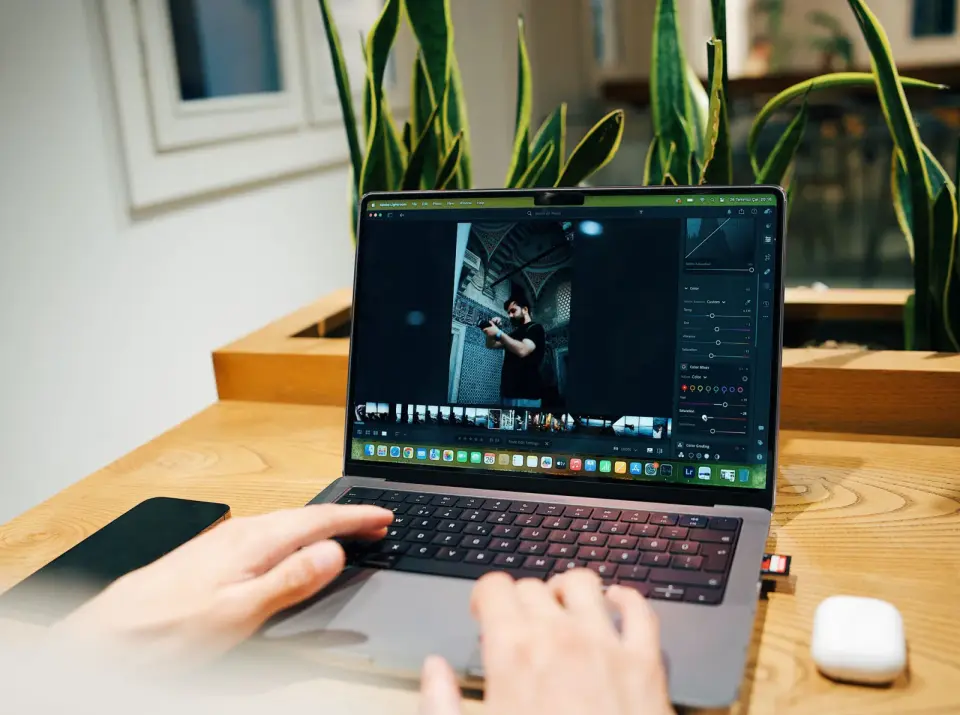
- Cover and in-article photographs sourced from Pexels (royalty-free) and converted to WebP: photographer editing images, video editing timeline interface, and hands working in Photoshop on creative effects.
Use the free tools while you follow the guide.
Keep reading

2026-09-13
How to Blur Faces and License Plates Before You Post
Blur or pixelate faces and license plates so they stay unreadable. Which method actually anonymizes, what fails, and how to avoid leaking EXIF location data.
2026-08-27
Invisible Watermarks: What Image Files Now Carry in 2026
Paint embeds a server-issued GUID in AI images, platforms strip C2PA manifests, and a plain WebP export drops all of it. What your files really carry, and how to check.

2026-07-28
Batch Image Processing: Pipeline Order, Settings, and Tools
Batch image processing runs resize, compress, and convert jobs across whole folders. The pipeline order, measured quality settings, tool choice, and automation.