2026-06-28 · Updated 2026-07-26
Text-to-Image AI in 2026: How Prompt Generation Actually Works
Text-to-image AI turns a written prompt into a finished picture. Here is how the models, prompts, and settings behind image generation fit together in 2026.
Last updated: July 26, 2026
Text-to-image AI takes a sentence you type and returns a picture. In 2026 the hard part is no longer finding a generator; it is writing a prompt precise enough to get the composition, style, and detail you actually want. This article breaks down how the models turn words into pixels, how to structure prompts that hold up, and which settings matter for commercial work.
Quick answer
Text-to-image AI uses a diffusion model that starts from random noise and, guided by the text you typed, removes that noise step by step until a coherent image appears. The text is encoded by a language model so the generator knows what to draw. You control the result with the prompt, the aspect ratio, the sampler, and the number of denoising steps. For most marketing and product work, a 60-90 character prompt plus a fixed seed beats long keyword stuffing.
If you want to skip straight to output, try the /tools/ai-image-generator and iterate from there.
What text-to-image AI actually does under the hood
A text-to-image system is two models bolted together. The first is a text encoder that turns your prompt into a list of vectors that describe concepts. The second is a generative model that produces pixels conditioned on those vectors. Most production systems in 2026 are diffusion models, the family that powers Stable Diffusion, DALL·E, and the engines behind commercial platforms.
Diffusion works backwards. The model is trained to predict and subtract noise from an image. At generation time you start with pure noise and run the denoiser many times. Each pass nudges the pixels toward something the text encoder says matches your prompt. The number of passes is the step count.
The encoder matters as much as the image model. OpenAI's CLIP established the pattern of aligning text and image embeddings, and the CLIP paper remains the clearest explanation of why a prompt with concrete nouns outperforms vague adjectives. When you write "red espresso cup on marble, morning light," the encoder has strong anchors. "Beautiful coffee" gives it almost nothing.
How do you write a prompt that does not fall apart?
A reliable prompt has four slots, and you should fill them on purpose rather than hoping the model guesses:
- Subject — the concrete thing in frame, named specifically.
- Action or pose — what the subject is doing, if anything.
- Environment — where it sits, including lighting and camera.
- Style — medium, lens, film stock, or artist reference.
Fill the slots, then cut anything that does not change the pixels. Redundant words like "highly detailed, 8k, masterpiece" were useful in 2023; modern models already optimize for sharpness and often ignore them, so they just burn your token budget.
Keep prompts between 60 and 120 characters for most subjects. Long prompts fragment attention across the encoder, so the model under-weights the subject you actually care about. One scenario beats a paragraph of qualifiers.
Choosing settings that change the result
Most generators expose the same handful of dials. Knowing which ones move the image saves hours of rerolling.
| Setting | What it controls | Practical range |
|---|---|---|
| Steps | How many denoising passes run | 25-40 for quality, 15-20 for drafts |
| CFG scale | How strictly the model obeys the prompt | 5-7 balanced, 8-12 literal |
| Seed | The starting noise, so a result reproduces | Fix it to iterate reliably |
| Sampler | The math used to remove noise each step | DPM++ 2M Karras or Euler a |
Seed discipline is the single biggest difference between a hobbyist and a working artist. Fix the seed, change one word, regenerate. You can actually see what that word does instead of chasing randomness.
Which models should you use in 2026?
The model family sets the ceiling on quality and the kind of imagery you can make. The right choice depends on the job, not on which release is newest.
- Stable Diffusion 3 for local control, inpainting, and licensed-commercial use where you must run your own hardware.
- Midjourney v7 for art-directed concept work, illustration, and moodboards where painterly finish matters more than pixel control.
- DALL·E / Firefly for teams that need indemnified commercial output and brand-safety filters out of the box.
- Specialty fine-tunes for narrow styles — anime, product, architecture — trained on a base model.
For deeper comparisons read the Stable Diffusion 3 breakdown and the Midjourney v7 guide. Both cover prompts and settings specific to those engines.
Aspect ratio, resolution, and the upscaling step
Native resolution is rarely your final resolution. Models generate best at one square or near-square size; stretching them at generation time softens detail. The cleaner workflow is to generate at native size, then upscale.
- Generate at the model's native resolution, usually 1024x1024.
- Crop or outpaint to the aspect ratio your layout needs.
- Upscale 2x or 4x with a dedicated upscaler.
- Sharpen lightly and export to WebP for the web.
A 1024x1024 source upscaled to 2048x2048 almost always looks better than forcing a 2048x2048 generation, because the model concentrates its budget on the subject instead of filling canvas. When the file is final, the /tools/image-upscaler handles the resize, and /tools/image-compressor keeps the WebP under your page-weight target.
How long does generation take, and what drives the cost?
Generation time is driven by steps, resolution, and batch size — not by prompt length. A 30-step square image finishes in a few seconds on a hosted GPU; the same image at 4x resolution can take a minute.
| Factor | Effect on time | Effect on cost |
|---|---|---|
| More steps | Linear increase | Linear increase |
| Higher resolution | Roughly quadratic | Roughly quadratic |
| Batch size | Parallel, minor | Per-image, linear |
| Long prompt | Negligible | Negligible |
If you are iterating, draft at low steps and low resolution, then run the final at full quality. Most teams waste budget rerolling finals instead of cheap drafts.
Real workflow: product hero from a text prompt
Here is how a marketer turns a sentence into a shippable hero image without a photo shoot. The point is the sequence, not the specific prompt.
- Start with the subject: "ceramic pour-over coffee maker, matte black."
- Add environment: "on a concrete ledge, soft window light, shallow depth of field."
- Pin style: "studio product photography, 50mm, neutral background."
- Fix the seed and tune one slot at a time until the composition holds.
- Remove the background, then composite onto your brand background.
The last two steps are where generated images become production assets. Pull the subject into the /tools/background-remover, drop it onto your layout, and crop to spec with /tools/image-cropper. Generated pixels plus a clean composite beat a photo shoot when the product does not exist yet.
Can you use text-to-image output commercially?
It depends on the model license and the training data, and you should check both before shipping. Open-weights models like Stable Diffusion ship under licenses that generally permit commercial use of outputs, but you are responsible for not reproducing a living artist's signature style. Hosted products vary: some indemnify commercial use, others restrict it.
The Stability AI license overview is the reference for the CreativeML Open RAIL-M family that covers most open-weights releases. When the asset is final, treat it like any other image: track provenance, keep the prompt and seed, and store the WebP at the resolution you will actually publish.
Pitfalls that waste your time
A few habits quietly sabotage output. Drop them and quality climbs.
- Stuffing the prompt with quality keywords the model ignores.
- Rerolling the seed every time instead of fixing it.
- Generating straight to final resolution instead of upscaling.
- Ignoring the text encoder's bias toward concrete nouns.
- Treating the model as a search box rather than a camera.
Related reading
For adjacent techniques, the AI art generator overview covers style transfer and reference-image workflows, and the image-processing reference at web.dev's image guide is useful when you optimize the final WebP for delivery.
Text-to-image AI rewards specificity. Name the subject, fix the seed, draft cheap, and finish with real image tooling. That loop is what turns a prompt into a usable asset.
Frequently asked questions
How long should a text-to-image prompt be?
Usually one to three sentences naming the subject, style, and key details. Longer prompts give the model more to anchor on, but also invite contradictions that blur the result. Lead with the subject, add style and lighting, and avoid listing ten adjectives that fight each other.
Why does text-in-image still fail?
Most diffusion models tokenize text weakly, so they spell short labels but garble sentences. Specialized architectures like SD3's MMDiT handle a few words of high-contrast text; long or stylized text still fails. Treat text in images as reliable for a sign, not a paragraph.
Is text-to-image free to use commercially?
It depends on the model license. Open models under permissive licenses are often free within a revenue cap; hosted APIs charge per image and usually grant commercial rights. Always check the specific model's terms before shipping assets.
Which model should I use in 2026?
For photorealism, Midjourney or a hosted diffusion model. For control and self-hosting, Stable Diffusion 3. For speed, a distilled model. Pick by whether you need quality, control, or cost. See the Stable Diffusion guide.
How long does text-to-image take?
A few seconds for a single image on a hosted service; longer locally or for high resolution. It is not instant for batches. Budget the time, or use a hosted API that handles the queue.
How do I write a prompt that does not fall apart?
Lead with the subject (one clear thing), add the style and lighting, then key details — and stop. Listing many adjectives or conflicting instructions makes the model average them into a blurry compromise. A focused prompt of a few specific descriptors beats a long one. Iterate: change one thing at a time so you learn what each word does.
Use the free tools while you follow the guide.
Keep reading
2026-07-28
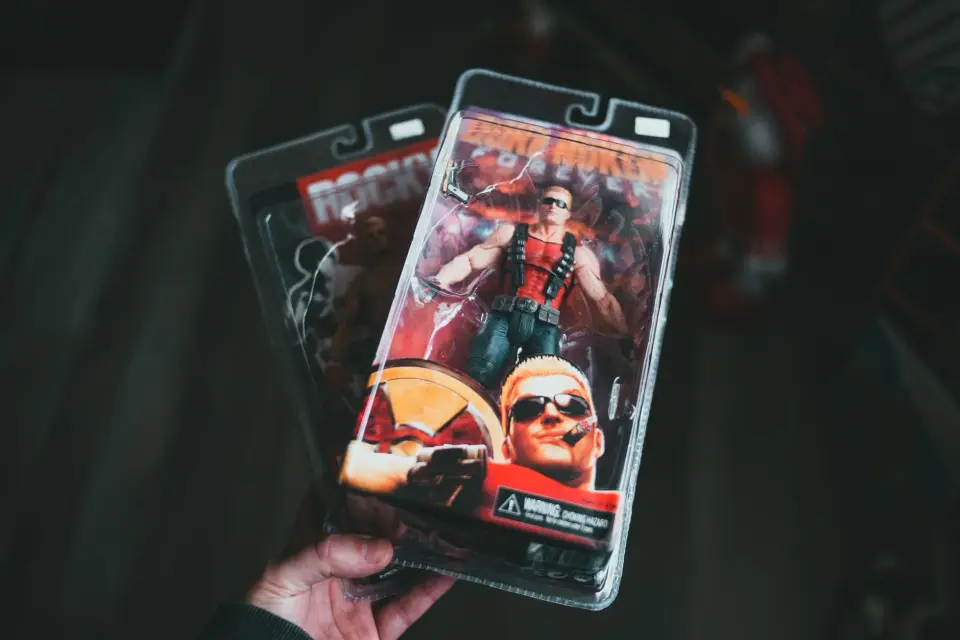
AI Action Figure Trend: How to Prep Your Photo Right
Turn a photo into a collectible toy portrait: what makes the prompt work, and the crop, background, and resolution steps that avoid an obvious fake.
2026-07-26
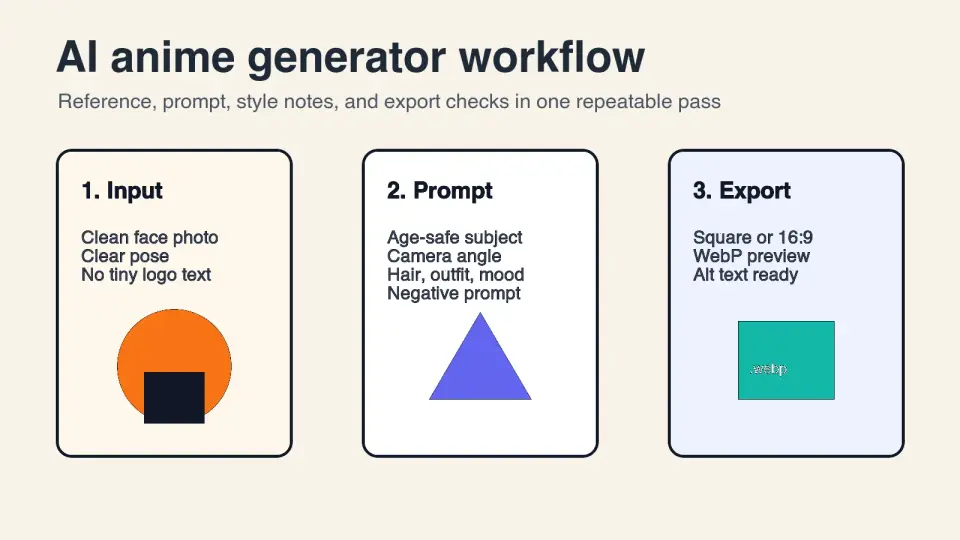
AI Anime Generator Guide: Prompts, Styles, and Safe Exports
A practical AI anime generator workflow for portraits, avatars, banners, and social posts, with prompt templates, style checks, and export rules.
2026-07-12
Adobe Firefly: How Generative Fill and Credits Work
A practical look at Adobe Firefly: generative fill in Photoshop, text to image, the commercially safe model, how credits work, and how it compares.