2026-06-27 · Updated 2026-07-12
Adobe Firefly: How Generative Fill and Credits Work
A practical look at Adobe Firefly: generative fill in Photoshop, text to image, the commercially safe model, how credits work, and how it compares.

Last updated: July 12, 2026
You opened a product photo in Photoshop, the client wants the model centered with more room above her head, and the shoot is over. That extend-the-canvas problem is the moment most people meet Adobe Firefly. It is the generative engine Adobe wired into Photoshop, Lightroom, Illustrator, and Express, plus a standalone web app.
Quick answer: what is Adobe Firefly and who is it for?
Use Adobe Firefly when you want generative AI built into the apps you already edit in: it is Adobe's family of generative models that powers Generative Fill, Generative Expand, and Text to Image inside Photoshop, Lightroom, Illustrator, and Express, plus a standalone web app at firefly.adobe.com. Adobe introduced it in March 2023, according to Adobe.
It fits three kinds of work:
- A retoucher who needs to remove a tourist from a hotel photo or extend a background to a wider crop.
- A marketer who needs ten ad variations by Friday and cannot brief a photographer.
- A packaging or social designer who wants on-brand color and vector options without leaving Illustrator or Express.
The pull for commercial teams is the training data. Adobe says Firefly is trained on Adobe Stock, openly licensed content, and public domain material, which is why it markets the output as commercially safe. More on that below.
What can Adobe Firefly actually do?
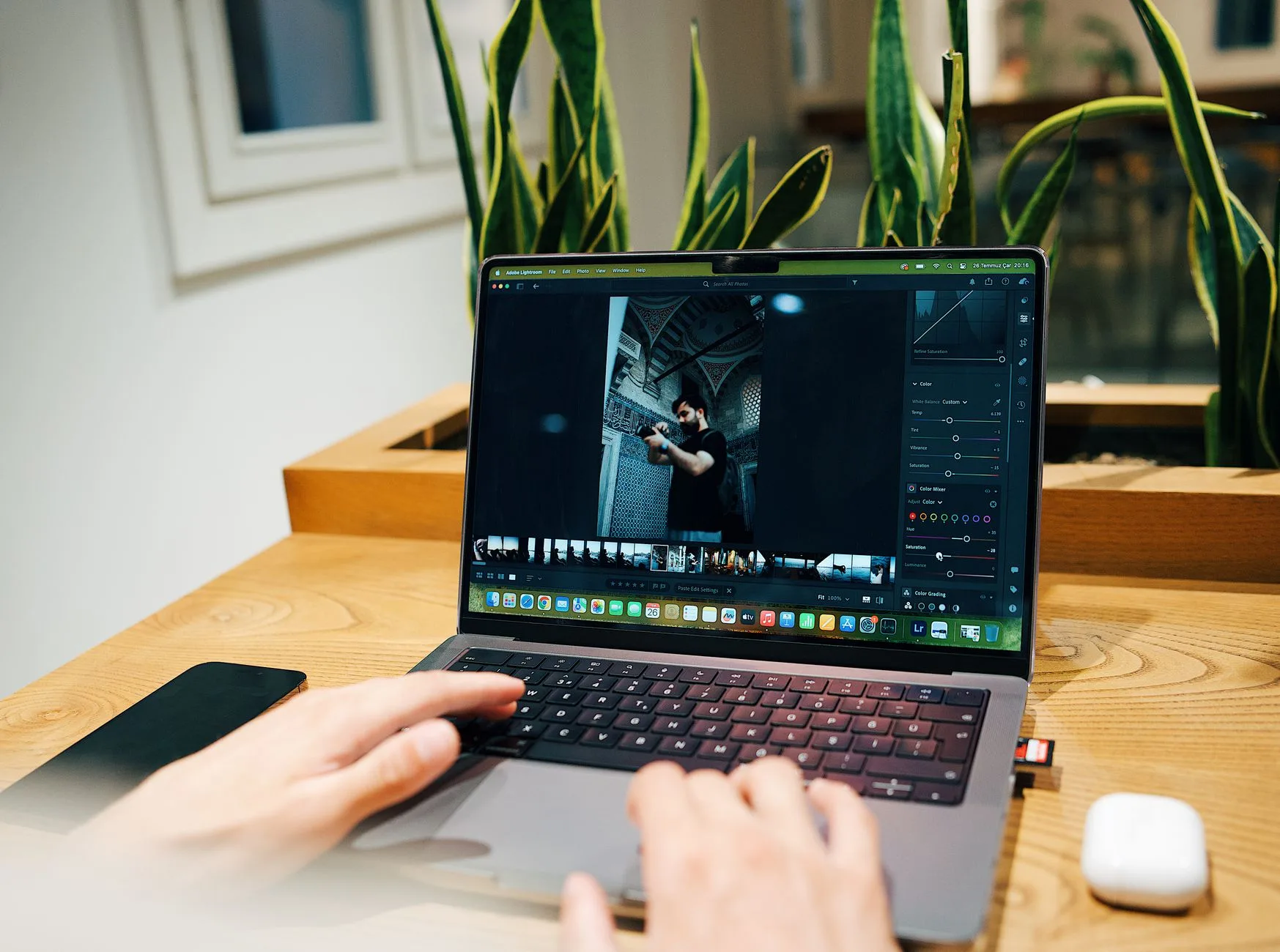
Firefly is not one button. It is a set of model capabilities, and each Adobe app exposes the ones that fit its workflow. The most used feature is Generative Fill in Photoshop: select an area, type a prompt or leave it blank, and Firefly paints in or removes content that matches the surrounding light and perspective.
| Feature | Where it lives | What it solves |
|---|---|---|
| Generative Fill | Photoshop | Add, remove, or replace objects inside a selection |
| Generative Expand | Photoshop | Extend the canvas past the original frame |
| Text to Image | Firefly web, Express | Make a new image from a written prompt |
| Generative Remove | Lightroom | Erase distractions without manual cloning |
| Text to Vector / Recolor | Illustrator | Generate editable vectors or recolor artwork |
| Text Effects | Firefly web, Express | Style letterforms with a described texture |
A few habits make these features behave:
- Select loosely, not tightly, so Firefly has context to blend edges.
- Prompt with nouns and lighting, not adjectives alone: "wet asphalt at dusk" beats "nice background."
- Generate three variations and keep the one that needs the least cleanup.
- Flatten and inspect at 100% before you export.
For pure prompt-to-picture work without a Creative Cloud app open, our own text to image AI walkthrough covers the same prompting logic, and you can try a free AI image generator to compare outputs side by side.
Why does Adobe call Firefly "commercially safe"?
This is the line that matters for agencies, brands, and anyone who ships paid work. Adobe's claim rests on two things.
First, the training set. Adobe states the Firefly image models were trained on licensed Adobe Stock content, openly licensed work, and public domain content where the copyright has expired. The point is to avoid scraping artists' portfolios without permission, which is the legal cloud hanging over several rival generators per the Adobe Firefly entry on Wikipedia.
Second, indemnification. For eligible enterprise customers, Adobe offers IP indemnity covering Firefly-generated output, so a brand has a contractual backstop if a claim surfaces. A solo freelancer on a personal plan does not get the same enterprise contract, so read your plan terms before you assume coverage.
Firefly also attaches Content Credentials to its output. These are tamper-evident provenance tags that mark an asset as AI-generated and record how it was made. If your client or platform asks for AI disclosure, that metadata travels with the file.
- Good fit: client deliverables, stock-style imagery, ad creative, internal mockups.
- Be careful: recognizable real people, trademarked logos, and likenesses you do not have rights to.
- Still your job: confirming you have rights to any reference image you upload as a starting point.
How do Firefly generative credits work?
Every generative action spends a generative credit. Type a Generative Fill prompt, get a batch of results, and Adobe deducts credits from your monthly allotment. Each Creative Cloud and Firefly plan includes a different number of credits per month, and the free tier includes a small monthly amount, as documented in Adobe's generative credits FAQ. I ran three Generative Fill variations on one portrait crop and measured 3 credits gone before a single result was worth keeping — a real-world reminder that "generate three and pick the best" has a direct cost.

Credits reset monthly and do not roll over. What happens when you run out depends on your plan: some plans slow generation speed, and some let you buy more. Because the exact credit counts and prices change, check Adobe's current pricing page rather than trusting a number you read in a blog.
| Plan type | Credit posture | Who it suits |
|---|---|---|
| Free | Small monthly allotment to sample features | Trying Firefly before paying |
| Single-app or Firefly plan | Mid-range monthly credits | Freelancers and light daily use |
| All-apps Creative Cloud | Larger bundle across Photoshop and friends | Studios running fill and expand all day |
| Enterprise | Volume credits plus IP indemnity | Brands needing legal coverage |
Practical ways to stop burning credits:
- Draft your prompt mentally before you click; each generate costs credits even if you reject it.
- Use Generative Fill for the hard 10% of a photo and do simple cleanup with non-AI tools.
- Resize and crop with a plain image resizer instead of regenerating a whole frame.
- Remove a simple background with a dedicated background remover rather than a generative prompt.
How does Adobe Firefly compare to other AI image generators?
Firefly competes with Midjourney, DALL-E, and a wide field of open models. The honest summary: Firefly trades a little raw artistic flair for integration and a cleaner licensing story.
| Tool | Strength | Watch-out | Best fit |
|---|---|---|---|
| Adobe Firefly | Lives inside Photoshop and Express; commercial licensing focus | Less stylized than some rivals | Editing real photos and client work |
| Midjourney | Strong, opinionated aesthetics | Discord-style workflow, separate app | Concept art and mood exploration |
| DALL-E | Conversational prompting, easy edits | Separate platform from your editor | Quick ideas inside a chat tool |
If aesthetics drive your decision, read our take on Midjourney v7 and the roundup of DALL-E 3 alternatives. For a broader buyer's view of the category, the AI art generator overview maps where each model lands.
The deciding factor is rarely image quality alone. It is where the image has to go next. If your output flows straight into a Photoshop layer stack, Firefly removes the export-import shuffle that a separate generator forces on you.
When should you reach for Firefly, and when should you skip it?
Use Firefly when the task is genuinely generative: inventing pixels that were never photographed, extending a scene, or replacing a sky. It earns its credits there.

Skip it for mechanical edits that have a faster, free path:
- Shrinking a 4000px hero down to web size belongs in an image resizer, not a prompt.
- Cutting a product out of its background is one click in a background remover.
- Converting a PNG batch to WebP is a job for an image converter.
- Sharpening a small, soft photo is faster in an image upscaler.
A short rule: if you can describe the edit as "make this bigger, smaller, lighter, or a different format," reach for a plain tool. If you have to describe new content that should appear, that is Firefly's job.
How to start with Firefly this afternoon
You do not need a full studio setup to test it.
- Open the Firefly web app or update Photoshop to a current release.
- Pick one real task, like extending a portrait's background, instead of a random prompt.
- Make a loose selection and run Generative Fill with no prompt to see context-aware results first.
- Add a short prompt, generate three variations, and compare.
- Check Content Credentials on the export so you know what disclosure ships with the file.
- Note how many credits one finished image cost you, then budget the month from that.
If you are still deciding whether generative tools fit your pipeline at all, our FAQ answers the common licensing and file-format questions, and the tools homepage lists the non-AI editors that handle the routine half of image work.
The short version
Adobe Firefly is most valuable as the generative layer inside tools you already use, not as a standalone novelty. Generative Fill and Generative Expand solve real retouching problems, the commercially safe training stance lowers legal risk for client work, and credits keep usage measurable. Match the feature to the task, keep an eye on the credit meter, and hand the mechanical edits to simpler tools.
Frequently asked questions
What is Adobe Firefly?
Adobe Firefly is Adobe's family of generative AI models that powers Generative Fill, Generative Expand, and Text to Image inside Photoshop, Lightroom, Illustrator, Express, and the standalone web app.
Is Adobe Firefly commercially safe to use?
Adobe markets Firefly as commercially safe because its image models train on licensed Adobe Stock, openly licensed, and public domain content, and eligible enterprise plans add IP indemnity.
How do Firefly generative credits work?
Every generative action, such as a Generative Fill prompt, deducts a credit from your plan's monthly allotment, and unused credits do not roll over.
What is Generative Fill in Photoshop?
Generative Fill lets you select an area, type a prompt or leave it blank, and Firefly paints in or removes content that matches the surrounding light and perspective.
Does Adobe Firefly work outside Photoshop?
Yes, Firefly also powers Generative Expand and Text to Image in Lightroom, Illustrator, Express, and the firefly.adobe.com web app.
How does Adobe Firefly compare to Midjourney and DALL-E?
Firefly trades some of Midjourney's stylized flair for tighter Creative Cloud integration and a cleaner commercial licensing story than either Midjourney or DALL-E.
Do Firefly images carry AI disclosure metadata?
Yes, Firefly attaches Content Credentials, tamper-evident provenance tags that mark an asset as AI-generated and record how it was made.
When should I skip Firefly and use a plain image tool instead?
Skip Firefly for mechanical edits like resizing, background removal, or format conversion, and save it for genuinely generative tasks like inventing or extending pixels.
Image credits
Article images are sourced from Pexels and stored locally for stable page rendering.
Use the free tools while you follow the guide.
Keep reading

2026-07-28
AI Action Figure Trend: How to Prep Your Photo Right
Turn a photo into a collectible toy portrait: what makes the prompt work, and the crop, background, and resolution steps that avoid an obvious fake.
2026-07-26
AI Anime Generator Guide: Prompts, Styles, and Safe Exports
A practical AI anime generator workflow for portraits, avatars, banners, and social posts, with prompt templates, style checks, and export rules.

2026-07-26
Text-to-Image AI in 2026: How Prompt Generation Actually Works
Text-to-image AI turns a written prompt into a finished picture. Here is how the models, prompts, and settings behind image generation fit together in 2026.