2026-03-09 · Updated 2026-07-26
TIFF to JPG: Convert Large Scan and Print Files to Web JPG
Convert large TIFF scan and print files to JPG for the web. Real measured sizes (TIFF is 8-19x larger), the magick and Pillow commands, and when to keep TIFF instead.
Last updated: July 26, 2026
TIFF is the format of scanners, print houses, and archival masters — it preserves maximum quality, but the files are enormous and impractical to share. Converting TIFF to JPG shrinks them dramatically (often 8–19×) for web delivery, email, and sharing, while keeping quality high enough that the loss is invisible at normal viewing size. This guide covers when to convert, the real size difference, and how to do it.
Quick answer: should you convert TIFF to JPG?
Convert to JPG for delivery (web, email, sharing); keep the TIFF as the master. Match the target to the goal:
| Goal | Target | Why |
|---|---|---|
| Web / email / share | JPG | Small, universal |
| Web photograph (smallest) | WebP | Even smaller than JPG |
| Lossless web (sharp graphics) | PNG | Lossless, supports alpha |
| Edit / archive / print master | Keep TIFF | Maximum quality |
For one image, use the Image Converter; for batches, the magick CLI. See the convert image format guide.
How much smaller is JPG than TIFF?
TIFF is dramatically larger because it stores data losslessly (often uncompressed or with mild LZW). Measured on one 2000px photograph:
| Format | Size | Type |
|---|---|---|
| JPEG q85 | 416 KB | Lossy |
| PNG | 2.8 MB | Lossless |
| TIFF (LZW) | 3.3 MB | Lossless |
| TIFF (uncompressed) | 8.0 MB | Lossless |
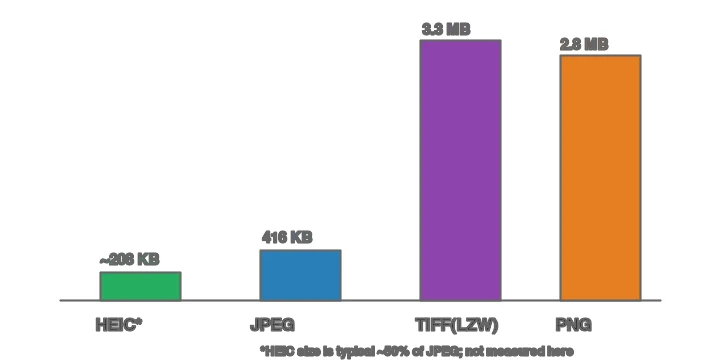
An uncompressed TIFF is roughly 19× the size of the JPEG; even LZW-compressed TIFF is ~8×. That is why TIFF is wrong for web delivery — a single TIFF can be larger than an entire web page should be.
Why is TIFF so large?
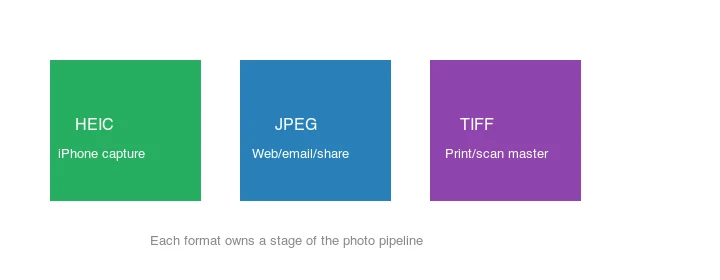
TIFF stores image data with little or no compression, prioritizing fidelity over size. Uncompressed TIFF keeps every pixel's full bit depth with no loss; LZW-compressed TIFF applies a mild lossless compression that helps on flat areas but barely dents photographic noise. This makes TIFF ideal as a scan or print master — no artifacts, full detail, editable — and terrible as a web format. Each format owns a stage of the pipeline:
Method 1: Web converter
For one image, use the Imagic AI Image Converter: upload the TIFF, choose JPG, set quality ~85, and download. The TIFF stays as your master; the JPG is the deliverable.
Method 2: Command line
## Single image, JPEG q85
magick input.tif -quality 85 output.jpg

## A folder
mkdir -p out
for f in *.tif *.tiff; do [ -f "$f" ] && magick "$f" -quality 85 "out/${f%.*}.jpg"; done

## Resize while converting (TIFFs are often huge — resize to web size first)
magick input.tif -resize 1920x -quality 85 output.jpg
The resize step matters: a TIFF from a scanner is often 4000px+; resizing to the display size before encoding JPG saves far more bytes than the quality setting ever will. Skipping it is the single biggest mistake in TIFF-to-web workflows. See the batch resize guide.
Method 3: Python (Pillow)
from PIL import Image
from pathlib import Path

def tiff_to_jpg(src: Path, dest: Path, quality: int = 85, max_width: int = 1920):
    with Image.open(src) as img:
        if img.mode != "RGB":
            img = img.convert("RGB")   # TIFFs can be CMYK or 16-bit; JPG needs 8-bit RGB
        if img.width > max_width:
            ratio = max_width / img.width
            img = img.resize((max_width, int(img.height * ratio)), Image.LANCZOS)
        img.save(dest, "JPEG", quality=quality, optimize=True, progressive=True)

for f in Path("tiffs").glob("*.tif*"):
    tiff_to_jpg(f, Path("out") / f"{f.stem}.jpg")
The convert("RGB") step is important: scanner TIFFs are often CMYK or 16-bit, and JPEG requires 8-bit RGB. Pillow handles the conversion, but check the output color is correct afterward.
How do CMYK and bit depth affect the conversion?
Scanner and print TIFFs are frequently CMYK (four ink channels) or 16-bit per channel, while JPEG requires 8-bit RGB. That mismatch is the most common reason a TIFF→JPG conversion looks wrong — colors shift or the export fails outright. The fix is to convert the color mode to RGB and reduce to 8-bit during export. In ImageMagick this happens automatically with -colorspace sRGB; in Pillow, img.convert("RGB") does it. The Adobe Photoshop color modes reference explains CMYK versus RGB and why the conversion matters for print-origin files.
After converting, always check skin tones and saturated colors: a CMYK→RGB conversion can shift vivid colors slightly, and a 16-bit→8-bit reduction can introduce banding in smooth skies. If banding appears, add slight noise (dithering) or keep more bit depth by exporting PNG instead of JPG for that image. For most web photographs, an 8-bit sRGB JPG is correct and the shift is invisible.
When should you keep the TIFF?
Keep TIFF (do not convert) when:
- It is a master you will edit or reprint. Re-encoding to JPG adds lossy artifacts each time.
- It goes to a print house that requires TIFF. Some printers specify TIFF for quality.
- You need archival fidelity. JPG is lossy; a TIFF master preserves everything.
The rule: TIFF is the source of truth, JPG is a derived deliverable. Never delete the TIFF after converting — you lose the lossless master.
Common mistakes
- Serving TIFF on the web. Browsers support it poorly and the file is enormous. Convert to JPG/WebP.
- Converting CMYK/16-bit TIFFs without converting to RGB. JPG needs 8-bit RGB; check color after export.
- Deleting the TIFF after converting. Keep the lossless master.
- Skipping the resize. A 6000px TIFF → JPG at q85 is still a 6000px download. Resize to display size.
- Re-compressing repeatedly. Edit the TIFF, export JPG once. Do not re-encode the JPG.
Final conversion checklist
- Keep the TIFF master for archive and print.
- Convert a copy, not the only source file.
- Resize to web dimensions before exporting JPG.
- Convert CMYK or 16-bit files carefully and inspect color.
- Save JPG around quality 85 unless the destination requires smaller files.
Frequently asked questions
Is TIFF better quality than JPG?
TIFF is lossless, so it has no artifacts — but a high-quality JPG (q85+) looks identical at normal viewing size and is 8–19× smaller. TIFF wins only for masters and print.
Does converting TIFF to JPG lose quality?
Yes, JPG is lossy. At quality 85+ the loss is invisible at viewing distance, which is why it is the standard for delivery. Keep the TIFF as master.
Can browsers display TIFF?
Poorly and inconsistently. Convert to JPG, PNG, or WebP for any web use. See image formats explained.
Should I convert TIFF to JPG or PNG?
JPG for photographs (smaller); PNG if the TIFF is a graphic needing lossless web delivery. For the smallest web result, WebP. See image formats explained.
Should you convert TIFF to JPG?
For web delivery, yes — JPG is far smaller and universally supported, while TIFF is enormous and poorly supported by browsers. Keep the TIFF as the lossless master; export JPG for delivery. Never delete the TIFF after converting, because you lose the lossless master.
How much smaller is JPG than TIFF?
Often 8 to 19 times smaller, because TIFF is lossless and often uncompressed, while JPG is lossy. A 50 MB TIFF becomes a 3 MB JPG at quality 85 with no visible loss at viewing size. The size difference is the whole reason to convert for delivery.
Can I batch convert TIFF to JPG?
Yes — ImageMagick (magick mogrify), a Python script (Pillow), or a desktop batch tool handles folders of TIFFs. For large archives, the command line is the practical path. Convert CMYK or 16-bit TIFFs to 8-bit RGB before exporting JPG.
Why is TIFF so large?
Because it is lossless and often uncompressed, storing every pixel exactly. That makes it ideal for masters and print, but wasteful for web delivery. TIFF is the source of truth; JPG is the derived deliverable. Never delete the TIFF after converting to JPG — you lose the lossless master and the ability to re-export.
What is a TIFF file used for?
As a lossless master for high-quality image work — scans, print output, archival storage — where preserving every pixel exactly matters. TIFF is large because it is lossless (often uncompressed), which makes it ideal as a source of truth but wasteful for web delivery. Convert to JPG or WebP for delivery; keep the TIFF as the master.
Should I delete the TIFF after converting?
Never. The TIFF is the lossless master; the JPG is a lossy derivative. Once you delete the TIFF, you lose the ability to re-export at a different quality or size without compounding artifacts. Keep the TIFF as the source of truth and export JPG or WebP for delivery. Storage is cheap; losing the master is not.
Image credits
- JPEG vs TIFF comparison, format size comparison, and where-formats-belong diagrams — generated by the author from a landscape photograph (Pexels #1287145, photo by eberhard grossgasteiger) to show real measured TIFF vs JPEG sizes.
Use the free tools while you follow the guide.
Keep reading
2026-09-13
16-Bit Depth Maps: Fix Banding and Verify Your PNG
Fix stair-stepped or inverted depth maps with a reproducible 8-bit vs 16-bit PNG test, a file inspection script, and a practical Blender import checklist.
2026-09-13
GIF Maker From Images: Build Animated GIFs That Load Fast
Turn a set of images into an animated GIF for web and social media. Real frame timing, size limits for each platform, and when to choose GIF over video.
2026-09-13
Screenshot to Image: Save, Format, and Optimize Screenshots
Capture screenshots on any device, save them in the right format, and compress them for web without blurring text. Real steps for PNG, WebP, and full-page capture.