2026-06-28 · Updated 2026-06-30
Learn Image Editing Faster With Video Tutorials in 2026
Video tutorials are the fastest way to learn image editing in 2026. I show how I picked good ones, watched actively, and turned watch-time into real editing skill.
Last updated: June 30, 2026
Video tutorials beat written guides when a tool moves. The moment a slider appears on screen, pausing and copying the move teaches you more than a paragraph ever can. I learned image editing this way over two years, and roughly four out of five techniques I use daily came from watching someone work, not from reading. This post is about how to make that method reliable in 2026: which tutorials to pick, how to watch without wasting an hour, and how to record your own so the tool you depend on always has a reference.
Quick answer: which video tutorials should you watch to learn image editing?
Watch short, recent, single-task tutorials that show a real tool doing one job, then copy the moves immediately. Skip the hour-long overviews. I watched a four-minute background-removal walkthrough last spring, paused it twice, and reproduced the result on my own photo in under ten minutes, which stuck far better than any long course. Pair that habit with our photo editing fundamentals so you understand the why behind each move, not just the clicks.
Build a small rotation:
- A one-task tutorial on the exact tool you opened today.
- A fundamentals video on the adjustment underneath that tool.
- Your own screen recording once you can repeat the workflow.
Do those three and your watch-time converts into skill instead of noise.
Why do video tutorials work for image editing?
Image editing is procedural. You read exposure, drag a slider, judge the preview, and nudge again. A video shows that loop in real time, including the wrong moves a writer would quietly edit out. When I watched a retoucher back off a contrast boost mid-stroke, I finally understood that small moves beat confident ones.
The second reason is motion transfer. Your hands copy what you see far faster than your eyes decode prose. A two-second pan-and-crop demo teaches cropping better than a paragraph describing it. This is why a free image editor walkthrough can replace an afternoon of guessing where the buttons live.
The trap is passive watching. Studies of online learning repeatedly find that students retain little from video they consume like television. The fix is not better video but a better watcher, which is what the next sections cover.
How do you pick a tutorial that actually teaches you?
Most tutorials are noise. Filter hard before you press play. I apply four checks to any video, and I skip anything that fails two or more.
| Signal | What to look for | Red flag |
|---|---|---|
| Recency | Posted within roughly 18 months | Pre-2023 interface in the screenshots |
| Pace | Pauses and repeats the key steps | A speed-run montage |
| Resolution | At least 1080p, screen text readable | Blurry 360p capture |
| Scope | One task, completed fully | "Everything" promised in ten minutes |
A recent date matters most for software tutorials because interfaces change. A 2021 video of a tool may point at menus that no longer exist, which teaches you the wrong layout. When a tutorial is older than that, cross-check every step against the live tool before you trust it.
Prefer creators who narrate their mistakes. A presenter who says "I oversharpened that, let me undo" is teaching you judgement, which transfers to any editor. One who only shows the polished path is teaching you to memorize clicks.
How do you watch a tutorial so you actually learn?
Active watching is the whole game. I treat every tutorial as a workout, not a stream, using a loop that has measurably cut my learning time.
- Open the tool and the video side by side.
- Play for thirty to sixty seconds, then pause.
- Reproduce the exact move on your own image.
- Write one line on what worked and what broke.
- Re-watch only the step that failed, not the whole video.
- Re-do the move the next day without the video.
That last pair of points is where most people lose an hour. Replaying from the top feels productive but re-teaches what you already know. Scrub to the confusing second instead, and a next-day re-do confirms it moved into long-term memory. The same loop works whether you are following a photo editing software guide walkthrough or an AI image editing tools demo.
Cap any single sitting at roughly twenty minutes. Beyond that, retention drops and you start mimicking without thinking. Two focused ten-minute sessions beat one distracted forty-minute one every time.
How do you record your own tutorial for the tools you use?
The best tutorial for your workflow is the one you record yourself, because it matches your exact tool, your files, and your shortcuts. I record a thirty-second clip every time I solve a problem I expect to forget, and a year later I have a personal library that answers my own questions faster than any search.
| Source | Best for | Cost | Catch |
|---|---|---|---|
| YouTube | Huge, free range of creators | Free | Quality varies wildly |
| Skillshare | Structured, course-style learning | Paid | Watch for outdated tools |
| Tool docs and our blog | Tool-specific, kept current | Free | No motion to copy |
| Your own recording | Your exact, repeatable workflow | Free | You must maintain it |
Keep your recordings short and titled by the task, not the date. "Background removal for product PNGs" is searchable; "tutorial 14" is not. If you want to publish them, follow YouTube's own creator guidance on video uploads and formats, and browse what performs well in the image-editing space on YouTube before you record your own. For longer, course-style learning, Skillshare hosts structured classes worth sampling.
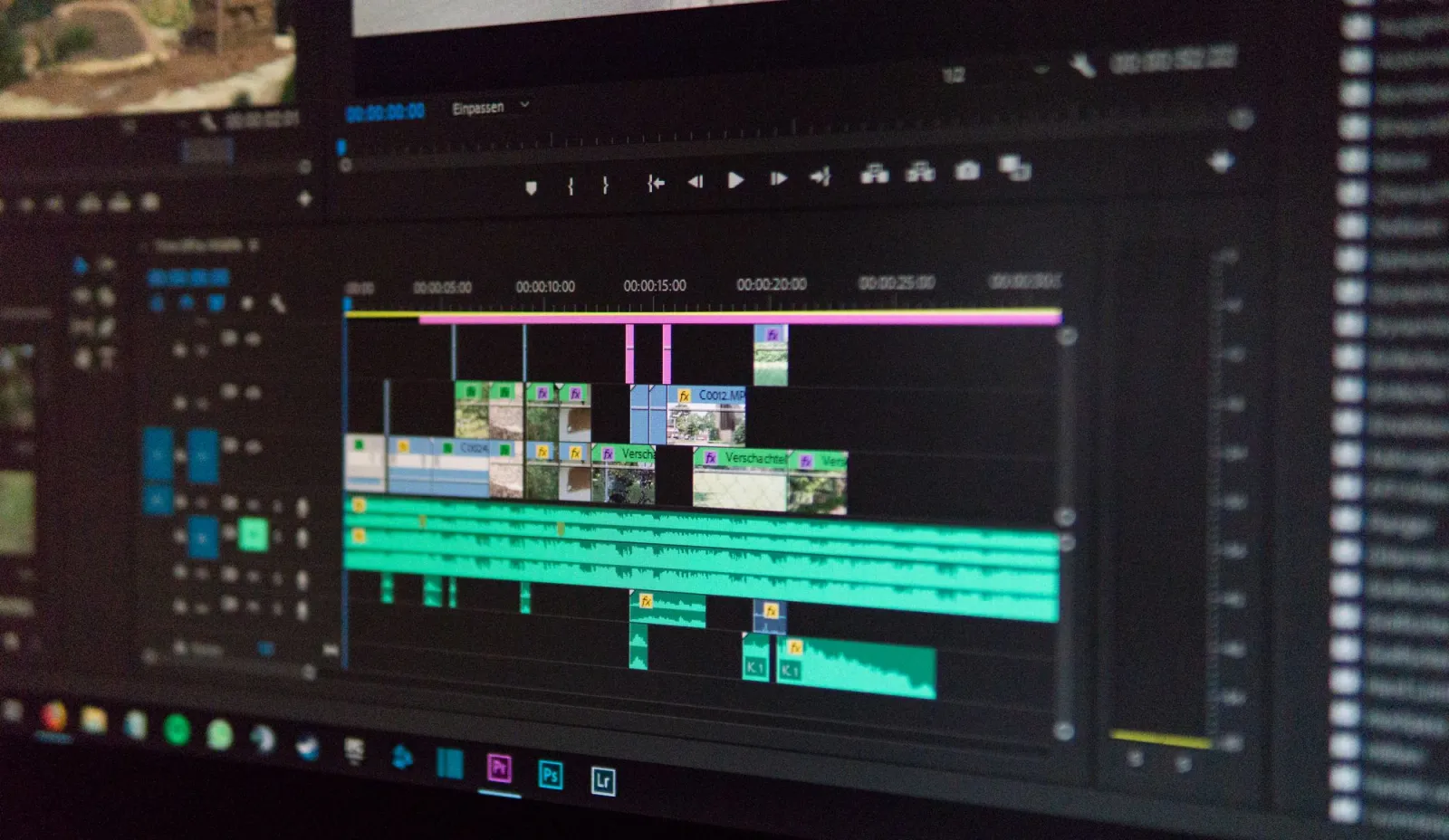
A screen recording also doubles as documentation for batch tasks. When you script a repetitive job, recording the steps once means the next time a teammate, or future you, can follow along without reverse-engineering the clicks.
Is there a faster path than solo watching?
Yes, but only slightly. Pairing each video with a written reference and a practice file compresses the loop. When I watched an AI upscale walkthrough alongside our editing notes, I cut my trial-and-error in half because I knew which setting to try first instead of scanning the panel.
The faster path is not more video, it is less watching with more doing. Keep a single sample image for the week, run every new technique through it, and compare the versions. You will see your skill improve across one file, which is more motivating than any subscriber count.
Key takeaways
Video tutorials convert into skill when you choose well and watch actively. Pick recent, single-task videos, copy the moves immediately, and record your own whenever you solve something worth keeping. The method is simple, but it fails the moment watching becomes passive, so protect that short, hands-on loop.
One honest caveat: tutorials go stale. A 2026 recording of a tool will mislead you by 2028 if the interface changes and you keep trusting it. Re-verify any older clip against the live tool before you copy it.
Frequently asked questions
How long should an image-editing tutorial be?
Under 10 minutes, focused on one task. A single-task video ("remove a background for product PNGs") is searchable and finishable; a 40-minute overview is not. Shorter videos get watched to the end, where the technique lands.
Where should I publish image-editing tutorials?
YouTube for reach, and your own site for ownership. YouTube's creator guidance covers upload formats; your own site keeps the content under your control and indexable for search.
How do I learn faster from video tutorials?
Watch actively: pause, copy each move on a sample image immediately, and keep one practice file for the week. Watching without doing is the failure mode — the technique sticks only when your hands repeat it.
How do I record my own tutorial?
Use a screen recorder, narrate each step, and keep the recording short and titled by the task. A screen recording doubles as documentation for batch tasks. "Background removal for product PNGs" is searchable; "tutorial 14" is not.
How do I pick a tutorial that teaches me?
Look for three signs: it is recent (within a year, so the tool matches), it covers one task (not a 40-minute overview), and the creator shows the actual clicks, not just talks. Skip tutorials with vague titles or that promise mastery in one video. A focused, recent, single-task video is the one that converts to skill. Re-verify older clips against the live tool before copying them.
Image credits
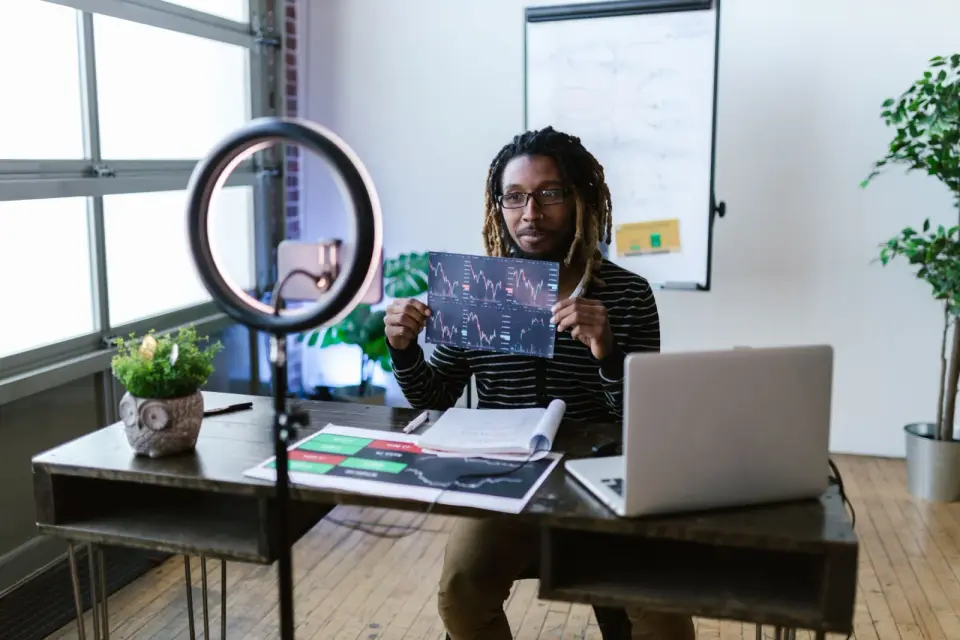
- A creator recording a video tutorial in a home studio — photo by Katerina Holmes on Pexels
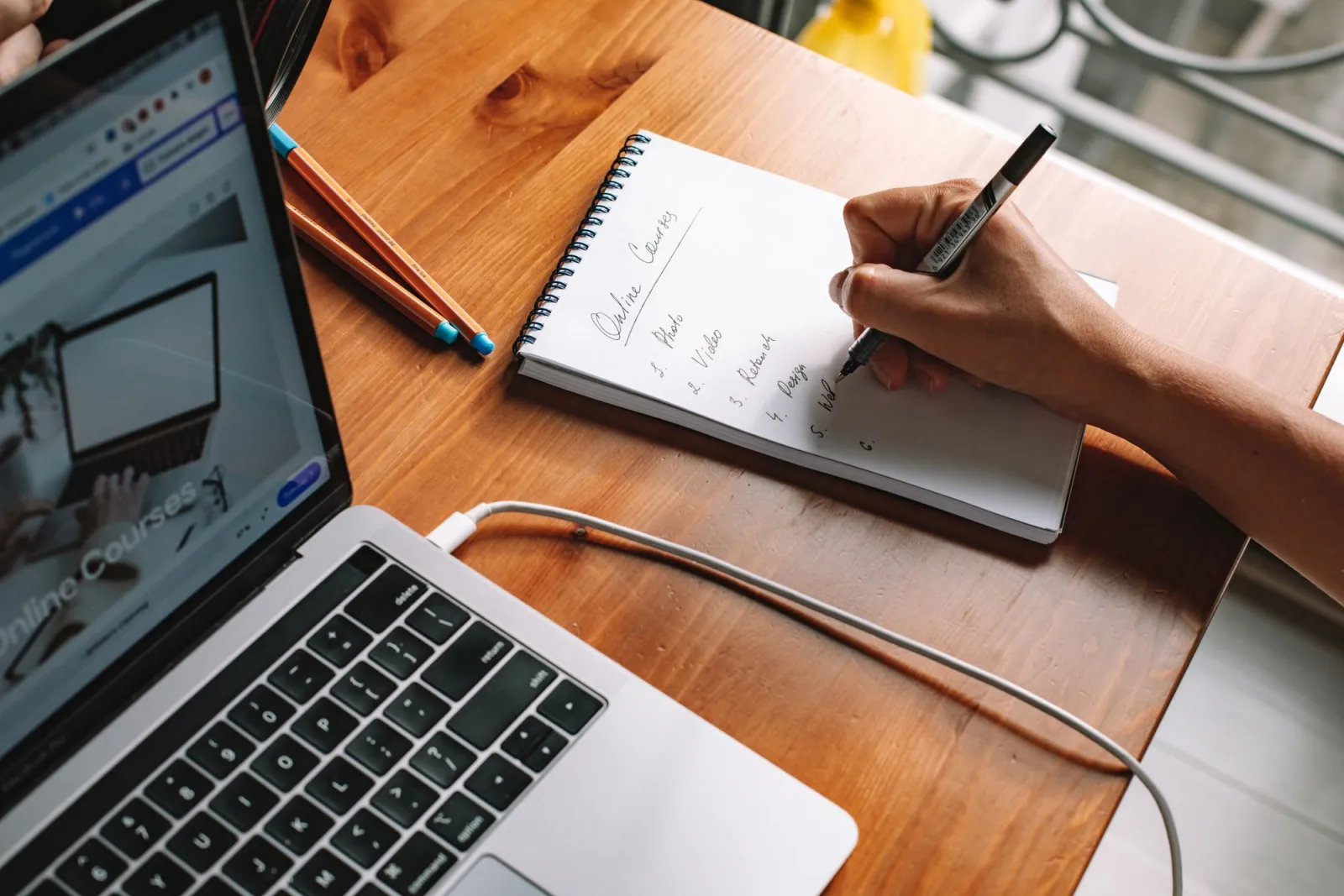
- A person taking notes while watching online courses on a laptop — photo by Katerina Holmes on Pexels
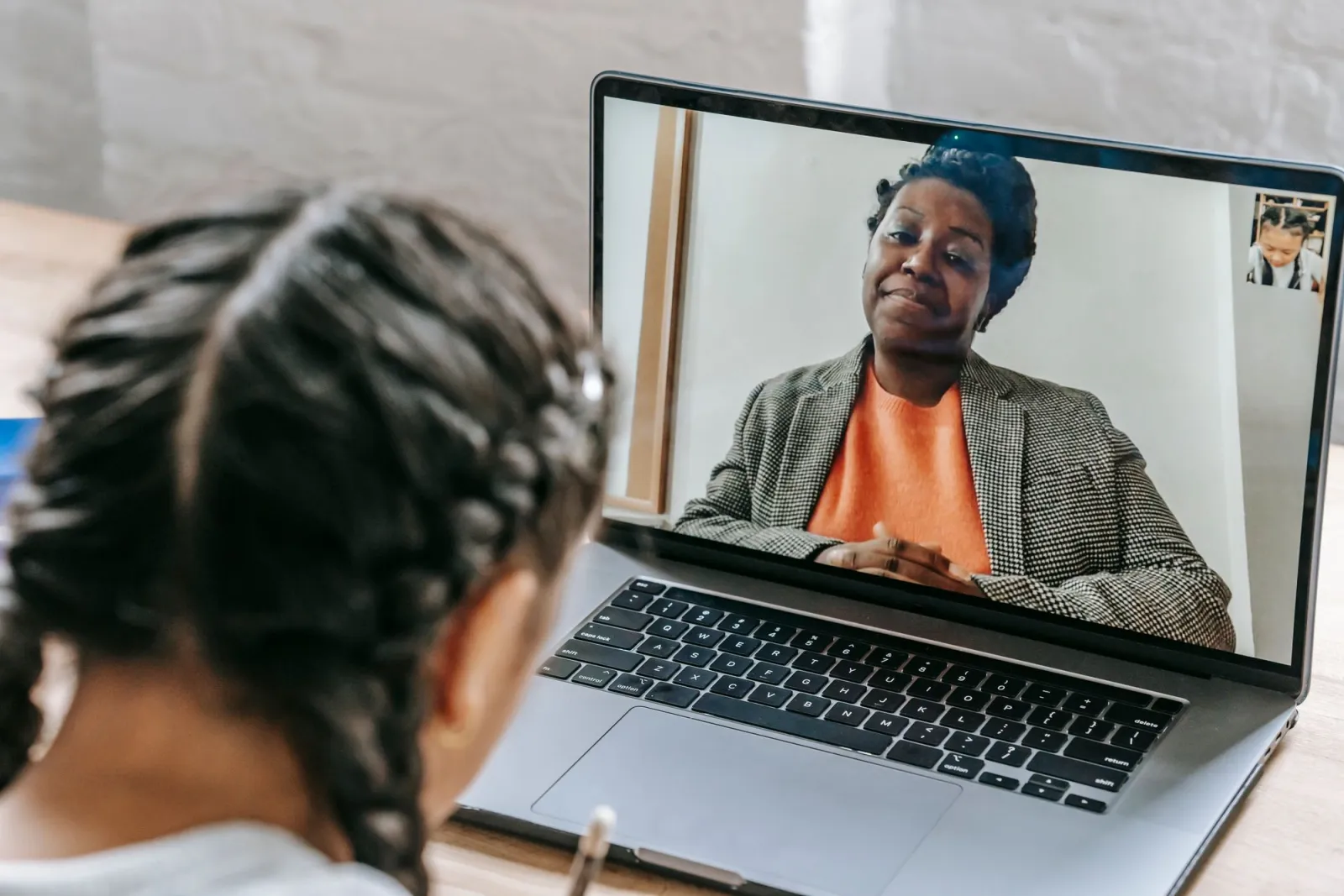
- A student studying online with a tutor through a laptop screen — photo by Max Fischer on Pexels
- A close-up of a video editing timeline interface on a monitor — photo by Alex Fu on Pexels
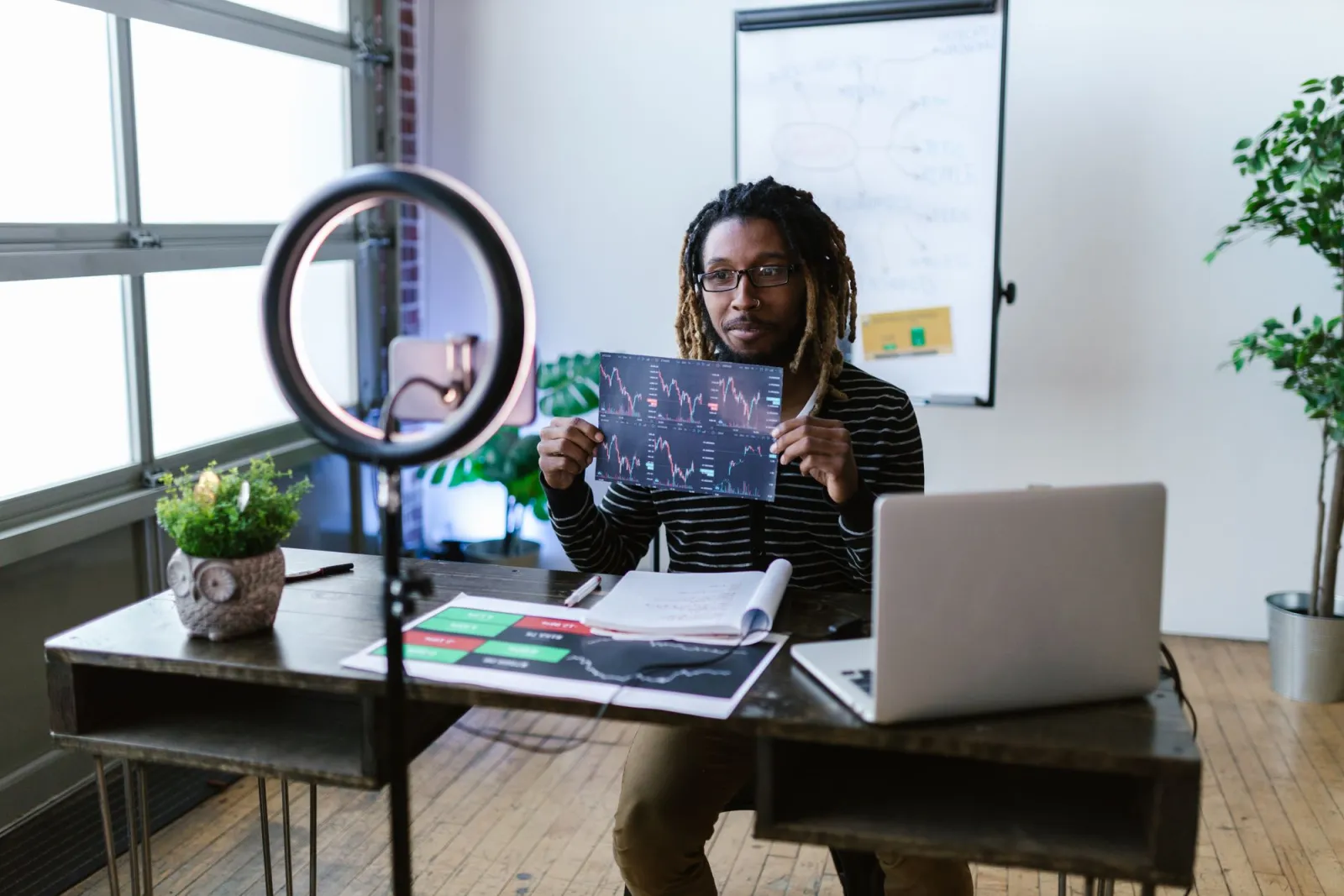
Use the free tools while you follow the guide.
Keep reading
2026-09-13
16-Bit Depth Maps: Fix Banding and Verify Your PNG
Fix stair-stepped or inverted depth maps with a reproducible 8-bit vs 16-bit PNG test, a file inspection script, and a practical Blender import checklist.
2026-09-13
GIF Maker From Images: Build Animated GIFs That Load Fast
Turn a set of images into an animated GIF for web and social media. Real frame timing, size limits for each platform, and when to choose GIF over video.
2026-09-13
How to Blur Faces and License Plates Before You Post
Blur or pixelate faces and license plates so they stay unreadable. Which method actually anonymizes, what fails, and how to avoid leaking EXIF location data.