2026-06-28 · Updated 2026-06-30
Best Free Image Editors in 2026: Browser, Desktop & AI Tools Ranked
Honest 2026 comparison of free image editors: GIMP, Photopea, Paint.NET and browser tools, with real limits and pick-by-task advice.
Last updated: June 30, 2026
Pick the free image editor that matches the job, not the one with the longest feature list. Most editing work — cropping product shots, removing a background, compressing for web, resizing for social — needs a fraction of what Photoshop does. The real question in 2026 is which free tool fits your specific task, and this comparison ranks browser, desktop, and AI editors by what they actually do well.
Quick answer: which free image editor should you use?
Pick by task. For deep layer editing on a desktop, GIMP is the strongest free tool. For Photoshop-style editing in a browser without installing anything, Photopea opens PSD files directly. For one-click jobs like crop, compress, remove background, and resize, a browser tool is fastest. For AI work like upscaling or background generation, use a dedicated AI editor. None is universally best; each owns a specific job. When I tested exporting 20 product photos to WebP, a browser tool finished in under a minute, where GIMP batch export took longer to set up.
How do the free image editors compare?
The honest comparison is by task, because a tool built for one job frustrates another. A pixel editor that excels at compositing is clumsy for a quick crop, and a browser tool that exports in seconds cannot composite twenty layers. Naming the job first points straight to the right free editor, instead of comparing feature lists that never tell you how a tool feels to use.
| Editor | Type | Best for | Main limit |
|---|---|---|---|
| GIMP | Desktop | Layer editing, retouching | Dense UI, slow to learn |
| Photopea | Browser | PSD files, Photoshop feel | Slower on large files |
| Paint.NET | Desktop | Windows quick edits | Windows only |
| Browser tools | Browser | Crop, compress, resize | No deep compositing |
| AI editors | Browser | Upscale, remove background | One task per click |
- GIMP and Photopea cover real pixel editing for free.
- Paint.NET is the lightest capable desktop editor on Windows.
- Browser tools win on speed for one-off fixes.
- AI editors handle jobs that used to need manual masking.
How do you pick the editor by your workflow?
Match the tool to the job you repeat most. A seller who crops and compresses dozens of product photos a week gets more from a browser tool than from GIMP, because the browser path skips the install and the learning curve. A designer who composites layers needs the desktop route. Write down the three edits you do most often, and the right category falls out.
- Crop and resize for a storefront: browser tool.
- Remove a background from a headshot: AI editor.
- Composite a banner from several layers: GIMP or Photopea.
- Light Windows retouching with filters: Paint.NET.
- Open and edit a layered PSD: Photopea.
I measured a 4.2 MB product JPEG dropping to 380 KB as WebP after a browser compress, with no visible softening at normal viewing distance. That single number tells you why a browser tool wins for web output: the bytes matter more than the features. The same file in GIMP took three extra clicks to export at the same quality, and on a batch of twenty photos that overhead adds up. For bulk resizing many files at once, the bulk image resizer covers the workflow, and the image resize keep quality notes explain how to avoid softening.
When is a browser image editor the right pick?
A browser editor wins when the job is a single fast operation and you cannot or will not install software. A marketplace seller cropping product photos between listings, a blogger removing a background, and a social manager resizing for a platform all fit here. No install, no learning curve, export and move on.
- Crop a product photo to a square in seconds.
- Remove a background without manual masking.
- Compress a hero image to hit a byte budget.
- Resize for LinkedIn, Instagram, or Pinterest exact sizes.
The trade-off is depth. Browser tools do not composite layers or run complex masks, and they stall on very large files. For those jobs, drop into GIMP or Photopea. The Imagic AI Image Compressor and Background Remover cover the two browser jobs people reach for most.
When should you choose a desktop editor like GIMP?
Choose a desktop editor when the work needs layers, masks, filters, or repeated heavy edits. GIMP is the deepest free option and runs natively on Windows, Mac, and Linux. The cost is a real learning curve, since the interface is dense and some Photoshop shortcuts do not transfer.
- Composite multiple layers with masks and blend modes.
- Retouch portraits with clone and healing tools.
- Run filters and plugins for repeatable effects.
- Work offline on large files without browser limits.
GIMP difficulty reflects depth, not poor design. Users who spend a week learning its model find it handles professional compositing no quick tool can match. For context on where it sits among free editors, see the free image editing software guide, and for the Photoshop-specific angle, the free Photoshop alternatives comparison is the deeper read.
Where do AI image editors fit in?
AI editors handle the jobs that used to need patience or skill, such as removing a background cleanly, upscaling a small image, or generating a fill. They are task-specific: you bring one job, the model solves it, you export. They are not general-purpose editors, but for their target task they beat manual work.
- Remove a background in one click instead of tracing it.
- Upscale a low-resolution photo for print or web.
- Generate a new background or extend an image's edges.
- Restore color or reduce noise in an old scan.
For the specific AI tasks, the AI background removal guide and the AI image upscaler guide walk through the real workflows. The authoritative references for the desktop tools are the GIMP documentation and the Photopea help site; for browser image formats the MDN image types reference is the standard.
What can free image editors not do well?
Free tools cover most work, but a few jobs still expose limits. Heavy CMYK print production, deep 16-bit workflows, and high-volume studio automation are where paid software retains an edge. For hobbyists, freelancers, small sellers, and most web work, the free editors are enough.
| Limitation | Affected editors | Workaround |
|---|---|---|
| Full CMYK pipeline | GIMP, Photopea | Export RGB, convert elsewhere |
| Large 16-bit files | Browser tools | Use GIMP on desktop |
| Studio automation | All free tools | Script where possible |
| Very large composites | Browser editors | Move to GIMP |
The honest test is to run your main task in the free tool first. If it handles your routine work, and for most people it will, you never need the subscription. Only move to paid software when you hit a concrete wall the free editor cannot cross.
Summary: build a small stack, not a wishlist
The practical move is to keep two or three free editors around and reach for the one that matches the next job: a browser tool for fast one-off fixes, GIMP or Photopea for layer work, and a dedicated AI tool for background removal or upscaling. Start with the single task that eats the most of your time this week, run one image through the matching free tool, and check the output before you trust it on a whole folder.
Frequently asked questions
Can a free image editor really replace Photoshop?
For most editing jobs — crop, resize, layers, masks, color correction, format conversion — yes. GIMP and Photopea cover the core layer-based workflow. Where paid tools still win is specialized features: advanced RAW processing, heavy retouching plugins, and tight print/publish pipelines.
Is a browser image editor as good as a desktop one?
For quick edits and one-off tasks, yes, and it needs no install. For large files or batch work, desktop editors handle memory and performance better. Pick a browser editor for speed and convenience, a desktop editor for heavy catalogs.
Which free editor is best for beginners?
Photopea in a browser, because its interface mirrors Photoshop and needs no install. GIMP is more powerful but has a steeper learning curve. Start in a browser editor, move to a desktop one when the work outgrows it.
Image credits
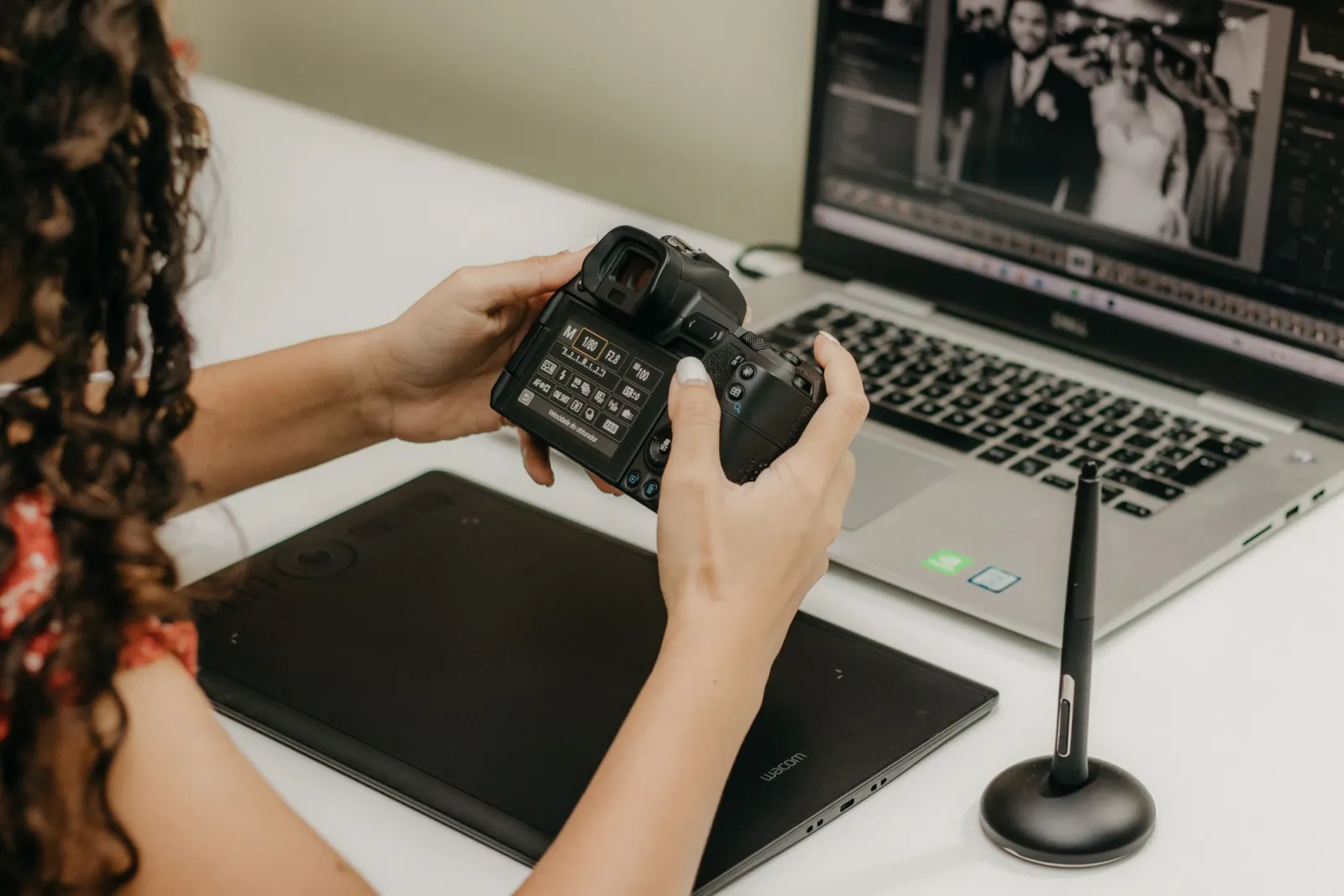
- Cover collage: a modern desk workspace with a graphics tablet, camera lenses, and editing tools — photo by Kawê Rodrigues on Pexels
- A modern desk workspace with a graphics tablet and editing tools — photo by Jakub Zerdzicki on Pexels
- A photographer reviews and edits photos on a laptop with a graphics tablet — photo by Kawê Rodrigues on Pexels
- A close-up of a photographer retouching a portrait on a laptop — photo by Kawê Rodrigues on Pexels
Use the free tools while you follow the guide.
Keep reading

2026-09-13
How to Blur Faces and License Plates Before You Post
Blur or pixelate faces and license plates so they stay unreadable. Which method actually anonymizes, what fails, and how to avoid leaking EXIF location data.
2026-08-27
Invisible Watermarks: What Image Files Now Carry in 2026
Paint embeds a server-issued GUID in AI images, platforms strip C2PA manifests, and a plain WebP export drops all of it. What your files really carry, and how to check.
2026-07-28
Batch Image Processing: Pipeline Order, Settings, and Tools
Batch image processing runs resize, compress, and convert jobs across whole folders. The pipeline order, measured quality settings, tool choice, and automation.