2026-09-13
Full-Page Website Screenshots: Capture Any Page as an Image
Capture a whole webpage as PNG, JPG or WebP. Compare browser and online methods, then fix blank lazy images, desktop layouts on mobile and cut-off pages.
Last updated: September 13, 2026. Measurements below come from headless Chromium 151 on public Wikipedia articles.
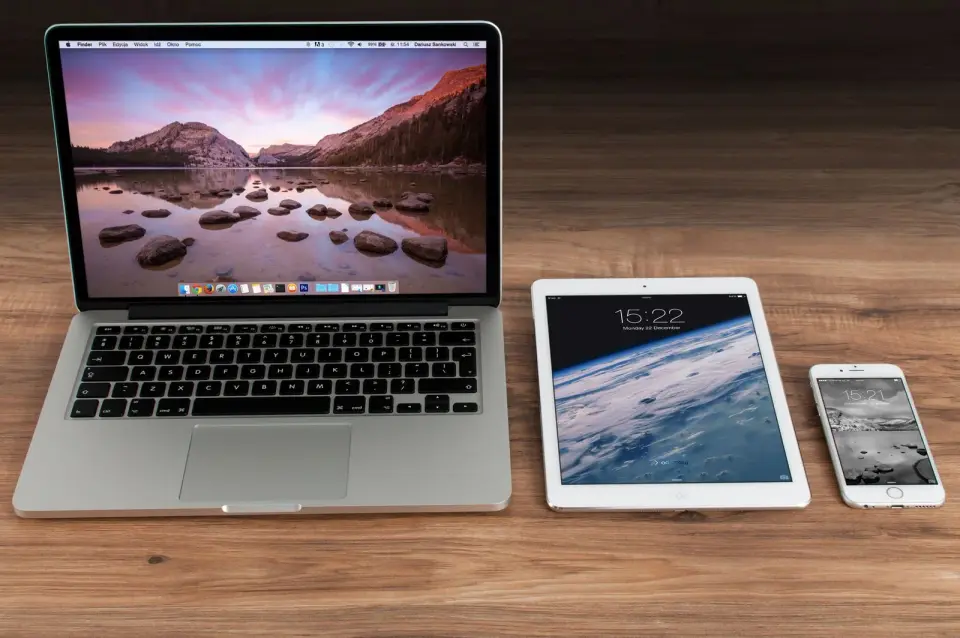
A screenshot key captures what fits on your monitor. A webpage is usually far taller than that, renders differently on a phone, and loads some of its images only when you scroll to them. Those three facts explain nearly every disappointing website capture: the page stops at the first screen, the "mobile" version is really the desktop site, or the lower half is full of grey placeholders.
Quick answer: how do you screenshot an entire webpage?
Use your browser's built-in full-page capture for pages you are signed in to, and an online HTML-to-image tool for public pages at a specific device width. In Firefox, right-click the page, choose Take Screenshot, then Save full page. In Chrome, open DevTools, run the command menu, and choose Capture full size screenshot.
For a public page, paste its address into HTML to Image, pick desktop, tablet or mobile width, and switch on full page. Before sharing any capture, scroll through it once: check the images near the bottom, the layout width, and where the page ends.
Which capture method fits your job?
| Method | Best for | Main limit |
|---|---|---|
| Screenshot key or snipping tool | The part of the page you can see | Stops at the edge of the screen |
| Firefox "Save full page" | Long pages you are signed in to | Captures your session, cookies and all |
| Chrome DevTools full size screenshot | Exact device emulation while debugging | Needs DevTools and a few clicks |
| Online HTML-to-image tool | Public pages, clean session, set widths | Cannot reach logins, localhost or intranets |
| Scripted headless browser | Hundreds of pages or scheduled captures | You maintain the script and servers |
- Choose the browser method when the page shows different content once you log in.
- Choose an online tool when you need a neutral first-visit view, or a phone-width capture from a desktop computer.
- Choose a script only when volume justifies maintaining one.
Chrome's own guide to capturing screenshots with DevTools also covers area and single-element captures, which are handy when you only need one component of a page. Mozilla documents the Firefox screenshot options, including the full-page save.
What do "first screen" and "full page" actually capture?
A first-screen capture is exactly one viewport: 1280 by 800 pixels in a common desktop setting. A full-page capture renders the whole scrollable document into a single tall image. The difference is larger than most people expect.
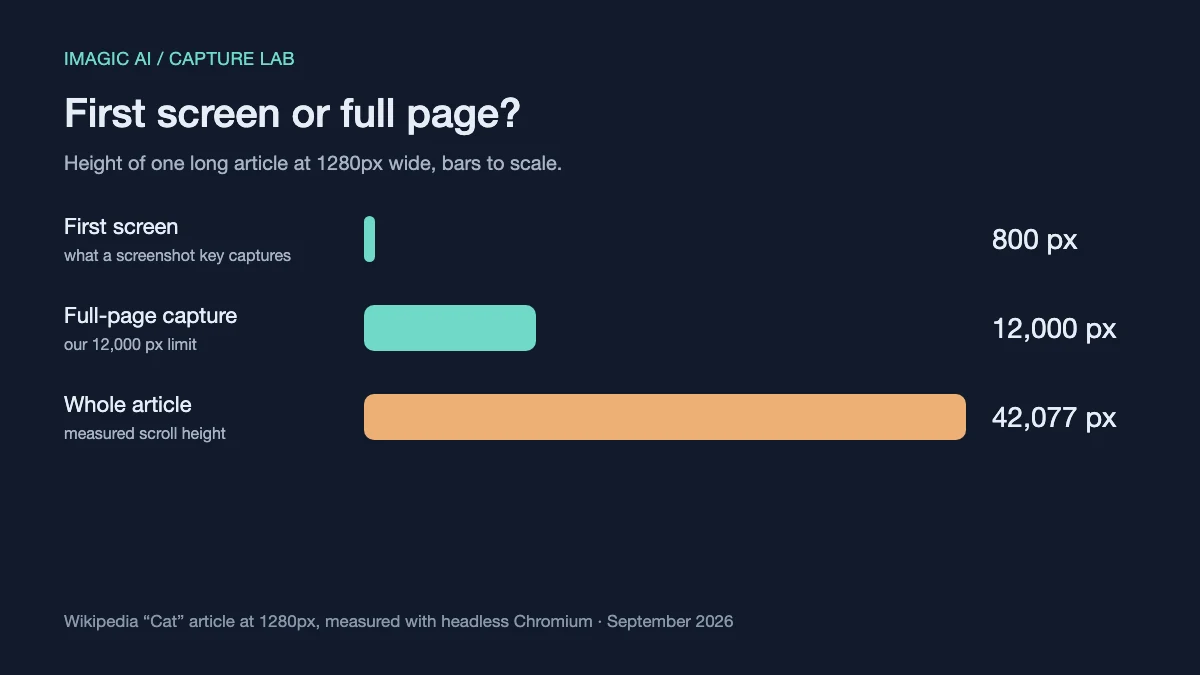
We measured the Wikipedia "Cat" article at 1280 pixels wide: its scroll height was 42,077 pixels, more than 52 first screens stacked. Our tool caps full-page captures at 12,000 pixels, because an image that tall is already hard to view and share, and endless-scroll pages would otherwise never finish. If you need a page longer than that, capture it in sections.
Height matters for format too. WebP cannot store an image taller or wider than 16,383 pixels, so a very long capture can fail to save as WebP while PNG and JPG still work.
Which format should a webpage capture use?
Pick PNG for pages made mostly of text and interface, WebP for sharing on the web, and JPG only when a destination refuses both. We saved the same 1280 by 12,000 pixel capture of the image-heavy "Cat" article three ways:
| Format | File size | Compression | Good for |
|---|---|---|---|
| PNG | 4.33 MB | Lossless | Archiving, design reviews, bug reports |
| JPG, quality 90 | 3.05 MB | Lossy; can soften small text | Forms and apps that reject other formats |
| WebP, quality 90 | 1.86 MB | Lossy; can soften small text | Sharing and embedding on the web |
A page of mostly flat text and interface usually compresses much better as PNG than this photo-heavy one, which is why PNG remains the default for most interface captures. Our screenshot format guide explains why JPEG smears small text, and the WebP, JPEG and PNG comparison covers the trade-offs in more depth. To shrink a capture afterwards without changing its format, run it through the image compressor.
Why are images missing from a full-page screenshot?
Most modern pages load images lazily: the browser fetches each one only when you scroll near it. A full-page capture does not scroll, so everything further down can still be an empty box when the picture is taken. MDN's overview of lazy loading explains the browser behaviour behind it.
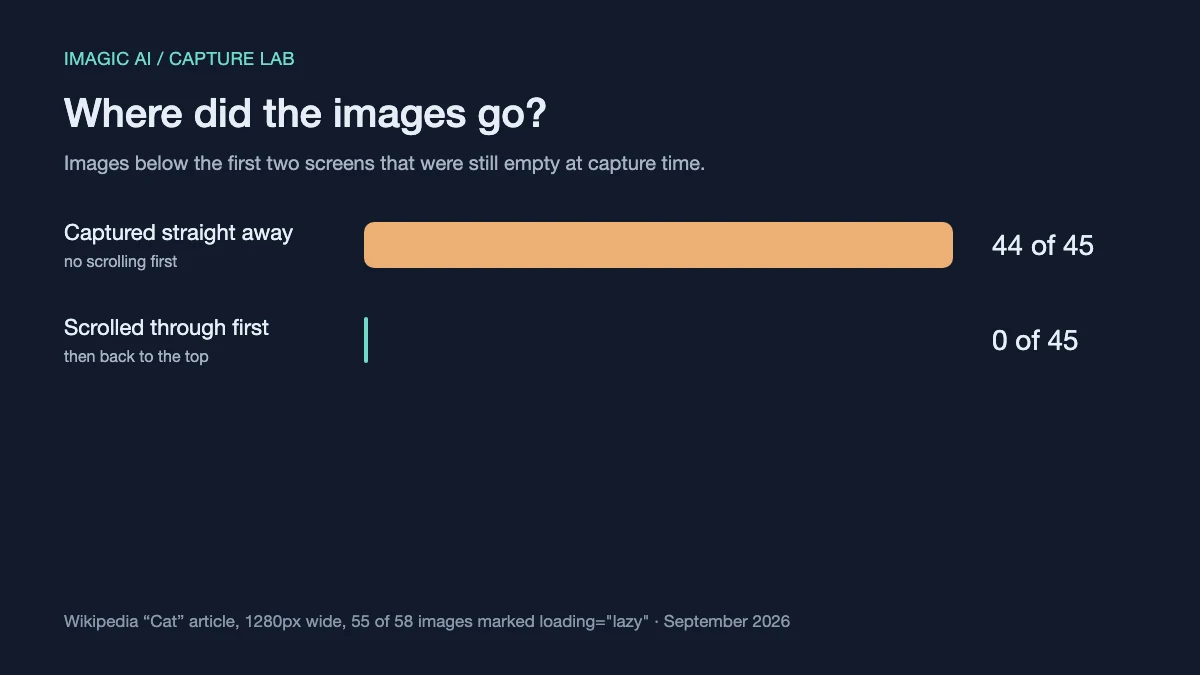
Our test made the effect concrete. On the "Cat" article, 55 of the 58 images are marked for lazy loading. Captured straight away, 44 of the 45 images below the first two screens were still empty. After scrolling through the page and returning to the top, none were.
- Scroll to the bottom and back before a DevTools or Firefox capture.
- Wait a second or two after scrolling, so the last images finish downloading.
- Check the lowest third of the finished image first; that is where gaps appear.
Our HTML to Image tool now does this walk automatically for full-page captures. We added it after measuring the numbers above.
Why does a mobile screenshot show the desktop site?
A narrow window is not a phone. Many sites decide which layout to send by reading the browser's user agent string, not the window width. MDN describes this user agent detection and why it remains common.
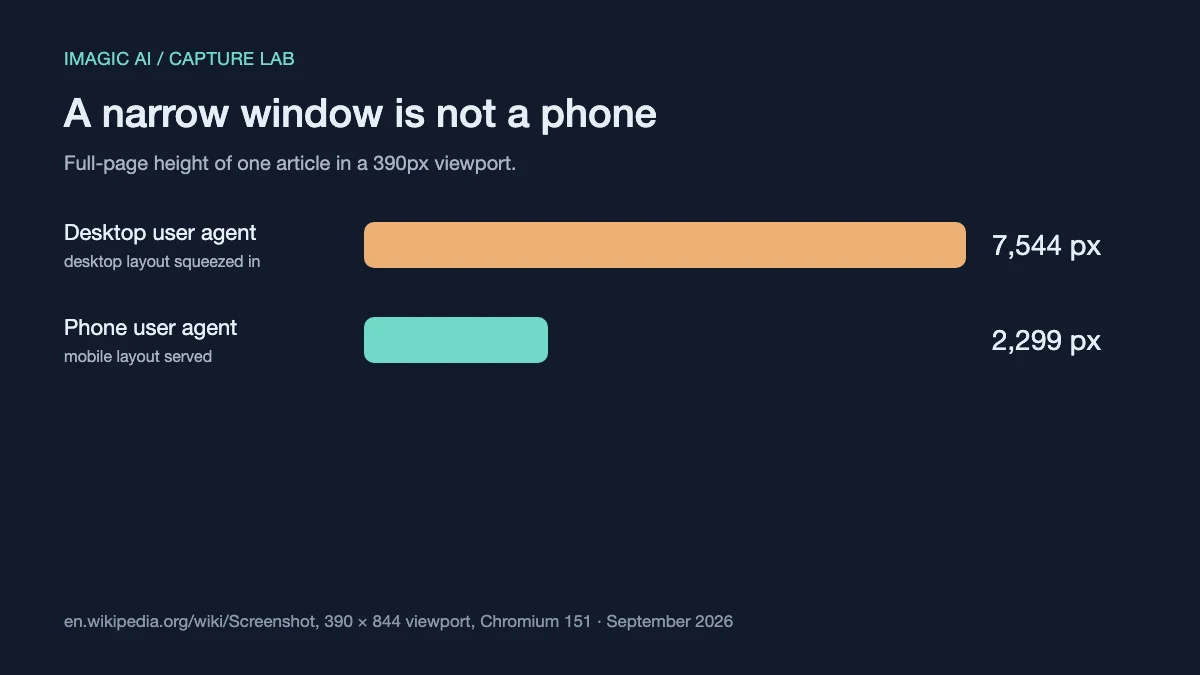
We loaded the Wikipedia "Screenshot" article in a 390-pixel viewport twice. With a desktop user agent, the site sent its desktop layout squeezed into the narrow window, 7,544 pixels tall. With a phone's user agent, it sent the real mobile page, which measured 2,299 pixels.
A resized desktop browser therefore tells you little about what phone visitors see. Chrome's device mode changes the user agent as well as the width, and so do our mobile and tablet options.
Why can't online tools capture localhost, intranets or logged-in pages?
An online capture tool loads the page on its own server, in a fresh browser with no cookies. It never sees your saved logins, so a page behind a sign-in wall captures as the sign-in screen.
It also refuses private network addresses such as localhost, 192.168.x.x or a company intranet. Letting anonymous visitors make a server fetch arbitrary addresses is a well-known vulnerability, server-side request forgery, which the OWASP SSRF overview describes. A careful tool checks every connection the page makes, including redirects, not just the address you typed.
For those pages, use your own browser's full-page capture. It runs on your computer, inside your session, so it can see exactly what you see.
Troubleshooting a website capture
| Symptom | Likely cause | Fix |
|---|---|---|
| Grey boxes in the lower half | Lazy-loaded images never requested | Scroll through first, or use a tool that does |
| Phone capture looks like desktop | Site chooses layout by user agent | Use device emulation, not a narrow window |
| Capture shows a login form | No session in a fresh browser | Use your browser's own full-page capture |
| Page ends mid-article | Tool height limit, or endless scroll | Capture sections, or pick first screen |
| Cookie banner covers content | First visit, consent not yet given | Crop it out, or dismiss it in your browser |
| Private address refused | Blocked by design to prevent SSRF | Capture it in your own browser |
A banner or sticky header that covers content is easiest to remove afterwards: trim it with the image cropper rather than recapturing.
A checklist before you share a capture
- Confirm the width matches the device you mean.
- Check the bottom third for empty images.
- Confirm the page ends where expected.
- Look for banners covering key content.
- Remove private data a first visitor would not see.
- Keep PNG for text-heavy pages.
- Note the capture date for later reference.
A webpage changes constantly. When a capture serves as evidence, a design reference or a bug report, the date is part of what it records.
Frequently asked questions
Can I screenshot a page that requires me to log in?
Not with an online tool, which has no access to your account; use your browser's own full-page capture while signed in.
Why is my full-page screenshot cut off?
Many tools cap the height; ours stops at 12,000 pixels, and pages that load more content as you scroll have no natural end.
Is HTML to image the same as a website screenshot?
In everyday use, yes: both render a page in a browser and save the result as an image file.
Which width should I choose for a mobile capture?
Use 390 pixels, the CSS width of many recent iPhones, with a phone user agent so the site sends its real mobile layout.
Why do some images show as blank boxes?
They are lazy-loaded and had not been fetched yet; scroll through the page before capturing, or use a tool that does it for you.
Can I capture just one section of a page?
Yes; Chrome DevTools can capture a single element, or you can take a full-page image and crop the part you need.
Does an online tool keep a copy of the page?
It loads the page in a temporary browser to create the image; check each tool's privacy notes for how long the result is stored.
Use the free tools while you follow the guide.
Keep reading
2026-10-28
WhatsApp Image Sizes: 1600px, 1080×1920 and the 16MB Limit
WhatsApp compresses every photo. I tested profile photos, status, and shared images, then found the document trick that skips compression and keeps full resolution.
2026-10-27
Favicon Not Showing in Google? 8 Causes and How to Fix Each
Why Google still shows a blank globe or your old icon, and how to fix it: the home page tag, size and format rules, blocked crawling, and how long updates take.
2026-09-13
16-Bit Depth Maps: Fix Banding and Verify Your PNG
Fix stair-stepped or inverted depth maps with a reproducible 8-bit vs 16-bit PNG test, a file inspection script, and a practical Blender import checklist.