2026-06-28 · Updated 2026-07-10
Image DPI Changer: Set Print Resolution the Right Way
Change an image's DPI for print without resizing pixels. Real DPI targets for print and screen, the difference between DPI and PPI, and how to avoid upscaling errors.
Last updated: July 10, 2026
DPI — dots per inch — tells a printer how densely to lay down ink, and it decides how large an image can print at acceptable quality. Changing DPI is one of the most misunderstood image operations, because most people think raising DPI adds detail. It does not. This guide covers what DPI actually does, the targets that matter for print and screen, and the difference between changing DPI (which is safe) and resizing pixels (which is not).
Quick answer: how do you change an image's DPI?
Use our DPI Changer tool or open the image in an editor, change the DPI (or PPI) value without resampling, and save. This updates the metadata that tells the printer the intended physical size without touching the underlying pixels. The image keeps the same resolution and the same quality — only the printed dimensions change. For print, 300 DPI is the standard target. Do not "increase DPI" by upscaling, because that invents pixels and does not add real detail. If you need a larger print, you need more pixels, which means reshooting or genuine upscaling with an AI upscaler.
What is DPI, and what is PPI?
The terms get used interchangeably but mean different things, and the confusion causes real mistakes.
| Term | Stands for | Refers to |
|---|---|---|
| DPI | Dots per inch | Printer ink dots on paper |
| PPI | Pixels per inch | Image pixels per inch of display or print |
- DPI describes printer output — how many ink dots the printer places per inch.
- PPI describes the image — how many pixels represent each inch.
- Software usually labels the setting "DPI" even when it means PPI, because the two values are set to match for print.
When you change the "DPI" in an image editor, you are really setting the PPI metadata, which the printer reads to calculate physical print size. The pixels themselves do not change unless you resample.
How do DPI and pixel dimensions relate?
The relationship is simple: pixels divided by PPI equals printed inches. A 3000-pixel-wide image at 300 PPI prints at 10 inches wide. The same 3000-pixel image at 150 PPI prints at 20 inches wide — larger, but at lower quality because each pixel covers more paper.
This is why you cannot "add resolution" by changing DPI alone. If you have a 3000-pixel image and you want a 20-inch print at 300 PPI, you need 6000 pixels. Changing the DPI metadata to 300 while keeping 3000 pixels just tells the printer to print those 3000 pixels in a 10-inch space. The only way to get more printed detail is more source pixels.
What DPI do you need for print?
Print quality depends on viewing distance, and the DPI target follows from that. A billboard viewed from 50 feet needs far less DPI than a photo held in your hand.
| Print type | Viewing distance | DPI target |
|---|---|---|
| Photo print, magazine | Hand-held | 300 DPI |
| Poster | Arm's length | 150-200 DPI |
| Banner | Several feet | 100 DPI |
| Billboard | Dozens of feet | 30-50 DPI |
- 300 DPI is the standard for anything held close — photos, brochures, magazines.
- Large-format prints can drop to 150 DPI or lower because the eye cannot resolve fine detail at a distance.
- Going above 300 DPI rarely improves perceived quality and bloats the file.
For the authoritative spec, the ISO 12647 print standards define the resolution expectations for commercial print, and most print shops follow 300 DPI as the practical minimum for close viewing.
How do you change DPI without resampling?
The safe DPI change updates only the metadata. Every editor has a resample checkbox — turn it off before changing the DPI value.
- Open the image in your editor's resize or image-size dialog.
- Uncheck "Resample" (also called "Resample image" or "Maintain size").
- Enter the target DPI — 300 for standard print.
- Confirm the pixel dimensions did not change.
- Save the image.
With resampling off, changing the DPI updates only the physical-size calculation, not the pixels. The image's quality is unchanged. With resampling on, the editor adds or removes pixels to hit the new size at the new DPI — and that is where upscaling ruins images by inventing detail that is not there.
Screen resolution versus print DPI
Screen images do not use DPI the way print does. A monitor displays pixels at its native resolution, and the image's DPI metadata is largely ignored. A 72 DPI image and a 300 DPI image of the same pixel dimensions look identical on screen. The WebAIM guide to image resolution covers how screen rendering treats resolution metadata, and the practical takeaway is that DPI matters for print and matters almost not at all for web. For web, focus on pixel dimensions and file size — resize to display size and compress for performance.
When you genuinely need to upscale
Sometimes you have no choice but to enlarge an image for print — a client delivered a low-resolution file and the deadline is real. In that case, the order of operations matters. Do not just raise the DPI and hope.
- Upscale the pixels with an AI upscaler first — it rebuilds plausible detail, unlike a plain resample.
- Then set the DPI to your print target with resampling off.
- Apply a light sharpening pass, because upscaling softens edges.
- Print a test strip at the final size before committing the full run.
AI upscaling is not magic. It guesses at detail based on patterns it learned, and the guess is better than a blur but not as good as real pixels. For anything critical — a large gallery print, a product photo — get a higher-resolution source if at all possible. The upscaling guide covers the settings and the limits of AI enlargement in detail.
Common DPI mistakes
- Upscaling to raise DPI — invents pixels, adds no real detail. Get more source pixels instead.
- Confusing DPI with resolution — a 3000-pixel image at 72 DPI has the same detail as at 300 DPI; only the print size differs.
- Forgetting to turn off resampling — changing DPI with resampling on silently alters the pixels.
- Sending web-resolution images to print — a 800-pixel image cannot print at any reasonable size without looking soft.
- Over-preparing for screen — setting 300 DPI on a web image does nothing for display quality and adds no value.
The clean mental model: pixels are the detail, DPI is the instruction for how to spread those pixels across paper. Change the DPI freely to match your print size, but never expect changing it to add detail that the pixels do not contain. For more on preparing images for print specifically, the print-ready image guide covers the full pre-press checklist.
Frequently asked questions
How do I change an image's DPI without resampling?
In an editor's Image Size dialog, uncheck "resample" and enter the new DPI. This changes only the metadata (how densely pixels print), not the pixel count. The image's on-screen size is unchanged; only the physical print size shifts.
What DPI do I need for print?
Usually 300 DPI for quality print, 150–200 for large-format banners viewed from a distance. Calculate from the physical size: a 4×6 inch print at 300 DPI needs 1200×1800 pixels. If the pixels are not there, you cannot print at 300 DPI at that size.
Does changing DPI affect screen display?
No — screens display by pixel dimensions, ignoring DPI metadata. A 72 DPI and a 300 DPI image at the same pixel size look identical on screen. DPI matters only for print.
What is the difference between DPI and PPI?
Often used interchangeably, but PPI (pixels per inch) describes digital resolution and DPI (dots per inch) describes print output. For most image work the distinction does not change what you export. See the resolution guide.
Can I increase DPI to print larger?
Only if the pixels are there. Increasing DPI metadata without resampling shrinks the print size (same pixels, denser). To print larger at the same DPI, you need more pixels — which means reshooting or upscaling, not changing the DPI setting.
What happens if I set DPI without enough pixels?
The print shrinks. Setting a higher DPI with the same pixel count means the same pixels print more densely, so the physical size drops — a 1200×1800 image at 300 DPI prints at 4×6 inches, but at 600 DPI prints at 2×3 inches. You cannot print larger at a higher DPI without more pixels; that requires reshooting or upscaling.
Use the free tools while you follow the guide.
Keep reading
2026-09-13
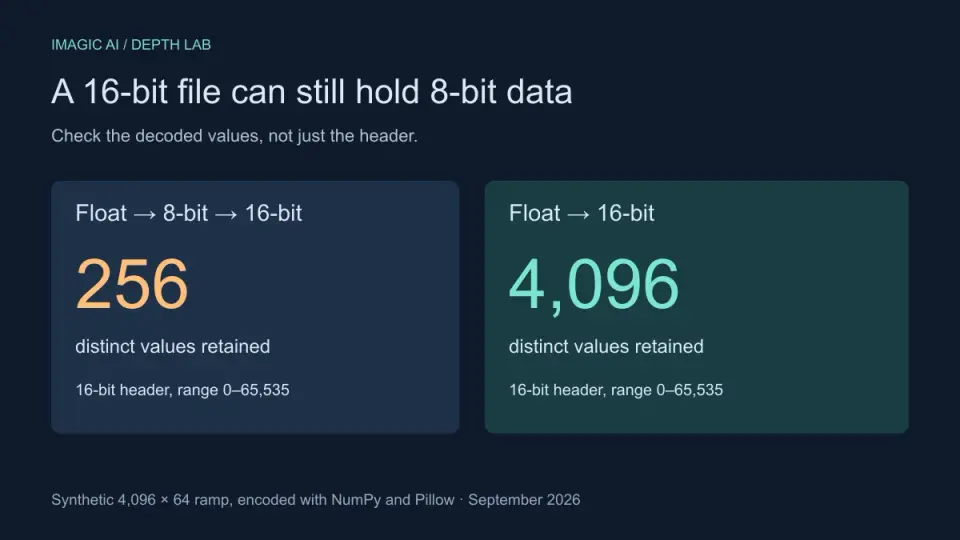
16-Bit Depth Maps: Fix Banding and Verify Your PNG
Fix stair-stepped or inverted depth maps with a reproducible 8-bit vs 16-bit PNG test, a file inspection script, and a practical Blender import checklist.
2026-09-13
GIF Maker From Images: Build Animated GIFs That Load Fast
Turn a set of images into an animated GIF for web and social media. Real frame timing, size limits for each platform, and when to choose GIF over video.
2026-09-13
Screenshot to Image: Save, Format, and Optimize Screenshots
Capture screenshots on any device, save them in the right format, and compress them for web without blurring text. Real steps for PNG, WebP, and full-page capture.