2026-03-28 · Updated 2026-07-12
Lazy Load Images in 2026: Faster Pages Without LCP Damage
A practical guide to lazy load images correctly: what to defer, what to keep eager, how to protect LCP, CLS, SEO, and CDN delivery.
Last updated: July 12, 2026
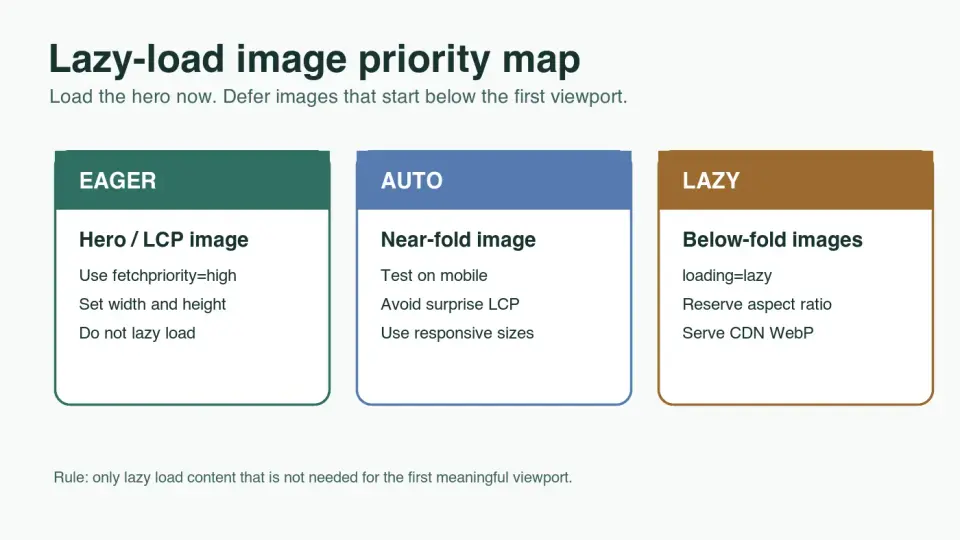
Lazy loading helps image-heavy pages feel faster because the browser can skip below-fold image requests during the first render. Used carelessly, it can also delay the one image users needed immediately: the hero, product lead photo, or article cover that becomes the Largest Contentful Paint element.
This guide shows where to use native loading="lazy", where to keep images eager, and how to publish lazy-loaded images without breaking Core Web Vitals, SEO, or CDN delivery.
Quick answer: how should you lazy load images?
Use lazy loading only for images that start outside the first viewport. Keep the likely LCP image eager, reserve width and height for every image, and serve responsive WebP or AVIF files from a cacheable CDN URL.
For plain HTML, the simplest implementation is loading="lazy" on below-fold <img> elements. Do not add it to a hero image, a product lead image, the first visible article image, or any image that must appear before the user scrolls.
When in doubt, test the page in Lighthouse or Chrome DevTools. If a lazy image is reported as the LCP element, remove lazy loading from that image and consider fetchpriority="high".
What does lazy loading actually change?
Lazy loading changes request timing. The browser can wait to download an image until the user is close enough to see it. That saves bandwidth on long pages, reduces initial request pressure, and gives CSS, fonts, scripts, and the visible image a better chance to finish first.
It does not make oversized images small. A 2400 px JPEG is still wasteful after it finally loads. Pair lazy loading with resizing, compression, and responsive markup from the start. The Image Compression Deep Dive covers byte reduction, while the Mobile Image Optimization Guide covers srcset and mobile display sizes.
| Image location | Loading choice | Why |
|---|---|---|
| Hero, cover, or product lead image | Eager | It may be the LCP element and should start early |
| First image inside the visible article viewport | Usually eager or normal | It may appear before the lazy threshold on mobile |
| Mid-article screenshots | Lazy | Users may never scroll to them |
| Long gallery thumbnails | Lazy | Deferring dozens of requests protects the initial render |
| Hidden carousel slides | Usually lazy, but test | Some sliders hide images that become visible quickly |
The native browser feature is documented by MDN as the loading property on images and iframes in HTMLImageElement.loading. For modern sites, prefer this browser feature before adding a JavaScript lazy-loading library.
Which images should not be lazy loaded?
Do not lazy load images that define the first impression of the page. The common mistake is applying loading="lazy" to every image in a CMS template because it looks like a universal performance fix.
Keep these images eager:
- The main hero image.
- The product image above the buy button.
- The first image in an article when it appears near the top on mobile.
- A logo or interface screenshot that must be visible before interaction.
- Any image Chrome reports as the LCP element.
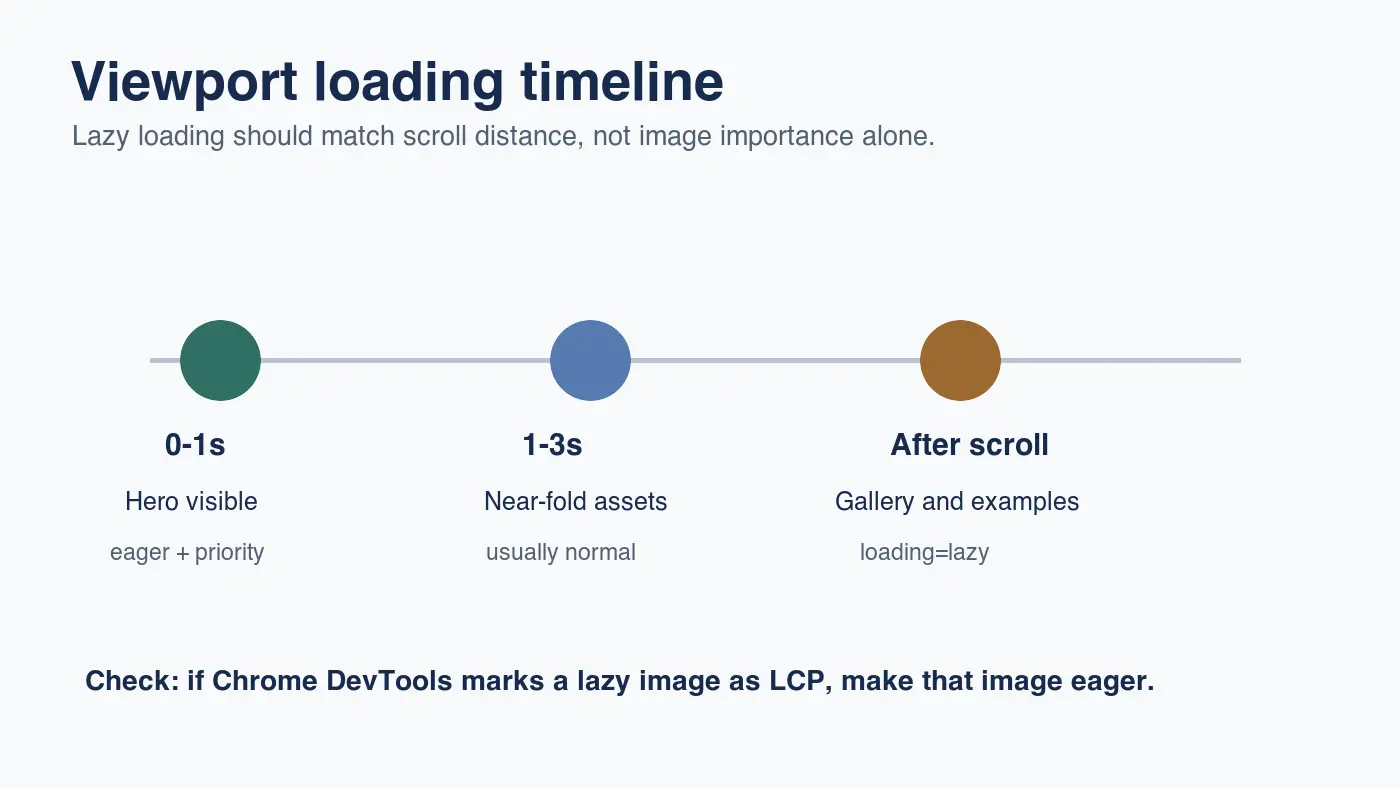
Google's Core Web Vitals guidance treats LCP as the render time of the largest visible content element in the viewport; see Largest Contentful Paint. When that element is an image, delaying its request is one of the fastest ways to make the metric worse.
Use this rule for templates: the first image slot should default to eager, and later repeatable image blocks should default to lazy. Then override by page type when mobile screenshots show a different first viewport.
How do you implement lazy loading in HTML?
Use native markup first:
<img
  src="/images/gallery-chair.webp"
  alt="Walnut chair photographed from the front for a product gallery"
  width="1200"
  height="800"
  loading="lazy"
  decoding="async"
>
The width and height attributes matter as much as loading. They let the browser reserve layout space before the file arrives. Without reserved space, a delayed image can push text down the page and create Cumulative Layout Shift.
For responsive images, keep lazy loading on the fallback <img>:
<picture>
  <source type="image/avif" srcset="/images/gallery-chair-800.avif 800w, /images/gallery-chair-1200.avif 1200w">
  <source type="image/webp" srcset="/images/gallery-chair-800.webp 800w, /images/gallery-chair-1200.webp 1200w">
  <img
    src="/images/gallery-chair-1200.webp"
    alt="Walnut chair photographed from the front for a product gallery"
    width="1200"
    height="800"
    sizes="(max-width: 700px) 92vw, 680px"
    loading="lazy"
  >
</picture>
For the likely LCP image, use the opposite pattern:
<img
  src="/images/product-hero.webp"
  alt="Walnut lounge chair with green cushion on a white studio background"
  width="1600"
  height="1000"
  fetchpriority="high"
>
Google's article on browser-level image lazy loading recommends native lazy loading and warns that images in the first visible viewport should load normally. That advice is still the cleanest baseline for 2026 publishing.
How does lazy loading affect SEO?
Lazy loading is SEO-safe when important content remains discoverable in the rendered page. Google can process modern JavaScript, but image SEO gets weaker when the final image URL is hidden behind interaction, scroll-only script, cookies, or a broken placeholder.
Use normal <img> or <picture> markup for content images. Keep descriptive alt text, crawlable CDN URLs, and surrounding copy that explains the image. The Image SEO Guide 2026 has the broader crawl and alt-text workflow.
| SEO check | Good lazy-loading setup | Risky setup |
|---|---|---|
| Image URL | Final CDN WebP appears in HTML or rendered DOM | Script swaps an opaque tracking URL after scroll |
| Alt text | Describes the visible image in context | Empty or keyword-stuffed alt text |
| Context | Paragraph near the image explains the takeaway | Standalone image with no surrounding explanation |
| Status code | CDN image returns HTTP 200 without cookies | Image blocks bots, hotlink checks, or returns 403 |
| Metadata | Cover image in frontmatter or Open Graph is eager and stable | Social image points at an old local file |
Google Search Central's JavaScript SEO guidance for lazy loading says content should load when visible in the viewport and should not depend on user actions such as clicking or typing; see Fix lazy-loaded content. That is a useful guardrail for image galleries, tabs, and infinite scroll pages.
How much performance can lazy loading save?
The savings depend on how many images sit below the first viewport and how large those files are. On a long article, a browser may avoid downloading most body images during the initial load. On a short product page with one visible photo, lazy loading may save almost nothing.
I encoded the four graphics in this article as local WebP files at publication size. The final assets are 25 KB to 36 KB each, so lazy loading is not hiding a huge byte problem here. The bigger gain comes from request timing: the cover is available immediately, and the later diagrams can wait until the reader scrolls.
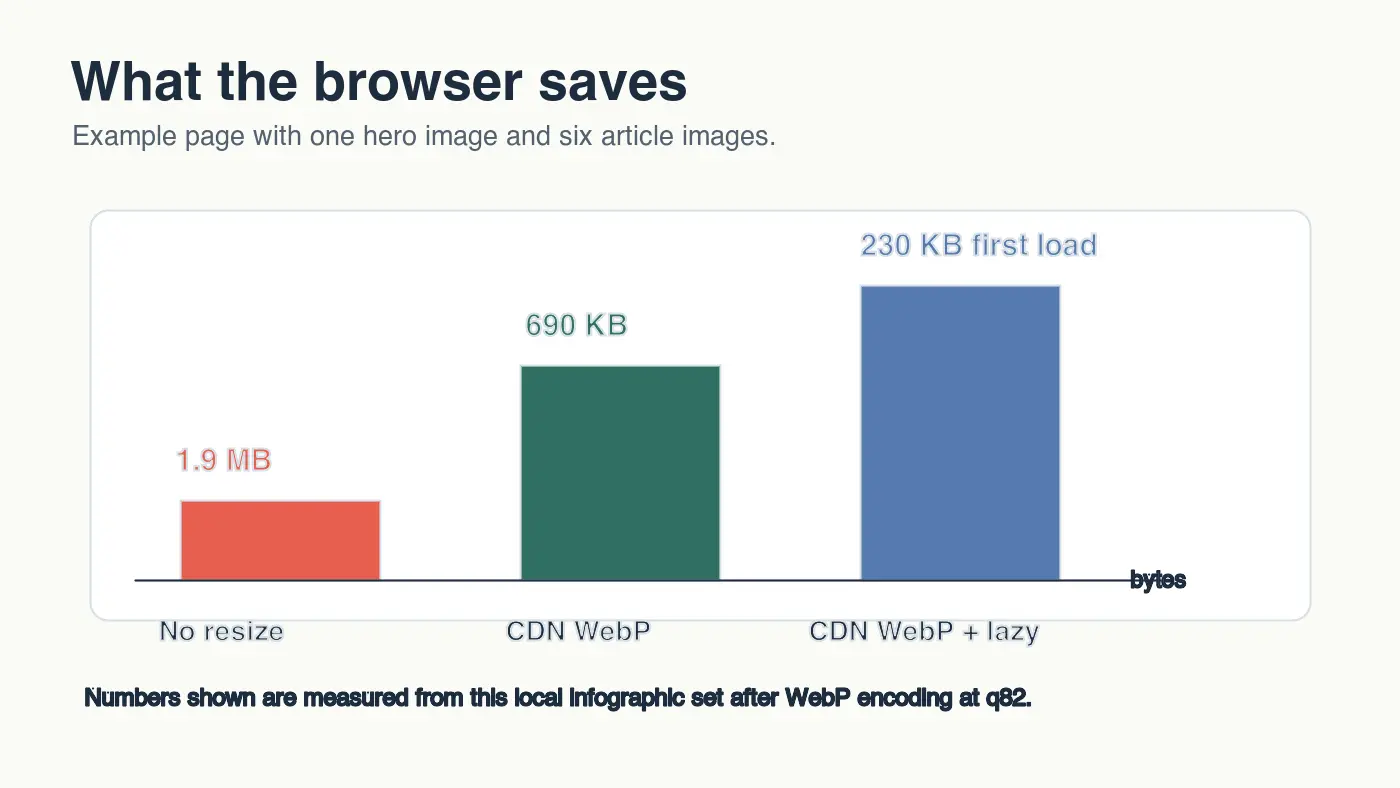
Use this order before blaming lazy loading:
- Resize the source image to the largest real display slot.
- Convert photos and mixed graphics to WebP or AVIF.
- Add
srcsetandsizesfor mobile layouts. - Reserve image dimensions or aspect ratio.
- Keep the LCP image eager.
- Lazy load only below-fold images.
- Publish through a CDN with long-lived caching.
- Test the page on a narrow mobile viewport.
If you need a broader sequence, the Complete Image Optimization Checklist is a good final pass before publishing. For CDN rules and cache headers, use the Image CDN Guide.
What should you test before publishing?
Test the rendered page, not only the code. Browser thresholds for native lazy loading are implementation details, and a page that works on desktop can still delay the wrong image on a 390 px mobile viewport.
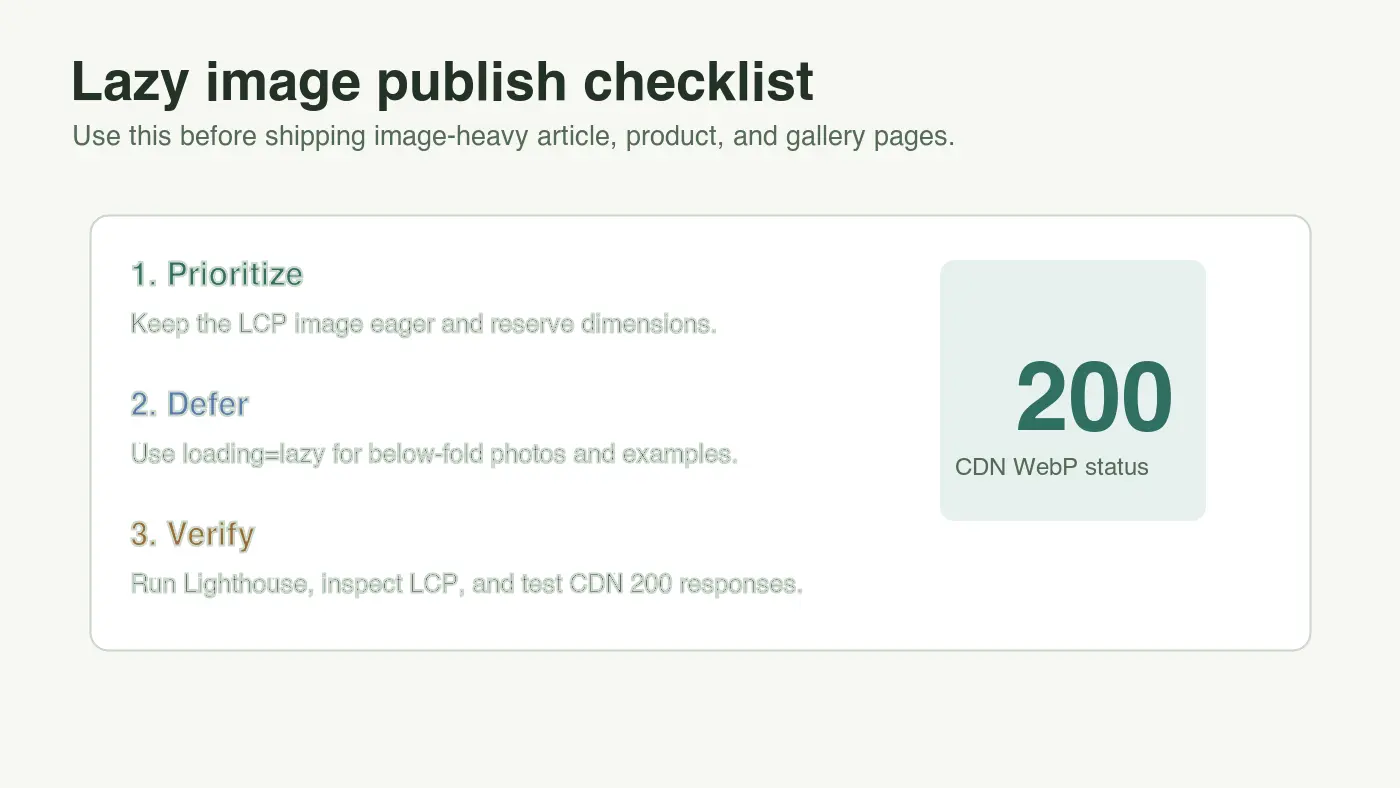
Run this publish check:
- The cover or hero image loads eagerly.
- The likely LCP image is not marked
loading="lazy". - Every image has
widthandheightor a stable aspect-ratio container. - Below-fold images use
loading="lazy". - Responsive images include realistic
sizesvalues. - CDN image URLs return HTTP 200.
- File names describe the visible image.
- Alt text is specific and not stuffed with keywords.
- Lighthouse or PageSpeed Insights does not flag the lazy image as LCP.
- A mobile screenshot shows no large blank gaps or layout jumps.
For developer teams, add a template rule: only repeated body-image components should lazy load by default. Hero components, product lead media, and above-the-fold editorial images should require an explicit decision.
Lazy-loading checklist for 2026
Lazy loading works best as a small part of the image pipeline. It should come after format, dimensions, priority, accessibility, and CDN checks.
| Decision | Use this default | Change it when |
|---|---|---|
| First meaningful image | Eager, possibly fetchpriority="high" |
Testing proves another element is LCP |
| Body images after the intro | loading="lazy" |
The image appears in the first mobile viewport |
| Long galleries | Lazy thumbnails with reserved dimensions | The gallery is the primary above-fold experience |
| Decorative images | Avoid or use empty alt text | The image communicates real content |
| CDN delivery | Immutable WebP or AVIF URL | A CMS must transform from an original upload |
Before shipping, inspect the first viewport and ask one practical question: would the page still make sense if every below-fold image waited until scroll? If yes, lazy loading is probably helping. If the page starts with an empty hero slot, fix priority before touching anything else.
Frequently asked questions
What does lazy loading actually do to images?
It delays the browser's request for an image until the image is close to entering the viewport, instead of downloading everything on page load.
Should the hero image use loading="lazy"?
No, keep the hero, product lead photo, or article cover eager because it is often the Largest Contentful Paint element.
Does loading="lazy" work without JavaScript?
Yes, native lazy loading is a browser feature on the <img> and <iframe> loading attribute and needs no library.
Can lazy loading cause layout shift?
Only when dimensions are missing; always set width and height or a stable aspect-ratio container so the layout does not jump when the image arrives.
Does lazy loading hurt SEO?
No, it is SEO-safe as long as the final image URL, descriptive alt text, and surrounding context stay in the rendered HTML instead of hidden behind a scroll-only script.
What does fetchpriority="high" do?
It tells the browser to fetch that image ahead of other requests, which is the right pairing for an eager LCP candidate rather than a lazy one.
How do you check if lazy loading broke LCP?
Run Lighthouse or Chrome DevTools and see whether the reported LCP element is the same image marked loading="lazy".
Should long gallery thumbnails be lazy loaded?
Yes, deferring dozens of thumbnail requests is one of the clearest wins because most readers never scroll to every image.
Use the free tools while you follow the guide.
Keep reading
2026-09-10
Image Blurry After Export? 7 Fixes That Target the Cause
Fix an image blurry after export by checking pixels, compression and upload changes. See measured examples, PNG vs JPEG choices, and seven practical fixes.

2026-08-01
Image Compression in 2026: WebP, AVIF, JPEG XL & JPEG AI Benchmarked
I benchmarked WebP, AVIF, and JPEG XL on 4 real photos. WebP saves 32% vs JPEG, AVIF 65%, JPEG XL 30%. Full data, browser support, and which format to pick in 2026.

2026-07-26
Image Optimization Checklist: Every Step for Fast Web Images
A complete image optimization checklist: format choice, resizing, compression, responsive delivery, lazy loading, and CDN setup. Run through it before every publish.