2026-07-25
How to Split an Image Into a Grid for Instagram (Without Seams)
Split a photo into 3x3 or 3x1 tiles for an Instagram puzzle feed. Correct source dimensions, posting order, and why most grids show a visible seam.

Last updated: July 25, 2026
A puzzle feed — one large image cut into tiles that reassemble across an Instagram profile grid — is one of the few layout tricks that still reliably stops someone scrolling. It is also easy to get subtly wrong in a way you only discover after posting nine images in the wrong order.
This guide covers the source dimensions that actually work, the posting order that trips everyone up, and the reason most split images show a faint seam when they come back together.
Quick answer
Start from an image whose aspect ratio matches the grid you want, split it into equal tiles, and post them in reverse order — last tile first. Instagram's profile grid is 3:4 vertical now, not square, so a 3×3 puzzle needs a portrait 3240 × 4320 source, not a square one.
The Imagic AI Image Splitter cuts any grid up to 10×10, numbers the tiles in posting order, and hands them back as a single ZIP. It runs in the browser, so nothing is uploaded.
What size should the source image be?
This is where most puzzle feeds go wrong, and no amount of careful splitting fixes it afterwards.
The profile grid is no longer square. In early 2025 Instagram changed profile thumbnails from 1:1 to 3:4 vertical, and every thumbnail is now cropped to 3:4 regardless of what you upload. A square post still works, but it gets letterboxed with padding on the grid — which is fatal for a puzzle, because the padding sits between your tiles.
So each tile has to be 3:4, at 1080 × 1440 pixels. Most of the older puzzle-feed guides on the web still tell you to cut a square, and following them now produces a grid with gaps.
Your source image needs the same aspect ratio as the assembled grid of 3:4 tiles:
| Grid | Tiles | Source aspect ratio | Source size |
|---|---|---|---|
| 3×1 (one row) | 3 | 9:4 | 3240 × 1440 |
| 3×2 (two rows) | 6 | 9:8 | 3240 × 2880 |
| 3×3 (three rows) | 9 | 3:4 | 3240 × 4320 |
| 3×4 (four rows) | 12 | 9:16 | 3240 × 5760 |
Note that a 3×3 puzzle now needs a portrait source, not a square one — three columns of 1080 is 3240 wide, three rows of 1440 is 4320 tall. Meta's own photo and video specifications list the accepted formats, and Instagram's supported feed ratios cover what gets cropped where.
If your source is the wrong shape, crop it to the target ratio before splitting. The Image Cropper does this, and cropping deliberately is far better than letting Instagram crop for you at upload time. The Instagram post dimensions guide covers the current sizes for each post type.
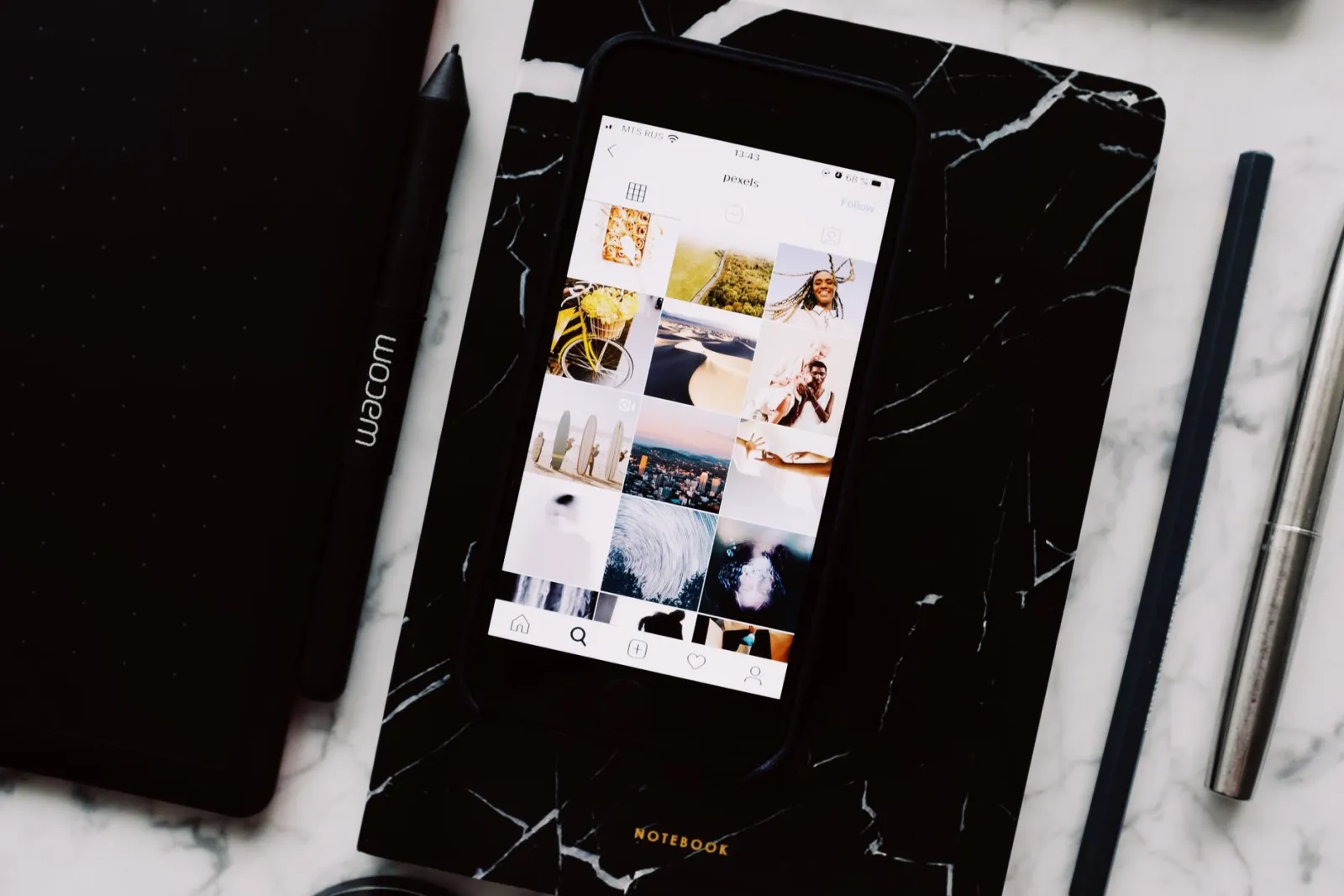
The posting order everyone gets wrong
Instagram fills the profile grid newest first, from the top left. Your most recent post is the top-left cell, and older posts push right and down.
So to assemble a picture correctly you have to post the tiles in reverse reading order: bottom-right tile first, top-left tile last.
For a 3×3 grid numbered in reading order:
1  2  3
4  5  6
7  8  9
You post them: 9, 8, 7, 6, 5, 4, 3, 2, 1.
Two practical consequences:
- Post them all in one sitting. A half-finished puzzle looks like a mistake, and anything else you post in between lands in the middle of it.
- Every future post shifts the whole thing. The next normal post you make pushes the puzzle down and to the right by one cell, breaking it. Puzzle feeds are temporary by nature — plan for that, or dedicate the account to it.
The Image Splitter numbers tiles in reading order (tile-1 is top-left), so you simply work through the ZIP backwards.
Grid reordering changes this, but do not rely on it. Instagram added manual grid reordering in June 2026, so a puzzle posted in the wrong order can now be dragged into place after the fact rather than deleted and redone. That is a genuine safety net, but it is manual work that grows with every tile, and reordering does not stop a later ordinary post from displacing the whole arrangement again. Posting backwards in one sitting is still the method that needs no cleanup.
Why do some split images show a seam?
You reassemble the tiles and there is a faint line where two of them meet. Three causes, in order of how often they come up:
1. The split dropped pixels. If the image width does not divide evenly by the number of columns, a tool that just uses width ÷ columns and rounds down loses up to a few pixels of the right and bottom edges. A 1000-pixel-wide image split into three columns of 333 pixels leaves one column short. The fix is to distribute the remainder across the tiles so they differ by at most one pixel and together cover the original exactly — which is what a correct splitter does.
2. The tiles were saved as JPEG. JPEG compresses in 8×8 blocks and its artefacts are strongest at high-contrast edges. Cutting an image and compressing each piece separately means the artefacts stop dead at the tile boundary instead of continuing across it, and that discontinuity is exactly what reads as a seam. Export tiles as PNG.
3. The platform re-encoded each tile independently. You cannot avoid this one entirely — Instagram compresses every upload. Starting from lossless PNG tiles means the platform's pass is the only generation of loss, which minimises it.
Practical version: split losslessly, export PNG, accept one round of platform compression. Compressing the source before you split does not help and slightly hurts. PNG's lossless model is described in the W3C PNG specification, which is why it is the right intermediate format here even though the final upload will be re-encoded.
| Format for tiles | Seam risk | File size | Use when |
|---|---|---|---|
| PNG | None | Largest | Default — always, for social tiles |
| WebP (lossless) | None | Smaller than PNG | Local archiving, some upload targets |
| WebP (lossy) | Low | Small | Only if the platform accepts it directly |
| JPEG | High | Small | Avoid for tiles |
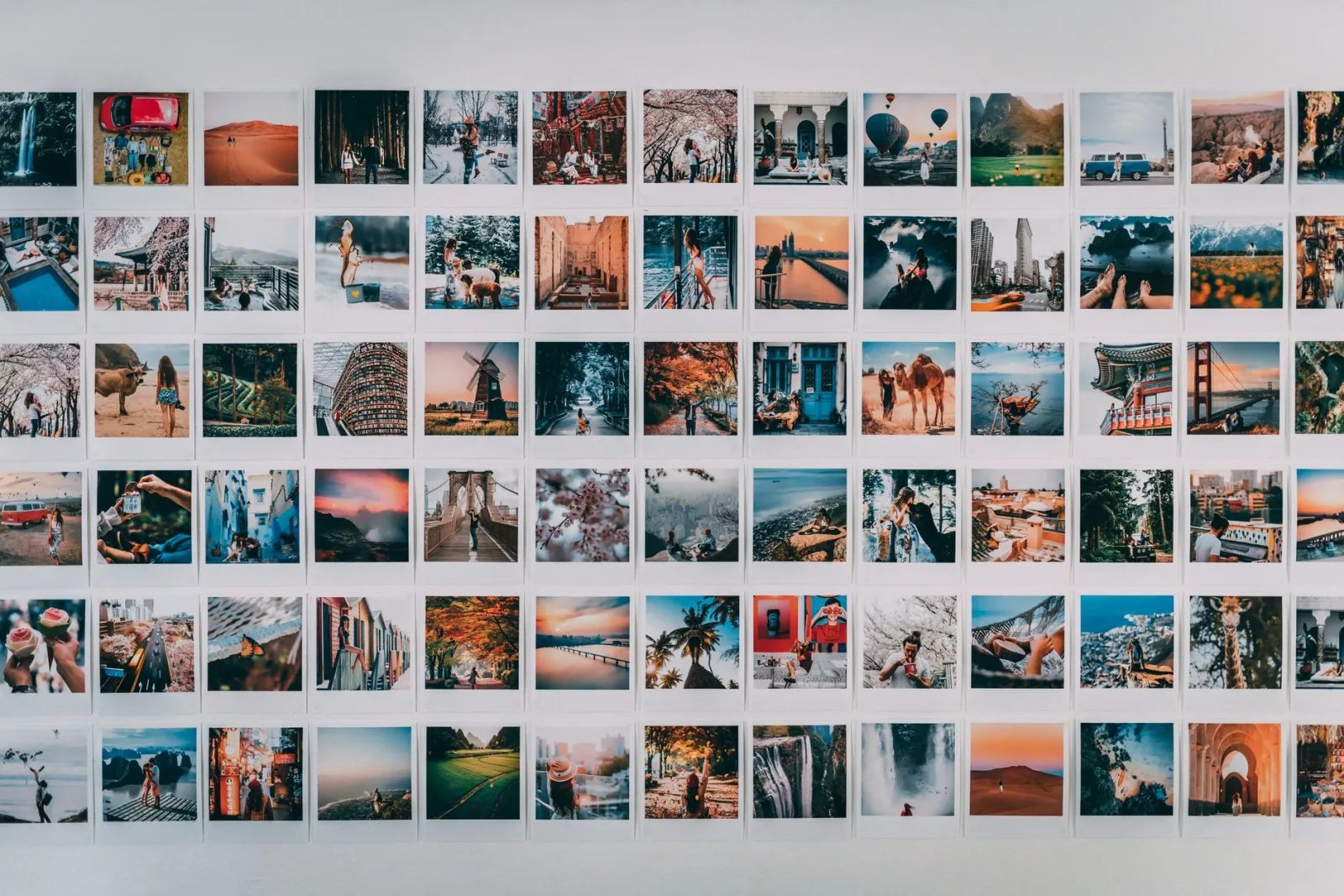
Step by step
- Choose the grid and therefore the aspect ratio you need, from the table above.
- Crop the source to that exact ratio. Do not skip this — it is the step that decides whether the puzzle lines up.
- Check the composition survives being cut. Faces and text that land on a cut line look broken. Move the subject so the important parts sit within a single tile.
- Split into equal tiles. Use PNG output.
- Post in reverse order, bottom-right first.
- Post all of them in one session.
Before you upload, run through this:
- Source cropped to the grid's exact aspect ratio
- No face or text sitting on a cut line
- Tiles exported as PNG, not JPEG
- Tile filenames zero-padded so they sort in order
- Reassembled the tiles once to confirm there is no gap or overlap
- Posting order written down backwards before you start
- Nothing else queued to post until the grid is complete

Other things to split an image for
Puzzle feeds get the attention, but the same operation is useful elsewhere:
Carousel posts. Splitting a wide panorama into slides makes it swipeable, and the eye follows the continuation across the slide boundary. Unlike a profile grid, carousels are stable — later posts do not disturb them. A 3:1 image into three slides works well.
Large-format printing. Splitting a poster across several sheets of A4 or Letter and assembling them physically is a genuinely practical way to print something big without a large-format printer. Add a margin for the printer's unprintable edge before splitting.
Testing responsive layouts. Cutting an interface screenshot into regions is a quick way to build a comparison sheet.
Sprite sheets. Splitting an evenly-spaced sheet into individual frames is the same grid operation.
Common mistakes
Splitting before cropping. The tiles are then the wrong shape and get cropped again by the platform. Crop first, always.
Posting in reading order. The picture comes out mirrored diagonally. Post backwards.
Important detail on a cut line. A face split across two tiles is the most common composition failure. Check the grid overlay before you split.
Downloading tiles one at a time. Browsers block repeated automatic downloads. Get them as a single ZIP.
Sorting tiles alphabetically without zero-padding. tile-10 sorts between tile-1 and tile-2, which quietly scrambles the order in any file listing. Zero-padded names (tile-01) sort correctly — the splitter pads them for exactly this reason.
Frequently asked questions
What size should each tile be? 1080 × 1440 pixels — 3:4 vertical, matching the profile grid since Instagram's 2025 change. Bigger is re-encoded down; smaller looks soft. That means a 3×3 source of 3240 × 4320.
Can I split an image into unequal pieces? Not with a grid splitter — it produces an even grid by definition. Unequal regions mean cropping each one separately with the Image Cropper.
How many tiles is too many? Beyond 3×4 the individual tiles stop reading as anything recognisable on their own, and a viewer scrolling past sees twelve abstract fragments rather than one picture. Three to nine tiles is the useful range for social.
Will the tiles have a watermark? No. The Image Splitter exports exactly what you put in, with no branding and no account required.
Does my image get uploaded? No. The image is cut up by your browser on your own device and the ZIP is assembled locally. Nothing is transmitted to a server.
Can I put the grid back together to check it? Yes, and it is worth doing before posting. Open the tiles in any editor and place them on a canvas of the original size. Because the tiles cover the original exactly, they should reassemble with no gap and no overlap. If you want to build a combined image from several pictures instead, the Collage Maker is the tool for that — it is the inverse operation.
Summary
A puzzle feed is mostly arithmetic done in the right order. Match the source aspect ratio to the grid, crop deliberately before splitting, keep important detail off the cut lines, export PNG so the seams stay invisible, and post the tiles backwards in a single session.
The Image Splitter handles the cutting — equal tiles covering the original exactly, numbered in posting order, in one ZIP — and the Image Cropper gets your source to the right ratio first.
Image credits
- A smartphone displaying Instagram on a notepad with a pen, symbolizing social media and productivity. — photo by freestocks.org on Pexels
- Top view of black notebook with cellphone above with pictures on screen and two pens aside located on marble table — photo by ready made on Pexels
- A vibrant wall collage featuring various travel-themed polaroid photographs. — photo by Taryn Elliott on Pexels
- Hand browsing social media photos on a smartphone next to a cup of coffee indoors. — photo by Kerde Severin on Pexels

Use the free tools while you follow the guide.
Keep reading
2026-07-26
How to Batch Resize Images: Free Tools and Scripts Compared
Resize hundreds of images at once with free online tools, ImageMagick, XnConvert, and Python scripts. Copy-paste commands, preset sizes, and a practical workflow.
2026-07-26
Bulk Image Resizer: Resize Hundreds of Images at Once (Free)
Resize hundreds of images in bulk for free with a browser tool, ImageMagick, XnConvert, or a Python script, with real byte savings and the safe batch workflow.
2026-07-26
How to Crop an Image to a Circle (Profile Photos and Avatars)
Crop an image to a circle for avatars and profile photos: the square-first rule, making a transparent circle PNG or a circle on a background, and where circles are used.