2026-03-28 · Updated 2026-07-26
How to Compress an Image to Under 200KB (Web and Email)
Get a photo under 200KB for web pages and email attachments by resizing to display size and encoding WebP, with measured file sizes and working commands.
Last updated: July 26, 2026
200KB is a generous target — most web hero images and email attachments fit comfortably under it. The reliable method is the same as for tighter targets: resize to the display size first, then encode to WebP or JPEG. This guide shows the path with the real file sizes I measured on one 597 KB source photograph.
Quick answer: how do you compress an image to under 200KB?
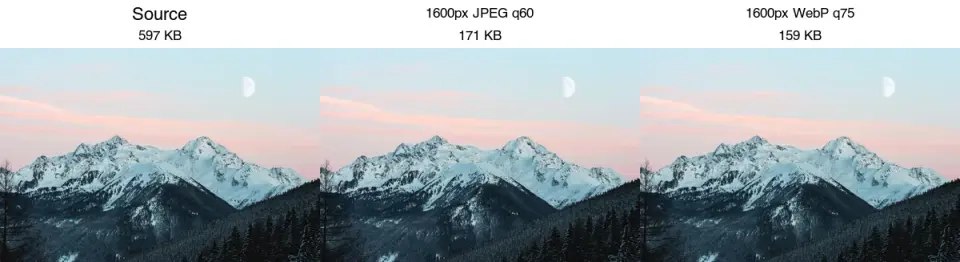
Resize the image to its display width (commonly 1600–1920px for a hero), then encode as WebP. On the test photo, resizing to 1600px and encoding WebP at quality 75 produced a 159 KB file — under 200KB with no visible quality loss at normal viewing size.
| Method | Result on a 597 KB source | Use when |
|---|---|---|
| JPEG, quality only | 569 KB (barely smaller) | Avoid — re-encoding an already-compressed JPEG barely helps |
| Resize to 1600px + JPEG q60 | 171 KB | Broad compatibility |
| Resize to 1600px + WebP q75 | 159 KB | Web pages, best size/quality |
| Resize to 1920px + WebP q70 | 190 KB | Larger hero, still under target |
For the format reasoning behind these numbers, see the AVIF vs WebP vs JPEG comparison.
Why re-encoding JPEG barely helps
A subtle but important point: re-encoding an already-compressed JPEG at a similar quality can produce a file that is larger, not smaller. The test source was a 597 KB JPEG; re-encoding at quality 85 produced 637 KB, because the encoder re-applies compression to already-artifacted data without removing the original artifacts.
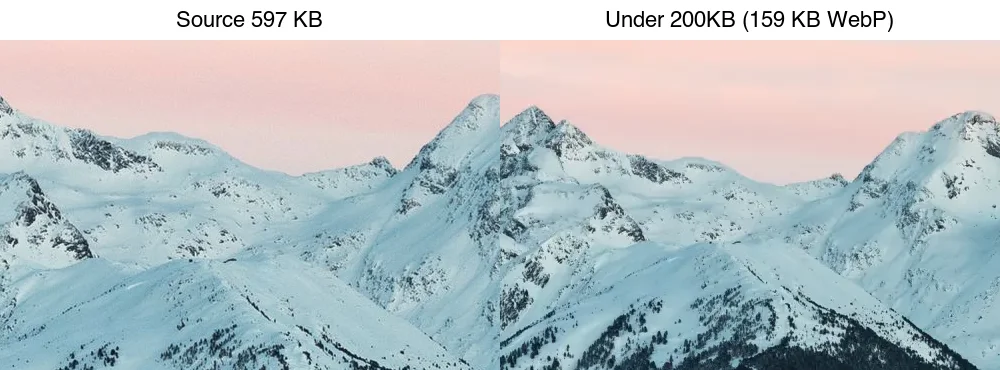
The size reduction comes almost entirely from the resize, with WebP adding a further saving:
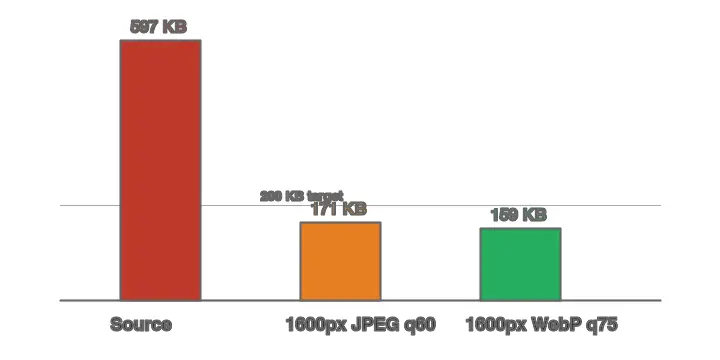
This is the same lesson as the batch resize guide: resize before compressing, and switch format for the extra saving.
Method 1: Browser compressor
For one image, use the Imagic AI Image Compressor: upload, resize to the display width (1600–1920px for a hero), pick WebP, set quality around 75, and download once the reported size is under 200KB. For exact visual control, Squoosh shows the output size live.
Method 2: WebP on the command line
WebP reaches the 200KB target at higher quality than JPEG, so it is the right default for web.
## Resize to 1600px wide, encode WebP at quality 75
cwebp -q 75 -resize 1600 0 input.jpg -o hero.webp
For a folder of images, write to an output folder:
mkdir -p out
for f in *.jpg; do cwebp -q 75 -resize 1600 0 "$f" -o "out/${f%.jpg}.webp"; done
Method 3: Python with a size guarantee
When a 200KB cap is enforced (some email clients and CMS uploads), loop quality down until the file fits, resizing first:
from PIL import Image
from pathlib import Path

def to_under_target(src: Path, dest: Path, target_kb: int = 200, width: int = 1600):
    with Image.open(src) as img:
        if img.width > width:
            ratio = width / img.width
            img = img.resize((width, int(img.height * ratio)), Image.LANCZOS)
        quality = 85
        while quality >= 30:
            img.save(dest, "WebP", quality=quality)
            if dest.stat().st_size <= target_kb * 1024:
                return dest.stat().st_size / 1024
            quality -= 5
    return dest.stat().st_size / 1024

print(to_under_target(Path("photo.jpg"), Path("out.webp"), target_kb=200))
How does a 200KB image affect page speed?
A single 200KB hero is well within Core Web Vitals budget for Largest Contentful Paint (LCP), which is why 200KB is a common informal ceiling for hero images. The risk is not one image but the sum: a blog post with eight 200KB inline images is 1.6 MB of images, which on a mobile connection dominates load time. The practical rule is to keep the LCP hero under 200KB and push below-the-fold images smaller (see the under 100KB and under 50KB guides for tighter targets).
Email is a different constraint. Email clients often block external images until the user clicks, and some re-compress or ignore WebP. For email, JPEG at the target size is the safe format, and 200KB keeps the message quick to download over cellular — important because many recipients open email on phones. Google's Core Web Vitals guidance covers the LCP side; email rendering is governed by each client's quirks, so test in a few clients before sending.
What if you cannot get under 200KB?
If a resize-and-WebP pass still lands above 200KB, the source is unusually detailed or large. Work through these in order:
- Resize smaller. Dropping from 1920px to 1600px or 1200px often removes the last 30–50KB with no visible loss at normal viewing distance.
- Lower the WebP quality to 65. Below that, artifacts start to show on smooth gradients and skin.
- Switch to AVIF, which is another 20–30% smaller than WebP at matched quality — but only serves to modern browsers, so keep the WebP and JPEG fallbacks.
- Accept the over-200KB file if the image is a print-quality hero where detail matters more than the byte target. Not every image has to hit the same number.
A 6000px landscape photo with fine foliage genuinely may not compress to 200KB without visible loss. In that case the honest answer is to resize it to the actual display size, which is almost always smaller than you think.
Which resize width should you pick?
The display size. 200KB is generous, so you can keep more pixels than at tighter targets:
| Use case | Display size | Source width |
|---|---|---|
| Full-width hero | 1920px | 1600–1920px |
| Article inline image | 800px | 1200px |
| Email header | 600px | 1200px |
| Email inline image | 400px | 800px |
Export at roughly 1.5–2× the display width for high-DPI sharpness.
Common mistakes
- Re-encoding an already-compressed JPEG. It often grows the file. Resize + switch format instead.
- Skipping the resize. A 4000px photo at JPEG q60 is still a 4000px download.
- Forgetting email clients. Some strip WebP; for email, JPEG at the target size is the safe choice.
- Keeping EXIF. Strip metadata for web/email — it is a meaningful fraction of a 200KB file.
Final pre-export checklist
- Resize oversized camera files before touching the quality slider.
- Use WebP for web delivery and JPEG for email compatibility.
- Keep hero images near their actual rendered width.
- Strip metadata unless the workflow requires EXIF.
- Re-open the exported file and confirm it is below 200KB.
Frequently asked questions
Is 200KB small enough for a web hero?
Usually. A 1600–1920px WebP hero at q70–75 commonly lands at 150–200KB and looks sharp. If your hero is larger, resize smaller or drop quality to 65.
JPEG or WebP for a 200KB target?
WebP for web pages (smaller at equal quality); JPEG for email, where client support is broader. Keep a JPEG fallback in a <picture> for the web case.
Can I email a 200KB image?
Yes — most email clients accept images up to ~1MB inline. 200KB is comfortable and keeps the message quick to load.
How do I get an image under 200KB?
Resize to the display dimensions first (the biggest byte saving), then convert to WebP and compress at quality 80. If still over 200KB, reduce dimensions further. Re-encoding a JPEG at lower quality alone barely helps because the pixel count is unchanged — resize first, then compress.
Does resizing or compressing save more bytes?
Resizing, by a wide margin. Removing pixels cuts the data the encoder stores; lowering quality only squeezes each pixel harder. A 4000px photo at quality 70 can still be over 200KB, while the same photo resized to 1200px at quality 80 lands well under. Always resize to the display dimensions first.
Is 200KB small enough for the web?
For a single content image, yes — it loads fast and keeps the page light. A hero image under 200KB keeps LCP healthy. For a page with many images, keep each small and lazy-load the ones below the fold. See the web speed guide.
Does WebP beat JPEG at 200KB?
Yes — WebP is 25 to 35 percent smaller at equal quality, so it reaches 200KB at higher quality than JPEG would. Use WebP for web delivery and keep JPEG only as a fallback, served through a <picture> element so the browser picks.
Why does quality-only compression barely help?
Because lowering quality shrinks bytes per pixel, but if there are too many pixels, even quality 70 stays over the target. Resizing removes pixels entirely, which is a far bigger saving. Always resize to the display dimensions first, then compress — the order is the single biggest lever on final file size.
Image credits
- Compression-path comparison, before/after, and size chart — generated by the author from a landscape photograph (Pexels #1287145, photo by eberhard grossgasteiger) to show real measured file sizes for a 200KB target.
Use the free tools while you follow the guide.
Keep reading
2026-09-10
Image Blurry After Export? 7 Fixes That Target the Cause
Fix an image blurry after export by checking pixels, compression and upload changes. See measured examples, PNG vs JPEG choices, and seven practical fixes.
2026-08-01
Image Compression in 2026: WebP, AVIF, JPEG XL & JPEG AI Benchmarked
I benchmarked WebP, AVIF, and JPEG XL on 4 real photos. WebP saves 32% vs JPEG, AVIF 65%, JPEG XL 30%. Full data, browser support, and which format to pick in 2026.
2026-07-26
Image Optimization Checklist: Every Step for Fast Web Images
A complete image optimization checklist: format choice, resizing, compression, responsive delivery, lazy loading, and CDN setup. Run through it before every publish.