2026-06-28 · Updated 2026-06-30
GIF to Video Converter: MP4 and WebM Workflow
Convert animated GIFs to MP4 or WebM without fuzzy loops, autoplay surprises, or oversized page assets. Includes settings, checks, and platform guidance.
Last updated: June 30, 2026
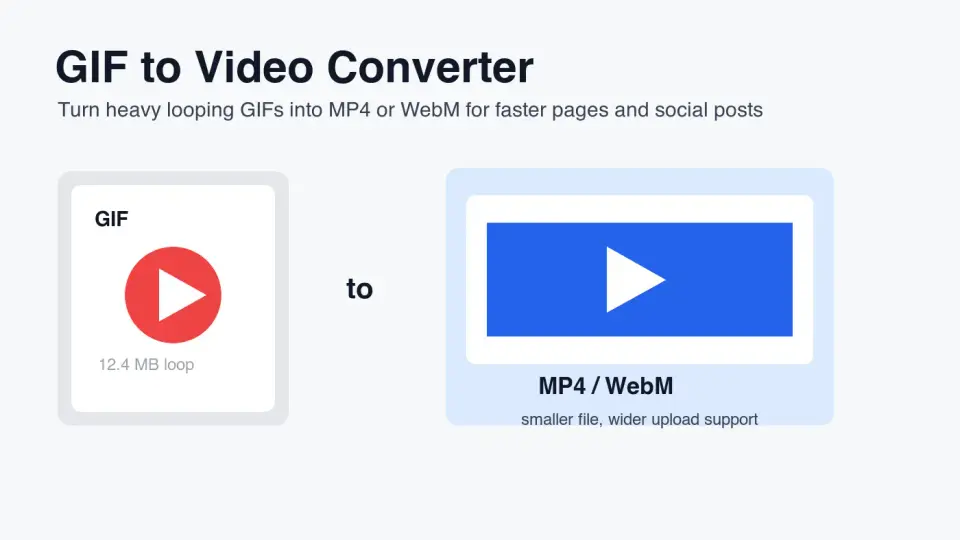
Animated GIFs are easy to share, but they are usually the wrong final format for a website, product demo, help center, or paid social preview. A short MP4 or WebM can keep the same loop while using real video compression, playback controls, poster frames, and browser video behavior.
This guide explains when to convert a GIF to video, which format to choose, how to keep the loop clean, and what to check before publishing.
For this rewrite, I measured four exported 1400 by 788 WebP article graphics before upload. They ranged from 20 KB to 31 KB, with a combined transfer size of about 104 KB for all article images.
Quick answer: should you convert a GIF to video?
Yes, convert an animated GIF to MP4 or WebM when the file is used as page content, a product demo, a tutorial loop, a social post, or a repeated animation. Keep the original GIF only when a platform specifically requires GIF upload or when the animation is tiny enough that video conversion does not matter.
Use MP4 when you need the broadest upload and playback support. Use WebM when you control the web page and want efficient browser playback. For a production website, serving both WebM and MP4 sources inside a <video> element is usually the cleanest option.
Google's web.dev guidance recommends replacing large animated GIFs with video because GIFs can be much heavier than equivalent video files. The same guide shows the GIF-like video pattern: autoplay, loop, muted, and playsinline attributes on a <video> element in Replace animated GIFs with video.
Why are GIF files so heavy?
A GIF stores animation as image frames, not as modern inter-frame video compression. That is fine for a small sticker or icon. It becomes painful for a 900px product demo, a screen recording, or a meme-style clip that runs for several seconds.
The cost shows up in three places:
- A GIF can transfer more bytes than the same motion encoded as MP4 or WebM.
- Browsers treat a GIF as an image, so you lose normal video controls and source fallbacks.
- A large GIF near the top of a page can hurt perceived loading speed.
- GIF transparency and limited color handling can create rough edges after resizing.
- Editors often forget to crop dead space before export, which multiplies the waste across every frame.
If the source is already a screen recording, UI demo, camera clip, product spin, or tutorial loop, video is the more natural final format. If you are starting from still images, build the animation first, then convert the final loop. For that workflow, use GIF Maker from Images before you encode the video.
How do you convert a GIF to MP4 without losing quality?
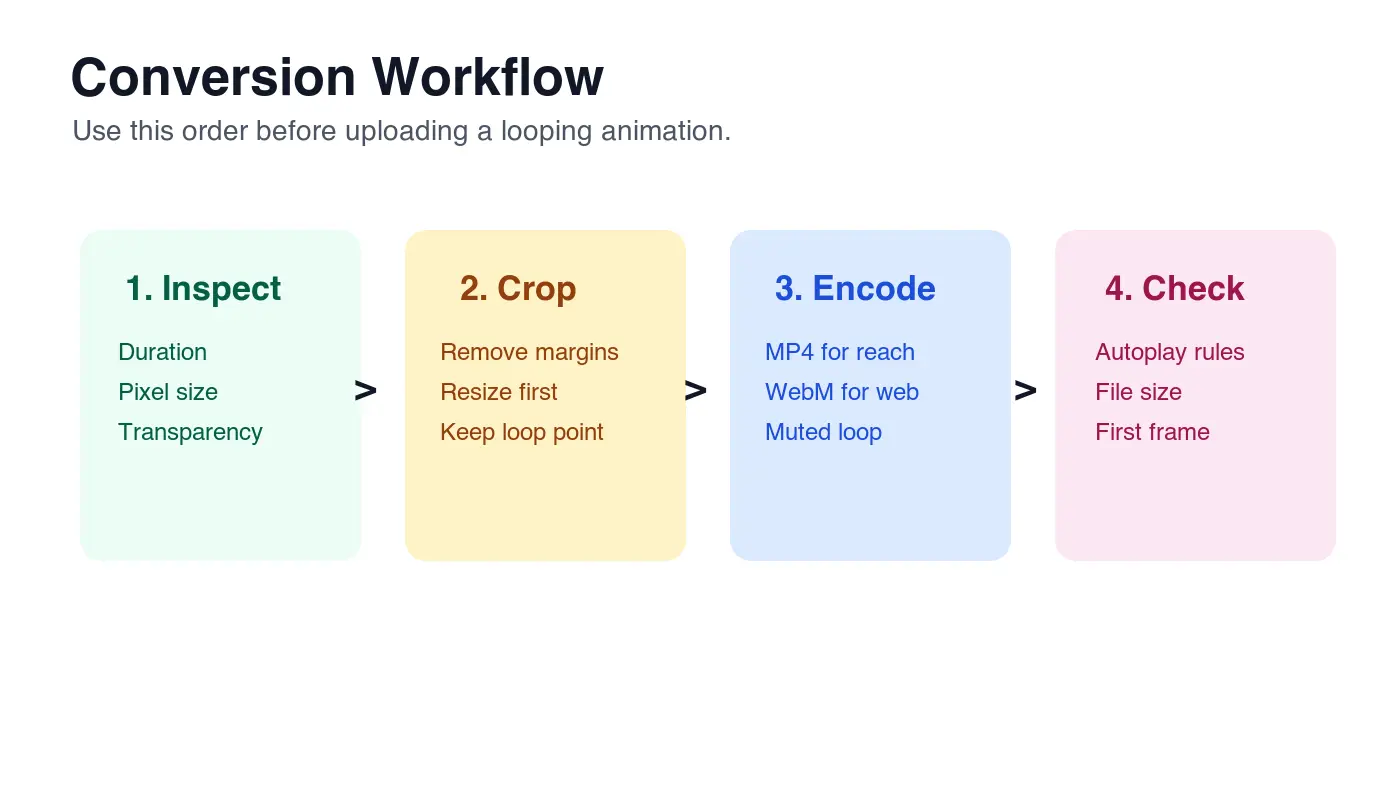
Start by inspecting the source GIF. Check the dimensions, duration, frame rate, visible text size, and whether transparency matters. Then crop and resize before conversion. Cropping after export wastes time because the encoder has already processed pixels that should not have shipped.
Use this order:
- Open the GIF and watch the loop point.
- Crop away blank margins, browser chrome, and dead UI.
- Resize to the largest real display size, not the source capture size.
- Choose MP4 for general sharing or WebM for a controlled web page.
- Keep the clip muted if you expect autoplay.
- Add a poster frame if the video may show controls or load slowly.
- Test on mobile before publishing.
If you use FFmpeg, a practical MP4 command is:
ffmpeg -i source.gif -vf "crop=trunc(iw/2)*2:trunc(ih/2)*2" -movflags faststart -pix_fmt yuv420p output.mp4
The crop expression makes odd dimensions even, which avoids a common H.264 export problem. The yuv420p pixel format is a compatibility choice for MP4 playback. The faststart flag moves metadata so playback can begin sooner over the network.
For WebM:
ffmpeg -i source.gif -c:v libvpx-vp9 -b:v 0 -crf 36 output.webm
Lower CRF values are larger and higher quality. Higher values are smaller and rougher. For UI text, compare a few exports rather than trusting one number.
Which format should you choose?
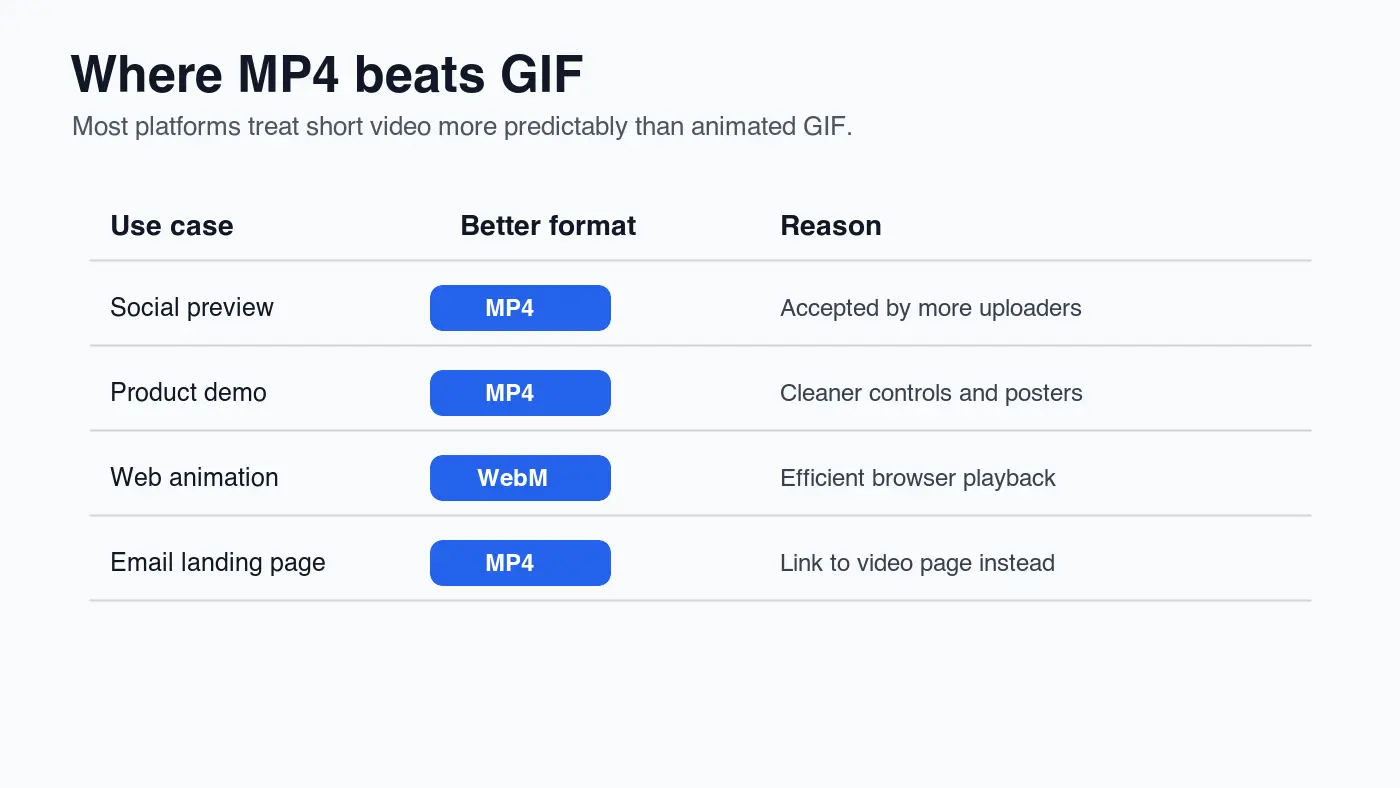
Format choice depends on where the loop will be published. MP4 is usually the practical default because it works across more uploaders and playback contexts. WebM is useful on websites where you can provide multiple sources.
| Destination | Recommended output | Why |
|---|---|---|
| Blog post or landing page | WebM plus MP4 fallback | Modern browsers can pick the best source while older contexts still have MP4 |
| Social media upload | MP4 | Most social tools expect uploaded video rather than WebM |
| Product help article | MP4 with poster frame | Support readers can pause, scrub, and inspect the first frame |
| App UI micro-animation | WebM or CSS animation | WebM can be efficient, but very small motion may be better as CSS |
| Email campaign | Linked MP4 landing page | Many email clients do not reliably play embedded video |
MDN's <video> reference documents the source fallback pattern and browser attributes available on the HTML video element in the video element docs. Use that pattern when the converted loop is part of a web page rather than an uploaded social asset.
For still-image format decisions around the same asset pipeline, read Image Formats Explained and AVIF vs WebP Comparison. Those guides help when the converted video also needs a poster image, thumbnail, or Open Graph image.
What settings matter most for a clean loop?
The best conversion settings are the ones that protect the visible job of the loop. A product demo needs readable text. A reaction clip needs smooth motion. A tutorial loop needs a first frame that explains what the viewer is about to see.
| Setting | Good starting point | Check before publishing |
|---|---|---|
| Duration | Under 6 seconds for repeated page loops | The loop does not feel irritating or incomplete |
| Dimensions | Match the rendered width | Mobile text is still readable |
| Frame rate | Keep source frame rate unless motion looks choppy | File size does not jump for little visual gain |
| MP4 compatibility | H.264 with yuv420p |
Plays in the target browser or uploader |
| Web playback | autoplay loop muted playsinline |
Mobile browsers do not force full-screen playback |
| Poster frame | Export a clean first frame | The page does not show a blank rectangle while loading |
Autoplay needs special attention. Chrome's autoplay policy allows muted autoplay in many cases, while autoplay with sound is restricted unless the user has interacted or other conditions apply. Check the current browser behavior in Chrome's autoplay policy before depending on silent loops in a product surface.
Use Image Compression Deep Dive when you also need to compress poster images, thumbnails, or GIF source frames. For delivery and cache headers, use Image CDN Guide.
What about transparency, captions, and accessibility?
GIF transparency does not automatically map to MP4. MP4 is usually opaque. If the animation needs alpha transparency over a changing background, test WebM with alpha support in your target browsers or redesign the animation with a fixed background.
Captions are different from alt text. A GIF embedded as an image can have alt text, but a video needs surrounding text, captions when speech is present, and a useful poster frame. If the converted loop demonstrates a UI step, write the step in nearby body copy so a reader does not depend on motion alone.
Use this accessibility and publishing list:
- Keep essential instructions in text, not only in the animation.
- Avoid flashing motion and rapid color changes.
- Provide pause controls for longer demos.
- Use a poster frame that explains the clip before playback.
- Include captions or transcript text when the clip has speech.
- Do not autoplay video with sound.
- Let users download or open the clip when it is important support material.
If the video is purely decorative, consider removing it from the content flow or replacing it with a still WebP. Motion should clarify the task, not distract from it.
How should you publish the converted video on a website?
For a web page, the GIF-like video pattern is simple:
<video autoplay loop muted playsinline poster="/demo-poster.webp">
  <source src="/demo-loop.webm" type="video/webm">
  <source src="/demo-loop.mp4" type="video/mp4">
</video>
Then check the real rendered page, not only the file in your editor. Watch for layout shifts, blurry text, delayed posters, and mobile playback behavior. If the first frame is important, export it as a WebP poster and reserve the aspect ratio in CSS.
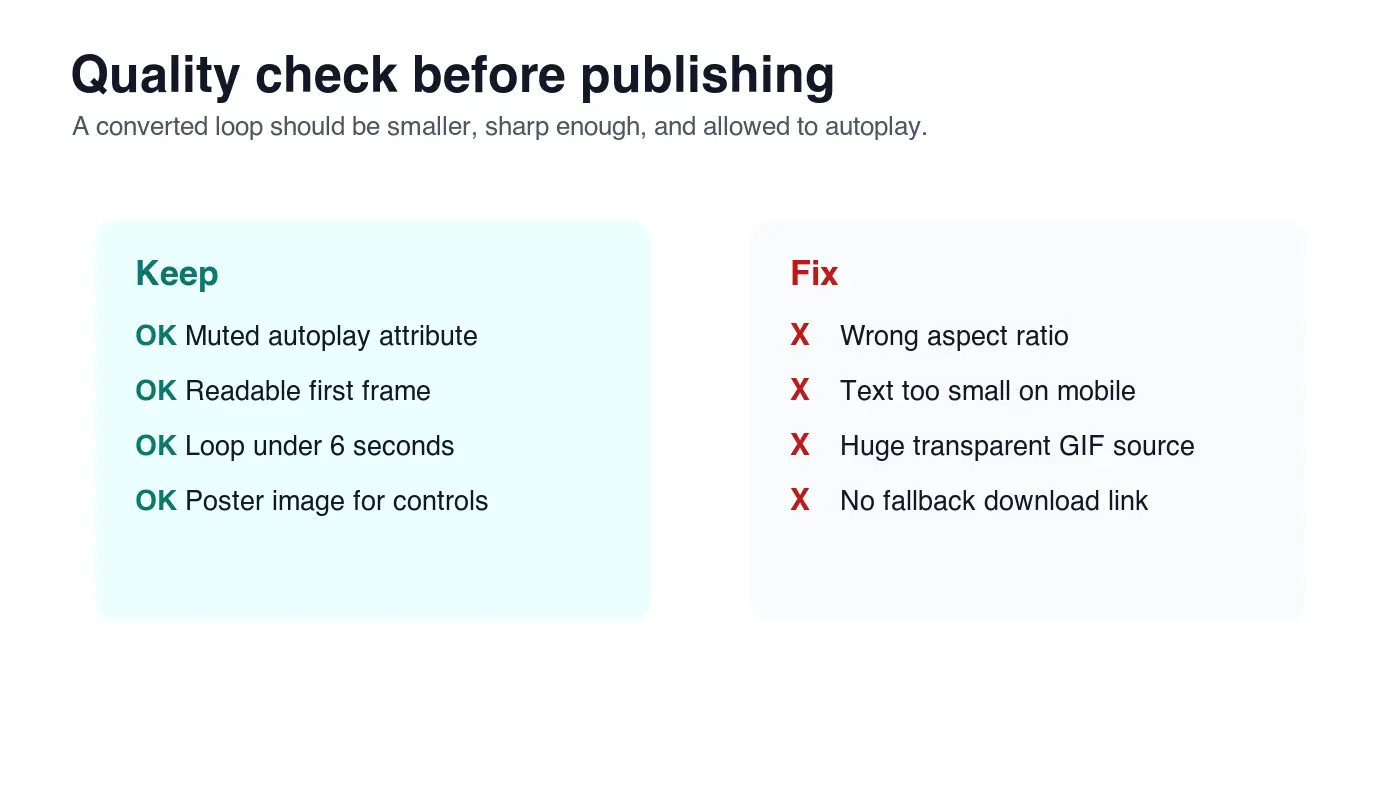
Before shipping, run this checklist:
- The final video is smaller than the source GIF.
- The first frame makes sense before motion starts.
- Text remains readable on a 390px-wide phone screen.
- The loop point does not jump.
- MP4 and WebM MIME types are correct.
- The poster image is compressed and cacheable.
- The likely Largest Contentful Paint asset is not delayed unnecessarily.
- The video is muted if autoplay is expected.
- The page still works if the video fails to load.
- The CDN URL returns HTTP 200.
For a broader pre-publish pass, use Complete Image Optimization Checklist. The same discipline applies: right dimensions, right format, crawlable asset URLs, and no oversized media hiding in the template.
When should you keep the GIF instead?
Keep the GIF when the target platform only accepts GIF, when the animation is a tiny inline reaction, or when the loop is used in a chat tool where video upload changes the user experience. Do not convert only because video sounds more modern.
A practical rule is to test the final asset against the destination. If the MP4 looks sharper, loads faster, and behaves correctly, use it. If the platform wraps the MP4 in an awkward player or strips looping behavior, keep the GIF for that channel and use video elsewhere.
For web pages, large GIFs should be rare. Convert the loop, publish the video, and keep the original GIF as an editable source file rather than the production asset.
Use the free tools while you follow the guide.
Keep reading
2026-10-07
Background Remover Removes Part of Subject? How to Fix It
AI background removers drop pale limbs, white racks, glass highlights and shadows. I measured why on real photos and how to get the missing parts back.
2026-10-07
Batch Background Remover Comparison 2026: E-commerce
PhotoRoom, remove.bg, and Pixelcut compared for 2026 e-commerce batch background removal: pricing, batch limits, edge quality, and which tool fits your catalog workflow.

2026-10-07
remove.bg Is Shutting Down on December 1: What to Use Instead
remove.bg closes on 1 December 2026 and unused credits expire that day. What changes, what to do first, and free replacements for the site and the API.