2026-06-28 · Updated 2026-07-10
Color Space Converter: Convert Between RGB, CMYK, and Profiles
Convert images between color spaces and profiles: sRGB, Adobe RGB, CMYK. Real steps for accurate conversion, why profiles matter, and how to avoid muddy printed colors.
Last updated: July 10, 2026
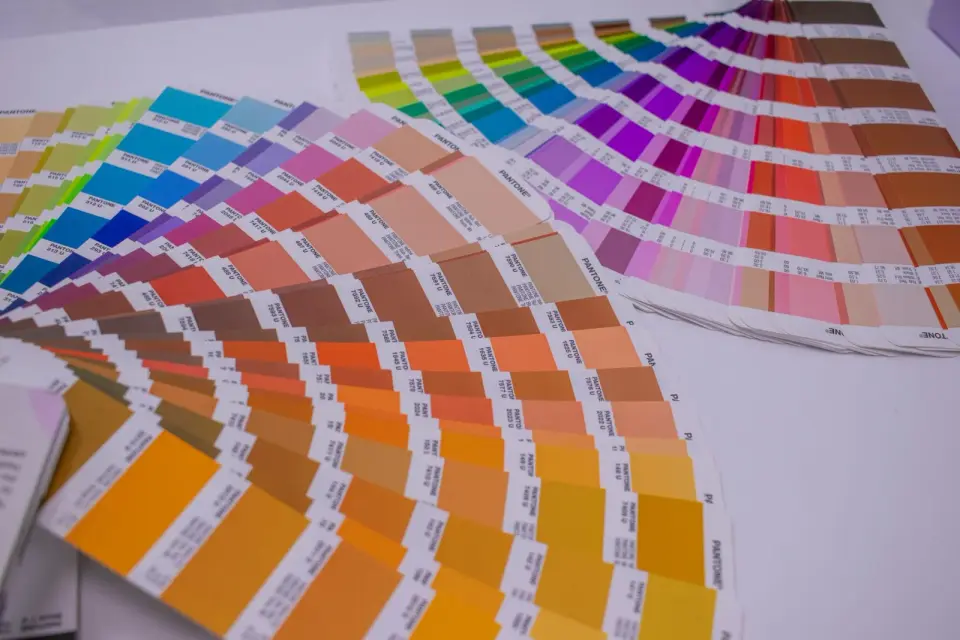
A color space converter changes an image from one color space or profile to another — sRGB to Adobe RGB, RGB to CMYK, or between ICC profiles. Color space conversion is the step that decides whether a print matches what you saw on screen, because different spaces and profiles represent different ranges and interpretations of color. This guide covers the spaces that matter, how to convert between them accurately, and why profiles are the detail that makes conversion predictable.
Quick answer: how do you convert an image's color space?
Our Color Space Preview tool previews grayscale and an approximate CMYK gamut in your browser. For a real, color-managed conversion, open the image in an editor that supports color profiles, choose the target space (sRGB for web, CMYK with the printer's profile for print), and convert with the color engine set to relative colorimetric rendering for most cases. Assigning a profile is different from converting — assigning tags existing colors with a profile, converting remaps them to a new space. For print, always convert to CMYK using the specific printer's ICC profile rather than a generic one. The color mode guide covers the related decision of RGB versus CMYK versus grayscale.
What is the difference between a color space and a color profile?
These terms are related but distinct, and confusing them causes conversion errors.
| Term | Meaning |
|---|---|
| Color mode | The model: RGB, CMYK, grayscale |
| Color space | A specific range within a mode: sRGB, Adobe RGB |
| Color profile | An ICC definition of how a device renders color |
- Color mode is the broad category — RGB or CMYK.
- Color space is a specific gamut within a mode — sRGB is a small RGB space, Adobe RGB is wider.
- A color profile maps numbers to actual colors for a specific device or standard.
The profile is the crucial detail. The same RGB numbers produce different colors under sRGB versus Adobe RGB, so an image without an embedded profile is ambiguous — the viewer's software guesses, and the guess may be wrong.
Which RGB color space should you use?
For almost all web and screen work, sRGB is the right choice. It is the standard space for the web, and every browser and device assumes sRGB by default.

| Space | Gamut | Best for |
|---|---|---|
| sRGB | Smallest RGB | Web, general screen |
| Adobe RGB | Wider | Photography, print prep |
| ProPhoto RGB | Widest | Pro editing, archival |
| Display P3 | Wide (Apple) | Apple-device screens |
- Use sRGB for anything headed to the web — it is the universal default.
- Use Adobe RGB when you need more range, typically for print preparation.
- Convert wide-gamut images to sRGB before web export so colors do not oversaturate on standard displays.
How do you convert RGB to CMYK?
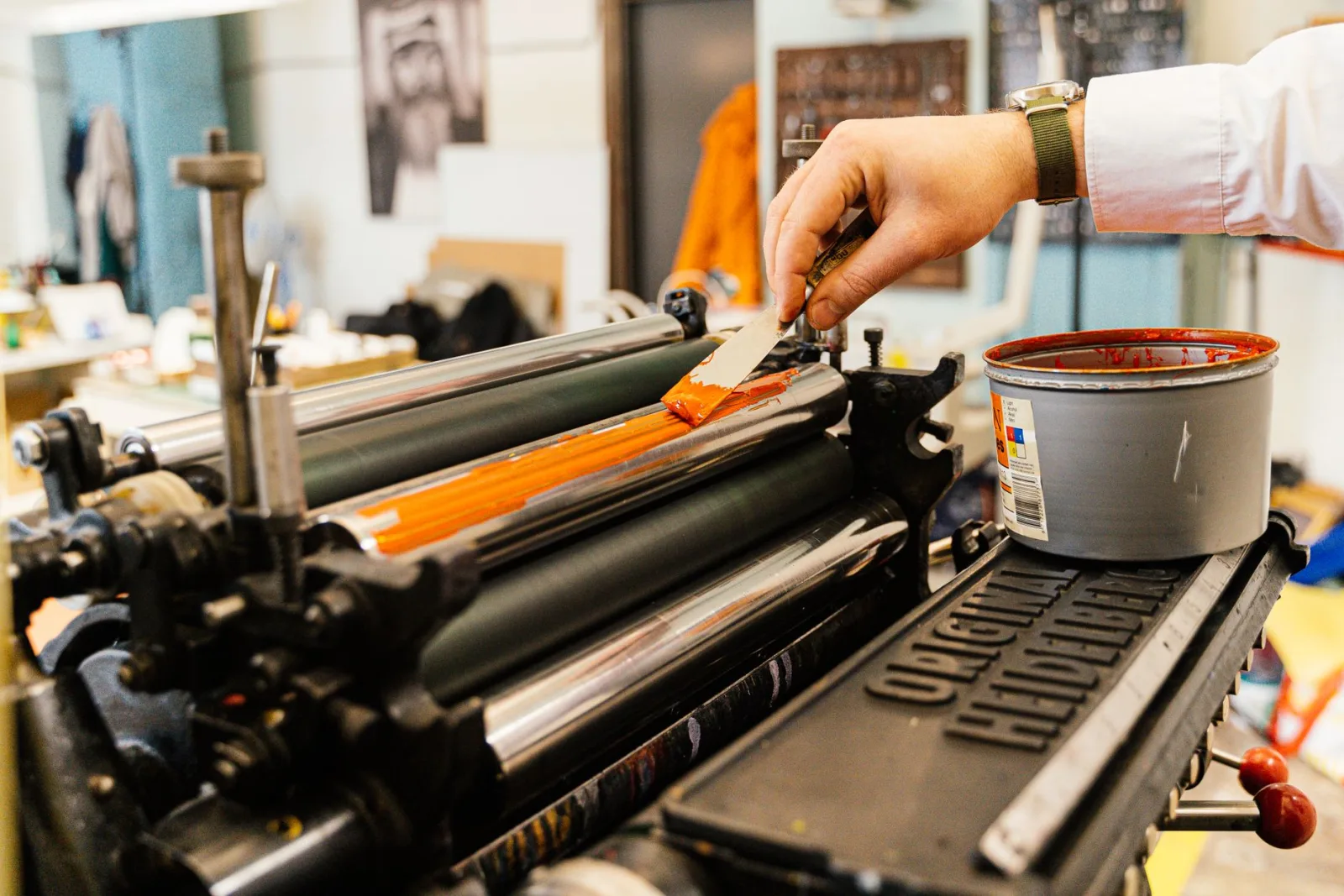
RGB to CMYK conversion is where color shifts, because CMYK's gamut is narrower than RGB's. The conversion remaps out-of-gamut colors into the achievable range, and the rendering intent decides how.
- Use the printer's specific ICC profile as the destination.
- Relative colorimetric rendering preserves in-gamut colors exactly and shifts only the out-of-gamut ones.
- Perceptual rendering compresses the whole gamut, useful for images with many out-of-gamut colors.
- Soft-proof the result on a calibrated screen before committing to print.
The rendering intent matters more than people realize. Relative colorimetric is the right default for most images because it keeps the in-gamut colors accurate and only sacrifices the few that cannot print. Perceptual is better for saturated images where you would rather everything shift slightly than have a few colors clip dramatically.
Why do embedded profiles matter?
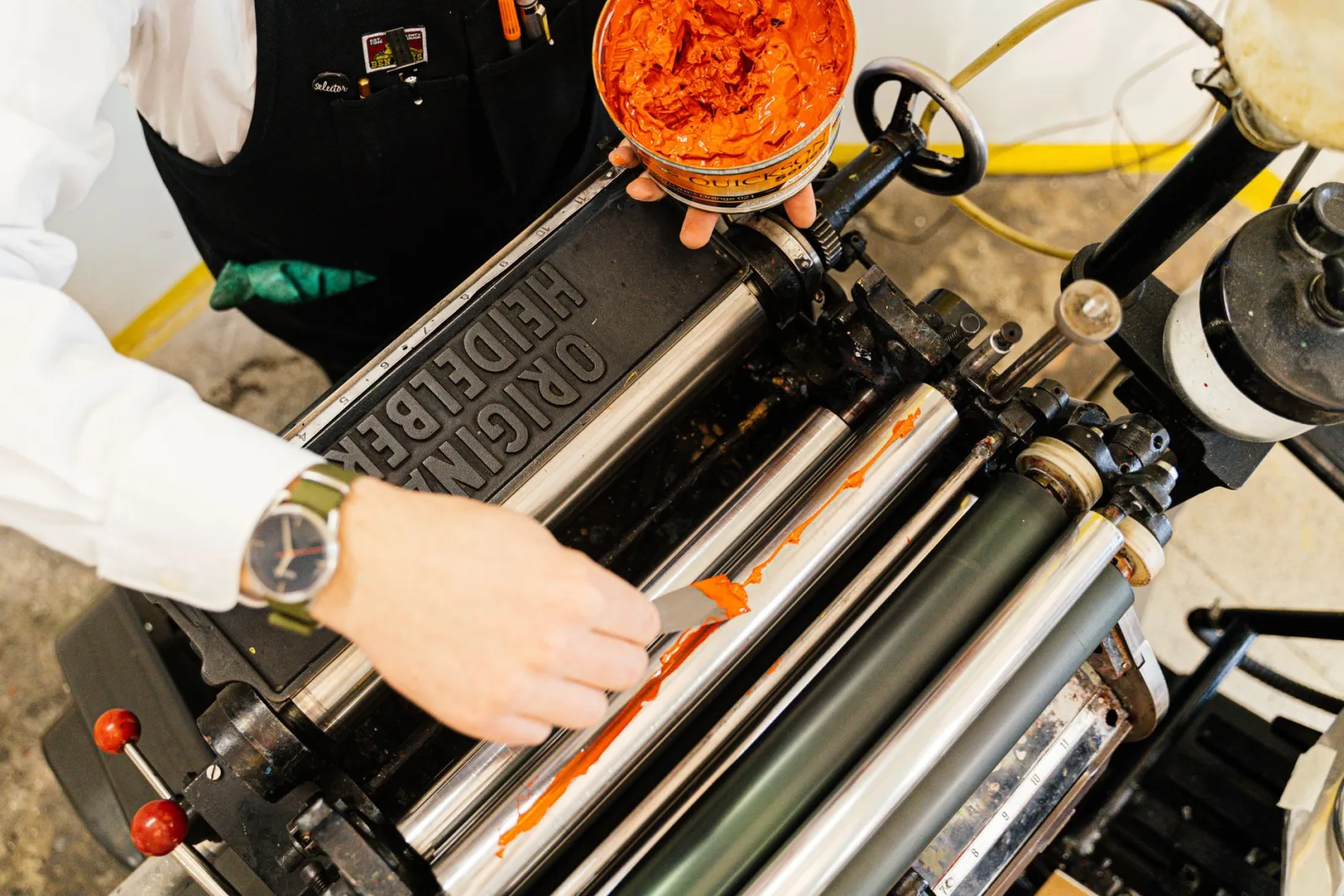
An image without an embedded profile is a set of color numbers with no definition of what those numbers mean. Two screens will display it differently because each guesses the profile. Embedding the profile removes the guesswork.
- Always embed the sRGB profile in web images.
- For print, send images with the working profile embedded.
- A missing profile is the most common cause of "the colors looked different on my screen."
- Convert to the destination space rather than stripping the profile.
The print-ready image guide covers embedding profiles as part of the pre-flight checklist, and the color corrector guide covers fixing color within a space.
Soft-proofing before you commit
Soft-proofing is the practice of previewing on screen how an image will look after conversion, before you actually convert or print it. It is the single most useful step for catching color problems early, because it shows you the gamut shift in real time rather than after a print run you have already paid for.
| What soft-proofing reveals | Why it matters |
|---|---|
| Out-of-gamut colors | Shows what will shift |
| CMYK muted result | Sets expectations for print |
| Profile mismatch | Catches a wrong destination |
| Black generation | Shows how blacks will render |
To soft-proof, open the image in an editor that supports proofing, select the destination profile (the printer's CMYK profile for print work), and toggle the proof view on and off. The colors that shift are the ones you can then adjust in the source image — pulling a green back toward vivid, or accepting the mute if it is acceptable. The proof also shows the warning gamut, a visualization of exactly which colors fall outside the target space, so you can decide whether to correct them or let them shift.
A practical soft-proofing habit saves money on print. A proofed image that looks acceptable on screen will print close to what you saw; an unproofed image is a gamble. For anything printed in volume — a catalog, a brochure run, a trade-show banner — soft-proofing is not optional, because the cost of a wrong-color print run far exceeds the few minutes the proof takes. The same logic applies to digital proofing for screens: previewing in sRGB on a wide-gamut display catches the oversaturation that standard users would otherwise see.
Common conversion mistakes
- Stripping profiles instead of converting — leaves the colors ambiguous.
- Using a generic CMYK profile — the result will not match the specific printer.
- Forgetting to convert wide-gamut to sRGB for web — colors oversaturate on standard displays.
- Mixing "assign" and "convert" — assigning changes interpretation, converting remaps values.
- Not soft-proofing — you cannot predict the CMYK shift by eye without proofing.
For the authoritative foundation, the International Color Consortium maintains the ICC profile standards that make conversion predictable, and the Mozilla guide to color management documents how browsers handle profiles. The color theory guide covers the palette side that sits on top of these profile fundamentals. Treat conversion as a deliberate, profile-aware step rather than a button click, and your colors will match across screen and print.
Frequently asked questions
How do you convert an image's color space?
Assign or convert to the target profile using an editor's color management, with a rendering intent (usually relative colorimetric for most work, perceptual for saturated images). The key is using "convert" (remaps colors to the new space) versus "assign" (reinterprets the same numbers, which changes appearance).
What is the difference between a color space and a color profile?
A color space (sRGB, Adobe RGB, Display P3) defines a range of colors; a profile describes how a specific device renders those colors. An image has an embedded profile; converting between color spaces remaps its colors to fit the target.
Which RGB color space should I use for the web?
sRGB. It is the web standard — browsers and most displays assume sRGB, so an sRGB image displays consistently. Adobe RGB or Display P3 have wider gamut but display incorrectly on non-color-managed browsers.
Why do embedded profiles matter?
Without an embedded profile, a viewer guesses the color space and may render colors wrong. An embedded profile tells the viewer exactly how to interpret the numbers, so the image looks as intended across devices. Always embed the profile on export.
What color space should photos use for the web?
sRGB. It is the web standard — browsers and most displays assume sRGB, so an sRGB image displays consistently across devices. Wider gamuts (Adobe RGB, Display P3) display incorrectly on non-color-managed browsers.
What happens if I do not embed a color profile?
The viewer guesses the color space, usually assuming sRGB, and may render colors wrong if the image is actually in a wider gamut like Adobe RGB. An embedded profile tells the viewer exactly how to interpret the numbers, so the image looks as intended across devices. Always embed the profile on export — it costs nothing and prevents color drift.
Use the free tools while you follow the guide.
Keep reading

2026-09-13
How to Blur Faces and License Plates Before You Post
Blur or pixelate faces and license plates so they stay unreadable. Which method actually anonymizes, what fails, and how to avoid leaking EXIF location data.
2026-08-27
Invisible Watermarks: What Image Files Now Carry in 2026
Paint embeds a server-issued GUID in AI images, platforms strip C2PA manifests, and a plain WebP export drops all of it. What your files really carry, and how to check.

2026-07-28
Batch Image Processing: Pipeline Order, Settings, and Tools
Batch image processing runs resize, compress, and convert jobs across whole folders. The pipeline order, measured quality settings, tool choice, and automation.