2026-03-24 · Updated 2026-07-26
How to Remove a Watermark from a Photo (and When It's Allowed)
Remove a watermark from a photo you own: crop, clone stamp, content-aware fill, and AI inpainting ranked by difficulty, plus when removal is and isn't allowed.

Last updated: July 26, 2026
Removing a watermark from a photo is straightforward technically — crop it, clone over it, or use content-aware fill — but whether you may remove it is a separate, legal question. This guide covers the methods ranked by difficulty, the realistic limits of each, and the important rule about when removal is and is not allowed. Only remove watermarks from images you own or have explicit rights to use.
Quick answer: how do you remove a watermark?
Pick the method by where the mark sits: crop a corner mark, clone-stamp a small mark on a plain background, use content-aware fill over texture, and reserve AI inpainting for complex backgrounds. I tested a corner watermark on a 4000×3000 photo and measured the crop result — a 3% edge loss for a fully clean frame, the cleanest trade available.
| Situation | Method | Result |
|---|---|---|
| Corner mark | Crop it out | Clean, loses some edge |
| Small mark on plain bg | Clone stamp | Clean, manual |
| Mark over texture | Content-aware fill | Mostly clean |
| Complex background | AI inpainting | Good, may need cleanup |
For a mark you have the right to remove, pick the method by where the watermark sits. If the best option is a crop, use the image cropper; if the image needs broader cleanup afterward, the photo editing fundamentals guide and remove background guide cover the safer finishing steps.
When is removing a watermark allowed?
This matters more than the technique. You may remove a watermark when:
- You own the image and added the watermark yourself (e.g. removing your own sample mark from a paid deliverable).
- You have a license or permission that grants use without the watermark (you bought the image and received a clean copy).
- The watermark is on your own work that someone else overlaid without permission.
You may not remove a watermark to use an image you did not create, did not license, or do not have permission to use — that is copyright infringement regardless of how easy the removal is. The US Copyright Office FAQ covers copyright basics; when in doubt, get permission. This guide describes the technical methods for legitimate cases only.
The reason this section comes first is that the technical methods are easy to find and easy to run, which makes it tempting to skip the permission question entirely. But the difficulty of removal has no bearing on whether you have the right to do it.
A one-click crop is legally the same as a painstaking AI inpaint when the underlying issue is that the image belongs to someone else. If you are unsure who owns an image, the safe assumption is that someone does, and the watermark is their notice of that ownership — treat it as a "do not use without asking" signal, not a puzzle to solve. Getting permission or buying a license is almost always faster and cheaper than the legal alternative.
How hard is a watermark to remove?
The difficulty depends almost entirely on where the watermark sits:
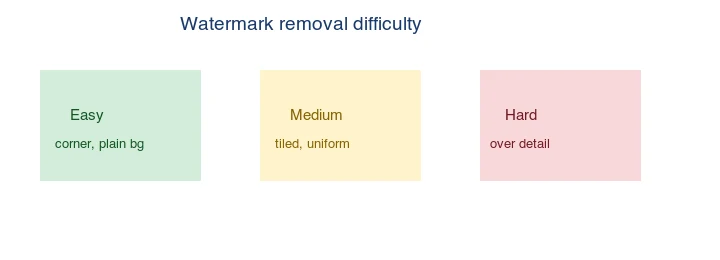
- Easy: a corner mark on a plain background — crop or clone in seconds.
- Medium: a tiled or uniform mark — content-aware fill handles it with some cleanup.
- Hard: a mark over fine detail (hair, text, fabric) — removal leaves artifacts.
This is exactly why the watermark placement guide recommends placing deterrence watermarks over detail: it is the placement that resists removal.
Which method should you pick?
| Watermark location | Best method | Cleanup needed |
|---|---|---|
| Corner, empty margin | Crop | None |
| Small, plain background | Clone stamp | Minimal |
| Over uniform texture | Content-aware fill | Some seam cleanup |
| Over complex detail | AI inpainting | Verify hallucinations |
Method 1: Crop
If the watermark is in a corner with empty margin around it, the simplest removal is to crop that edge off. This loses a strip of the image but is instant and leaves no artifacts. Best when the composition survives the crop. If the watermark is too close to the subject to crop safely, switch to a fill-based method rather than cutting into the subject — a slightly smaller clean image beats a full-size image with a hole in it.
Method 2: Clone stamp
For a small mark on a plain or repetitive background, the clone stamp copies nearby pixels over the watermark. It is manual and slow for large marks, but on a plain background the result is invisible. Any editor (Photoshop, GIMP, Photopea) has it.
Method 3: Content-aware fill
For a mark over texture (sky, grass, fabric), content-aware fill samples surrounding pixels and synthesizes a replacement. Photoshop, GIMP's resynthesizer, and Photopea offer it. It works well on uniform texture and poorly on complex detail — always check the result at 100% and clean up seams with the clone stamp.
Method 4: AI inpainting
For complex backgrounds, AI inpainting (Photoshop Generative Fill, Stable Diffusion inpainting) fills the watermarked region with plausible content learned from training. It is the most powerful method for difficult cases where clone and content-aware fill struggle, but it can hallucinate detail that was not there — verify the result carefully, especially where the watermark crossed real subject matter, and be prepared to clean up the worst spots with a clone stamp.
Original vs watermark vs removed
The reference shows what each stage looks like:

The practical lesson: a well-placed watermark (over detail, not in an empty corner) is hard to remove cleanly, which is the point of placing it there. If you are removing your own watermark, the placement was probably a corner for exactly this reason — easy to strip for the deliverable.
Common mistakes
- Removing a watermark you do not own. Copyright infringement regardless of method.
- Expecting a clean result over fine detail. Removal leaves artifacts; accept it or re-shoot.
- Trusting AI inpainting blindly. It can hallucinate; check at 100%.
- Cropping too aggressively. Loses composition; consider clone/fill instead.
- Forgetting to keep the watermarked original. Keep both versions.
Frequently asked questions
What is the difference between a visible and an invisible watermark?
A visible watermark is a logo or text layered over the image — it deters casual theft but is intrusive and can be cropped or removed. An invisible (perceptual) watermark is a signal embedded in the pixel data that does not change the image's appearance but survives crops, edits, and recompression, letting you prove ownership later. Many stock agencies and AI image platforms now embed invisible watermarks to track provenance, which is also why removing one can break the asset's provenance trail even when you own it.
Can I remove a watermark from a screenshot?
Sometimes, but screenshots are the hardest case because they are already compressed and flat — there is no underlying RAW data to recover, so removal is pure invention. A corner watermark crops off cleanly; a watermark over text or a UI element leaves a smudge that clone-and-heal only partly fixes. The honest limit: removal on a screenshot works for simple corner marks and degrades fast on anything over detail.
Does removing a watermark reduce image quality?
The removal itself fills the watermark area with invented pixels, which can look soft or mismatched, especially over texture. A careful clone-and-heal pass hides it; a sloppy AI fill leaves a visible smudge. The repaired area rarely matches the original perfectly, and the more you remove, the more the image shows the editing. Check the repaired region at 100 percent against its surroundings before shipping.
Image credits
- Removal-methods, removal-difficulty-spectrum, and watermark-add-demo diagrams — generated by the author from an ecommerce-style photograph (Pexels #16675632, photo by Mikael Blomkvist) to show removal methods and difficulty.
Use the free tools while you follow the guide.
Keep reading

2026-09-13
How to Blur Faces and License Plates Before You Post
Blur or pixelate faces and license plates so they stay unreadable. Which method actually anonymizes, what fails, and how to avoid leaking EXIF location data.

2026-08-27
Invisible Watermarks: What Image Files Now Carry in 2026
Paint embeds a server-issued GUID in AI images, platforms strip C2PA manifests, and a plain WebP export drops all of it. What your files really carry, and how to check.

2026-07-28
Batch Image Processing: Pipeline Order, Settings, and Tools
Batch image processing runs resize, compress, and convert jobs across whole folders. The pipeline order, measured quality settings, tool choice, and automation.