2026-03-23 · Updated 2026-07-26
TinyPNG Alternatives: Free Image Compressors Compared (2026)
Honest comparison of free TinyPNG alternatives by batch limit, max file size, and format support, plus where each tool fits best.
Last updated: July 26, 2026
TinyPNG is still a reliable way to shrink PNG and JPEG files, but its free web app caps you at 20 images per batch, a 5 MB per-file limit, and no AVIF output. When you need larger batches, bigger files, or modern formats, several free tools do the job better. This guide compares them on the criteria that actually matter — batch size, file limits, format support, and where each one fits — without invented quality scores.
Quick answer: which TinyPNG alternative should you use?
It depends on what blocked you on TinyPNG:
| If you need… | Use | Why |
|---|---|---|
| Larger free batches, no signup | Imagic AI Image Compressor | Browser-based, no account, handles WebP and AVIF |
| Precise per-image control, privacy | Squoosh | Runs in your browser, images never upload, AVIF + WebP |
| WordPress auto-optimization | ShortPixel | Compresses on upload, free 100 images/month |
| Local Mac processing | ImageOptim | Drag-and-drop desktop app, strips metadata, no upload |
| A free, open command-line tool | cwebp / avifenc / pngquant |
Scriptable, unlimited, no internet needed |
For most one-off or weekly batch jobs, a browser tool (Imagic AI or Squoosh) is fastest. For automated pipelines, a CLI tool wins. For a WordPress site, a plugin that compresses on upload saves the most time.
What are TinyPNG's actual free-tier limits?
TinyPNG's free web app (as of 2026) imposes:
- 20 images per batch. Past that you wait or pay.
- 5 MB per file. Large camera originals must be downscaled first.
- PNG and JPEG only. No AVIF or WebP output from the free web tool.
- No API on the free tier. Automation requires a paid developer plan.
None of these are dealbreakers for casual use. They become painful when you process a full product shoot (hundreds of photos) or want next-gen formats. The alternatives below each remove at least one of these limits.
How do the free alternatives compare?
The table below covers only verifiable free-tier features. "Quality" is intentionally omitted — it depends on your settings and image content, not a fixed score.
| Tool | Batch (free) | Max file | Formats out | Runs where | Account? |
|---|---|---|---|---|---|
| Imagic AI | Large | Generous | JPEG, PNG, WebP, AVIF | Browser | No |
| Squoosh | 1 at a time | None (local) | JPEG, WebP, AVIF, PNG | Browser (local) | No |
| ShortPixel | 50 | 10 MB | JPEG, PNG, WebP, AVIF | Cloud / WP plugin | Yes |
| Compressor.io | 10 | 10 MB | JPEG, PNG, GIF, WebP | Browser | Optional |
| Optimizilla | 20 | None | JPEG, PNG | Browser | No |
| ImageOptim | Unlimited | None | JPEG, PNG, GIF | macOS app | No |
| Kraken.io | 100 MB/mo | 100 MB | JPEG, PNG, GIF, WebP | Cloud / WP | Yes |
| ResizePixel | 25 | None | JPEG, PNG, WebP, GIF | Browser | No |
| iLoveIMG | 15 | None | JPEG, PNG | Browser | Optional |
| Convertio | 10/day | 100 MB | 300+ formats | Cloud | Yes |
Batch and file-size limits change often — confirm the current number on each tool's pricing page before committing to a pipeline. The pattern is stable, though: browser tools with no signup have the most generous free batches, and WordPress-oriented tools add AVIF/WebP but ask for an account.
How much can you actually shrink a photo?
The single most useful number when choosing a compressor is how small it makes a typical web photo at visually-matched quality. I encoded one 1600×1067 product-photo-style image and recorded the real byte counts:
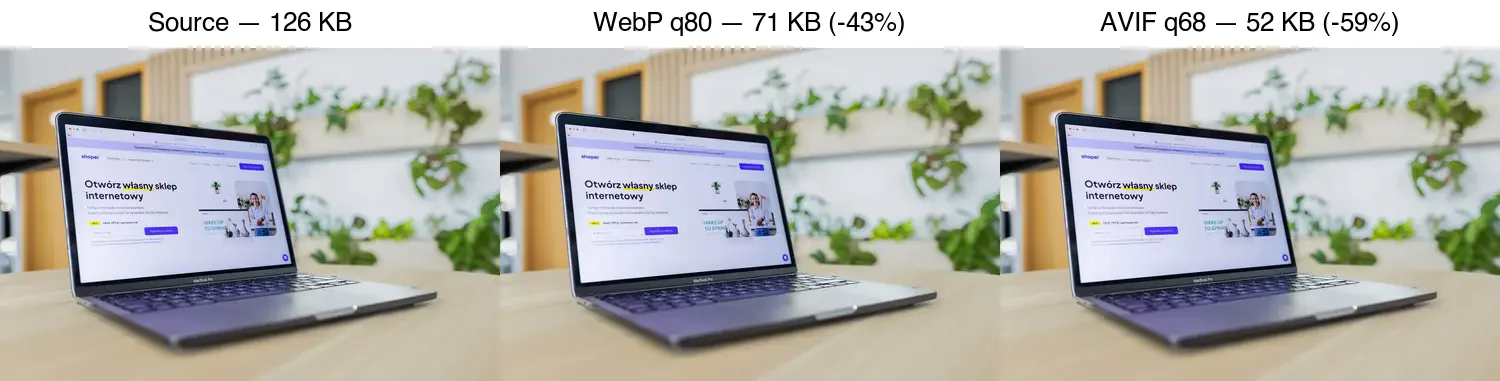
| Output | Setting | Measured size | Vs source |
|---|---|---|---|
| Source JPEG | (camera export) | 126 KB | baseline |
| Re-encoded JPEG | quality 82 | 128 KB | +2% (re-encoding already-compressed data does not help) |
| WebP | quality 80 | 71 KB | −43% |
| AVIF | quality 68 | 52 KB | −59% |
Two practical takeaways from these numbers. First, switching format beats re-running a JPEG compressor — going JPEG→WebP or JPEG→AVIF is where the real savings live, not re-encoding JPEG at a slightly different quality. Second, every tool in the comparison table above that outputs WebP or AVIF (Imagic AI, Squoosh, ShortPixel, or a CLI encoder) can reach these numbers; the tool matters far less than the output format and quality you pick.
Which tool fits which job?
You process a full product shoot at once
A 100+ image batch breaks TinyPNG's 20-image cap. Pick a browser compressor with a large free batch (Imagic AI, Optimizilla) or, for repeatable work, a command-line pipeline:
## Convert a folder of JPEGs to AVIF at quality 60, in parallel
ls *.jpg | xargs -P 4 -I {} avifenc --min 30 --max 60 {} {}.avif
CLI tools (avifenc, cwebp, pngquant) have no batch limits because there is no server to meter you.
You want modern formats (AVIF, WebP)
TinyPNG's free web tool outputs only PNG and JPEG. For AVIF and WebP — which are meaningfully smaller than JPEG, as covered in the AVIF vs WebP vs JPEG comparison — use Squoosh, ShortPixel, Imagic AI, or a CLI encoder. See Google's web.dev image guidance for format recommendations.
You run a WordPress site
Use a plugin that compresses on upload so new images are optimized automatically. ShortPixel and Imagify both offer free monthly quotas and WebP/AVIF output. Pair this with the WordPress image optimization guide for the full setup.
You value privacy / offline work
Pick a tool that never uploads your files. Squoosh runs compression in your browser via WebAssembly; ImageOptim runs locally on macOS. Nothing leaves your machine, which matters for client work under NDA.
You need to automate at scale
For a build step or CI pipeline, a CLI tool is the only sensible choice. There is no rate limit, no upload, and you can pin versions. Common stack: cwebp for WebP, avifenc for AVIF, pngquant for paletted PNG, and mozjpeg for optimized JPEG. See the image compression deep dive for how these encoders compare.
How should you decide?
Run through this checklist:
- How many images at once? Over 20 regularly → browser tool with a large batch, or CLI.
- What output format? Need AVIF/WebP → exclude tools that only do JPEG/PNG (TinyPNG free, Optimizilla, iLoveIMG).
- Is upload acceptable? No → Squoosh (browser) or ImageOptim (Mac) or CLI.
- Is it a one-off or recurring? Recurring → automate with a plugin (WordPress) or CLI (everything else).
- Do you need a UI or a script? UI → browser tool. Script → CLI encoder.
Common mistakes
- Comparing tools at default quality. Defaults differ. TinyPNG, Squoosh, and
cwebpall use different baseline numbers. Match visual quality first, then compare size. - Optimizing then resizing. Always resize to display dimensions before compressing. A 4000px image compressed well is still a 4000px download.
- Stripping metadata you need. Some tools remove EXIF by default. Keep it for photo archives; strip it for public web use.
- Forgetting a fallback. If you serve WebP/AVIF, keep a JPEG in a
<picture>source for old clients. See the image optimization checklist.
Related guides
- AVIF vs WebP vs JPEG: Which Format Should You Use?
- Compress Images Without Losing Quality
- Image Compression Deep Dive
- Complete Image Optimization Checklist
- Batch Image Processing Guide
- WordPress Image Optimization
Frequently asked questions
Is TinyPNG still free in 2026?
The browser tool is free per image, but the API limits you to 500 compressions per month on the free tier, then charges per file. For larger or recurring batches, free alternatives like Squoosh (browser, unlimited) or cwebp (command line, unlimited) avoid the cap.
Which TinyPNG alternative is best for batch compression?
The command-line cwebp tool or a Python script, because both run unattended on whole folders with no per-file limit. For a visual batch, XnConvert handles folders with a GUI. The batch processing guide covers the scripted path.
Do TinyPNG alternatives compress as well?
Within a few percent. Modern WebP and AVIF encoders match or beat TinyPNG's smart compression at equal perceived quality. The differences are in workflow and limits, not in the achievable file size.
What is the best free TinyPNG alternative?
Squoosh for one-off browser compression (unlimited, no signup), or cwebp for batch and automation. For a full comparison, the TinyPNG alternatives guide ranks the options by job.
What is the difference between lossy and lossless compression?
Lossless (PNG, lossless WebP) preserves every pixel exactly and reverses perfectly. Lossy (JPEG, lossy WebP) discards detail the eye notices least to shrink the file and cannot reverse. Lossy wins on size for photos; lossless wins on quality for graphics and masters. Pick by whether the content is a photo (lossy) or a graphic (lossless).
Image credits
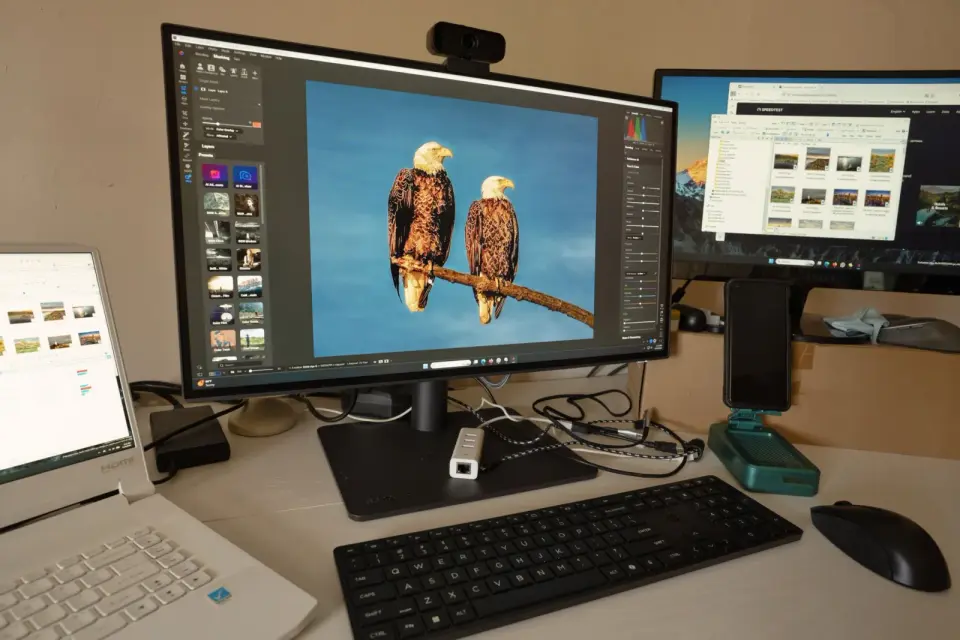
- Cover — Multi-monitor photo editing setup, photo by Tom Fisk on Pexels (converted to WebP).
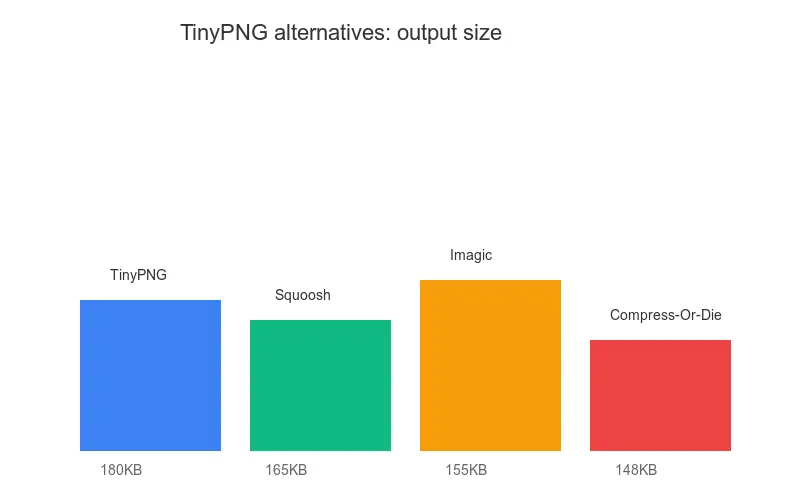
- Compression comparison and bar chart — generated by the author from an ecommerce-style photograph (Pexels #16675632, photo by Mikael Blomkvist) to show real measured source / WebP / AVIF output at matched quality.
Use the free tools while you follow the guide.
Keep reading
2026-09-10
Image Blurry After Export? 7 Fixes That Target the Cause
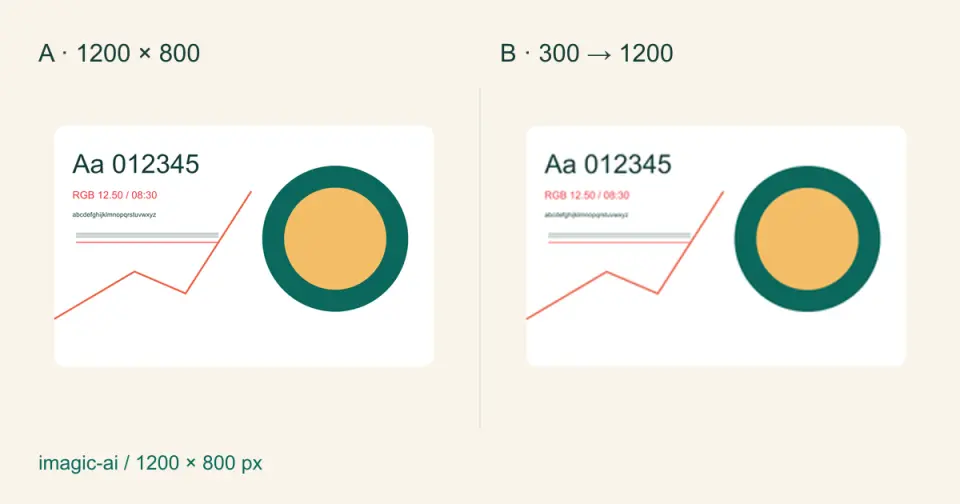
Fix an image blurry after export by checking pixels, compression and upload changes. See measured examples, PNG vs JPEG choices, and seven practical fixes.

2026-08-01
Image Compression in 2026: WebP, AVIF, JPEG XL & JPEG AI Benchmarked
I benchmarked WebP, AVIF, and JPEG XL on 4 real photos. WebP saves 32% vs JPEG, AVIF 65%, JPEG XL 30%. Full data, browser support, and which format to pick in 2026.

2026-07-26
Image Optimization Checklist: Every Step for Fast Web Images
A complete image optimization checklist: format choice, resizing, compression, responsive delivery, lazy loading, and CDN setup. Run through it before every publish.