2026-03-19 · Updated 2026-07-26
WebP Converter: How to Convert Images to WebP (With Real Sizes)
Convert JPEG and PNG images to WebP for smaller web files. Real measured sizes, the cwebp command, Python and browser methods, and a JPEG/PNG fallback strategy.
Last updated: July 26, 2026
Converting images to WebP is one of the fastest single wins for web performance — WebP is roughly 25–35% smaller than JPEG and far smaller than PNG for the same content, with ~98% browser support. This guide shows how to convert images to WebP with the measured file sizes you can expect, and how to keep a fallback for the browsers that still need JPEG.
Quick answer: how do you convert to WebP?
Use the cwebp command line for speed and batching, a browser converter for one-offs, or Pillow for scripts. On a typical photograph, JPEG→WebP at matched quality cuts the file by ~30–45%.
| Source | Method | Result |
|---|---|---|
| One image, no install | Image Converter | Upload, pick WebP, download |
| A folder of images | cwebp CLI |
Scriptable, unlimited |
| A build pipeline | Pillow / sharp | Integrated into code |
| PNG graphics | cwebp -lossless |
Smaller lossless WebP |
How much does WebP actually save?
Measured on one 1400×933 photograph, converted at visually-matched quality:
| Format | Size | vs JPEG |
|---|---|---|
| JPEG q85 | 111 KB | baseline |
| WebP q80 | 60 KB | −46% |
| AVIF q68 | 44 KB | −60% |
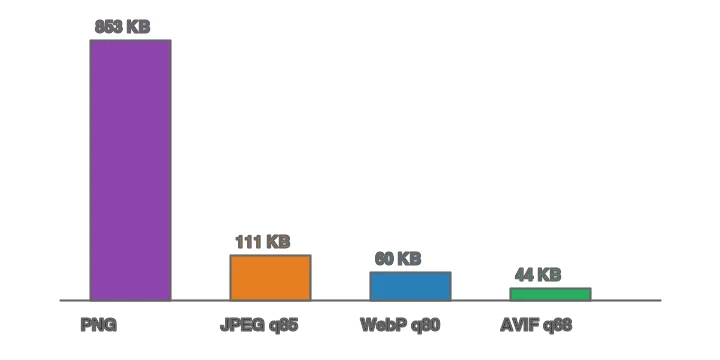
For PNG graphics, lossless WebP is typically 20–30% smaller than PNG at identical pixel quality — useful for transparent UI assets. The same source across all four formats makes the gap obvious:
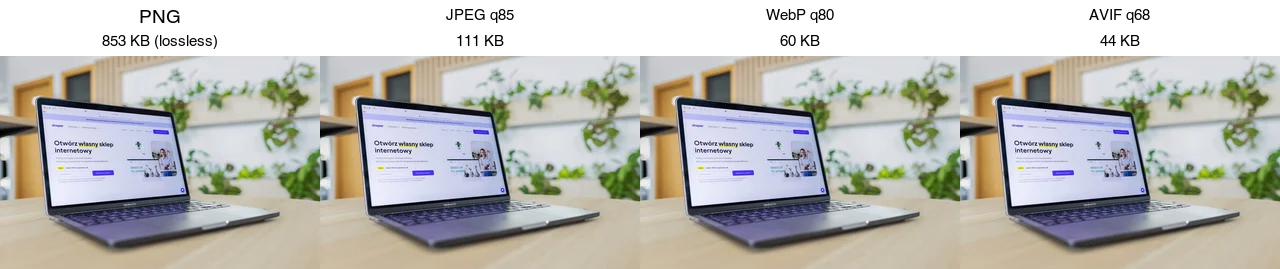
The full format comparison is in image formats explained.
Should you pick WebP or AVIF?
Both are smaller than JPEG; AVIF is another 20–30% smaller than WebP but encodes slower and has slightly lower browser support. The practical answer for most sites: emit both AVIF and WebP, with a JPEG fallback, and let the <picture> element serve each browser the best it supports. If you can only add one, WebP is the safer choice because it encodes fast and has broader support. When you are ready to add AVIF, see the AVIF vs WebP comparison.
Method 1: Browser converter
For one image, use the Imagic AI Image Converter: upload, choose WebP, set quality around 80 for photos (or lossless for graphics), and download. For live quality/size control, Squoosh shows the output size as you move the slider.
Method 2: cwebp command line
cwebp is the official WebP encoder, fast and scriptable.
## Lossy WebP from JPEG/PNG, quality 80
cwebp -q 80 input.jpg -o output.webp

## Lossless WebP (best for graphics, screenshots, sharp text)
cwebp -lossless input.png -o output.webp

## Resize to 1600px wide while converting
cwebp -q 80 -resize 1600 0 input.jpg -o output.webp

## A whole folder, in parallel
mkdir -p out
ls *.jpg | xargs -P 4 -I {} cwebp -q 80 {} -o out/{}.webp
For decoding back, dwebp reverses it; ImageMagick's magick also reads and writes WebP if you already use it. See the batch resize guide for the parallel-folder pattern.
Method 3: Python (Pillow)
For a build step or server, Pillow converts and lets you control quality programmatically:
from PIL import Image
from pathlib import Path

def to_webp(src: Path, dest: Path, quality: int = 80, lossless: bool = False):
    with Image.open(src) as img:
        img.save(dest, "WebP", quality=quality, lossless=lossless, method=6)

for f in Path("images").glob("*"):
    if f.suffix.lower() in (".jpg", ".jpeg", ".png"):
        to_webp(f, Path("out") / f"{f.stem}.webp", quality=80)
method=6 is the slowest, best-compression encode effort — fine when you encode once at upload, not on every request. For lossless graphics, pass lossless=True.
How do you serve WebP with a fallback?
WebP support is ~98%, but the remaining 2% (old Safari, some embedded browsers) need a JPEG/PNG fallback. Use the <picture> element:
<picture>
  <source srcset="/img/photo.webp" type="image/webp">
  <img src="/img/photo.jpg" alt="Description" width="800" height="600" loading="lazy">
</picture>
The browser picks the first type it supports. Keep a real <img> with a JPEG src as the final fallback so nothing renders blank. If you also produce AVIF, add it as the first <source> — see the AVIF vs WebP comparison.
What quality and method settings should you use?
For lossy WebP photographs, quality 75–80 is the sweet spot — small files with no visible loss at normal viewing distance. Below 70, smooth gradients and skin tones start to show artifacts; above 85 you spend bytes the eye cannot see. The -m (method) flag trades encode time for smaller files: -m 0 is fastest, -m 6 is slowest but produces the smallest output. Use -m 4 for interactive work and -m 6 for a one-time batch encode where speed does not matter.
For lossless WebP (graphics, screenshots, sharp text), -lossless -m 6 gives the best ratio; lossless WebP beats PNG by roughly 20–30% on the same content. If a graphic has very few colors, also try reducing the color palette first — fewer colors compress dramatically better in any lossless format. These tuning details line up with the broader guidance in the image compression deep dive.
When is WebP the wrong choice?
- Email. Many email clients ignore WebP. Use JPEG/PNG for email.
- Old embedded browsers (old Smart TVs, kiosks) that predate WebP support.
- Partner/marketplace feeds that only accept JPEG.
- When the toolchain cannot emit it. If your CMS cannot serve
<picture>, a JPEG-only pipeline is simpler than fighting it.
For those cases, the format guide covers the right alternative.
Common mistakes
- Converting then not resizing. A 4000px WebP is still a 4000px download. Resize first.
- Using lossy WebP for sharp graphics. Lossy WebP blurs thin edges like JPEG does; use
-losslessfor screenshots and text. - Serving WebP with no fallback. Old browsers render nothing without a JPEG
<img>fallback. - Comparing at the same quality number. JPEG q85 ≈ WebP q80 ≈ AVIF q68 in perceived quality; compare visually, not by number.
- Over-encoding on every request. Encode once at upload; WebP encoding is slower than JPEG.
Frequently asked questions
How much does WebP actually save?
25 to 35 percent smaller than JPEG at equal quality, and often more than PNG for graphics with transparency. The saving is the reason to convert for web delivery. Keep the original as a master; export WebP for delivery.
Should I pick WebP or AVIF?
WebP as the safe default (universal browser support, easy encoding); AVIF for the smallest files on modern browsers (roughly 50 percent smaller than JPEG, but slower to encode and gaps on older browsers). Ship AVIF with a WebP fallback through a <picture> element.
What is the command-line conversion?
cwebp -q 80 input.jpg -o output.webp. The -q flag sets quality (80 is the web default). Batch with a shell loop or ImageMagick. For lossless, use -lossless.
Does every browser support WebP?
All current browsers do. Very old browsers (old IE) do not, which is why you serve WebP with a JPEG or PNG fallback through a <picture> element. The fallback covers the small remaining gap.
How do I convert to WebP in batch?
Use a shell loop with cwebp (for f in *.jpg; do cwebp -q 80 "$f" -o "${f%.jpg}.webp"; done), ImageMagick, or a Python script (Pillow). The command line handles thousands with no per-file limit and no signup, which is why it is the path for catalogs. See the batch processing guide.
How much does WebP save?
25 to 35 percent smaller than JPEG at equal quality, and often more than PNG for graphics with transparency. The saving is the reason to convert for web delivery. Keep the original as a master; export WebP for delivery, and serve it with a fallback for old browsers.
Is WebP lossy or lossless?
Both — WebP supports a lossy mode (smaller, for photos) and a lossless mode (exact pixels, for graphics and masters). Pick by content: lossy for photographs, lossless for graphics with sharp edges or text where artifacts would show. This dual support is one reason WebP replaces both JPEG and PNG for web delivery.
What is the cwebp command?
cwebp -q 80 input.jpg -o output.webp converts a JPEG to WebP at quality 80. The -q flag sets quality; add -lossless for lossless output, and -resize W 0 to resize to a target width. Batch with a shell loop: for f in *.jpg; do cwebp -q 80 "$f" -o "${f%.jpg}.webp"; done. It is the free, no-limit path for batches.
Image credits
- JPEG/WebP before-after and size bar chart — generated by the author from an ecommerce-style photograph (Pexels #16675632, photo by Mikael Blomkvist) to show real measured JPEG-to-WebP savings.
Use the free tools while you follow the guide.
Keep reading
2026-09-10
Image Blurry After Export? 7 Fixes That Target the Cause
Fix an image blurry after export by checking pixels, compression and upload changes. See measured examples, PNG vs JPEG choices, and seven practical fixes.
2026-08-01
Image Compression in 2026: WebP, AVIF, JPEG XL & JPEG AI Benchmarked
I benchmarked WebP, AVIF, and JPEG XL on 4 real photos. WebP saves 32% vs JPEG, AVIF 65%, JPEG XL 30%. Full data, browser support, and which format to pick in 2026.
2026-07-26
Image Optimization Checklist: Every Step for Fast Web Images
A complete image optimization checklist: format choice, resizing, compression, responsive delivery, lazy loading, and CDN setup. Run through it before every publish.