2026-03-04 · Updated 2026-07-26
How to Change an ID Photo Background: White, Blue, or Gray
Change an ID or passport photo background to the required solid color, with the country requirements, the removal-and-composite method, and how to avoid edge rejections.
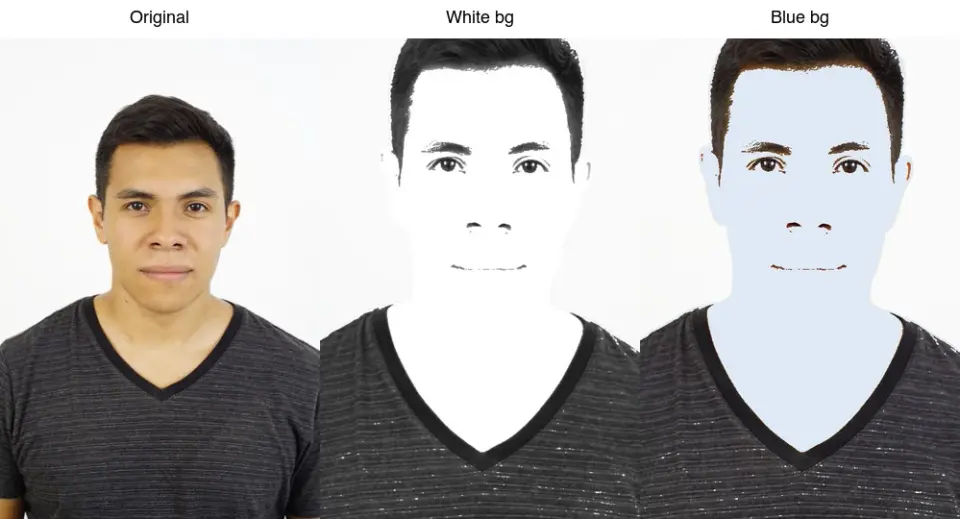
Last updated: July 26, 2026
ID and passport photos require a specific solid background — usually white, light gray, or light blue — and the wrong color is one of the top reasons a photo is rejected. Changing the background means removing the original and compositing the subject onto the required solid color, and the challenge is doing it cleanly enough that the edges pass a strict check. This guide covers the country requirements, the method, and the edge problems that cause rejections.
Quick answer: how do you change an ID photo background?
Remove the original background to a transparent cutout, then composite the subject onto the required solid color. The steps:
| Step | What |
|---|---|
| 1. Remove background | Get a transparent cutout of the head and shoulders |
| 2. Check edges | No halo, no gaps at the hairline |
| 3. Composite | Place cutout on the required solid color |
| 4. Export | Authority's size at 300 PPI |
Use the Background Remover for the removal. For the full ID photo workflow, see the passport photo maker guide.
What background does each ID photo require?
Background color is country- and document-specific. Common requirements:
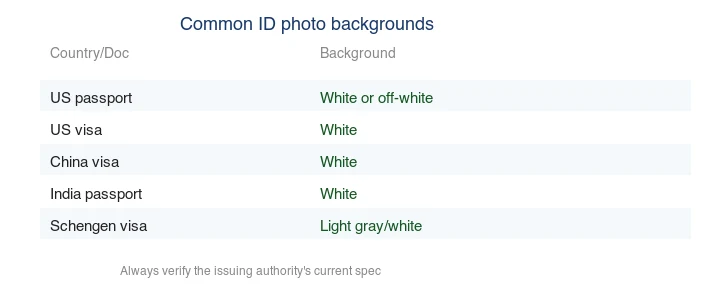
| Document | Background |
|---|---|
| US passport | White or off-white |
| US visa | White |
| China visa | White |
| India passport | White |
| Schengen visa | Light gray or white |
| UK passport | Light gray or cream |
Verify the current spec on the issuing authority's website. Background color rules change, and a wrong color is rejected even when everything else is correct. The US State Department photo page is the authoritative source for US requirements.
Note that "white" is not always pure #ffffff — US passport accepts off-white, and some countries want a specific light gray measured against a reference. When the spec is precise about the shade, sample the exact color value rather than guessing, because automated ID-check systems can measure the background luminance and reject anything outside the allowed range.
How do you change the background?
The reliable method is remove-then-composite:
- Remove the background with the Background Remover or a CLI tool (
rembg) to get a transparent PNG cutout. - Inspect edges at 200%. Look for a halo (old background fringe) or gaps (missing hair) at the hairline — both fail ID checks.
- Composite onto the required color. Create a canvas of the exact background color, paste the cutout with the alpha as the mask.
- Decontaminate edge color. If the old background colored the fringe, correct it so the edge matches the subject, not the old background.
- Export at the authority's size, 300 PPI.
For the removal technique and edge problems, see background removal best practices.
Why do background changes get rejected?
ID photo checks are strict about edges and about composition. The composition must also meet the head-size rule, shown in the guide below:
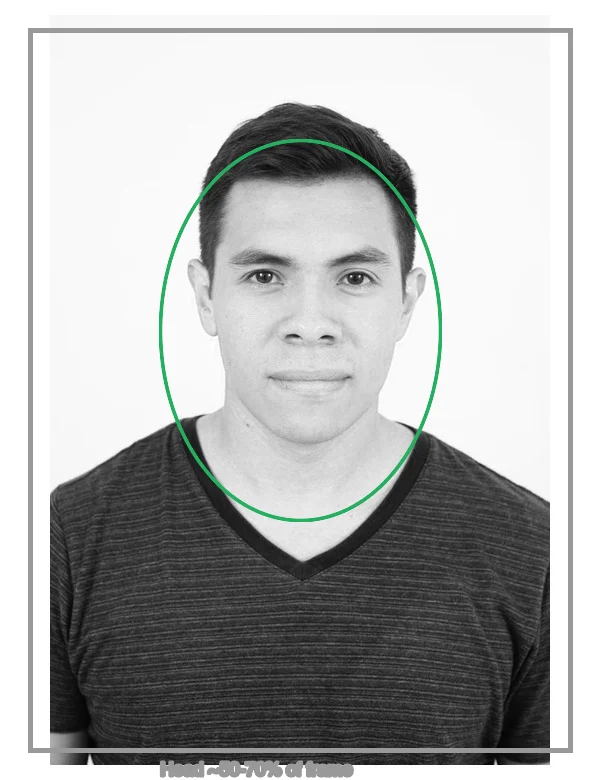
The three edge failure modes:
| Problem | Cause | Fix |
|---|---|---|
| Halo | Old background fringe left around the head | Shrink mask 1–2px or defringe |
| Gaps | Mask eroded into the hair | Paint the hair pixels back into the mask |
| Edge color bleed | Old background tinted the fringe | Color-decontaminate the edge |
A halo is the most common: a faint ring of the old background color around the head that is invisible until the cutout sits on the new solid color. Always preview the result on the exact required background and zoom to the hairline before exporting.
How do you keep the lighting right after a background change?
A clean cutout still looks wrong if the lighting does not match the new background. The subject was lit for the original scene, so when you drop them onto a flat white, the shadows and highlights on the face may read as inconsistent with a blank backdrop.
Two things keep it believable: ensure the face is evenly lit with no strong directional shadow (re-shoot in flat light if the original has a hard shadow on one side), and avoid a background that is a different brightness than the subject's apparent exposure. A pure-white background works with a well-exposed face; a very dark background against a bright face looks pasted. For ID photos, the standard flat, even lighting on a white or light-gray background is what the checkers expect, so match that look. The background removal best practices guide covers lighting for clean cutouts in more detail.
How do you composite programmatically?
For one photo, the Background Remover + a composite step. For a script, Pillow handles it:
from PIL import Image
with Image.open("cutout.png") as fg:
    bg = Image.new("RGB", fg.size, "white")        # or "#dfe9f5" for light blue
    bg.paste(fg, mask=fg.split()[-1])              # alpha channel as the paste mask
    bg.save("id-photo.jpg", "JPEG", quality=95)
The key is mask=fg.split()[-1] — it uses the cutout's alpha channel so the subject pastes cleanly onto the solid background. See how to make transparent images.
Should you change the background or re-shoot?
If you control the shoot, re-shoot against the right background — it is faster and produces cleaner edges than any removal. Background changing is the rescue path for an existing photo with the wrong background. The passport photo maker guide covers capturing against a plain background from the start.
Common mistakes
- Leaving a halo. The #1 rejection reason after a background change. Defringe before exporting.
- Wrong background color. Each document has its own requirement; verify the spec.
- Compositing onto JPEG. Work on the transparent PNG; flatten to JPEG only at the end.
- Low resolution. ID photos need 300 PPI at the print size; do not upscale. See image resolution and DPI.
- Ignoring edge color bleed. A fringe lit by the old background keeps that color; correct it.
Frequently asked questions
What background does an ID photo require?
It depends on the document and country. US passport photos require white; many countries accept light blue or gray; some specific documents require a color tied to the application type. Check the issuing authority's current rule before you shoot — the background is a top rejection reason.
How do I change an ID photo background?
Remove the existing background (AI or manual mask), then composite the subject onto the required solid color. The hard part is keeping the edge clean, especially around hair, and matching the lighting so the subject looks like they were shot on the new background.
Why do background changes get rejected?
Usually visible editing: a halo around the head, a mismatched shadow, or a background color that is not the exact required shade. The result must look like a real photo taken on the required background, not a composite. Check the edge at 100 percent.
How do I keep the lighting right after a background change?
Match the new background's tone to the subject's existing lighting — if the subject was lit warmly, a cold blue background looks pasted on. Add a faint shadow under the chin to ground the subject. The goal is consistency that reads as a single photograph.
Can I change the background on my phone?
Yes — most ID-photo apps remove and replace the background automatically. The hard part is the edge quality and matching the lighting, which auto apps handle variably. Check the result at 100 percent before submitting.
How do I avoid a visible halo after a background change?
Refine the edge mask manually after the automatic change: paint out the halo with a soft brush at low opacity, and decontaminate stray color from the original background. The halo appears where the old background's color bled into the subject's edge pixels. A careful edge pass is what separates a clean composite from an obvious edit — check it at 100 percent zoom.
What background color do different IDs need?
It varies by document and country. US passport photos require white; Schengen visa photos often require light gray; some documents specify light blue. The wrong color is a top rejection reason. Check the issuing authority's current rule before you shoot or change the background — never assume one color fits every document.
Can I use a phone app to change the background?
Yes — most ID-photo apps detect the subject and replace the background automatically. They work well for clean headshots on plain backgrounds and struggle with complex hair or busy original backgrounds. Check the edge at 100 percent before submitting, because a visible halo or mismatched shadow gets the photo rejected even when the face is correct.
Image credits
- Background-change demo and country-background requirements — generated by the author from a portrait photograph (Pexels #5931195, photo by August de Richelieu) to show real background replacement and country requirements.
Use the free tools while you follow the guide.
Keep reading
2026-10-07
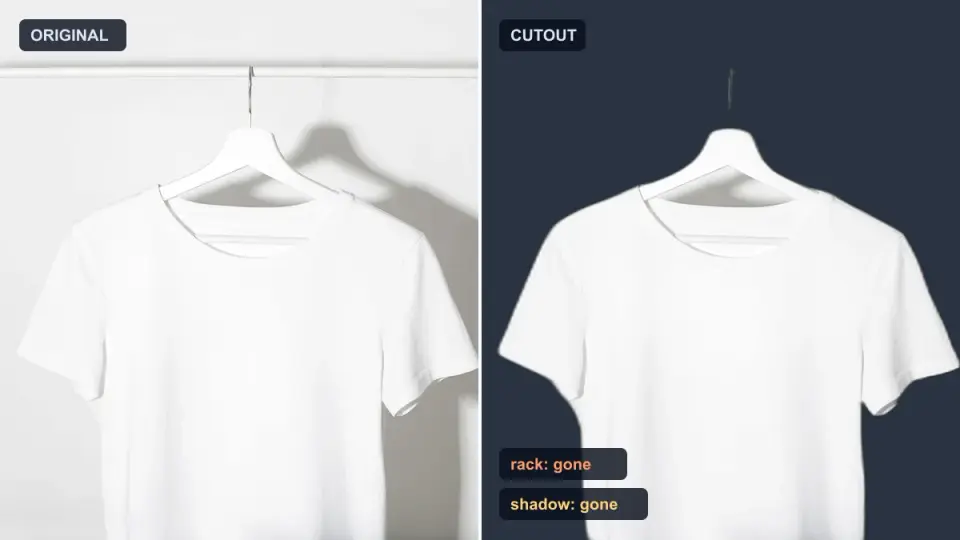
Background Remover Removes Part of Subject? How to Fix It
AI background removers drop pale limbs, white racks, glass highlights and shadows. I measured why on real photos and how to get the missing parts back.
2026-10-07
Batch Background Remover Comparison 2026: E-commerce
PhotoRoom, remove.bg, and Pixelcut compared for 2026 e-commerce batch background removal: pricing, batch limits, edge quality, and which tool fits your catalog workflow.
2026-10-07
remove.bg Is Shutting Down on December 1: What to Use Instead
remove.bg closes on 1 December 2026 and unused credits expire that day. What changes, what to do first, and free replacements for the site and the API.