2026-03-17 · Updated 2026-07-26
WebP to JPG: How to Convert WebP Back to JPEG (and Why)
Convert WebP images to JPG for email, marketplaces, and old systems needing universal compatibility, with real sizes and the dwebp/magick/Pillow commands.
Last updated: July 26, 2026
WebP is the better web format, but some destinations still require JPEG: email clients, marketplace feeds, print pipelines, and old embedded browsers. Converting WebP back to JPG is a compatibility step, not an optimization — JPEG is larger and has no transparency, so you only do it when the destination cannot handle WebP. This guide covers when the conversion is necessary and how to do it with the real size trade-offs.
Quick answer: when do you convert WebP to JPG?
Only for destinations that require JPEG. The common ones:
| Destination | Why JPEG | Notes |
|---|---|---|
| HTML email | Most clients ignore WebP | JPEG/PNG only |
| Marketplaces (Amazon, eBay) | Feed accepts JPEG | White-background main image |
| Partner / ad feeds | Often JPEG-only | Verify each partner |
| Print pipelines | Some require JPEG/TIFF | Check the printer's spec |
| Old embedded browsers | No WebP decoder | Rare; <picture> covers most |
For web pages, keep WebP — do not convert. Use a <picture> element to serve WebP to modern browsers and JPEG to the rest, so you never store a JPEG-only file. See image formats explained.
What is the size trade-off?
Converting WebP to JPEG makes the file larger, because JPEG is the less efficient format. On the test photo:
| Format | Size | Note |
|---|---|---|
| WebP q80 | 60 KB | Smaller, modern browsers |
| JPEG q85 | 111 KB | +85% larger, universal |
| PNG | 853 KB | Largest, lossless |
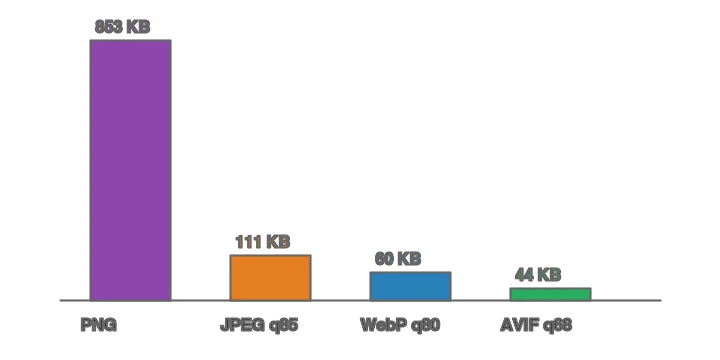
This is the cost of compatibility: the JPEG is roughly 85% larger than the WebP at similar visual quality. That is acceptable for email and feeds (where you have no choice) but a waste for web pages (where WebP works). The full format comparison is in the AVIF vs WebP vs JPEG guide.
Where is JPEG actually required?
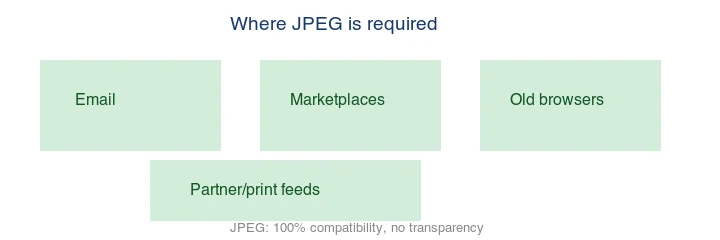
The pattern is "systems that were built before WebP existed and have not been updated." Email clients are the biggest category — even in 2026, several major clients strip or ignore WebP, so a WebP image in an email may simply not display. The Can I Use WebP support table tracks current client coverage. Marketplace product feeds (Amazon, eBay, Google Shopping) typically require JPEG for the main image — Google's shopping image specifications are a representative example. Some print pipelines and partner ad feeds only accept JPEG. In all these cases the conversion is mandatory, not optional.
Method 1: Browser converter
For one image, use the Imagic AI Image Converter: upload the WebP, choose JPEG, set quality around 85, and download. Because you are going to a less efficient format, do not over-compress — keep quality at 85+ so the JPEG does not look worse than the WebP it came from.
Method 2: command line
## dwebp decodes WebP to PNG, then magick/convert makes the JPEG
dwebp input.webp -o tmp.png && magick tmp.png -quality 85 output.jpg

## ImageMagick reads WebP directly (if built with a WebP delegate)
magick input.webp -quality 85 output.jpg

## A folder
mkdir -p out
for f in *.webp; do magick "$f" -quality 85 "out/${f%.webp}.jpg"; done
If ImageMagick lacks a WebP delegate, use the dwebp → PNG → JPEG path. Verify with magick -list format | grep -i webp.
Method 3: Python (Pillow)
from PIL import Image
from pathlib import Path

def webp_to_jpg(src: Path, dest: Path, quality: int = 85):
    with Image.open(src) as img:
        if img.mode in ("RGBA", "LA", "P"):
            img = img.convert("RGB")  # JPEG has no alpha
        img.save(dest, "JPEG", quality=quality, optimize=True, progressive=True)

for f in Path("webp").glob("*.webp"):
    webp_to_jpg(f, Path("out") / f"{f.stem}.jpg")
The convert("RGB") step matters: WebP can have an alpha channel and JPEG cannot, so a transparent WebP must be flattened onto a background (here, the default black becomes RGB) before saving as JPEG.
How do you match quality across the conversion?
Because WebP and JPEG use different quality scales, you cannot just pass the same number. A WebP saved at q80 is roughly equivalent to a JPEG at q85–90 in perceived quality, so when you convert, export the JPEG at the higher of the two to avoid stacking artifacts. The goal is for the JPEG to look no worse than the WebP it came from, even though it is larger. If the source WebP was already lossy, the JPEG inherits those artifacts plus its own — another reason to keep a high-quality master and convert once rather than chain conversions. This quality-matching logic is the same one behind the recommendations in the image compression deep dive.
How do you handle transparency when converting to JPEG?
JPEG has no alpha channel, so a transparent WebP cannot become a transparent JPEG — the transparent area has to be filled with a solid color. The common choices:
- White for marketplace main images (Amazon/eBay require pure white).
- A brand or scene color for ad creatives.
- Black only if the destination is always dark.
In Pillow, create the background first, paste the WebP onto it, then save:
from PIL import Image
with Image.open("input.webp") as fg:
    bg = Image.new("RGB", fg.size, "white")
    bg.paste(fg, mask=fg.split()[-1])  # use the alpha as the paste mask
    bg.save("output.jpg", "JPEG", quality=85)
If you actually need transparency, do not convert to JPEG — keep the WebP or use PNG. See how to make transparent images.
Common mistakes
- Converting WebP to JPEG for web pages. Serve WebP with a JPEG fallback in
<picture>instead; never store a JPEG-only web image. - Over-compressing the JPEG. Going from efficient WebP to JPEG q60 doubles the quality loss. Keep JPEG at q85+.
- Forgetting to flatten transparency. A transparent WebP saved straight to JPEG gets a black or mangled background. Convert to RGB with a chosen backdrop first.
- Re-encoding repeatedly. Each format switch adds artifacts. Keep a master and convert once.
Final conversion checklist
- Convert only when the destination requires JPEG.
- Flatten transparency onto the intended background color.
- Use quality 85 or higher for marketplace/product images.
- Keep the original WebP for web delivery.
- Check the exported JPEG for banding and edge artifacts.
Frequently asked questions
Why would I convert WebP to JPEG?
Only for compatibility — email, marketplaces, print, or old systems that cannot display WebP. For web pages, keep WebP.
Does WebP to JPEG lose quality?
The conversion itself is fine at quality 85+, but JPEG is less efficient, so the file is larger. Avoid re-converting repeatedly.
Can a WebP with transparency become a JPEG?
Only by flattening the transparency onto a solid background, because JPEG has no alpha channel. Keep WebP or PNG if you need transparency.
Is JPEG smaller than WebP?
No — JPEG is typically 25–85% larger than WebP at similar quality. JPEG's advantage is universal compatibility, not size.
When do you convert WebP to JPG?
When a target does not support WebP — some legacy editors, email clients, or older software. For modern web delivery, keep WebP. Convert to JPG only for compatibility with a specific tool that cannot read WebP. Accept the larger file as the cost of compatibility.
What is the size trade-off?
JPG is usually 25 to 35 percent larger than WebP at equal quality, because WebP compresses better. Converting WebP to JPG grows the file. Accept the trade-off only when compatibility requires JPG; for everywhere WebP works, keep the smaller file.
Does converting WebP to JPG lose quality?
Both are lossy, so one conversion adds a generation of compression. At quality 85+ the loss is invisible at viewing size. Convert once; do not bounce between formats repeatedly, because each re-encode compounds artifacts. See the WebP converter guide.
Where is JPEG required?
In some legacy software, certain email clients, and print pipelines that do not accept WebP. For modern web and most modern tools, WebP works and is smaller. Check the specific target before converting — if it reads WebP, keep WebP and accept the smaller file.
Can I convert WebP to JPG in batch?
Yes — ImageMagick (magick mogrify), a Python script (Pillow), or a shell loop with dwebp handles folders of WebP files. For archives, the command line is the practical path with no per-file limit. Convert once; do not bounce between formats repeatedly. See the batch processing guide.
Can I convert WebP to JPG on my phone?
Yes — most modern phone photo apps and free converter apps open WebP and export JPG. iOS and Android both handle WebP in recent versions, and a free converter fills any gap. For a single image, a phone app is the fastest path; for batches, move to a computer.
Image credits
- WebP/JPEG/PNG comparison, format size chart, and "where JPEG is required" diagram — generated by the author from an ecommerce-style photograph (Pexels #16675632, photo by Mikael Blomkvist) to show real measured sizes and JPEG's compatibility role.
Use the free tools while you follow the guide.
Keep reading
2026-09-10
Image Blurry After Export? 7 Fixes That Target the Cause
Fix an image blurry after export by checking pixels, compression and upload changes. See measured examples, PNG vs JPEG choices, and seven practical fixes.
2026-08-01
Image Compression in 2026: WebP, AVIF, JPEG XL & JPEG AI Benchmarked
I benchmarked WebP, AVIF, and JPEG XL on 4 real photos. WebP saves 32% vs JPEG, AVIF 65%, JPEG XL 30%. Full data, browser support, and which format to pick in 2026.
2026-07-26
Image Optimization Checklist: Every Step for Fast Web Images
A complete image optimization checklist: format choice, resizing, compression, responsive delivery, lazy loading, and CDN setup. Run through it before every publish.