2026-03-28 · Updated 2026-07-12
Critical Image Extraction for LCP and SEO
Find the critical image that drives LCP, preload only the right asset, avoid lazy-loading mistakes, and verify image priority in SEO tools.
Last updated: July 12, 2026
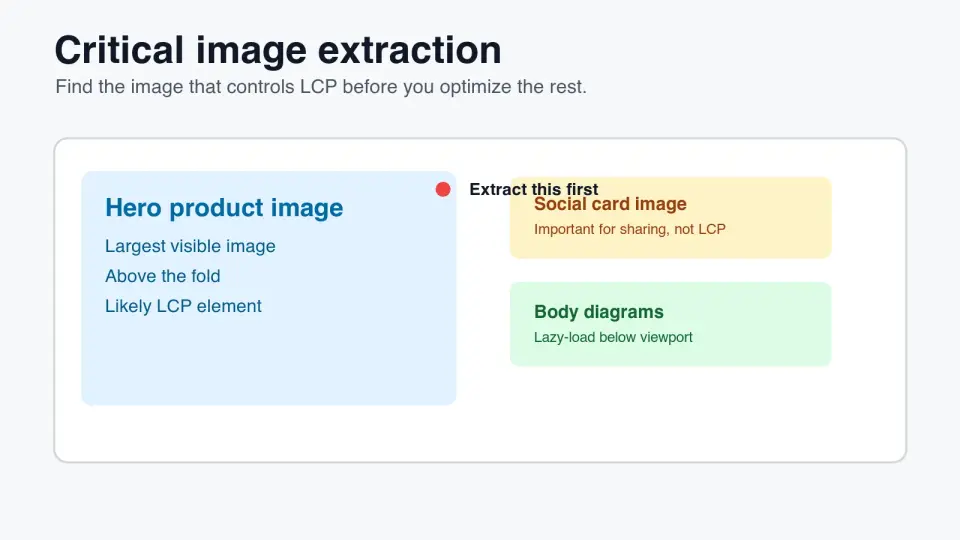
Critical image extraction means finding the one image that controls the first visual impression of a page. On many product pages, landing pages, and blog posts, that image is the hero, the main product photo, or a large above-the-fold illustration. If you identify it early, you can preload or prioritize the right file instead of speeding up every image equally.
Quick answer: how do you extract the critical image?
Use critical image extraction to name the image most likely to become the Largest Contentful Paint element, then give that file special loading treatment. Usually that means the largest visible image in the initial viewport gets fetchpriority="high", no lazy loading, stable dimensions, and sometimes a <link rel="preload">.
Do not preload every large file. Preload the hero or product image only when the browser would otherwise discover it late, such as inside CSS, a carousel, a client-rendered component, or a responsive <picture> stack with complex source selection.
After the change, verify the result. Google's Largest Contentful Paint documentation defines LCP around the largest visible content element, and PageSpeed Insights will show which element was measured. Chrome DevTools should also show the critical image request early in the waterfall.
Use this order:
- Load the page at a realistic mobile viewport.
- Find the largest above-the-fold image or poster.
- Check whether PageSpeed or Lighthouse reports it as LCP.
- Remove
loading="lazy"from that image. - Add dimensions or an aspect ratio.
- Add
fetchpriority="high"when it is an<img>. - Preload it only when discovery is late.
- Keep below-fold images lazy.
- Re-test after layout, CMS, or hero copy changes.
What counts as a critical image?
A critical image is the image a visitor waits for before the page feels useful. It is often, but not always, the LCP element. A small logo at the top of the page may load first, but it rarely controls perceived readiness. A hero image that occupies half the phone screen usually does.
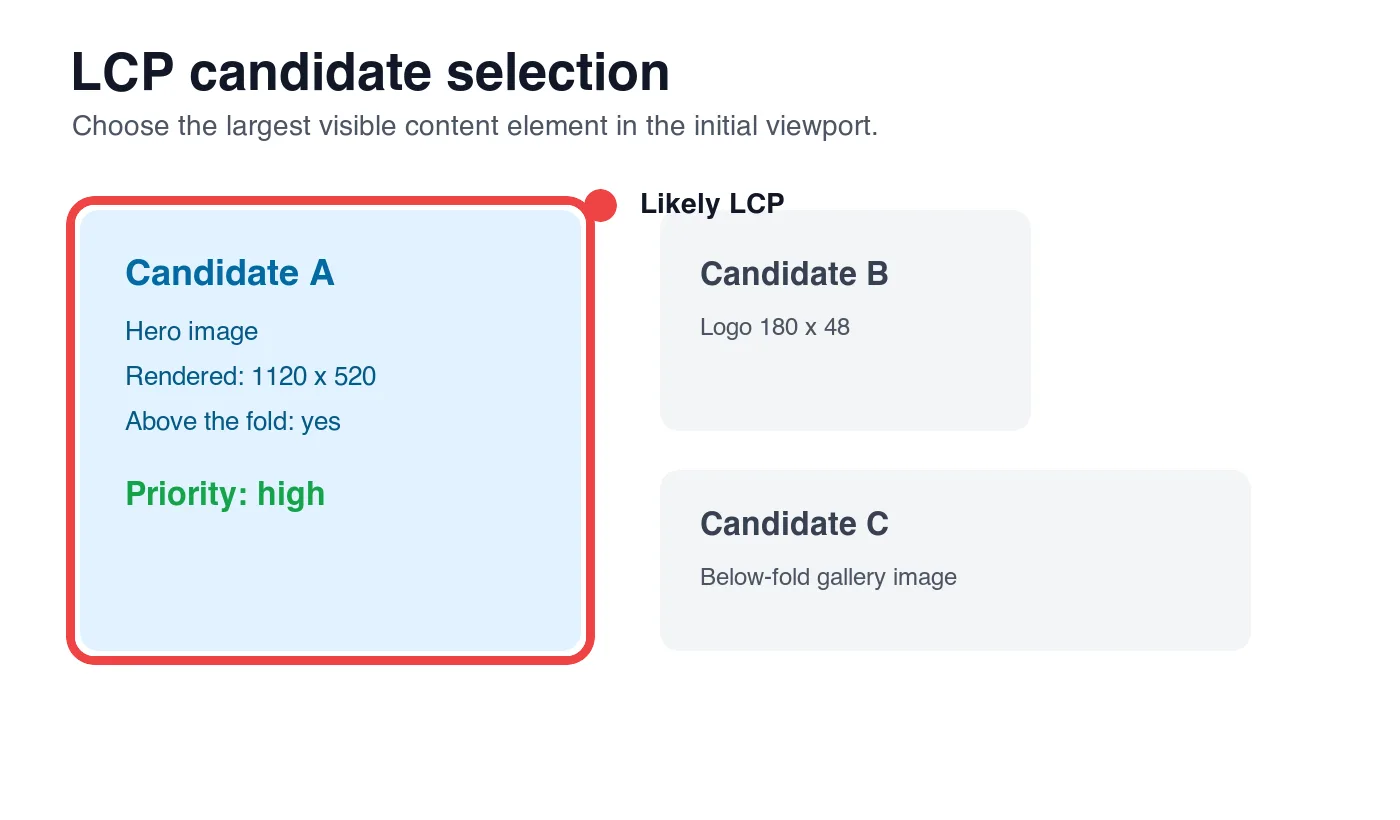
Use rendered size, viewport position, and purpose together. A thumbnail in a navigation menu is visible, but it is not the main content. A background image behind the headline may be critical if it is the largest visible element. A social card image in metadata is important for sharing, but it is not fetched for the rendered page unless the template also displays it.
| Image candidate | Critical for LCP? | Loading treatment | Common mistake |
|---|---|---|---|
| Above-the-fold hero image | Usually yes | Eager, high priority, maybe preload | Lazy-loaded by a global image component |
| Main product photo | Usually yes | Eager, high priority, stable size | Hidden behind carousel JavaScript |
| Logo or small icon | Usually no | Normal priority | Preloaded even though it is tiny |
| Social sharing image | No for page LCP | Metadata only | Confused with rendered hero |
| Below-fold diagram or gallery | No | Lazy-load | Competes with the hero if loaded eagerly |
Google's LCP guidance lists <img> elements, image elements inside SVG, video poster images, and CSS background images as possible candidates. That means extraction cannot stop at searching for the first <img> tag. You need to inspect the rendered page.
For adjacent work, keep the broader image optimization for SEO checklist nearby. Critical image extraction decides priority; compression, filenames, alt text, and structured content still decide whether the image is useful after it loads.
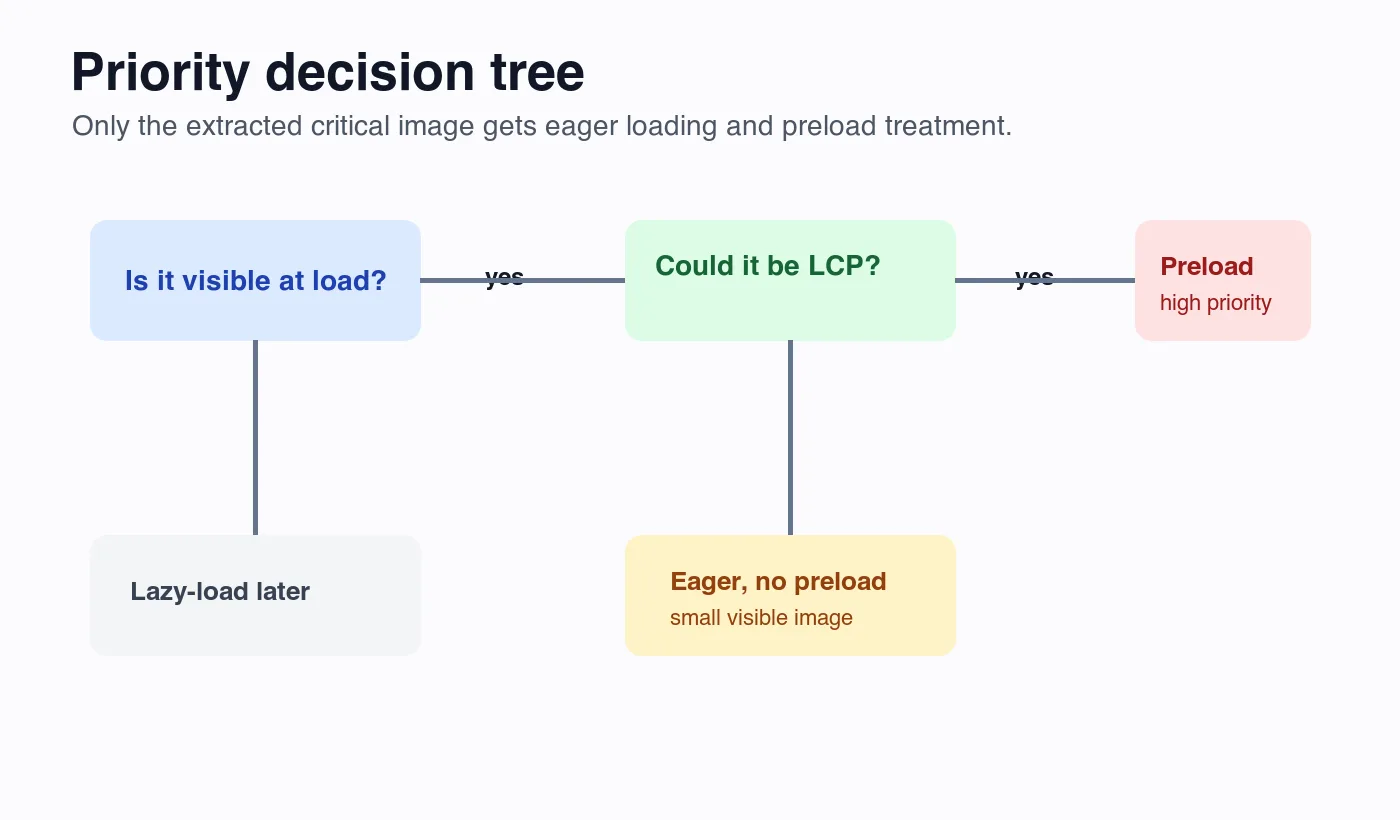
Which image should get preload or high priority?
Give high priority to one image: the current page's likely LCP image. If two candidates are close, choose the one that is largest on mobile first, because mobile Core Web Vitals are usually harder to pass.
Use fetchpriority="high" when the critical image is a normal <img> or the fallback <img> in a <picture> element. Google's fetch priority guidance explains that this hint changes the browser's resource priority without changing the markup discovery path.
Use preload when discovery is the problem. MDN's rel="preload" reference describes preload as a way to request resources earlier in page load. That helps when the image URL appears in CSS, arrives after hydration, or sits behind markup the browser cannot discover soon enough.
| Situation | Better choice | Why |
|---|---|---|
<img> hero appears in server-rendered HTML |
fetchpriority="high" |
Browser can discover it already |
| CSS background hero is the visual LCP | Preload exact URL | Browser may discover it after CSS |
Responsive <picture> hero is visible immediately |
fetchpriority="high" on <img> |
Keeps source selection in markup |
| Client-rendered carousel starts with hero image | Server-render first slide or preload | JavaScript can delay discovery |
| Two large heroes alternate by media query | Preload only matching candidate | Avoids wasting bandwidth |
For a normal responsive image, the markup can look like this:
<img
  src="/images/product-hero-960.webp"
  srcset="/images/product-hero-480.webp 480w, /images/product-hero-960.webp 960w, /images/product-hero-1440.webp 1440w"
  sizes="(max-width: 640px) 100vw, 960px"
  width="960"
  height="640"
  fetchpriority="high"
  alt="Black leather backpack shown open with laptop sleeve visible"
>
If the image is a CSS background and you cannot move it to HTML yet, preload the same asset the initial viewport will use:
<link
  rel="preload"
  as="image"
  href="/images/home-hero-960.webp"
  imagesrcset="/images/home-hero-480.webp 480w, /images/home-hero-960.webp 960w"
  imagesizes="100vw"
>
The image preloading guide covers the syntax in more detail. The important rule here is narrower: preload after extraction, not before it.
How do you avoid lazy-loading the wrong image?
Lazy loading belongs below the first viewport. It is a mistake on the extracted critical image because it tells the browser to wait until layout and distance checks happen. Google's browser-level lazy loading guide warns against lazy-loading images that are immediately visible.
Audit global image components carefully. Many frameworks make lazy loading the default because most images are below the fold. That default breaks pages where the hero image is wrapped in the same component as gallery thumbnails.
Check these places:
- CMS rich-text image renderers.
- Product gallery components.
- Blog cover image components.
- Homepage hero background utilities.
- Sliders that hide all slides until JavaScript runs.
- Placeholder components that swap
data-srcintosrc. - Third-party personalization blocks.
- A/B testing wrappers that delay hero markup.
The fix is usually small. Add a priority, aboveFold, or isLcp option to the component and make the template owner choose it explicitly. Below-fold body images should still use native lazy loading, especially long guides with screenshots and diagrams.
For mobile-heavy pages, pair this with the mobile image optimization guide. A correctly prioritized hero still performs poorly if the phone downloads a 2400 px desktop crop for a 390 px slot.
How should you extract images from a real page?
Start in the browser, not in the asset library. The asset library tells you what exists; the browser tells you what users receive.
Use this manual workflow:
- Open the page at 390 px wide and reload with cache disabled.
- Note the largest visible image before scrolling.
- Inspect that element and record its final URL.
- Check whether it is an
<img>,<picture>, video poster, or CSS background. - Confirm the rendered width and height.
- Compare the downloaded file width with the rendered slot.
- Look for
loading="lazy"or JavaScript-delayedsrcassignment. - Check DevTools Network for request start time and priority.
- Run PageSpeed Insights and record the LCP element.
- Repeat on desktop if the hero changes by breakpoint.
For template audits, make a small extraction table before editing code:
| Page type | Likely critical image | Where URL comes from | Extraction note |
|---|---|---|---|
| Blog post | Cover image after intro | Frontmatter image field |
Keep cover and rendered body image in sync |
| Product detail | Primary product photo | Product media array | First visible gallery slide must not wait for JS |
| Landing page | Hero background or illustration | CSS, CMS, or page component | Prefer HTML image if it conveys content |
| Category page | First large promo tile | Collection data | Do not prioritize every grid item |
| Case study | Above-fold customer screenshot | CMS image block | Crop for mobile text readability |
I generated the diagrams in this article as WebP files and kept each under 40 KB. That is not a universal target for photos, but it is a useful reminder: the extracted image should be right-sized before it receives priority. If the file is still huge, use the image compression deep dive and batch resize guide before shipping.
How do you verify the critical image in tools?
Verification has two jobs. First, prove the selected image is actually the LCP element or a serious LCP candidate. Second, prove the browser discovers it early enough.
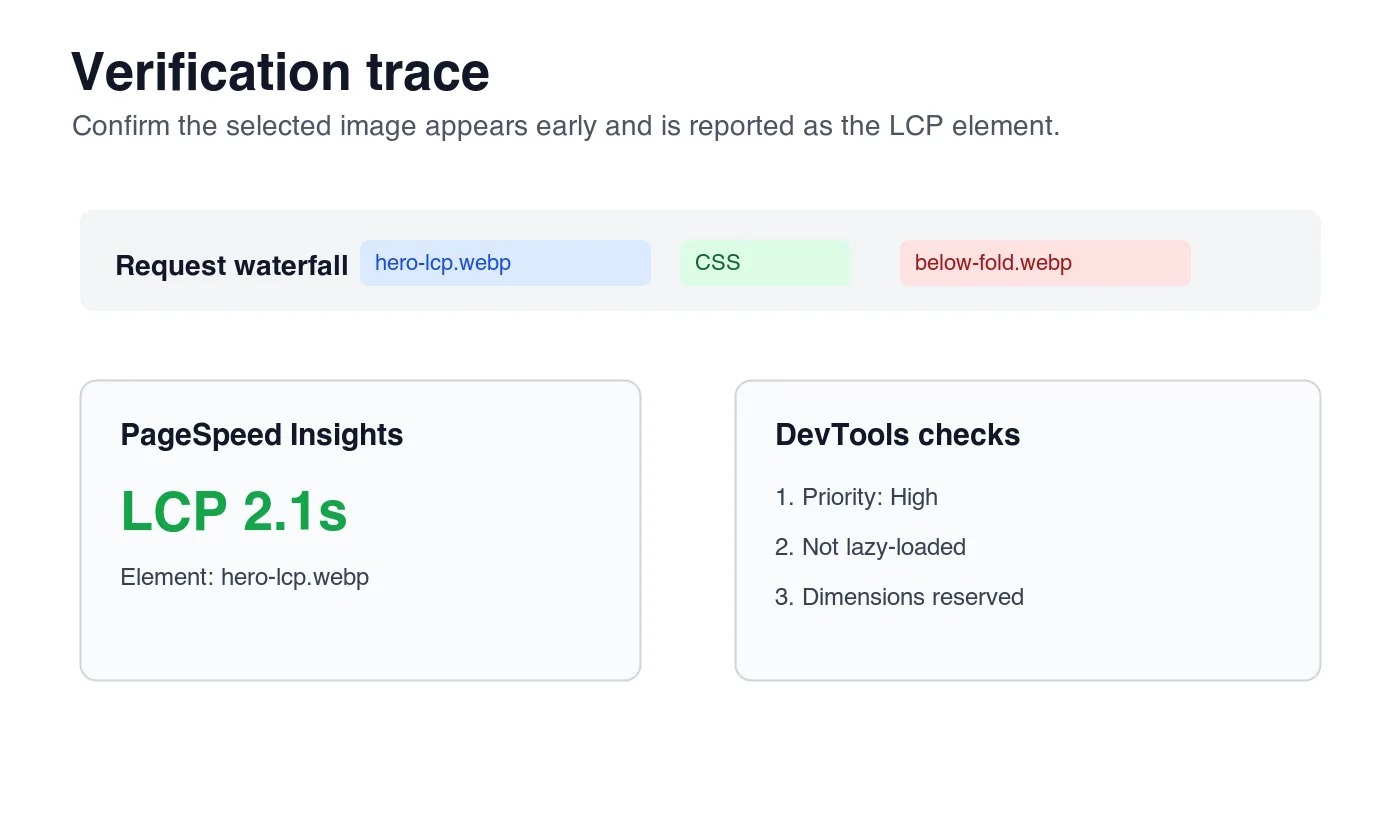
Use PageSpeed Insights for field and lab context. The diagnostics panel usually names the LCP element, and the screenshot helps confirm whether the reported element matches the page's visual hero. Use Lighthouse or DevTools Performance when you need a local trace.
Use DevTools Network for request behavior:
- Filter by image requests.
- Reload with cache disabled.
- Confirm the critical image starts near the top of the waterfall.
- Check that priority is High or upgraded early.
- Confirm below-fold images are not all competing at the same time.
- Check status code, content type, transfer size, and cache headers.
Use rendered HTML inspection for markup mistakes:
- The critical image has
srcor discoverablesrcsetin initial markup. - It does not have
loading="lazy". - It has
widthandheight, or a stable CSS aspect ratio. - Its alt text describes the visible subject when the image is content.
- The CDN URL returns a crawlable
200response.
For search, Google's image SEO best practices also emphasize descriptive filenames, alt text, and useful surrounding text. Critical image extraction improves loading priority, but the same image still needs search context.
What breaks critical image extraction?
The most common failure is treating every page like it has the same hero. A blog index, product page, and pricing page can have different LCP candidates. The extraction step must happen at the template level and at the breakpoint level.
Watch for these traps:
- Preloading the Open Graph image. The social card image may never render on the page.
- Lazy-loading the first product photo. Product galleries often inherit thumbnail defaults.
- Prioritizing every carousel slide. Only the first visible slide can be critical at load.
- Ignoring mobile crops. Desktop and mobile can select different LCP images.
- Using CSS backgrounds for meaningful content. They are harder to prioritize and less accessible.
- Forgetting dimensions. Priority does not prevent layout shift.
- Shipping one oversized source. A high-priority 3 MB image is still slow.
- Testing only on local Wi-Fi. Slow 4G exposes discovery delays.
If the problem is mostly file weight, start with the complete image optimization checklist. If the problem is format choice, compare AVIF vs WebP before changing delivery rules.
Summary: critical image extraction checklist
Critical image extraction is a page-speed decision, not an asset naming exercise. Find the image that controls the first viewport, give only that image early loading treatment, and keep the rest of the page from competing with it.
Before publishing, confirm:
- The likely LCP image is named in the template or audit notes.
- Mobile and desktop candidates are checked separately.
- The critical image is not lazy-loaded.
fetchpriority="high"is used for a visible<img>LCP candidate.- Preload is used only when discovery is late.
- The selected file is resized and compressed.
- Width and height, or an aspect ratio, reserve layout space.
- Below-fold images remain lazy.
- PageSpeed Insights reports the expected LCP element.
- DevTools shows the critical image request early in the waterfall.
- The CDN URL returns
200with the expected image type. - The image has useful alt text and nearby explanatory content.
Frequently asked questions
What is critical image extraction?
Critical image extraction is the process of identifying the single image most likely to become the page's Largest Contentful Paint element so it can receive priority loading treatment.
Which image should get fetchpriority="high"?
Give fetchpriority="high" to only one image, the current page's likely LCP candidate, such as a server-rendered hero <img> or the fallback <img> inside a <picture> element.
When should I preload the hero image instead of just using fetchpriority?
Preload the hero image only when the browser would otherwise discover it late, such as inside CSS, a client-rendered component, or a complex <picture> source set.
Why is lazy-loading the critical image a mistake?
Lazy-loading tells the browser to wait on layout and distance checks before fetching, which delays the exact image that decides how fast the page feels to load.
How do I verify the critical image is actually the LCP element?
Run PageSpeed Insights or Lighthouse to see which element is reported as LCP, then check DevTools Network to confirm that same image request starts early with high priority.
Does the Open Graph image count as the critical image?
No, the Open Graph image is metadata for link previews and usually never renders on the page itself, so preloading it wastes bandwidth without improving LCP.
Should mobile and desktop pages use the same critical image?
Not always; mobile and desktop breakpoints can select different hero images, so check each viewport separately since mobile Core Web Vitals are usually the harder target to pass.
What is the most common critical image extraction mistake?
The most common mistake is treating every page template the same way, when a blog index, product page, and pricing page often each have a different LCP candidate.
Image credits
- Cover, LCP candidate diagram, priority decision tree, and verification trace were generated for this article with ImageMagick and exported as WebP.
Use the free tools while you follow the guide.
Keep reading

2026-09-13
How to Blur Faces and License Plates Before You Post
Blur or pixelate faces and license plates so they stay unreadable. Which method actually anonymizes, what fails, and how to avoid leaking EXIF location data.
2026-08-27
Invisible Watermarks: What Image Files Now Carry in 2026
Paint embeds a server-issued GUID in AI images, platforms strip C2PA manifests, and a plain WebP export drops all of it. What your files really carry, and how to check.

2026-07-28
Batch Image Processing: Pipeline Order, Settings, and Tools
Batch image processing runs resize, compress, and convert jobs across whole folders. The pipeline order, measured quality settings, tool choice, and automation.