2026-06-28 · Updated 2026-06-30
Product Photo Background Remover: Clean Images for E-Commerce
Remove backgrounds from product photos for marketplaces and stores. Real steps for clean cutouts, the standards Amazon and Shopify expect, and how to keep shadows real.

Last updated: June 30, 2026. Marketplace image rules shift occasionally; verify the current standard before a big catalog upload to avoid rejections.
A clean background is the foundation of e-commerce product photography. Amazon, Shopify, and most marketplaces require products on pure white, and a messy or inconsistent background makes a listing look unprofessional and can even get it rejected. Removing the background cleanly — without chopping off the product or leaving a halo — is a specific skill. This guide covers how to remove product photo backgrounds, the standards each platform expects, and how to keep the result realistic.
Quick answer: how do you remove a product photo background?
Upload the product photo to a background remover, let it detect and cut the subject, then place the product on a pure white background (#FFFFFF) for marketplace compliance. Check the edges for halos or missing parts, and add a subtle contact shadow so the product does not look like it is floating. For products with hair, fur, or translucent parts, expect to refine the mask manually. Export as PNG for transparency or JPEG on white, depending on the destination.
Why does the background matter so much for products?
Marketplaces enforce background rules because consistency makes a catalog readable. When every product sits on the same white, the shopper's eye compares products rather than backgrounds, and the page looks professional. A busy or colored background makes a listing stand out in a bad way.
| Platform | Background rule |
|---|---|
| Amazon | Pure white (RGB 255,255,255), product fills 85% |
| eBay | White preferred for the main image |
| Shopify | Consistent across the catalog |
| Google Shopping | White background for the main image |
- Pure white is the universal standard for the main listing image.
- The product should fill roughly 85% of the frame.
- No props, text, or watermarks on the main image.
- Additional images can show context, lifestyle, or detail.
Amazon's product image requirements document the exact rules, and most marketplaces follow similar standards.
How do you remove the background cleanly?
The removal has two phases: the automatic cut and the edge cleanup. The automatic cut handles most of the work; the cleanup is what separates a professional result from an obvious edit.

- Start with a well-lit photo shot against a plain background — the cleaner the source, the cleaner the cut.
- Run the background remover to detect the product.
- Check the edges for halos, jagged lines, or missing parts.
- Refine the mask manually on tricky areas — hair, translucent plastic, thin stems.
- Place on pure white and add a contact shadow.
- A good source photo makes removal far easier — shoot against white or gray.
- Hard edges (bottles, boxes) cut cleanly; soft edges (fabric, fur) need manual work.
- The background removal guide covers the techniques in depth.
How do you keep the result realistic?
A product floating on pure white looks wrong. The fix is a contact shadow — a soft shadow directly beneath the product that grounds it. Without it, the product looks pasted on; with it, the product looks like it was photographed on the white surface.
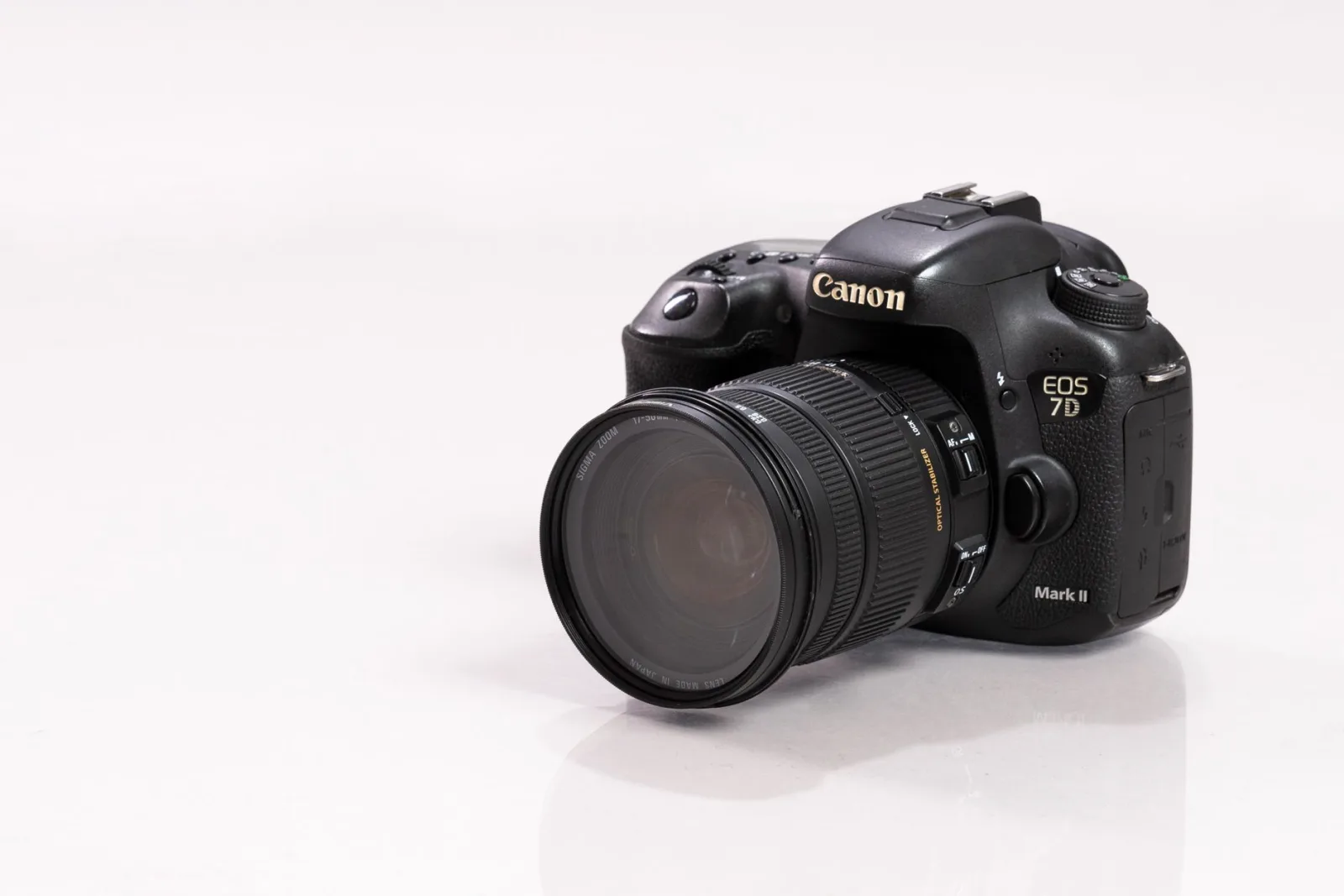
- Add a soft shadow directly beneath the product, not a drop shadow to the side.
- Keep the shadow subtle — too dark and it looks fake.
- Match the shadow direction to a single implied light source.
- Preserve any real shadow from the original photo if it grounds the product well.
The shadow is the detail that sells the realism. A perfectly cut product with no shadow reads as a graphic; the same cut with a soft contact shadow reads as a photograph.
When does automatic removal fail?
Automatic tools handle most products well, but a few categories consistently need manual work.

- Translucent products — glass, clear plastic lets background through, confusing the edge detection.
- Products with hair or fur — soft edges need careful masking.
- Products the same color as the background — low contrast breaks detection.
- Thin or spindly products — thin parts get lost in the cut.
For these, expect to refine the mask by hand after the automatic pass. The object removal guide covers related cleanup work, and the product photography guide covers shooting products for clean removal in the first place.
Shooting products for easier removal
The cleanest background removal starts before the edit, at the shoot. A product photographed well against a plain surface is far easier to cut than one shot in a cluttered environment, because the edge detection has clear contrast to work with. The discipline at capture time pays back at edit time.
| Shooting choice | Effect on removal |
|---|---|
| Plain white or gray backdrop | Clean, high-contrast edges |
| Even, diffuse lighting | No harsh shadows to confuse detection |
| Product fills the frame | More pixels on the subject |
| Sharp focus throughout | Clean edge detail for the mask |
- A sweep of white paper or fabric creates a seamless backdrop.
- Softbox or window light avoids the hard shadows that complicate the cut.
- Keep the camera parallel to avoid perspective distortion of the product.
- Shoot at the highest resolution; you can always downsize.
A well-shot product against white can often be cut with one automatic pass and almost no cleanup. A product shot on a busy desk takes ten times the work for a worse result. Shopify's product photography guide documents these shooting fundamentals, which apply whether the background removal happens automatically or by hand.
Exporting for each platform
Once the background is clean, export for the destination. Different platforms have different size and format expectations, and matching them prevents rejection or distortion. The e-commerce image guide covers these per-platform expectations in detail. A PNG with transparency is the most flexible master, since you can flatten it onto any background and resize it for any platform from that one source. The Shopify image optimization guide covers the Shopify-specific settings, and for the broader context, the image SEO guide connects clean product images to search performance.
A clean, consistent background across a catalog is what makes a store look trustworthy — and it starts with disciplined removal and realistic shadows on every product image. The work compounds: a single clean hero image sets the standard, and applying that same standard to every product in the catalog creates a catalog that reads as professional at a glance. Shoppers may not consciously notice the consistent white backgrounds and grounded shadows, but they register the professionalism, and that trust translates into clicks and conversions. The technique is repetitive but the payoff is a catalog that looks like it belongs to a serious retailer.
Frequently asked questions
How do you remove a product photo background cleanly?
Use AI background removal for the bulk, then refine the edges manually — especially on transparent or reflective products where the model leaves halos. Shoot on a plain, contrasting backdrop so the removal has a clean edge to find. One automatic pass plus a manual edge check is the reliable workflow.
Why does the background matter so much for products?
Because marketplaces require a pure-white main image (Amazon, Google Shopping) and a consistent background reads as a professional catalog. A cluttered or inconsistent background lowers click-through and can get a listing rejected.
When does automatic removal fail?
On transparent objects (glass), reflective surfaces (metal), and products with fine detail (fur, hair, mesh) — anywhere the edge is not a clean line. These need manual masking after the automatic pass.
How do you shoot products for easier removal?
Use even lighting on a plain white or gray backdrop, lit separately from the product so no shadow falls on the background. The contrast between product and background is what lets the removal find a clean edge.
Can I batch-remove product backgrounds?
Yes — sort by background complexity, run the automatic removal on the clean set, and flag halos for manual review. For a catalog, batching is the only practical path. See the batch processing guide.
How do I keep a product cutout realistic?
Add a contact shadow beneath the product to ground it, match the lighting direction to the original, and avoid a hard pasted edge. A cutout floating on white with no shadow looks fake; a soft grounding shadow makes it read as a real product shot. Keep the edge clean — a halo or hard line gives away the removal no matter how good the shadow is.
Use the free tools while you follow the guide.
Keep reading
2026-10-07
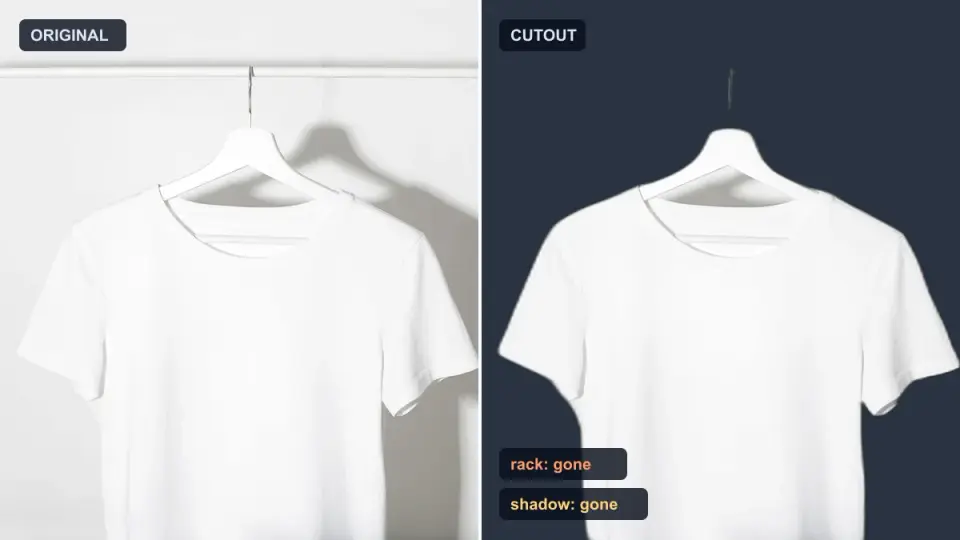
Background Remover Removes Part of Subject? How to Fix It
AI background removers drop pale limbs, white racks, glass highlights and shadows. I measured why on real photos and how to get the missing parts back.
2026-10-07
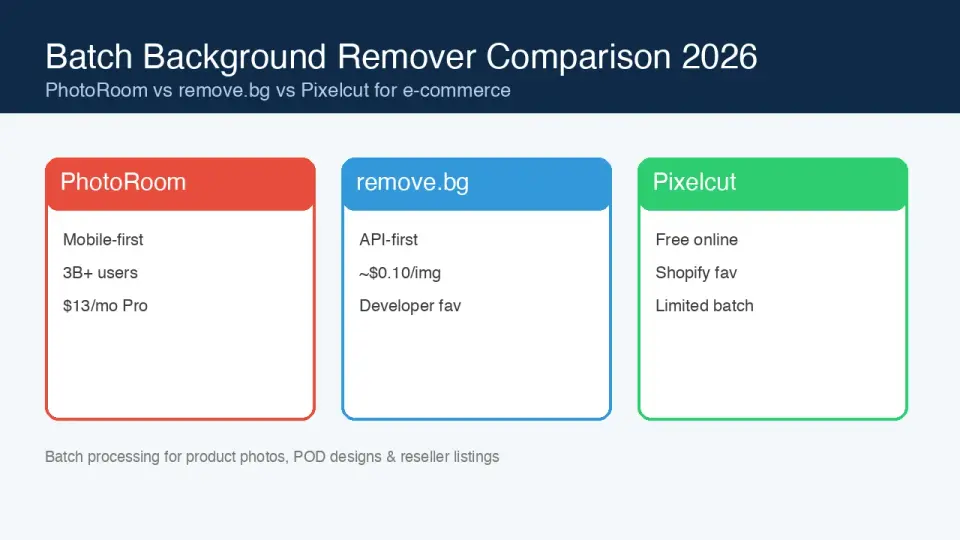
Batch Background Remover Comparison 2026: E-commerce
PhotoRoom, remove.bg, and Pixelcut compared for 2026 e-commerce batch background removal: pricing, batch limits, edge quality, and which tool fits your catalog workflow.

2026-10-07
remove.bg Is Shutting Down on December 1: What to Use Instead
remove.bg closes on 1 December 2026 and unused credits expire that day. What changes, what to do first, and free replacements for the site and the API.