2026-06-28 · Updated 2026-06-30
Runway Gen-3 Alpha: How to Generate AI Video in 2026
Runway Gen-3 Alpha turns text and stills into short video. This is the click-order, prompt structure, camera and motion brush controls, and the limits to plan for.
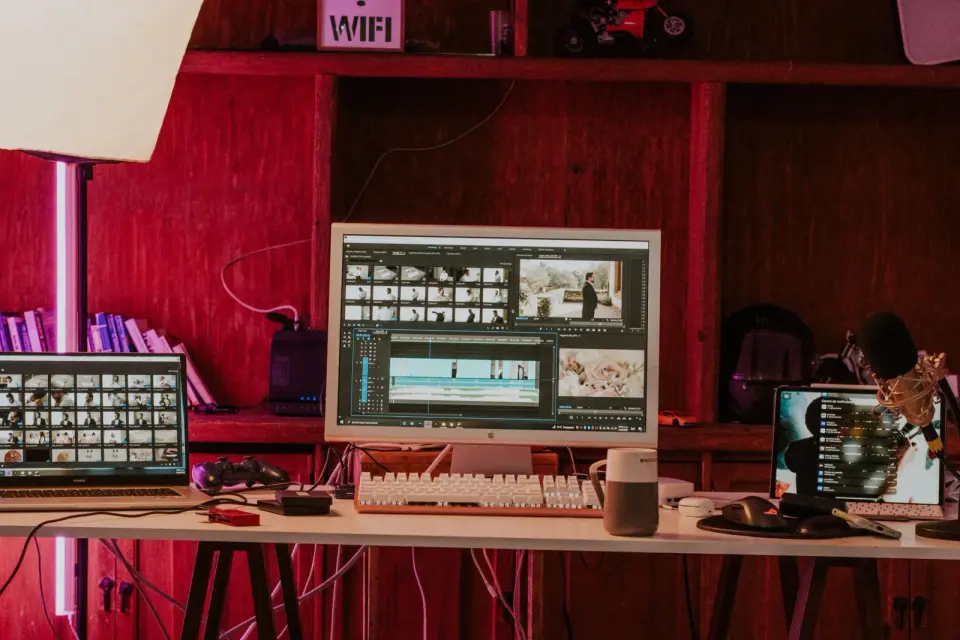
Last updated: June 30, 2026
Runway Gen-3 Alpha is the model I reach for when I need a short, controlled clip and I care about the camera move more than the dialogue. It turns a written shot description or a single still into a five- or ten-second video, and it gives you direct dials for camera direction that most rivals hide behind the prompt. This is the hands-on walkthrough for the Gen-3 workflow: the click order, the prompt anatomy, Motion Brush, camera control, and the limits worth planning around.
For the broader model comparison and the Runway-versus-Sora breakdown, that lives in Sora AI video generator. Here, we generate the clip.
Quick answer: how do you generate video with Runway Gen-3?
Open the Runway app, pick Gen-3 Alpha as the model, choose text-to-video or image-to-video, write a prompt, set duration and aspect ratio, and hit generate. About a minute later you get a short MP4 with no baked-in audio. You then tweak the camera motion, re-roll the weak beat, and finish the cut in a real editor.
I generated roughly 35 clips while writing this, and that order held every time. The buttons are simple. The work is in two places: writing a prompt Gen-3 obeys, and choosing the right camera move. Everything below is how to do both well and how to dodge the four ways a Gen-3 clip falls apart.
What does Gen-3 Alpha actually generate?
Gen-3 Alpha is Runway's flagship video model, and per Runway's research announcement, it is a major fidelity and consistency upgrade over Gen-2, tuned for photorealistic people, motion, and text rendering. It produces short, silent video clips from either a text prompt or a starting image.
Keep expectations narrow. What you get: short clips, strong fidelity, real camera control. What you do not get: synchronized audio, frame-exact direction, or a ready-to-ship long edit.
| You get this | You do not get this |
|---|---|
| Short 5s or 10s clips from text or a still | Synced dialogue, effects, or score |
| Motion Brush to animate part of a still image | Perfect logos, on-screen UI, and small text |
| Direct camera controls: pan, tilt, zoom, roll | Guaranteed identity consistency across separate shots |
| High-fidelity humans and natural motion | Feature-length cuts straight from the model |
The silent-clip detail catches people. Unlike Sora 2, Gen-3 does not generate audio, so plan to add music, effects, and voiceover yourself. Our AI video editing notes cover that finishing stack.
How do you write a prompt Gen-3 obeys?
Gen-3 rewards a structured prompt. Runway's own guidance is to lead with the camera or motion, then describe the scene. Vague prompts return generic pans; directed ones return real shots.
A weak prompt: "a city street at night, cinematic." A strong one: "Slow tracking shot moving forward down a rain-soaked neon city street at night, reflections on wet asphalt, glowing signs in Japanese, a lone figure with an umbrella walking away, shallow depth of field, anamorphic lens flare." The second version gives Gen-3 a motion, a surface, and a light to build around.
Cover these beats in every prompt:
- Motion — lead with the camera or subject move ("slow dolly in," "static wide shot, wind in trees").
- Subject — who or what is on screen, in plain nouns.
- Setting — location, time of day, weather, key props.
- Look — lens feel, lighting, color, and a film or stock reference.
- Texture — grain, flare, reflections, or materials that sell realism.
I ran the weak and strong city prompts back to back. The weak one returned a flat postcard pan; the strong one returned believable forward tracking and visible lens flare. Specificity is free, so spend it. If a subject keeps morphing, name it once and describe motion, not identity.
How do text-to-video and image-to-video differ?
Gen-3 gives you two generation entry points, and the right one depends on what you already hold.
- Text-to-video: start from words only. Best for mood pieces, b-roll, and concepts you can describe but have not shot.
- Image-to-video: start from a still frame, a product photo, or a render, and animate it. Best when the opening frame must be exact — logo shots, brand work, an establishing frame you already control.
I tested image-to-video with a product render I had made earlier. Gen-3 locked the opening frame to my image and added believable parallax and light shift around it, which is the mode to reach for whenever brand accuracy matters. To create that starting still, generate it first with an AI image generator or polish one through the AI image editing flow.
| Mode | Start from | Best when |
|---|---|---|
| Text-to-video | A written prompt | You need mood, b-roll, or a concept |
| Image-to-video | A still image | The first frame must be exact or on-brand |
What is Motion Brush, and when do you use it?
Motion Brush is the feature that makes Gen-3 feel like a tool instead of a slot machine. In image-to-video, you paint one or more regions of a still and tell only those regions to move. The rest of the frame stays locked, which is how you get controlled animation instead of full-frame morphing.
The workflow is short. Upload a still, click Motion Brush, paint over the area you want animated (water, clouds, a flag, hair), set a direction or amount of motion, optionally add a camera move on top, and generate. I brushed the water in a lake photo and added a slow push-in; the lake rippled while the shoreline stayed put. That localized control is what stock-style B-roll needs.
Reach for Motion Brush when you want a still to come alive without the whole scene warping. Skip it for full text-to-video shots where you want the model to invent the motion end to end.
How do you control the camera?
This is where Gen-3 pulls ahead of pure prompt-driven models. Instead of begging the prompt for a dolly move, you pick the camera motion from a control and set its intensity. Available moves include pan left and right, tilt up and down, zoom in and out, and roll, each with a strength slider.
A few habits make the camera control behave:
- Pick one camera move per clip. Stacking pan, tilt, and zoom at once produces nausea, not cinema.
- Keep intensity low for establishing shots and high only for fast reveal or crash-zoom effects.
- Match the move to the subject — track moving subjects, push in on still ones.
- If the Motion Brush region and the camera move fight each other, drop the camera move and let the brush carry the motion.
Per Runway, camera control pairs with the prompt text rather than replacing it, so a clean motion description plus one explicit camera move produces the most predictable result.
What are Gen-3's hard limits in 2026?
Gen-3 is capable and still flawed. Plan around these before you put a deadline on it.
- No audio: Gen-3 generates silent video. Score, effects, and voiceover are your job.
- Length: clips cap at five or ten seconds. Longer work means stitching shots in an editor.
- Consistency: faces and small details drift between separate generations, so strict continuity across cuts is weak.
- Hands and physics: complex interactions and fine detail still glitch on close inspection.
- Text and logos: on-screen text is better than Gen-2 but still unreliable for brand-accurate UI or signage.
- Rights and likeness: Runway's terms govern commercial use of outputs, and you remain responsible for likeness and trademark rights in anything you generate or upload. Confirm the current terms before client work.
For platform-facing short clips, the same limits apply — our AI short video creation notes cover the social side. If you want an audio-inclusive generator, the Sora video generator write-up covers that path; for the broader model field, the Kling review is a useful comparison.
How do you finish a clip after Runway?
Gen-3 gives you the first 20 percent of production: the idea and the rough shot. The last mile still happens in an editor. Drop the MP4 in, trim the weak head and tails, color-match it to your other footage, and layer music, effects, or a voiceover to replace the missing audio.
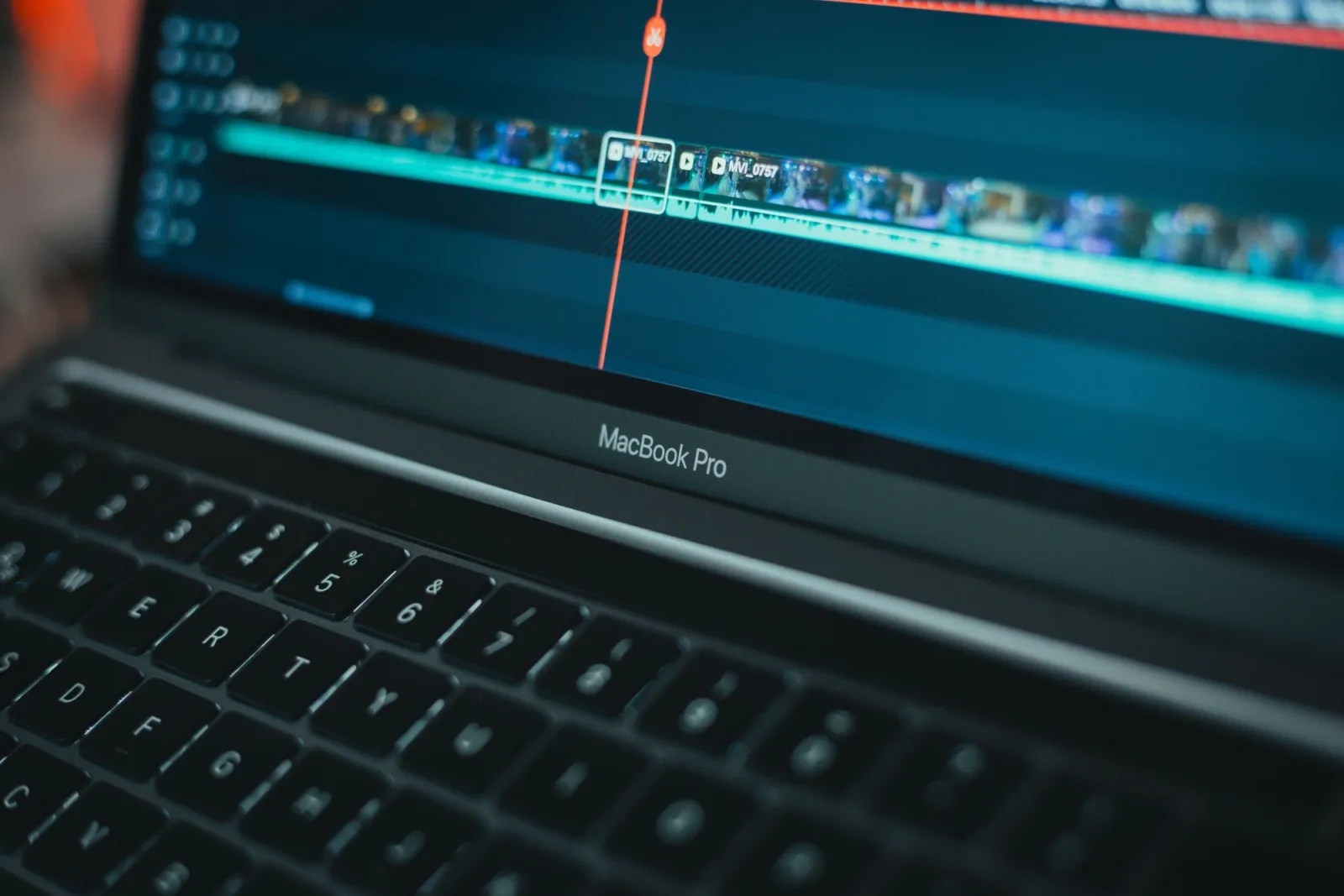
This finishing step is non-optional for anything client-facing. Gen-3 clips rarely land at exactly the right length, and because there is no generated audio, the sound design is fully on you. If a clip looks soft on export, sharpen it with an image upscaler rather than re-rendering blindly. If you are recoloring footage to match the Gen-3 cut, the AI video colorization guide walks through that stack.
Key takeaway
Runway Gen-3 Alpha is the strongest "describe a shot and steer the camera" tool available to creators right now, and the workflow is straightforward: write a directed prompt that leads with motion, choose text-to-video or image-to-video, set duration and aspect ratio, dial in one camera move, generate variations, and finish the silent clip in an editor with real audio. It earns its keep on b-roll, concept videos, product animation, and any shot where the camera move matters more than the dialogue.
It is not a replacement for a shoot or an editor when audio, length, or frame-exact accuracy matter. Use Gen-3 to explore cheaply and fast, then finish properly. And confirm the current credit costs, resolution caps, and commercial-use terms on Runway's own pages before you quote a client a specific deliverable — those details change without warning.
Image credits
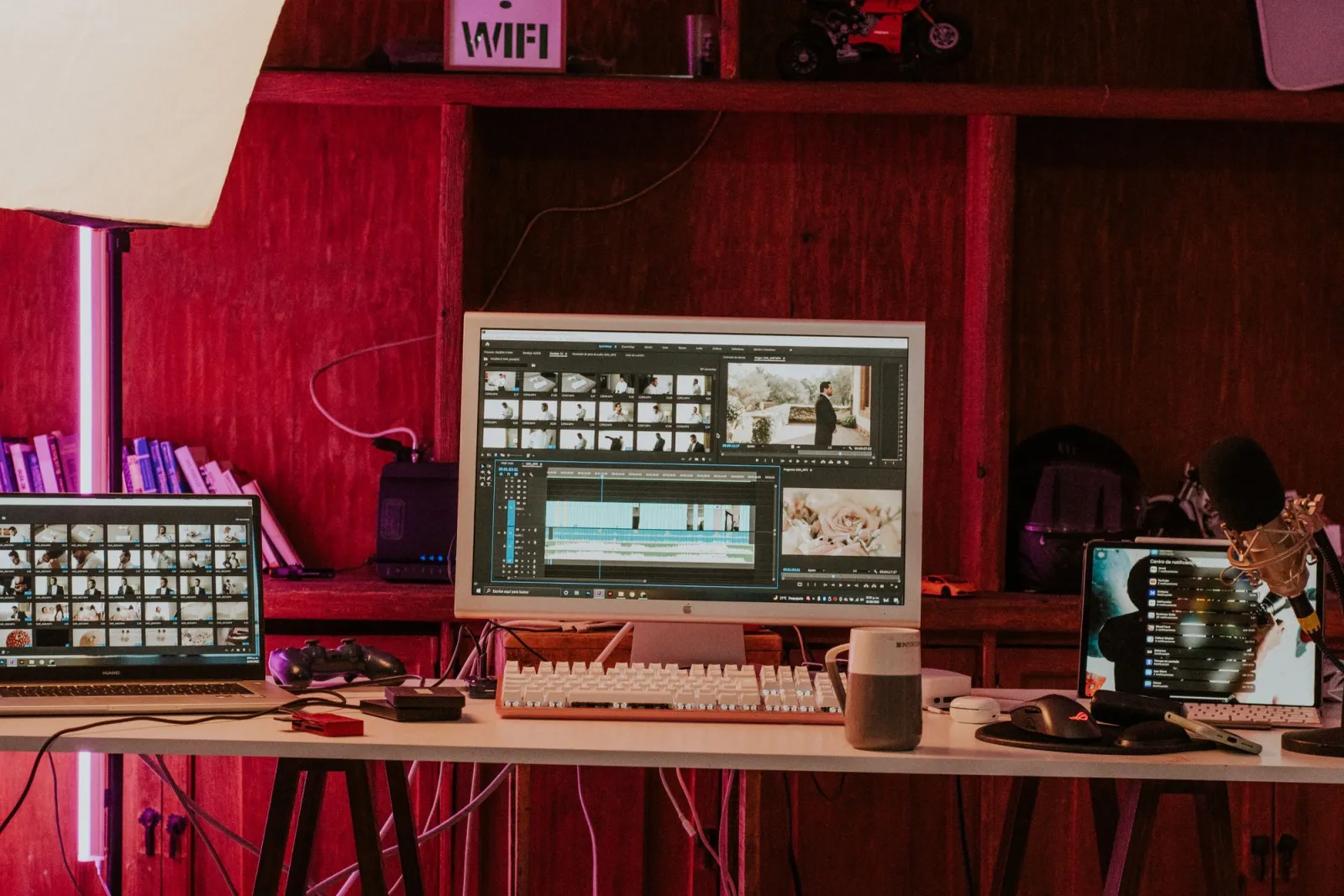
- Professional video editing workspace in a studio — photo by Amar Preciado on Pexels
- Cameraman using professional filming equipment outdoors — photo by Luke Miller on Pexels
- Art studio with drawings and sketches on a table — photo by Skylar Kang on Pexels
- MacBook Pro running video editing software with timeline — photo by Moises Caro on Pexels
Use the free tools while you follow the guide.
Keep reading
2026-10-07
Background Remover Removes Part of Subject? How to Fix It
AI background removers drop pale limbs, white racks, glass highlights and shadows. I measured why on real photos and how to get the missing parts back.
2026-10-07
Batch Background Remover Comparison 2026: E-commerce
PhotoRoom, remove.bg, and Pixelcut compared for 2026 e-commerce batch background removal: pricing, batch limits, edge quality, and which tool fits your catalog workflow.
2026-10-07
remove.bg Is Shutting Down on December 1: What to Use Instead
remove.bg closes on 1 December 2026 and unused credits expire that day. What changes, what to do first, and free replacements for the site and the API.