2026-03-28 · Updated 2026-07-12
Image Transparency Maker: PNG and WebP Workflow
Learn how to make an image transparent, choose PNG or WebP, inspect alpha edges, and publish clean cutouts for shops, ads, and websites.
Last updated: July 12, 2026
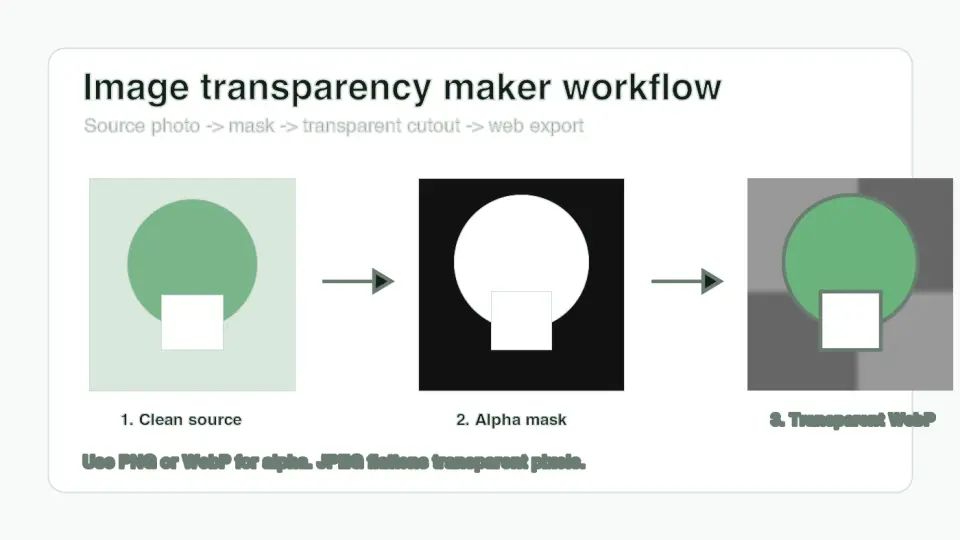
An image transparency maker is useful when a product, logo, portrait, or design element needs to sit cleanly on more than one background. The hard part is not pressing "remove background." The hard part is keeping soft edges, choosing a format that stores alpha, and checking the file before it reaches a shop theme, ad template, or CMS.
Quick answer: how do you make an image transparent?
Use a background remover or mask editor to separate the subject, inspect the alpha edge on checkerboard, white, and dark backgrounds, then export as PNG or WebP. Do not export the final cutout as JPEG, because JPEG has no transparency channel and will flatten the empty pixels into a solid color.
For most web pages, transparent WebP is the best delivery copy because it supports alpha and usually weighs less than PNG. Keep a PNG master when you need broad editor compatibility, print handoff, or a lossless archive. If the image still needs the background removed, start with the AI background removal guide, then use this workflow to finish and export the transparent asset.
Measured while preparing this article, the four 1400 by 788 WebP figures in the local article folder exported between 28 KB and 38 KB. They are simple graphics, so a real product photo with hair, glass, shadows, or fine texture can be larger. Check the final file instead of assuming every transparent WebP will be tiny.
What does an image transparency maker actually create?
Transparency is stored with an alpha channel. The visible image still has normal color data, but each pixel also has an opacity value. Fully opaque pixels show the subject. Fully transparent pixels disappear. Semi-transparent pixels create soft edges around hair, glass, smoke, shadows, fabric, and antialiased logos.
The PNG specification describes alpha as a channel used for transparency information, and the W3C PNG overview is still a useful reference for why PNG became the dependable transparent-image format. MDN's image file type guide also notes that WebP supports lossy and lossless compression with transparency.
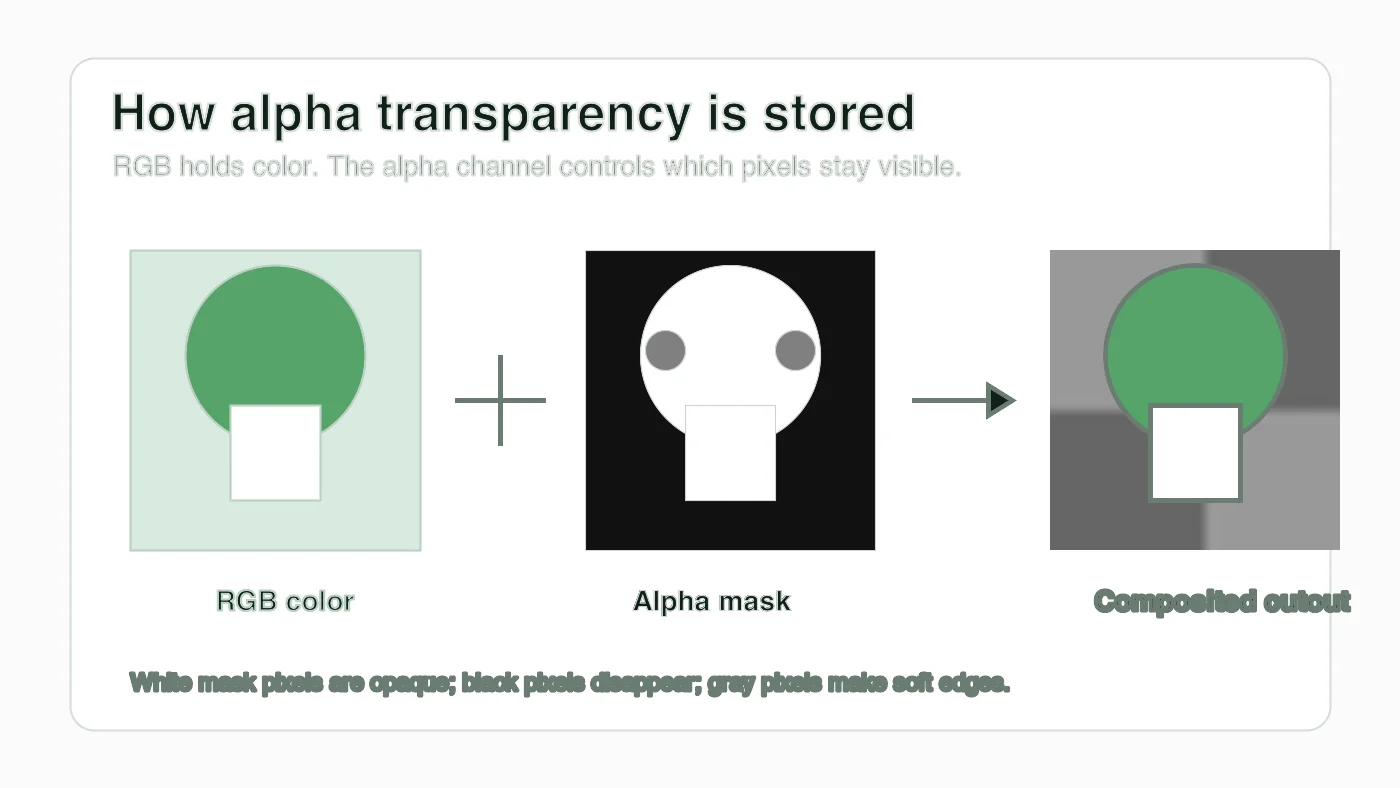
| Transparency term | Plain meaning | What to check |
|---|---|---|
| Alpha channel | Per-pixel opacity data | The file must be PNG or WebP, not JPEG |
| Mask | Black, white, and gray map that controls visibility | Hair, holes, and product gaps should match the subject |
| Feathering | Soft transition at the edge | Too much feathering creates haze; too little creates a cut-paper edge |
| Matte color | Background color blended into edge pixels | White or gray halos often come from the old matte |
| Checkerboard preview | Editor pattern that shows transparent areas | The checkerboard should not be exported as real pixels |
The checkerboard is only a preview. If you can see checkerboard squares after uploading the file, the editor exported a screenshot or flattened image instead of a real transparent asset.
Which images should you make transparent?
Make an image transparent when the subject must be reused across backgrounds. A store owner may need one product cutout for a white marketplace page, a dark homepage hero, and a seasonal sale banner. A designer may need a logo mark that sits on screenshots, pitch decks, and social graphics without a rectangular box.
Good candidates include:
- Product photos with a clear foreground subject.
- Logos exported from a raster file when the original SVG is unavailable.
- Profile portraits for badges, thumbnails, and team pages.
- Stickers, icons, and small decorative assets used in layouts.
- Object photos that need new shadows or generated backgrounds.
- Screenshots where a device frame should float over a page section.
Poor candidates include:
- Scanned documents where white paper must stay readable.
- Photos where the background is part of the story or evidence.
- Logos that can be exported from SVG, PDF, or the design source.
- Product photos with heavy motion blur or blocked edges.
- Images where transparent holes would confuse the buyer.
If the goal is a clean catalog image rather than a reusable cutout, read the product photo background remover guide. It covers capture setup, shadows, and marketplace presentation before the export decision.
How do you remove the background without damaging edges?
Start with the best source file. A high-resolution original with clear subject contrast gives the mask editor more real edge information. A compressed social-media copy often has blocky edges, color bleed, and softened hair before you begin.
Use this order for single images:
- Open the original photo, not a screenshot or chat-app copy.
- Run background removal or create a manual mask.
- Zoom into the most fragile edges first: hair, glass, product handles, straps, labels, and holes.
- Restore missing subject pixels with a brush before refining the outside edge.
- Remove obvious background leftovers inside gaps and between small parts.
- Check the cutout on white, dark, and brand-color backgrounds.
- Export a PNG master if more editing is likely.
- Export a WebP delivery copy for the website when browser delivery is the target.
Use batch processing only after one representative image passes. If ten product photos were shot under the same light on the same table, a batch can save time. If the folder mixes glossy bottles, fabric, hair, and transparent packaging, spot-check each type before trusting the batch.
For model-based masking details, the background removal best practices article is a better next step than repeating the same export. This article focuses on making the transparent result publishable.
Should you export transparent images as PNG, WebP, or JPEG?
Use PNG when you need a reliable editing master or when another tool in the workflow expects PNG. Use WebP when the transparent image is going onto a modern website and file size matters. Avoid JPEG for transparent assets because it cannot keep the alpha channel.
Google's WebP documentation explains that WebP supports transparency in both lossless and lossy modes, which is why it works well for web cutouts and interface assets. The W3C PNG specification remains the formal reference for PNG behavior, including alpha-channel transparency.
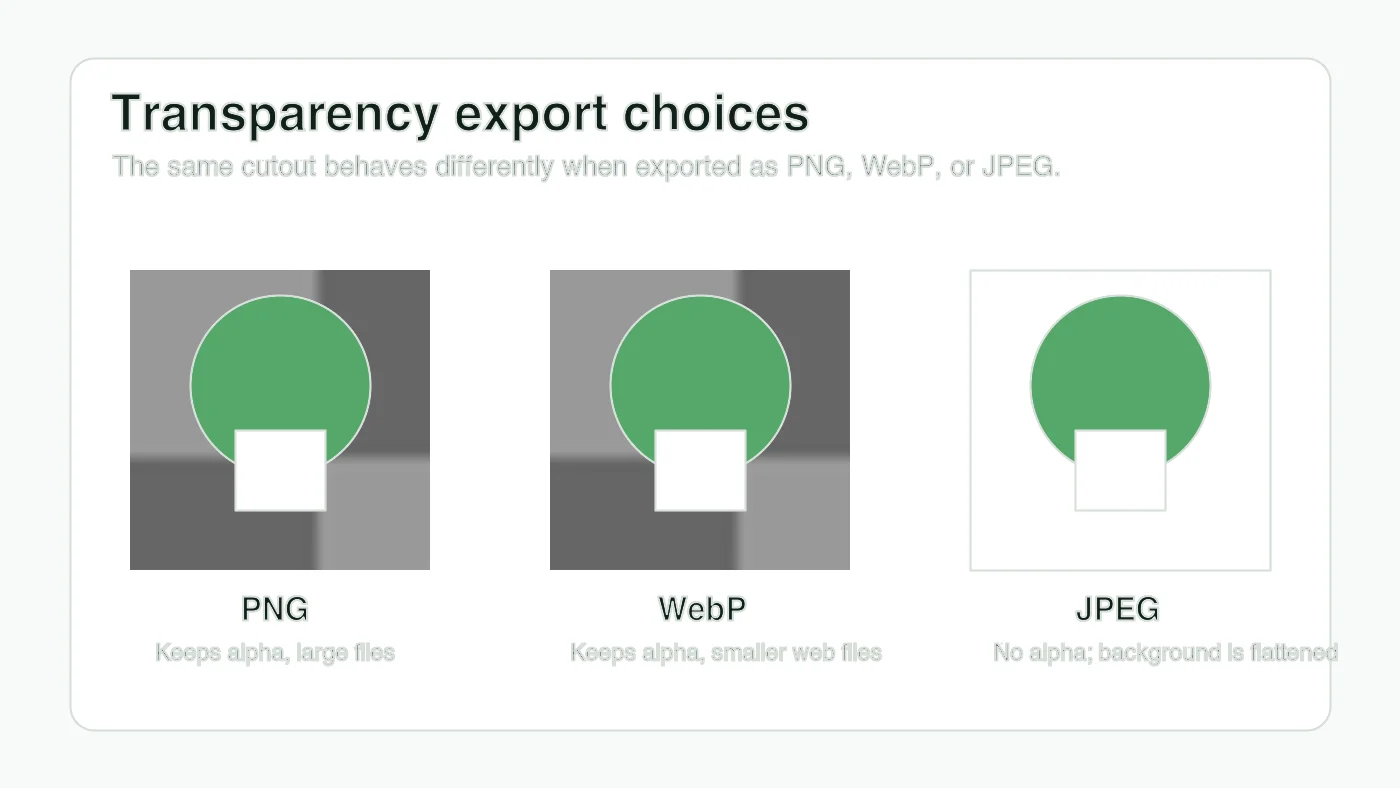
| Export format | Keeps transparency? | Best use | Watch out for |
|---|---|---|---|
| PNG | Yes | Editing master, logos, crisp UI assets, print handoff | Can be large for photos and textured products |
| WebP | Yes | Website delivery, product cutouts, transparent marketing graphics | Some older tools may not edit it cleanly |
| JPEG | No | Flat photos with no transparent areas | Empty pixels become white, black, or another matte color |
| SVG | Yes, for vector artwork | Logos and icons from design source files | Not a good container for normal photos |
| AVIF | Yes in modern browsers | Advanced web delivery when your pipeline supports it | Editor and CMS support varies more than WebP |
If you already have a transparent PNG and only need a smaller web copy, use the PNG to WebP converter guide. If you are tempted to convert the transparent result to JPEG, read convert PNG to JPG first so the transparency loss is intentional.
How can you tell if the transparency is clean?
Inspect the transparent image on backgrounds that expose different failures. Checkerboard reveals missing holes. White reveals gray haze and leftover shadows. A dark or saturated background reveals light halos around hair, product edges, and antialiased logo curves.
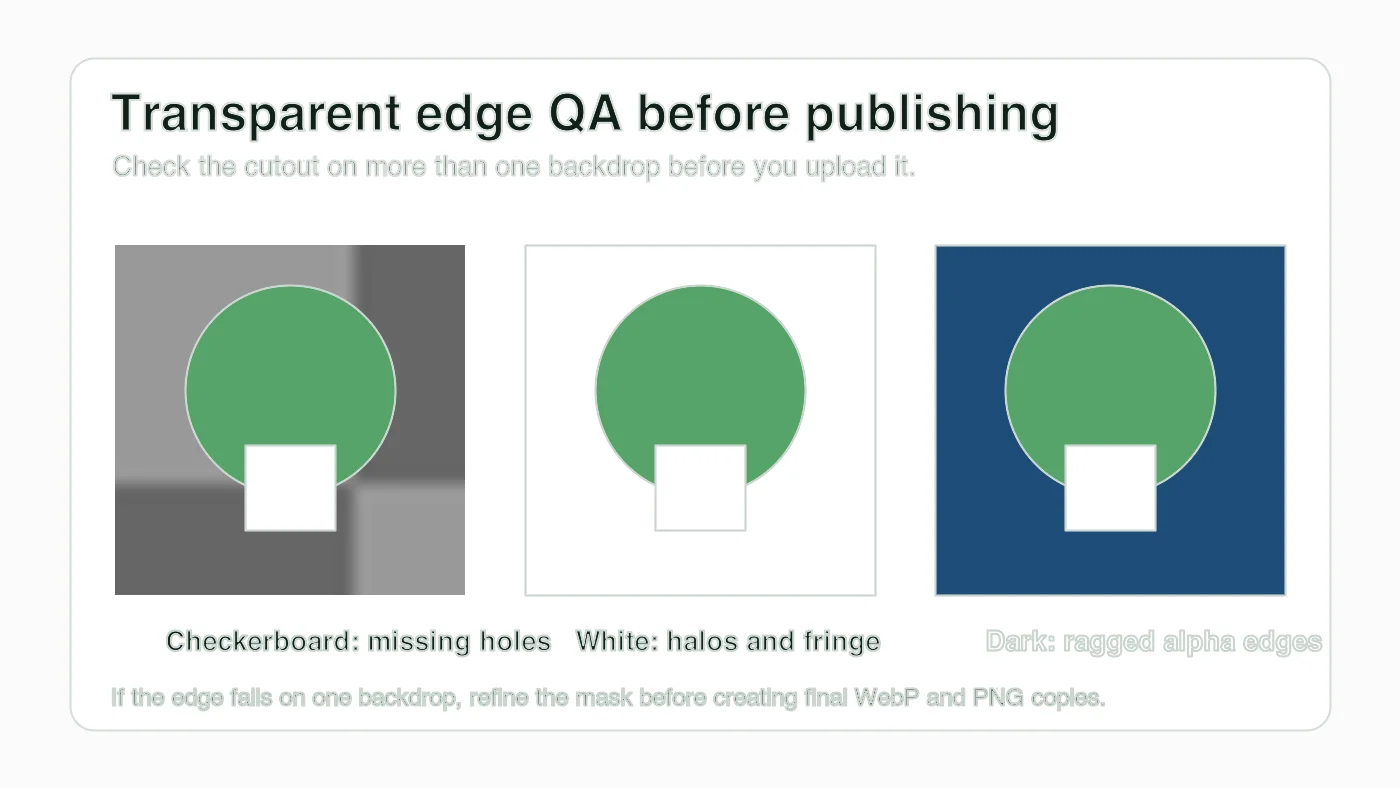
| Test backdrop | Problem it exposes | Fix before export |
|---|---|---|
| Checkerboard | Filled holes, accidental islands, leftover background fragments | Erase inside gaps and restore missing subject details |
| White | Gray fringe, old white matte, weak shadow cleanup | Contract the mask slightly or remove matte contamination |
| Dark color | Light halo, jagged alpha, noisy edge pixels | Refine edge, reduce feathering, or repaint the mask |
| Brand color | Color clashes and tinted semi-transparent edges | Adjust the mask against the real design color |
| Final page layout | Oversized file, wrong crop, visible box | Resize, crop, and re-export the delivery copy |
Do not judge the cutout only inside the editor. Drop it into the real page section, ad template, marketplace preview, or slide background. A cutout that looks acceptable on a checkerboard can still show a pale outline on a dark hero image.
What settings work for product photos, logos, and portraits?
The right settings depend on the edge. Product photos need true shape and believable contact shadows. Logos need crisp curves and no matte box. Portraits need softer hair edges and careful review around ears, shoulders, and clothing.
Use these starting points:
- Product photo: preserve the subject, remove the background, then add a separate shadow only if the final layout needs depth.
- Glossy bottle: inspect reflections and transparent packaging; automatic tools often confuse them with background.
- Logo: find the SVG or design source first; raster transparency is a fallback.
- Portrait: allow semi-transparent hair edges, but reject waxy face changes or missing strands.
- Screenshot overlay: crop tightly and keep edges crisp; fuzzy transparency makes UI look broken.
- Small icon: export from vector when possible, then create PNG or WebP sizes from that source.
For web publishing, also confirm pixel dimensions. A 4000 px transparent product cutout can slow the page even when WebP compression looks good. The check image size and dimensions guide explains how to verify dimensions before upload, and the image compression deep dive covers the compression pass after transparency is approved.
What mistakes break transparent images?
Most transparency failures happen after the background removal looks "finished." The export format, matte color, and final page context still matter.
Avoid these mistakes:
- Exporting a transparent cutout as JPEG.
- Flattening the file in an editor before saving the delivery copy.
- Leaving a white halo from the original background.
- Cropping too tightly and cutting off shadows or soft hair.
- Treating checkerboard squares as part of the actual image.
- Uploading a massive PNG when a right-sized WebP is enough.
- Recompressing the same transparent asset repeatedly.
- Using a transparent logo when the original SVG is available.
- Forgetting to test the cutout on the actual page background.
- Assuming every CMS preserves alpha during optimization.
The CMS point is worth checking. Some upload pipelines convert everything to JPEG by default. If that happens, your local PNG or WebP can be correct while the published page still shows a white rectangle.
Transparent image publishing checklist
Use this checklist before you send the asset to a client, upload it to a store, or publish it in a design system.
| Check | Pass condition | Fix if it fails |
|---|---|---|
| Source | Original image is the cleanest available file | Find the source file or reshoot before masking |
| Edge | Hair, holes, handles, and curves survive on three backdrops | Refine the mask and remove matte color |
| Format | PNG master and/or WebP delivery copy keeps alpha | Re-export; do not use JPEG for transparency |
| Dimensions | Pixel size matches the final layout need | Resize from the approved master |
| File size | Delivery copy is small enough for the page | Convert PNG to WebP or compress after approval |
| Upload | CDN or CMS URL returns the transparent file | Check the published URL and replace broken derivatives |
A good image transparency maker workflow ends with the file in context. Make the mask, test the edge, choose PNG or WebP deliberately, then verify the published asset instead of trusting the editor preview.
Frequently asked questions
Can you make a JPEG image transparent?
No, JPEG has no alpha channel, so a transparent cutout must be exported as PNG or WebP instead.
Should I export a transparent image as PNG or WebP?
Export a lossless PNG master for editing and a smaller WebP copy for web delivery, since both formats keep the alpha channel.
Why does my transparent cutout have a white halo?
A white halo usually comes from leftover matte color at the edge, so contract the mask slightly or repaint the fringe pixels.
What is the checkerboard pattern in a transparency editor?
The checkerboard is only an editor preview of transparent pixels and should never appear as real pixels in the exported file.
How big should a transparent WebP file be?
The four sample WebP figures measured for this article exported between 28 KB and 38 KB, but a real product photo with hair or glass can be larger.
Should a logo be exported as a transparent PNG or as SVG?
Use the original SVG or design source whenever it exists, and treat raster transparency as a fallback only.
What backgrounds should I use to check a transparent image?
Check the cutout on checkerboard, white, dark, and brand-color backgrounds, since each backdrop exposes a different edge problem.
Does every CMS keep an image transparent after upload?
No, some upload pipelines flatten images to JPEG by default, so verify the published URL still serves a transparent PNG or WebP.
Use the free tools while you follow the guide.
Keep reading

2026-09-13
How to Blur Faces and License Plates Before You Post
Blur or pixelate faces and license plates so they stay unreadable. Which method actually anonymizes, what fails, and how to avoid leaking EXIF location data.

2026-08-27
Invisible Watermarks: What Image Files Now Carry in 2026
Paint embeds a server-issued GUID in AI images, platforms strip C2PA manifests, and a plain WebP export drops all of it. What your files really carry, and how to check.

2026-07-28
Batch Image Processing: Pipeline Order, Settings, and Tools
Batch image processing runs resize, compress, and convert jobs across whole folders. The pipeline order, measured quality settings, tool choice, and automation.