2026-03-28 · Updated 2026-07-12
Twitter Card Image Size and Preview Checklist
Choose the right Twitter card image size, metadata, WebP export, and troubleshooting checks so shared links render cleanly on X and other social feeds.
Last updated: July 12, 2026
A Twitter card image is the preview image that appears when someone shares a URL on X. It should be large enough to look sharp, small enough for crawlers to fetch quickly, and declared with metadata that works even when a platform falls back to Open Graph tags.
This guide gives you a practical publish checklist: dimensions, tags, file format, CDN checks, and fixes for cards that refuse to update.
Quick answer: what Twitter card image should you use?
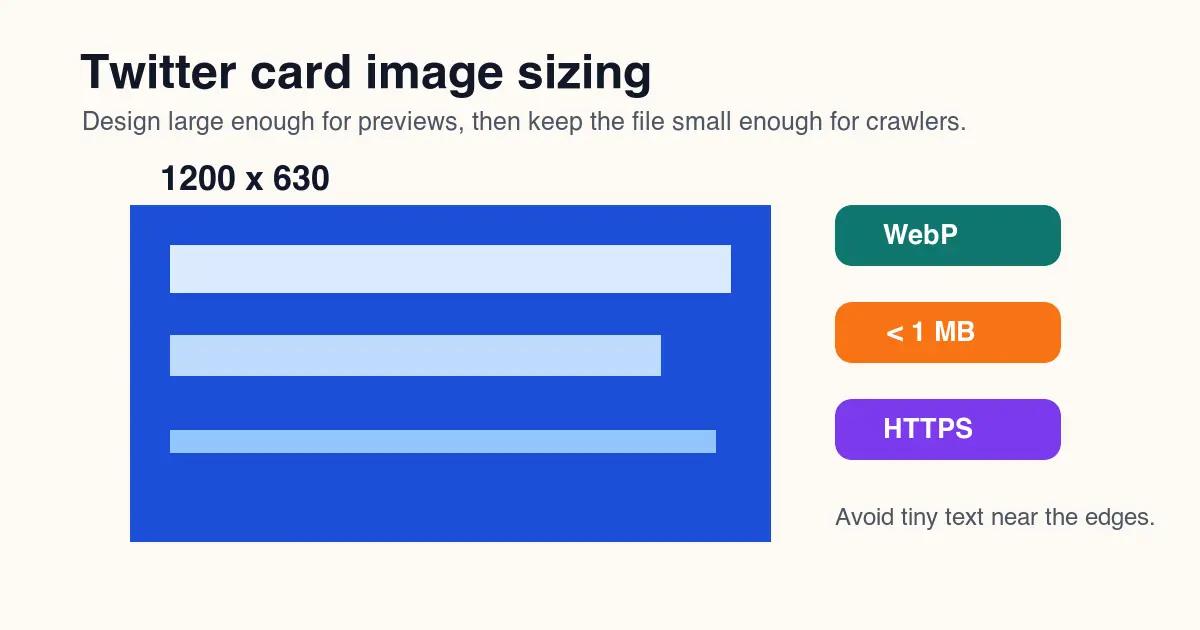
Use a 1200 by 630 pixel WebP or JPEG for most shared links, especially when you want a large image card. Keep the important subject away from the edges, make text readable at thumbnail size, and use an absolute HTTPS URL in both twitter:image and og:image.
For X, set twitter:card to summary_large_image when the image is the main draw. Keep the file comfortably below the documented card image limits and verify that the final CDN URL returns HTTP 200 before publishing.
The reliable setup is simple:
- Export a 1200 by 630 image for the preview.
- Use a final CDN URL, not a relative path.
- Add
twitter:title,twitter:description, andtwitter:image. - Add matching
og:title,og:description, andog:imageas a fallback. - Test the live URL after deploy, then refresh platform caches if the old image still appears.
What is a Twitter card image?
A Twitter card image is the image URL declared in page metadata so X can build a rich preview. It is not the same thing as the first image in your article. A crawler reads the HTML head, finds the card tags, fetches the image, and stores a cached preview for the shared URL.
X's own card markup examples still describe summary and summary_large_image card types in its developer documentation and examples. The practical difference is preview size: summary_large_image gives the image enough space to carry a blog, product, tool, or campaign link.
Open Graph matters because many social platforms, chat apps, and link preview systems read og:image. The Open Graph protocol defines og:title, og:type, og:image, and og:url as core metadata. Use both Twitter/X tags and Open Graph tags so one missing parser does not break every preview.
| Metadata field | Use it for | Practical note |
|---|---|---|
twitter:card |
Chooses summary or large-image layout | Use summary_large_image for most article and landing-page shares |
twitter:image |
Primary X preview image | Use an absolute HTTPS image URL |
og:image |
Fallback preview image for social and messaging apps | Usually match twitter:image unless a platform needs a different crop |
og:url |
Canonical URL for the shared page | Match the public canonical page URL |
title and description tags |
Browser and search context | Keep them consistent with social metadata |
For related image metadata work, pair this with the Image Optimization for SEO guide and the Complete Image Optimization Checklist.
What size should a Twitter card image be?
Start with 1200 by 630 pixels. It matches the common 1.91:1 social preview crop, gives platforms enough pixels to downscale cleanly, and works well when the same image is reused as og:image.
Avoid designing a card that only works at full size. Feeds crop, resize, and place text around the image. Small labels, thin UI screenshots, and busy backgrounds often look fine in a design tool but become unreadable in an actual share card.
| Use case | Recommended image | Why it works | Watch for |
|---|---|---|---|
| Blog post or guide | 1200 x 630 WebP | Large preview crop, broad platform compatibility | Tiny headline text |
| Product launch | 1200 x 630 WebP or JPEG | Product remains visible after downscaling | Cropping the product edge |
| Tool page | 1200 x 630 screenshot-based graphic | Shows what the tool does before the click | UI text too small to read |
| Logo-only page | 1200 x 630 with generous padding | Keeps the logo from feeling cramped | Empty-looking preview |
| Square-friendly campaign | Separate 1200 x 1200 variant when needed | Useful for platforms with square crops | Do not reuse it blindly as the X card |
Use the Best Image Resizer for Social Media article when you need multiple platform crops, and use Facebook Ad Image Sizes when the same creative also feeds paid social.
How do you write the metadata?
Put the tags in server-rendered HTML, inside the page <head>. Do not depend on client-side JavaScript to inject social tags after load. Link preview crawlers may not execute your app the same way a browser does.
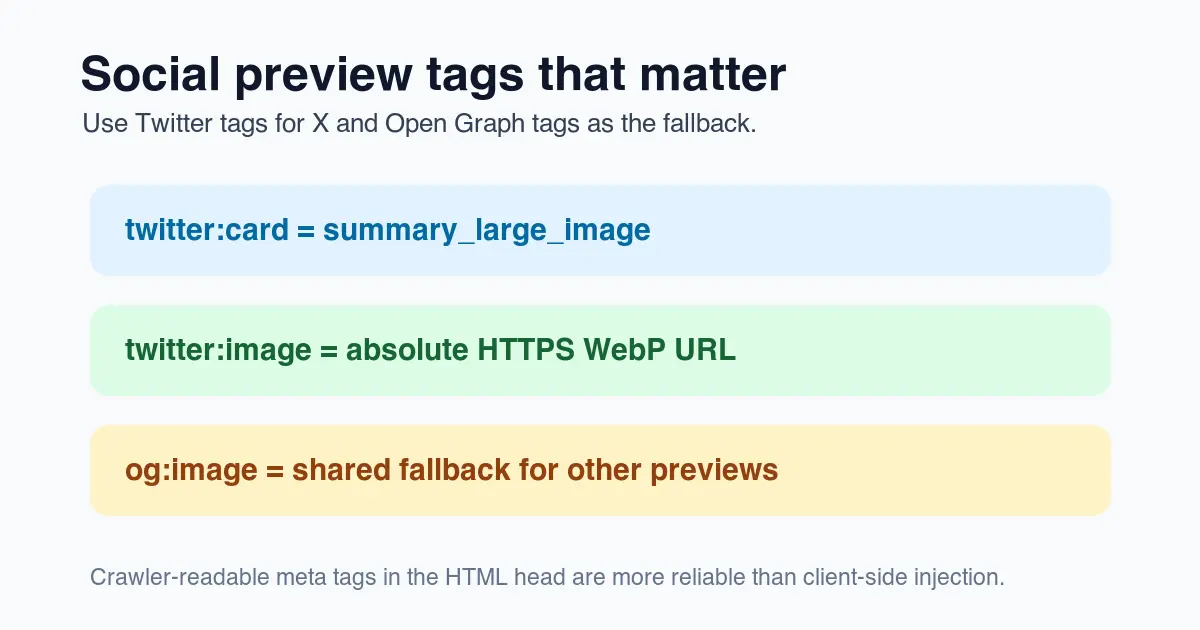
Use this pattern for a normal article or tool page:
<meta name="twitter:card" content="summary_large_image">
<meta name="twitter:title" content="Twitter Card Image Size and Preview Checklist">
<meta name="twitter:description" content="Choose the right image size, format, and tags for clean shared links.">
<meta name="twitter:image" content="https://cdn.example.com/blog/twitter-card-image.webp">

<meta property="og:type" content="article">
<meta property="og:title" content="Twitter Card Image Size and Preview Checklist">
<meta property="og:description" content="Choose the right image size, format, and tags for clean shared links.">
<meta property="og:image" content="https://cdn.example.com/blog/twitter-card-image.webp">
<meta property="og:url" content="https://example.com/blog/twitter-card-image">
Keep these checks in the code review:
- The image URL is absolute and starts with
https://. - The image URL is the final CDN URL, not a local build path.
- The page title and social title describe the same page.
- The social description is short enough to scan in a preview.
- The canonical URL and
og:urlpoint to the same public page. - The card image is not blocked by
robots.txt, authentication, or hotlink rules. - The server response includes a correct image content type.
Google's image SEO guidance also recommends descriptive image context, crawlable image URLs, and supported formats in Google Images best practices. That advice is not Twitter-specific, but it is the same publishing discipline: make the important image easy for crawlers to discover, fetch, and understand.
Should you use WebP, JPEG, or PNG for a Twitter card image?
Use WebP when your platform and preview targets support it, especially for article graphics, product previews, and screenshots with mixed colors. Use JPEG for broad compatibility or photo-heavy cards. Use PNG only when transparency or lossless edges matter enough to justify the larger file.
MDN's image file type guide explains that WebP supports both lossy and lossless compression. That flexibility is useful for social cards because a single image can contain photo texture, flat brand color, and type.
For this article, I encoded and tested four 1200 by 630 WebP graphics locally with ImageMagick and checked the output sizes before publishing. They landed between 14 KB and 28 KB because they are clean graphics with limited texture. Real product photos and detailed screenshots will usually be larger.
| Format | Good fit | Typical risk | Practical starting point |
|---|---|---|---|
| WebP | Most social preview graphics and mixed image cards | Some older tools may not preview local drafts | Export lossy WebP around quality 80-85 |
| JPEG | Photo-heavy previews and conservative compatibility needs | No transparency, possible ringing around text | Export around quality 82-88 |
| PNG | Logos, transparency, sharp flat graphics | Large file size | Use only when lossless is necessary |
| AVIF | Very small modern images | Preview ecosystem can be less predictable | Test carefully before using as the only card image |
If the card image is also a page hero, follow the Image Compression Ratio guide so the preview looks clean without making the page heavy. If you are comparing modern formats, read AVIF vs WebP Comparison.
How do you make the image readable in the feed?
Design the card for the smallest place it will be seen, not the artboard in your editor. A feed preview can be narrower than the original, and the surrounding UI competes for attention.
Use these design rules:
- Put the main subject or headline in the center safe area.
- Leave padding around faces, products, logos, and text.
- Use one short message, not a full article title plus subtitle plus badge.
- Check the image at 600 pixels wide before approving it.
- Avoid screenshots with tiny labels unless the UI itself is the story.
- Keep contrast high enough for a quick glance.
- Do not use a generic stock image when the page is about a tool, product, or technical workflow.
A useful card image should answer "what is this link about?" before the reader studies the title. For a blog post, that may be a simple diagram. For an ecommerce guide, it may be a product-photo example. For a converter or resizer, it may be a cropped tool screenshot.
Why is my Twitter card image not showing?
Most broken card images come from one of four causes: the crawler cannot fetch the URL, the metadata points at the wrong image, the platform has cached an old version, or the image is technically valid but a poor preview candidate.
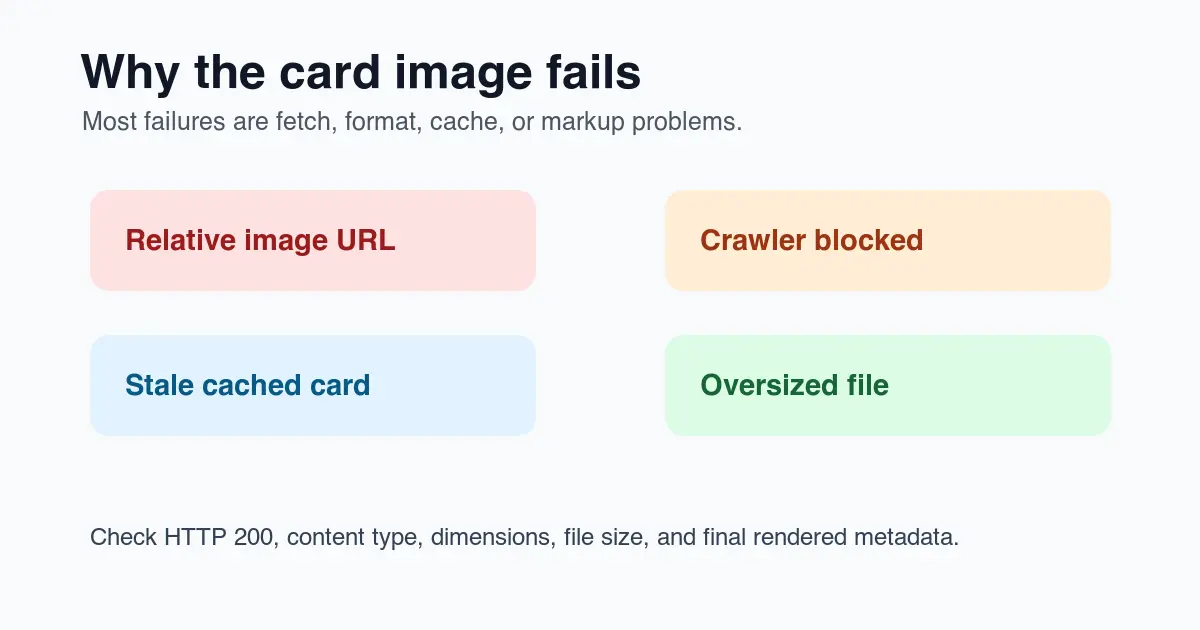
Run this sequence before changing the creative:
- Open the final page source and confirm the
twitter:imagetag exists. - Copy the exact image URL from the rendered HTML.
- Run
curl -Iagainst the image URL and confirm HTTP 200. - Confirm the response content type is an image type.
- Check that the image URL is not redirected through an auth wall.
- Make sure the image file is not enormous.
- Confirm
robots.txtdoes not block the image or page. - Change the image filename when you need to force a fresh cache.
- Re-test the deployed page, not a local preview URL.
- Check Open Graph tags if the card works in one app but not another.
| Symptom | Likely cause | Fix |
|---|---|---|
| No image appears | Missing or relative twitter:image |
Use a full HTTPS CDN URL |
| Old image appears | Cached preview | Publish a new filename and refresh the shared URL |
| Image appears cropped badly | Unsafe composition | Re-export with more padding and a central subject |
| Preview title is wrong | Metadata mismatch | Align twitter:title, og:title, and the page title |
| Works locally but not live | Local path, auth, or blocked CDN | Test the production URL with curl -I |
The Crop Image Online Guide is useful when the subject needs a safer crop, and Image Aspect Ratio Changer covers changing creative from square or portrait into a social preview frame.
Pre-publish checklist
Before you ship a page that depends on social sharing, review the image and metadata together. A perfect WebP file will still fail if the tag points to yesterday's URL. Perfect metadata will still disappoint if the image is unreadable in a feed.
Use this final checklist:
- The frontmatter or CMS image is the same image used for social metadata.
- The image is unique to the page or clearly relevant to the page.
- The image URL is HTTPS and public.
- The file extension matches the actual response format.
- The image returns HTTP 200 from the CDN.
- The title and description are not stuffed with keywords.
- The preview image has descriptive alt text where it appears in the article body.
- The image is visually checked at desktop and mobile preview sizes.
- The page has a stable canonical URL.
- The card is retested after deployment.
A good Twitter card image is a small publishing system: one clear visual, stable metadata, a fast CDN URL, and a final fetch check. Once those pieces are in place, the preview is much less likely to break during a launch or content refresh.
Frequently asked questions
What is the ideal Twitter card image size?
The ideal size is 1200 by 630 pixels, matching the 1.91:1 crop that summary_large_image cards expect.
What image format should I use for a Twitter card?
WebP is the best default for most social preview graphics, with JPEG as a safe fallback for photo-heavy cards.
Does the Twitter card image need to be HTTPS?
Yes, both twitter:image and og:image must point to an absolute HTTPS URL or crawlers may fail to fetch the preview.
What twitter:card value should I use for a large preview image?
Set twitter:card to summary_large_image whenever the image itself is the main visual draw of the shared link.
Why does my Twitter card still show an old image after I update it?
X caches previews per URL, so publishing a new image filename and re-testing the live page is usually the fastest way to force a refresh.
Can I reuse the same image for og:image and twitter:image?
Yes, using the same 1200 by 630 image for both tags keeps previews consistent across X, Facebook, and chat apps that read Open Graph data.
How do I check if my Twitter card image is loading correctly?
Run curl -I against the final CDN image URL and confirm it returns HTTP 200 with an image content type before publishing.
Is PNG a good choice for a Twitter card image?
PNG fits logos or graphics that need transparency or lossless edges, but it produces larger files than WebP or JPEG for a typical card.
Use the free tools while you follow the guide.
Keep reading

2026-07-26
How to Batch Resize Images: Free Tools and Scripts Compared
Resize hundreds of images at once with free online tools, ImageMagick, XnConvert, and Python scripts. Copy-paste commands, preset sizes, and a practical workflow.
2026-07-26
Bulk Image Resizer: Resize Hundreds of Images at Once (Free)
Resize hundreds of images in bulk for free with a browser tool, ImageMagick, XnConvert, or a Python script, with real byte savings and the safe batch workflow.
2026-07-26
How to Crop an Image to a Circle (Profile Photos and Avatars)
Crop an image to a circle for avatars and profile photos: the square-first rule, making a transparent circle PNG or a circle on a background, and where circles are used.